
Introduction
This manual provides essential information for setting up, operating, maintaining, and troubleshooting your HP 14-cf2733wm laptop. Please read this manual thoroughly before using your device to ensure proper function and longevity.
The HP 14-cf2733wm is a 14-inch laptop designed for portability and everyday productivity. It features an Intel Celeron N4120 processor, 4GB of RAM, and 64GB eMMC storage, running on Windows 11 Home in S mode.
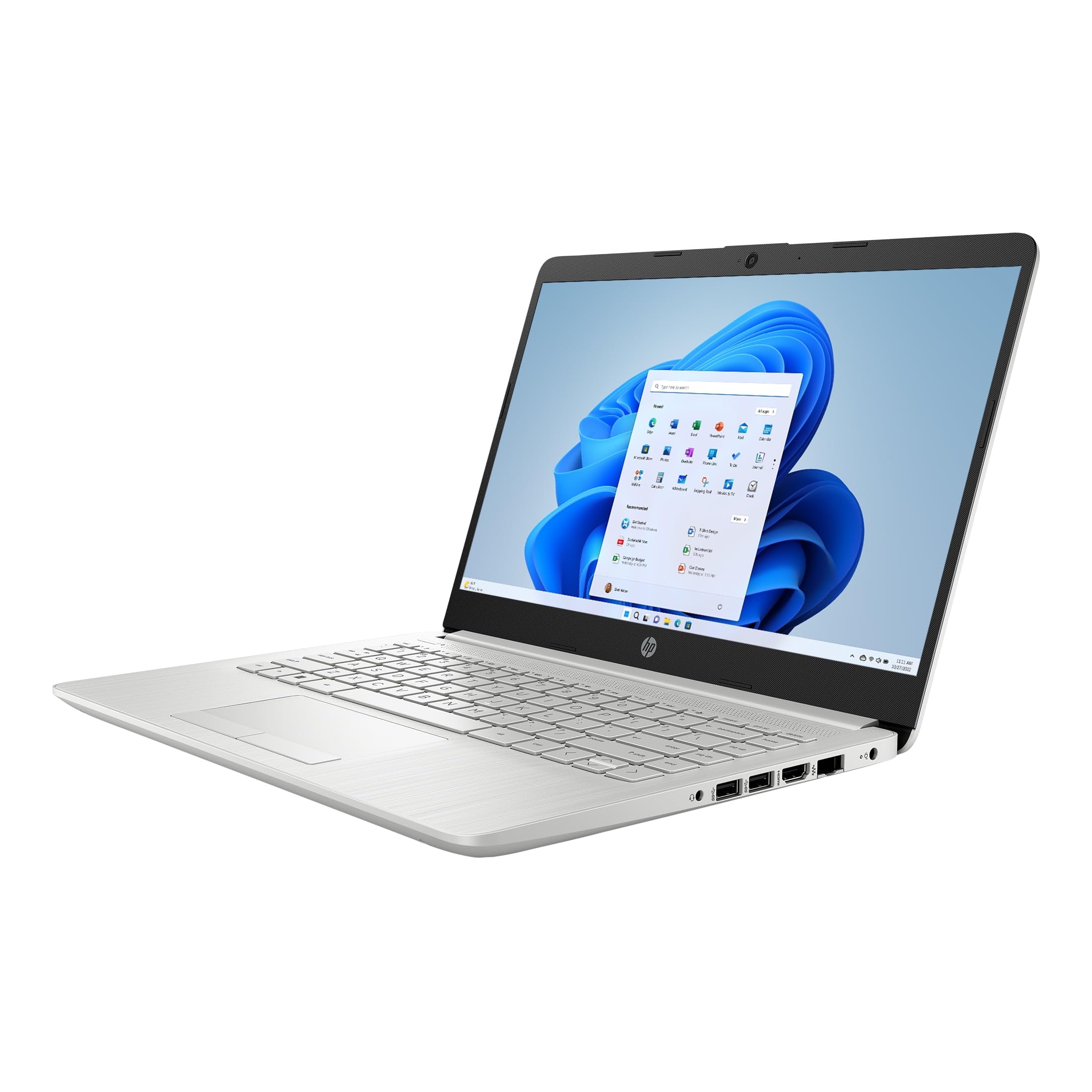
Figure 1: HP 14-cf2733wm Laptop. This image shows the silver HP laptop in a closed position, highlighting its slim design.
1. Setup
1.1 Unpacking the Laptop
Carefully remove all components from the packaging. Ensure the following items are present:
- HP 14-cf2733wm Laptop
- Power Adapter and Cable
- Documentation (Quick Start Guide, Safety Information)
1.2 Connecting the Power Adapter
- Connect the power cable to the power adapter.
- Plug the power adapter into a wall outlet.
- Insert the adapter's connector into the power port on the side of your HP laptop.
It is recommended to fully charge the laptop before initial use.
1.3 Initial Power On and Windows Setup
- Open the laptop lid.
- Press the power button, typically located on the keyboard deck.
- Follow the on-screen instructions to complete the Windows 11 Home in S mode setup. This includes selecting your region, language, connecting to a Wi-Fi network, and creating a user account.
- Activate the included 12-month Microsoft 365 Personal subscription as prompted during setup or later via the Microsoft Store.
2. Operating the Laptop
2.1 Using the Touchpad
The precision touchpad supports multi-touch gestures for navigation. Common gestures include:
- Tap: Single tap to click, double tap to open.
- Two-finger scroll: Drag two fingers up or down to scroll.
- Pinch-to-zoom: Pinch two fingers together or spread them apart to zoom in or out.
- Two-finger tap: Acts as a right-click.
2.2 Connecting External Devices
Your laptop features various ports for connecting peripherals:
- USB Ports: Connect USB drives, external mice, keyboards, or other compatible USB devices.
- HDMI Port: Connect an external monitor or TV for extended display.
- Audio Jack: Connect headphones or external speakers.
2.3 Wi-Fi and Bluetooth Connectivity
To connect to a Wi-Fi network:
- Click the Wi-Fi icon in the taskbar.
- Select your desired network from the list.
- Enter the network password if prompted and click "Connect".
To enable or disable Bluetooth:
- Go to Settings > Bluetooth & devices.
- Toggle the Bluetooth switch On or Off.
2.4 Windows 11 Home in S mode
Windows 11 Home in S mode is a version of Windows optimized for security and performance. It exclusively runs apps from the Microsoft Store and uses Microsoft Edge for safe browsing. If you need to install apps outside the Microsoft Store, you can switch out of S mode. This is a one-way switch.
To switch out of S mode:
- On your PC running Windows 11 in S mode, open Settings > System > Activation.
- In the "Switch to Windows 11 Home" section, select Go to the Store.
- On the "Switch out of S mode" (or similar) page that appears in the Microsoft Store, click the Get button.
- After you see a confirmation message on the page, you'll be able to install apps from outside the Microsoft Store.
3. Maintenance
3.1 Cleaning the Laptop
- Screen: Use a soft, lint-free cloth lightly dampened with water or a screen cleaner. Avoid harsh chemicals.
- Keyboard and Chassis: Use a soft, dry cloth. For stubborn dirt, a slightly damp cloth can be used. Avoid getting moisture into openings.
- Ports: Use compressed air to gently clear dust from ports.
Always power off and unplug the laptop before cleaning.
3.2 Battery Care
- Avoid extreme temperatures.
- Do not fully discharge the battery regularly.
- If storing the laptop for an extended period, charge the battery to about 50-70%.
3.3 Software Updates
Regularly check for and install Windows updates to ensure system stability, security, and performance. Go to Settings > Windows Update.
4. Troubleshooting
4.1 Laptop Does Not Power On
- Ensure the power adapter is securely connected to both the laptop and a working wall outlet.
- Verify the wall outlet is functional by plugging in another device.
- Try holding the power button for 15-20 seconds to perform a hard reset.
4.2 Slow Performance
- Close unnecessary applications running in the background.
- Check for and install any pending Windows updates.
- Ensure you have sufficient free storage space on the 64GB eMMC drive.
- Run a system scan for malware or viruses.
4.3 Wi-Fi Connectivity Issues
- Restart your laptop and your Wi-Fi router.
- Ensure Wi-Fi is enabled in Windows settings.
- Forget the network and reconnect, entering the password again.
- Check if other devices can connect to the same Wi-Fi network.
5. Specifications
| Feature | Detail |
|---|---|
| Model Name | HP 14-cf2733wm |
| Processor | Intel Celeron N4120 (up to 2.6 GHz burst frequency) |
| Operating System | Windows 11 Home in S mode |
| Display | 14-inch HD (1366 x 768) micro-edge anti-glare LED display |
| Graphics | Integrated Intel UHD Graphics 600 |
| RAM | 4 GB DDR4 |
| Storage | 64 GB eMMC |
| Wireless Connectivity | 802.11n Wi-Fi, Bluetooth |
| Ports | 2x USB, 1x HDMI, 1x Headphone/Microphone combo |
| Battery | Lithium Ion, 45 Watt Hours |
| Dimensions (L x W x H) | 12.82" x 8.42" x 0.65" (32.56 x 21.39 x 1.65 cm) |
| Weight | 3.5 lbs (1.59 kg) |
| Color | Silver |
| Webcam | Integrated Webcam |
6. Warranty and Support
6.1 Limited Warranty
Your HP 14-cf2733wm laptop comes with a 1-year limited hardware warranty. This warranty covers defects in materials and workmanship under normal use. For full terms and conditions, please refer to the warranty documentation included with your product or visit the official HP support website.
The warranty does not cover damage caused by accidents, misuse, unauthorized modifications, or external causes such as power fluctuations.
6.2 Technical Support
For technical assistance, driver downloads, or further support, please visit the official HP support website. You will need your product's model number (14-cf2733wm) and serial number (found on the product label) when contacting support.
HP Support Website: https://support.hp.com


