1. Introduction
This manual provides comprehensive instructions for the setup, operation, maintenance, and troubleshooting of your HKOORLAMULS S40 Pro Game Projector. Please read this manual thoroughly before using the product to ensure proper functionality and to maximize your user experience. Keep this manual for future reference.
2. Package Contents
Upon opening the package, please verify that all the following items are included:
- 1x S40 Pro Projector
- 1x Remote Control
- 1x Power Cable
- 1x User Manual (this document)
- 1x TF Card
- 2x Wireless Controllers (Gamepads)
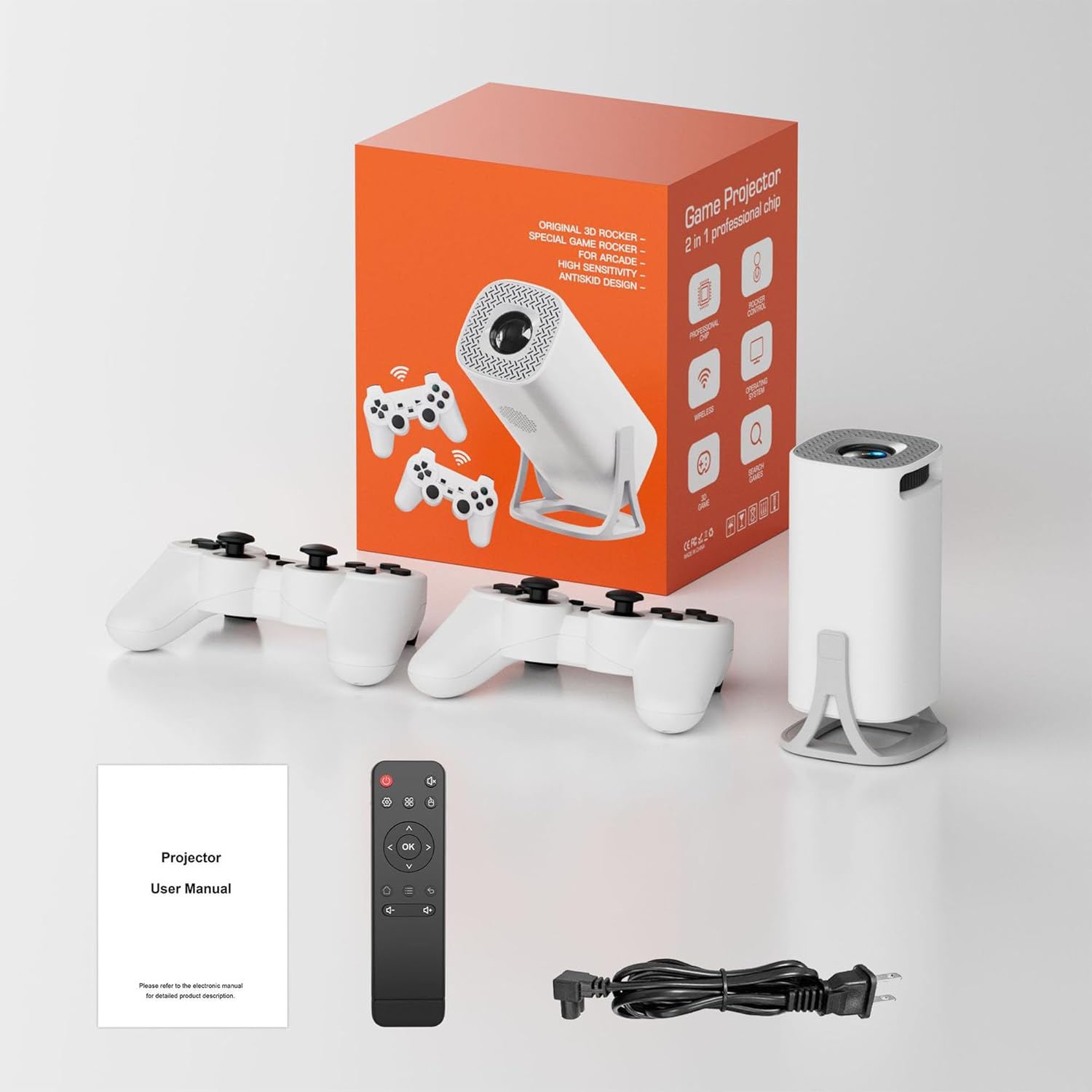
Image: The S40 Pro Game Projector, two wireless gamepads, a remote control, power cable, and user manual laid out, representing the complete package contents.
3. Product Overview
3.1 Projector Components and Ports
The S40 Pro projector features a compact design with essential ports for connectivity and control buttons. Familiarize yourself with the layout for optimal use.

Image: A technical diagram illustrating the dimensions (103x103x204mm) and port locations on the HKOORLAMULS S40 Pro projector, including USB, HDMI, AUX, and IR receiver ports.
- HDMI-IN Port: Connect external devices such as laptops, gaming consoles, or media players.
- USB Port: For connecting USB storage devices or other peripherals.
- AUX Port: For connecting external audio devices.
- IR Receiver: For receiving signals from the remote control.
- Power Input: Connect the provided power cable.
- Focus Wheel: Manual adjustment for image clarity.
- Control Panel: On-device buttons for basic navigation and settings.
3.2 Wireless Gamepads
The S40 Pro includes two wireless gamepads for an enhanced gaming experience. These controllers feature standard button layouts for intuitive gameplay.
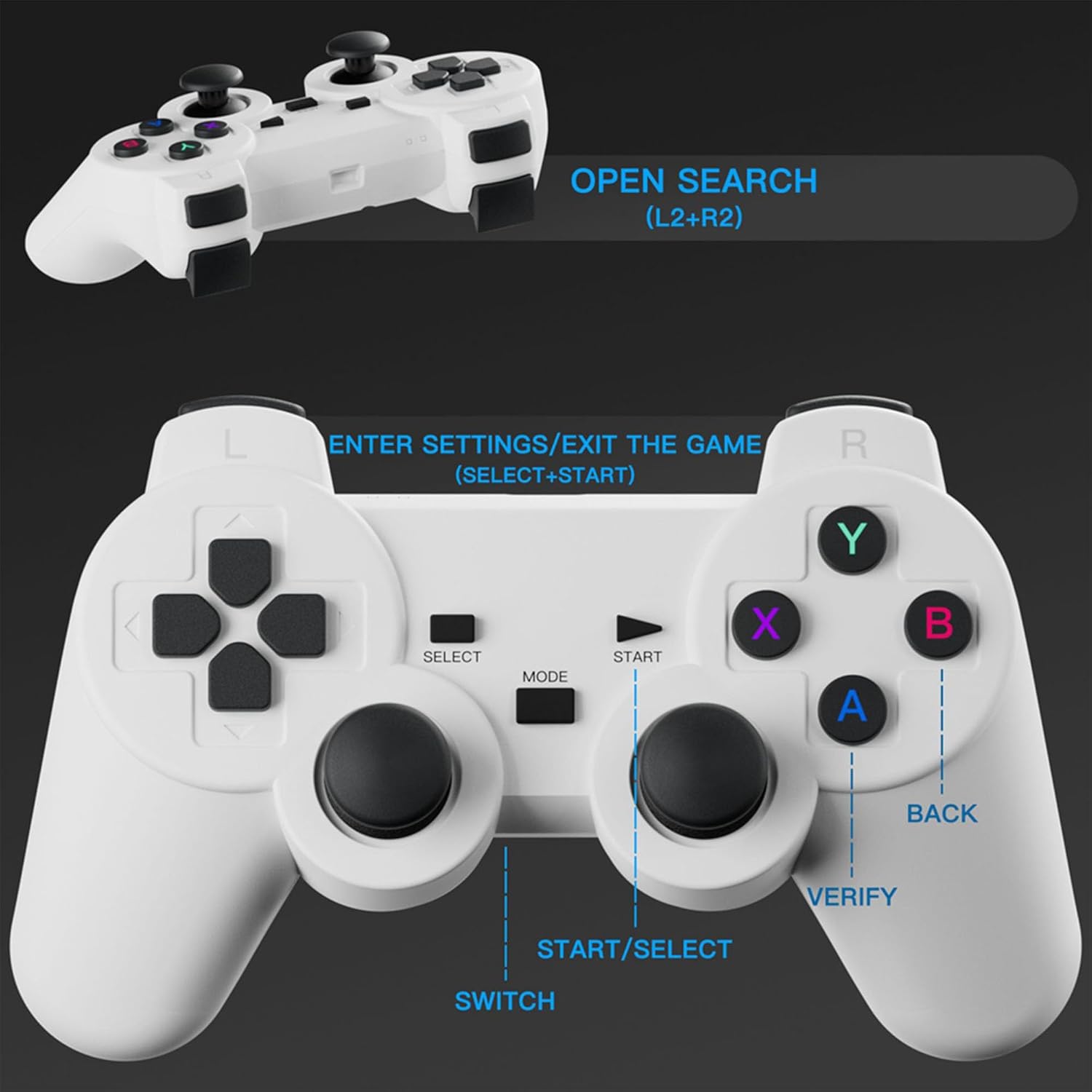
Image: A detailed view of the wireless gamepad, highlighting buttons such as SELECT, START, MODE, SWITCH, A, B, X, Y, BACK, VERIFY, and instructions for OPEN SEARCH (L2+R2) and ENTER SETTINGS/EXIT THE GAME (SELECT+START).
- Directional Pad (D-Pad): For movement and menu navigation.
- Action Buttons (A, B, X, Y): For in-game actions.
- Analog Sticks: For precise control in 3D environments.
- Shoulder Buttons (L1, L2, R1, R2): For additional in-game functions.
- START/SELECT Buttons: For pausing games, accessing menus, or confirming selections.
- MODE/SWITCH Button: For changing controller modes or functions.
4. Setup
4.1 Placement
Position the projector on a stable, flat surface. The optimal projection distance is 1.68 meters, allowing for a clear image. The projector supports a projection distance range of 1.2 to 4 meters, yielding a screen size of 40 to 120 inches.
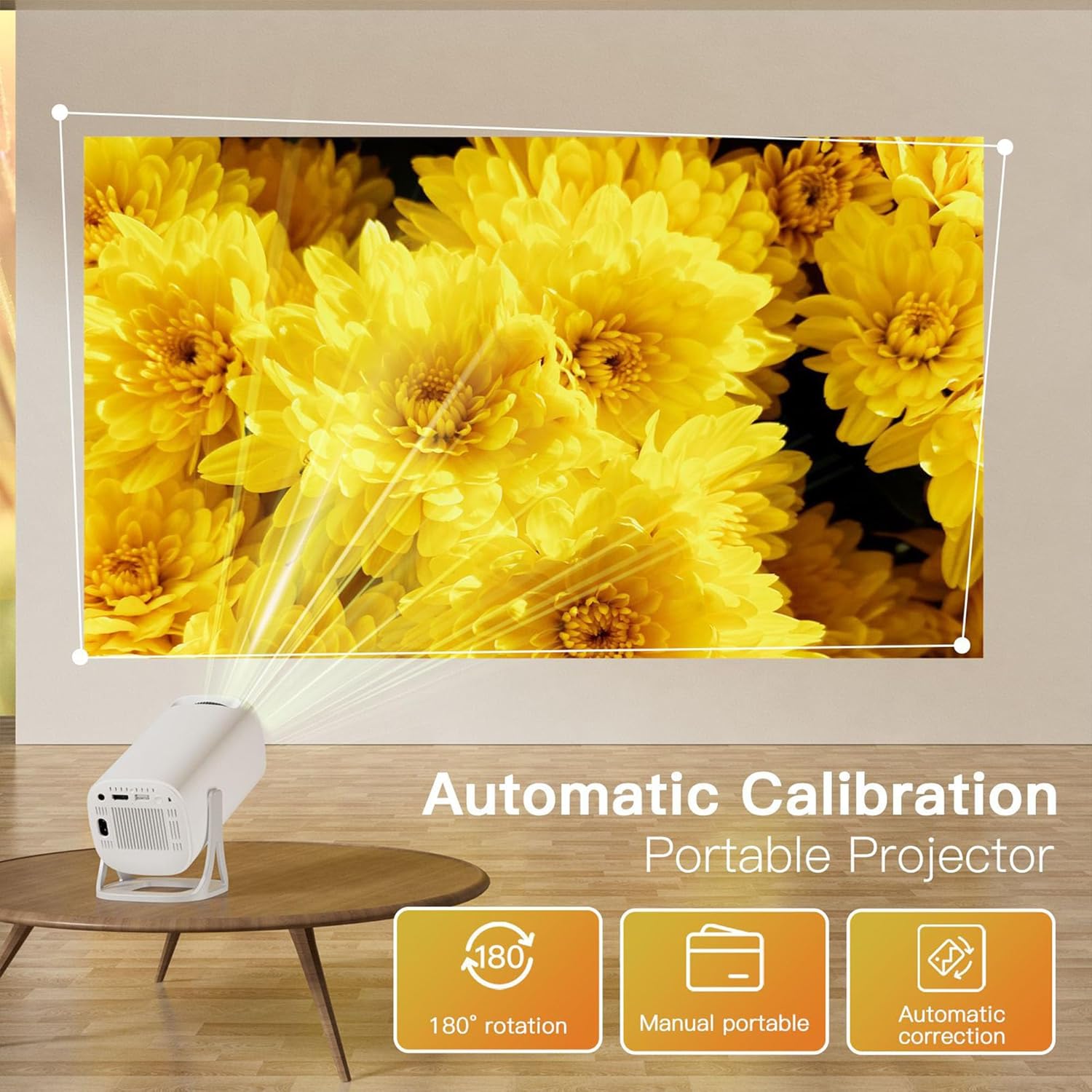
Image: The S40 Pro projector positioned on a table, projecting a large image onto a wall. Text overlays highlight "Automatic Calibration" and "180° rotation" capabilities, demonstrating its flexible placement options.
The projector features a 180° rotating stand, allowing for flexible projection angles, including from the floor to the ceiling.
4.2 Power Connection
- Connect the provided power cable to the power input port on the projector.
- Plug the other end of the power cable into a suitable electrical outlet.
4.3 Initial Power On
Press the power button on the projector or the remote control to turn on the device. The projector will boot up, displaying the Android 11 interface.
4.4 Gamepad Connection
The wireless gamepads are typically pre-paired. If they do not connect automatically, refer to the on-screen instructions or the projector's settings menu for Bluetooth device pairing.
5. Operating Instructions
5.1 Navigation and Control
You can navigate the projector's interface using the included remote control or the wireless gamepads. The on-device button panel offers basic controls.
5.2 Game Console Functionality
The S40 Pro comes pre-loaded with over 22,000 classic and modern 3D games. Access the game library from the main menu. Use the wireless gamepads for an immersive gaming experience.
5.3 Screen Mirroring (Wireless Connection)
To mirror your smartphone or tablet screen:
- Ensure your projector and mobile device are connected to the same Wi-Fi network.
- On the projector's interface, select the "Screen Mirror" or "Wireless Display" option.
- On your iPhone, use AirPlay; on Android, use Cast or Smart View to find and connect to the projector.

Image: The S40 Pro projector projecting a large image, with a smartphone, tablet, and laptop shown nearby, illustrating the "Convenient Screen Mirror" feature via WiFi for various devices.
5.4 Keystone Correction and Focus
The projector features automatic keystone correction to adjust the image shape for a rectangular display, even if the projector is not perfectly aligned. For image clarity, use the manual focus wheel located on the projector body.
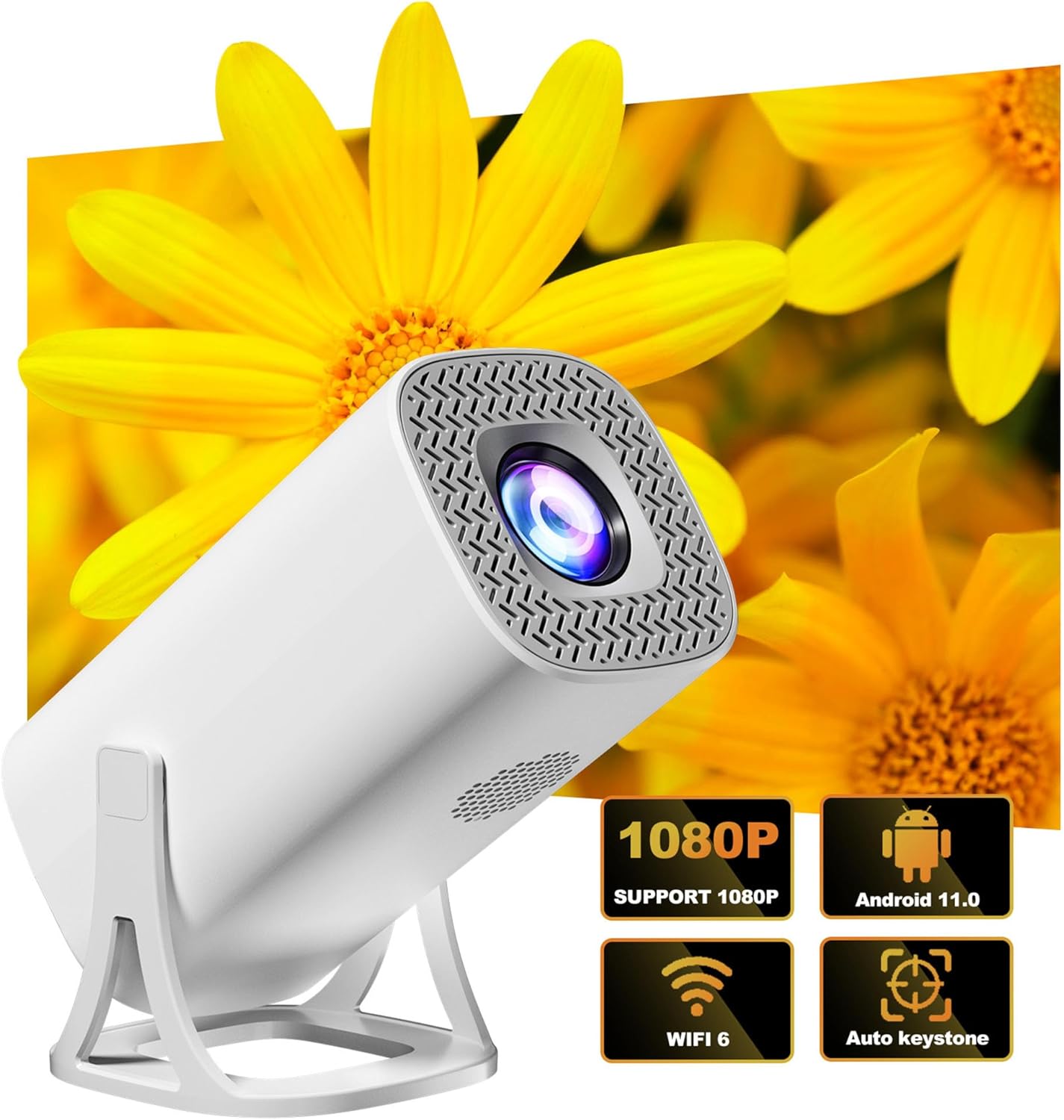
Image: The S40 Pro projector shown with graphical icons indicating its key features: 1080P support, Android 11 operating system, WiFi 6 connectivity, and automatic keystone correction.
5.5 Audio Output
The projector has a built-in 1*3W speaker. For enhanced audio, you can connect external Bluetooth speakers or headphones using Bluetooth 5.4 technology. Alternatively, use the AUX port for wired audio connections.
5.6 Connectivity
The S40 Pro supports various connectivity options:
- Wi-Fi 6 (2.4G+5G): For internet access and wireless screen mirroring.
- Bluetooth 5.4: For connecting wireless audio devices and gamepads.
- HDMI-IN: For wired connection to external video sources.
- USB: For connecting USB storage devices.
6. Maintenance
To ensure the longevity and optimal performance of your projector, follow these maintenance guidelines:
- Cleaning: Use a soft, dry cloth to clean the projector's exterior. For the lens, use a specialized lens cleaning cloth and solution. Avoid abrasive cleaners.
- Ventilation: Ensure the projector's ventilation openings are not blocked to prevent overheating.
- Storage: When not in use for extended periods, store the projector in a cool, dry place, away from direct sunlight and excessive dust.
- Power Off Properly: Always power off the projector using the designated power button or remote control to ensure a proper shutdown sequence.
7. Troubleshooting
If you encounter issues with your S40 Pro Projector, refer to the following common problems and solutions:
| Problem | Possible Cause | Solution |
|---|---|---|
| No image displayed | Power cable loose, input source not selected, device not powered on. | Check power connection. Ensure the projector is on. Select the correct input source (HDMI, Screen Mirror). |
| Image is blurry | Focus not adjusted, projector too close/far, lens dirty. | Adjust the manual focus wheel. Ensure projector is within optimal projection distance. Clean the lens. |
| Image is distorted (trapezoid shape) | Projector not perpendicular to the screen. | The projector has automatic keystone correction. Ensure it is enabled in settings. Adjust projector position if necessary. |
| No sound | Volume too low, external audio device not connected/selected, mute enabled. | Increase volume. Check Bluetooth connection for external speakers. Ensure projector is not muted. |
| Wireless gamepad not responding | Low battery, not paired, interference. | Replace gamepad batteries. Re-pair the gamepad via Bluetooth settings. Reduce distance to projector. |
| Screen mirroring not working | Not on same Wi-Fi network, device compatibility, network issues. | Ensure both devices are on the same 2.4G or 5G Wi-Fi network. Restart both devices. Check device compatibility. |
8. Specifications
| Feature | Detail |
|---|---|
| Brand | HKOORLAMULS |
| Model | S40 PRO |
| Native Resolution | 1280*720P |
| Supported Resolution | 720P (supports 4K Video Playback) |
| CPU | Allwinner H713 64-bit quad core ARM Cor-tex A53 CPU |
| RAM | LPDDR4 1GB |
| Storage | 8GB (internal) + 64GB (TF Card included) |
| Operating System | Android 11 |
| Brightness | 130 ANSI lumens |
| Contrast Ratio | 1500:1 |
| Color Temperature | 8000K ±(1000K) |
| Image Flip | 360 degrees flip |
| Keystone Correction | Automatic |
| Focus Adjustment | Manual focus |
| Projection Distance | 1.2 - 4 meters |
| Optimal Projection Distance | 1.68 meters |
| Projection Size | 40 - 120 inches |
| Speaker | 1*3W |
| Connectivity | Wi-Fi 6 (2.4G+5G), Bluetooth 5.4, HDMI-IN |
| Product Dimensions | 20.4 x 10.3 x 10.3 cm (approx. 8 x 4 x 4 inches) |
| Operation Mode | Button panel and remote control |
| Language Support | Multiple languages |
9. Warranty and Support
HKOORLAMULS is committed to providing quality products and customer satisfaction. For any queries, concerns, or technical assistance regarding your S40 Pro Game Projector, please contact our dedicated professional technical support team. Refer to your purchase documentation or the HKOORLAMULS brand store on Amazon for contact information.
Please note that specific warranty terms and conditions may vary by region and retailer. Keep your proof of purchase for warranty claims.


