
1. Introduction
Thank you for purchasing the KTC 24-inch WQHD 100Hz IPS Monitor. This manual provides essential information for the safe and efficient use of your new monitor. Please read it thoroughly before use and keep it for future reference.
This monitor features a 24-inch IPS panel with WQHD (2560x1440) resolution, offering stunning visual clarity and vibrant colors with 122% sRGB coverage. A 100Hz refresh rate and FreeSync & G-Sync compatibility ensure smooth, tear-free visuals, ideal for both office work and casual gaming. Advanced eye care technologies, including blue light reduction and flicker-free operation, provide a comfortable viewing experience even during extended use. The monitor also supports HDR10 for enhanced dynamic range and features flexible connectivity options with HDMI and DisplayPort.
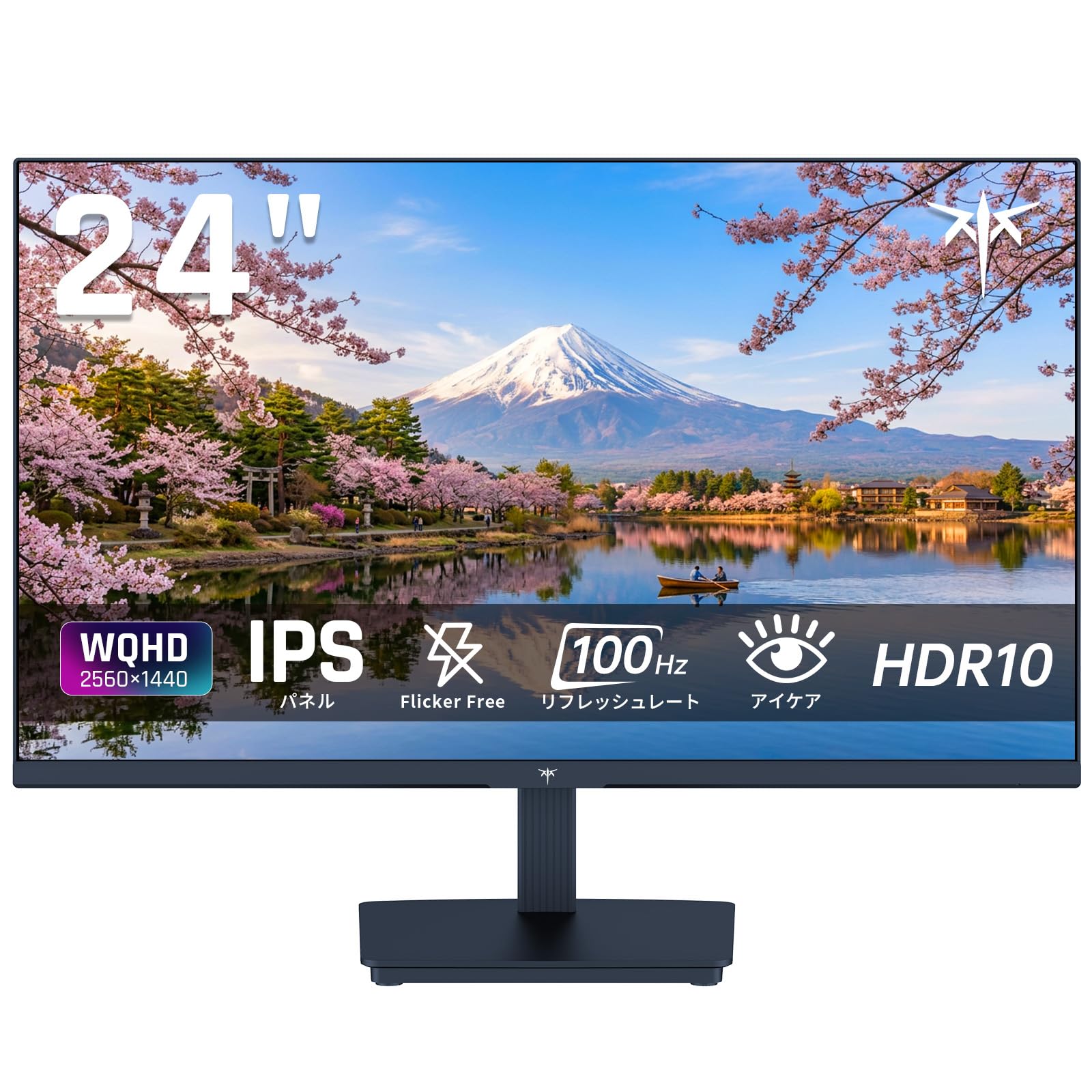
Image: KTC 24-inch WQHD 100Hz IPS Monitor.
2. Safety Information
Please observe the following safety precautions to prevent damage to the monitor or injury to yourself or others:
- Do not expose the monitor to rain, moisture, or extreme temperatures.
- Ensure proper ventilation around the monitor to prevent overheating.
- Use only the power adapter supplied with the monitor.
- Avoid placing heavy objects on the power cord or monitor.
- Do not attempt to disassemble or repair the monitor yourself. Contact qualified service personnel.
- Keep the monitor away from strong magnetic fields.
3. Package Contents
Verify that all items are present in the package:
- KTC 24-inch WQHD 100Hz IPS Monitor (H24T27)
- Monitor Base
- HDMI Cable
- Power Adapter
- User Manual
4. Setup
4.1 Assembling the Stand
- Carefully remove the monitor and base from the packaging.
- Attach the stand neck to the monitor panel.
- Secure the base to the stand neck using the provided screws.
4.2 Connecting the Monitor
Connect the monitor to your computer or other devices using the appropriate cables.
- Power Connection: Connect the power adapter to the monitor's DC input and then plug it into a power outlet.
- Video Connection: Use the supplied HDMI cable or a DisplayPort cable to connect your computer's video output to the corresponding port on the monitor.
- Audio Output: If desired, connect headphones or external speakers to the 3.5mm audio output jack.

Image: Close-up of the KTC monitor's rear ports, including DC power, HDMI, DisplayPort, and audio out.
5. Operating Instructions
5.1 Power On/Off
Press the power button located on the monitor to turn it on or off.
5.2 On-Screen Display (OSD) Menu
The OSD menu allows you to adjust various monitor settings. Use the control buttons (usually located on the back or bottom of the monitor) to navigate the menu and make selections.
5.3 Display Settings
- Resolution: The monitor supports WQHD (2560x1440) resolution for sharp and detailed images. Ensure your graphics card is set to this resolution for optimal display.
- Refresh Rate: Enjoy smooth visuals with a 100Hz refresh rate. This can be configured in your operating system's display settings.
- Color Gamut: The monitor offers 122% sRGB coverage for rich and accurate colors.

Image: KTC monitor highlighting key features like IPS panel, 100Hz, WQHD, 24-inch, Adaptive Sync, and blue light reduction.

Image: Comparison of WQHD (2560x1440) and FHD (1920x1080) resolutions, demonstrating enhanced detail with WQHD.

Image: Comparison of 100Hz and 60Hz refresh rates, showing smoother motion with 100Hz.
5.4 Adaptive Sync (FreeSync & G-Sync)
The monitor supports both FreeSync and G-Sync technologies to eliminate screen tearing and stuttering, providing a fluid gaming experience. Ensure this feature is enabled in your graphics card settings and the monitor's OSD.

Image: Monitor display showing HDR10 content on one side and standard HDR on the other, along with FreeSync & G-Sync comparison (ON/OFF).
5.5 Eye Care Features
The monitor includes Flicker-Free technology and a Blue Light Reduction mode to minimize eye strain during prolonged use. These settings can be adjusted via the OSD menu.

Image: KTC monitor displaying eye care features: Low Blue Light (ON/OFF) and Flicker-Free (ON/OFF).
5.6 HDR10 Support
This monitor supports HDR10, providing a wider range of colors and contrasts for a more immersive viewing experience. Ensure HDR is enabled in your device's display settings for compatible content.
5.7 Adjustable Stand
The monitor stand allows for tilt adjustment from -5° to 15°, enabling you to find the most comfortable viewing angle.

Image: Side view of the KTC monitor demonstrating the tilt-adjustable stand (-5° to 15°).
5.8 Wide Viewing Angle
The IPS panel provides a wide 178-degree viewing angle, ensuring consistent color and image quality from almost any perspective.

Image: KTC monitor showcasing a wide 178-degree viewing angle with consistent color.
6. Maintenance
6.1 Cleaning the Monitor
- Always unplug the monitor before cleaning.
- Use a soft, lint-free cloth lightly dampened with water or a mild, non-abrasive screen cleaner.
- Do not spray cleaner directly onto the screen.
- Avoid using harsh chemicals or abrasive materials.
6.2 General Care
- Keep the monitor in a clean, dry environment.
- Protect the screen from sharp objects.
- When moving the monitor, handle it carefully and avoid putting pressure on the screen.
7. Troubleshooting
If you encounter issues with your monitor, refer to the following common problems and solutions:
| Problem | Possible Solution |
|---|---|
| No image on screen | Check power connections. Ensure video cable is securely connected to both monitor and computer. Select correct input source via OSD. |
| Image is blurry or distorted | Ensure the display resolution is set to 2560x1440. Check video cable for damage. |
| Screen tearing or stuttering | Verify FreeSync/G-Sync is enabled in both monitor OSD and graphics card settings. |
| No sound from headphones/speakers | Check audio cable connection. Ensure volume is not muted on monitor or computer. |
| Monitor not turning on | Check power outlet and power adapter connection. Try a different power outlet. |
If the problem persists after trying these solutions, please contact KTC customer support.
8. Specifications
Detailed technical specifications for the KTC H24T27 monitor:
| Feature | Specification |
|---|---|
| Brand | KTC |
| Model Number | H24T27 |
| Screen Size | 24 inches |
| Resolution | WQHD (2560 x 1440 pixels) |
| Aspect Ratio | 16:9 |
| Panel Type | IPS |
| Screen Surface | Non-glare |
| Refresh Rate | 100 Hz |
| Response Time | 7 ms |
| Contrast Ratio | 1300:1 |
| Brightness | 300 cd/m² |
| Color Gamut | 122% sRGB |
| Viewing Angle | 178 degrees |
| HDR Technology | HDR10 |
| Adaptive Sync | FreeSync, G-Sync |
| Connectivity | 1x HDMI, 1x DisplayPort, Audio Out |
| Power Consumption | 12 Watts |
| Voltage | 100 Volts |
| Dimensions (D x W x H) | 18.3 x 54 x 40.5 cm |
| Additional Features | Adaptive Sync, Eye Care, Flicker-Free, Blue Light Filter, Tilt Adjustment |
| Compatible Devices | Game Consoles, Laptops |
| Color | Black |
| Shape | Flat |
| Origin | China |
9. Warranty and Support
9.1 Warranty Information
Your KTC monitor comes with a 3-year manufacturer's warranty. In the event of a product defect, a free replacement will be provided. Please note that this warranty does not cover loss or damage caused by customer negligence.

Image: KTC's 3-year free replacement warranty details and contact information.
9.2 Customer Support
For any inquiries or concerns, please feel free to contact us. We are committed to providing full support to ensure your satisfaction.
Phone: 050-3606-8990
Email: support@ktcplay.com
You can also contact support through Amazon:

Image: Step-by-step guide on how to contact customer support via Amazon.
10. Product Overview Video
Watch this video for a visual overview of the KTC QHD computer monitor and its features.
Video: This video showcases the KTC QHD computer monitor, highlighting its 2560x1440 (2K) resolution, 100Hz refresh rate, FreeSync and G-Sync compatibility, flicker-free and low blue light features, 8-bit & 116% sRGB color gamut, 3-side frameless design, -5° to 15° tilt adjustable stand, and available sizes (24, 27, 32 inches). It emphasizes its suitability for professional office use.


