
Introduction
This manual provides detailed instructions for the operation and maintenance of your TKMARS 4K Action Camera Model 24A09001. Please read this manual thoroughly before using the device to ensure proper functionality and to maximize your user experience. Keep this manual for future reference.
Product Overview
Key Features
- 4K Video Quality: Capture high-resolution video.
- Wi-Fi Connectivity: Real-time monitoring and file transfer via the 'Viidure' app.
- 170° Wide-Angle Lens: Provides an expansive field of view without distortion.
- 180° Rotatable Lens: Adjust the recording angle for versatile shooting.
- Loop Recording: Continuous recording with automatic overwriting of older files.
- Night Vision: Equipped with 4 infrared lights for clear recording in low-light conditions.
- Long Battery Life: Integrated 1400mAh battery for extended use (approximately 5-6 hours).
- One-Touch Operation: Separate buttons for video recording and photo capture.
- Multifunction Back Clip: Features a clip-on design, 1/4" screw connection, and magnetic adsorption for various mounting options.
- Compact and Portable: Small size (12.6 x 7.9 x 5.5 cm) and lightweight (120g) for easy carrying.
- 1.5-inch Screen: For viewing and menu navigation.
Camera Components
Familiarize yourself with the physical layout and controls of your TKMARS 4K Action Camera.
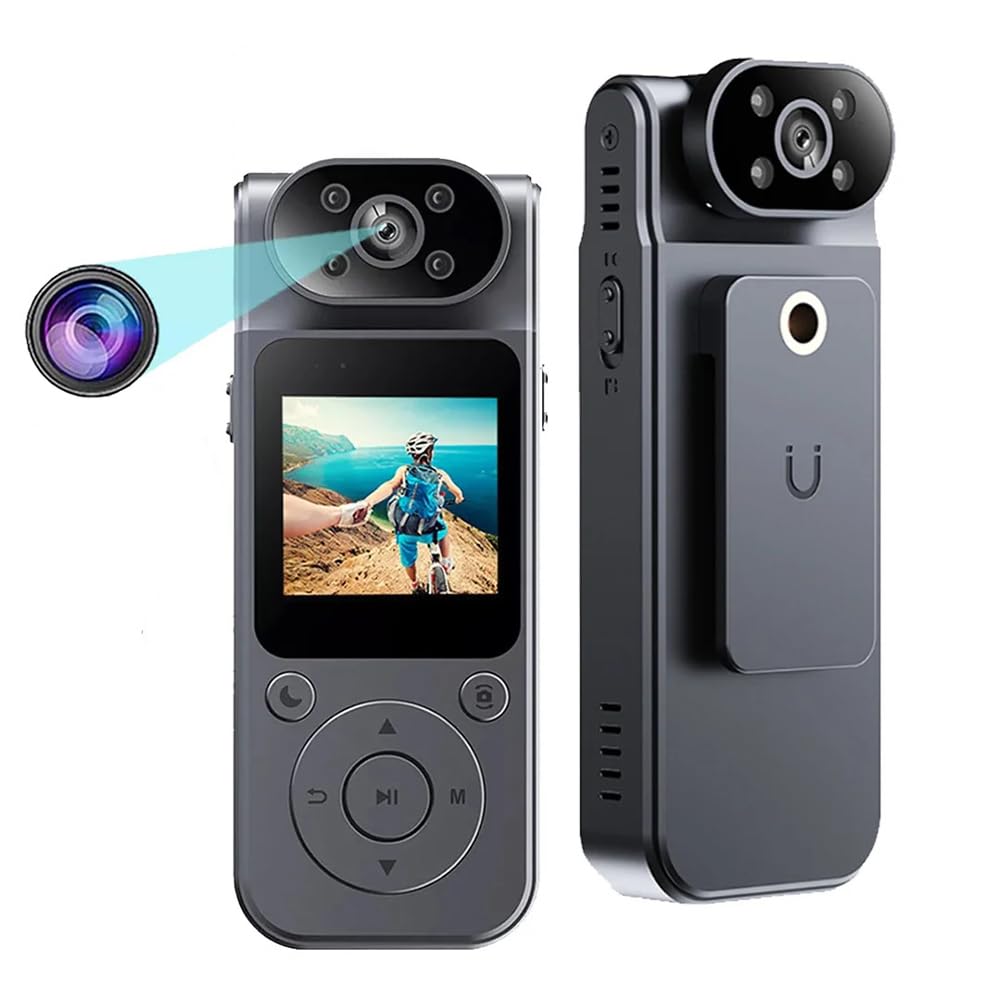
Image: Front and side view of the TKMARS 4K Action Camera, highlighting its compact design and screen.
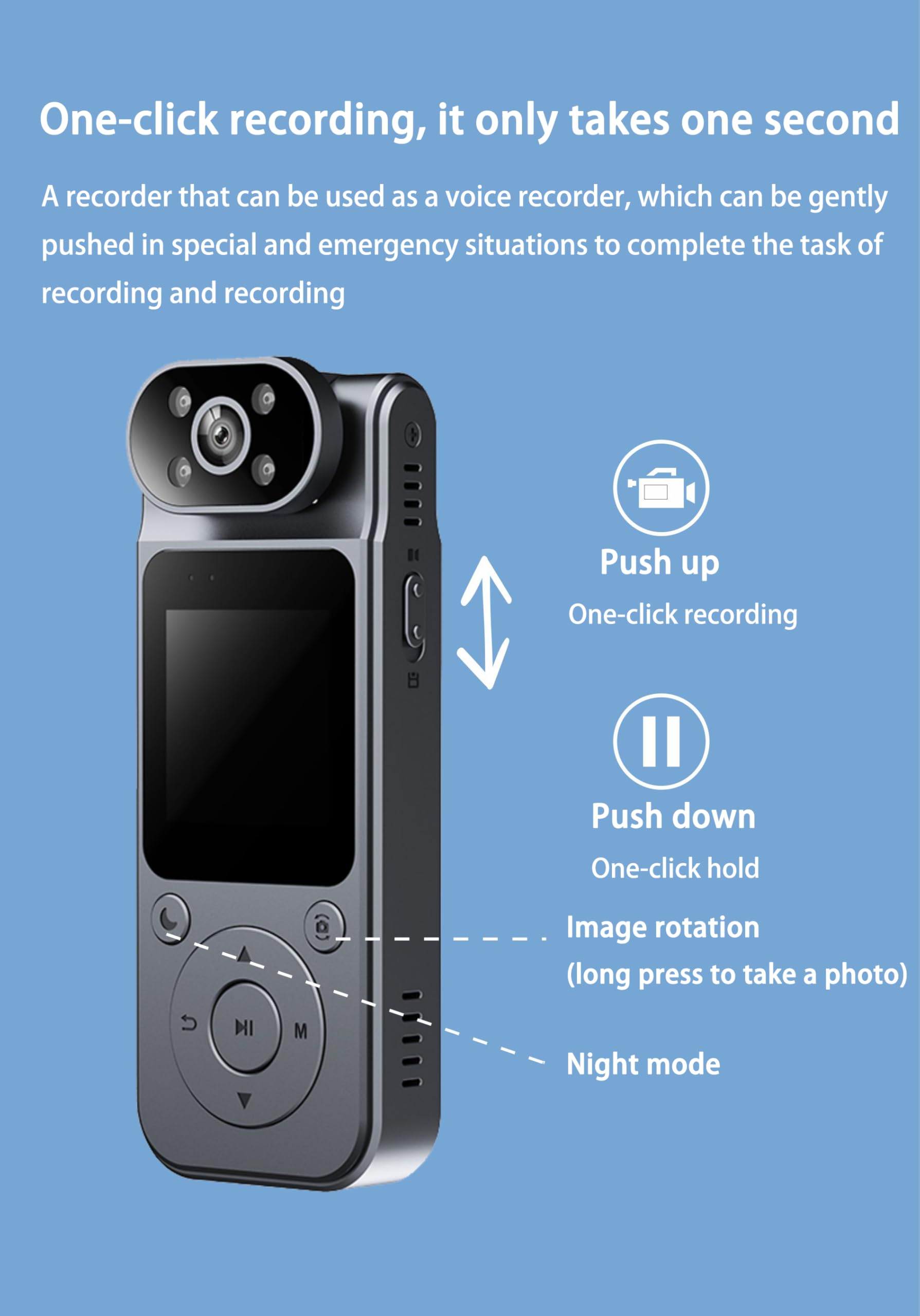
Image: Side view of the camera illustrating the one-click recording slider (push up for recording, push down for hold) and other controls like image rotation and night mode buttons.
Setup
Charging the Battery
The camera is equipped with a 1400mAh rechargeable battery. To charge, connect the camera to a power source (e.g., computer USB port, USB wall adapter) using the provided USB charging cable. The charging indicator will show the charging status.
Inserting a Micro SD Card
A Micro SD card (not included) is required for storing recordings and photos. The camera supports Micro SD cards with capacities from 8GB to 128GB. Ensure the card is formatted correctly (FAT32 recommended). Gently insert the Micro SD card into the designated slot until it clicks into place. To remove, push the card in slightly until it springs out.
Powering On/Off
To power on the camera, press and hold the power button located on the device. To power off, press and hold the power button again until the device shuts down.
Operating Instructions
Video Recording
To initiate video recording, slide the dedicated recording switch upwards. The camera will begin recording immediately. To stop recording, slide the switch downwards. The recorded video files are saved to the Micro SD card.
Photo Capture
To take a still photograph, press the dedicated photo button. The camera will capture an image and save it to the Micro SD card.
Loop Recording
The loop recording feature allows the camera to record continuously. When the Micro SD card's storage is full, the oldest video files will be automatically overwritten by new recordings. This function can be configured for intervals of 3, 5, 10, or 15 minutes through the camera's settings menu.
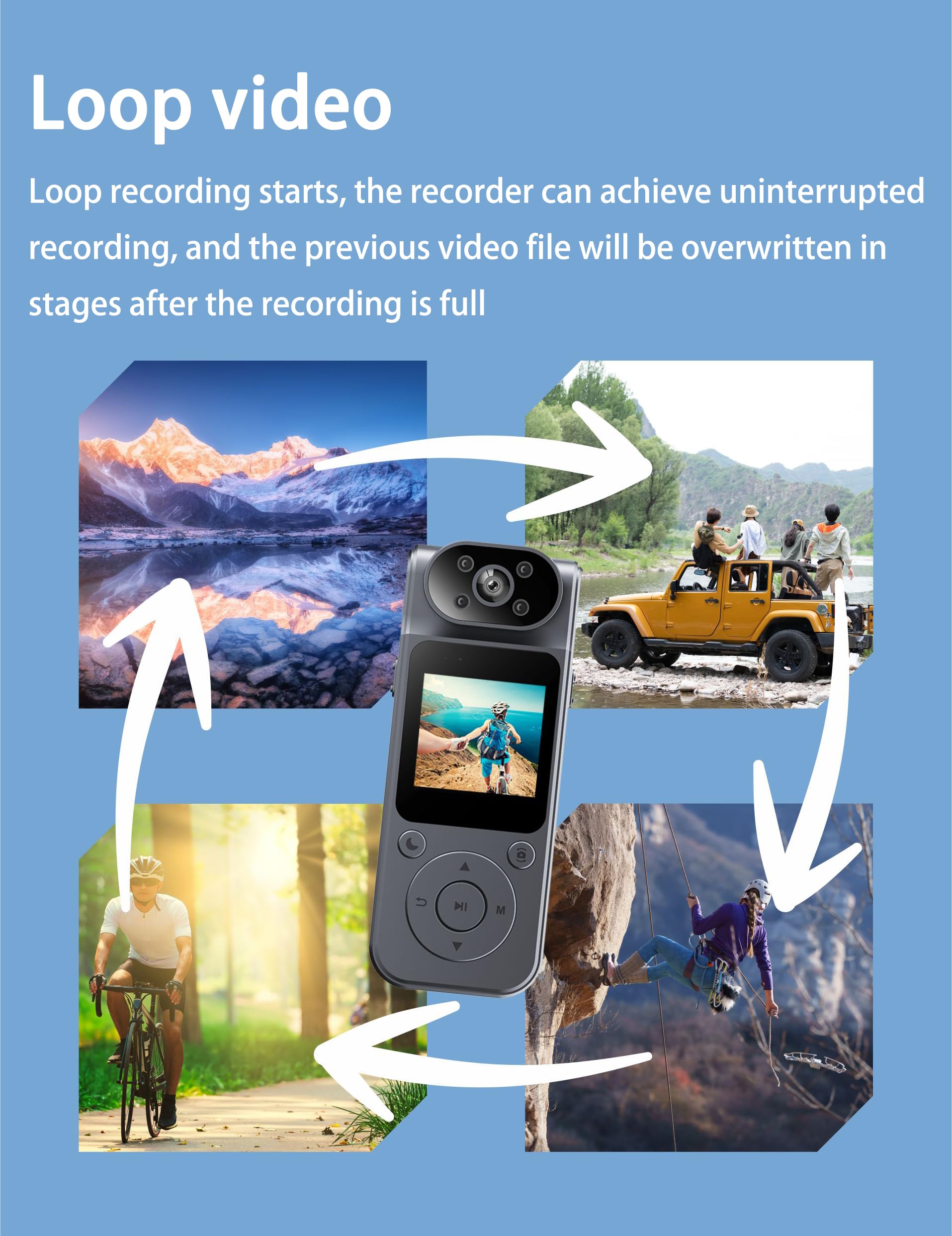
Image: Diagram illustrating how loop recording works, with older footage being replaced by new footage once the storage limit is reached.
Night Vision
The camera is equipped with infrared night vision capabilities, utilizing 4 infrared lights to enhance visibility and capture clear video in low-light or dark environments. Activate this feature via the camera's menu or a dedicated button if available.
Lens Rotation
The camera features a 180-degree rotatable lens, allowing you to adjust the recording angle manually to suit various shooting scenarios and perspectives.
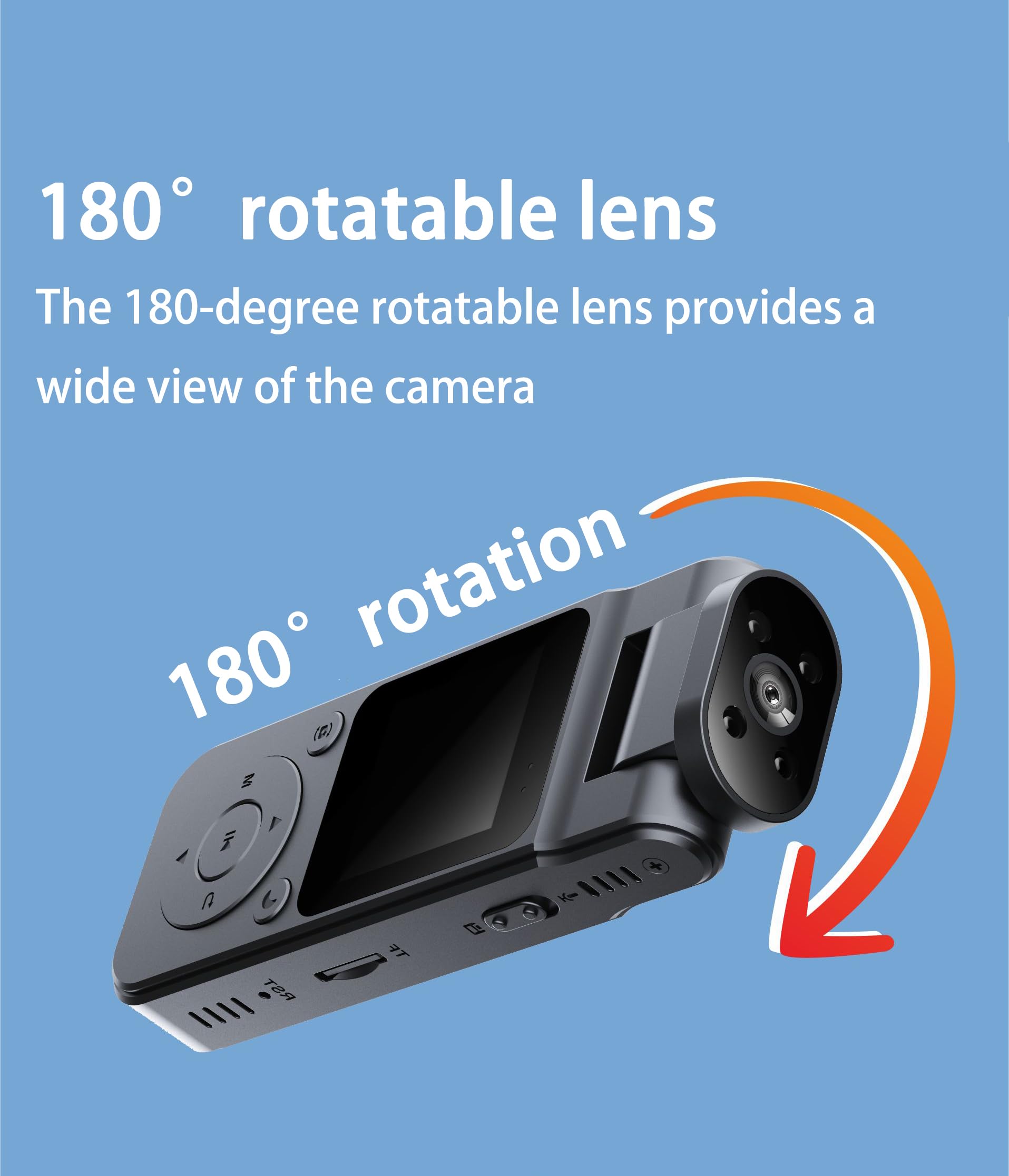
Image: Visual representation of the camera's lens rotating 180 degrees, indicating its flexibility in capturing different angles.
Wide-Angle View
The 170-degree wide-angle lens captures a broad and undistorted view, providing more visual details and an immersive recording experience. This is ideal for capturing landscapes or group shots.

Image: A comparison showing the expanded field of view provided by the 170-degree wide-angle lens compared to a standard phone screen.
Wi-Fi Connection and App Usage
The camera generates a Wi-Fi hotspot for wireless connectivity. To connect, download the 'Viidure' application on your smartphone or tablet. Enable Wi-Fi on your mobile device and connect to the camera's Wi-Fi network. Once connected, you can use the app to view live video, play back recorded footage, and download files directly to your mobile device.
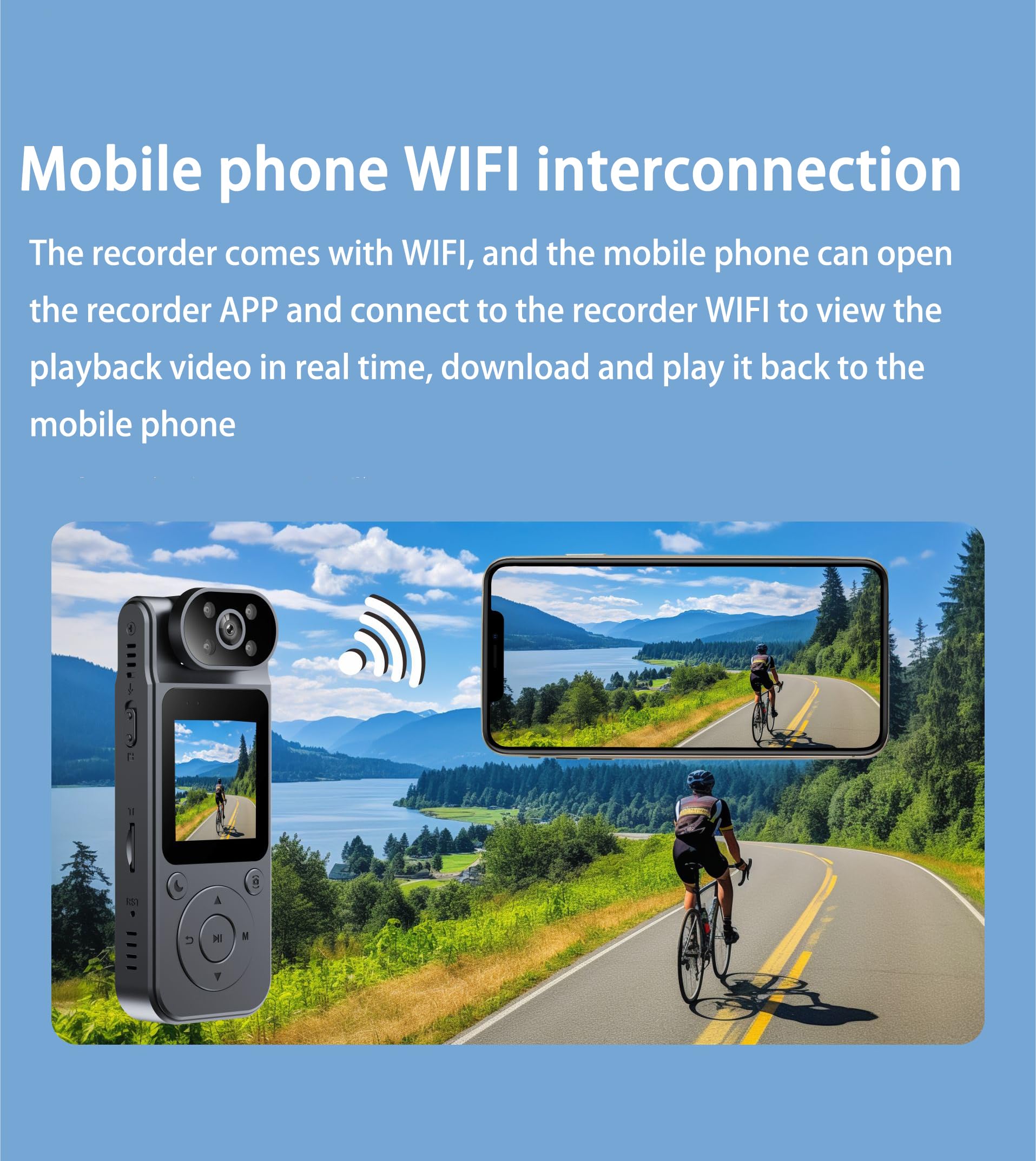
Image: Depiction of the camera wirelessly connected to a smartphone, showing real-time video streaming from the camera to the phone.
Multifunction Back Clip
The camera is designed with a versatile back clip that offers multiple mounting options. It features a sturdy clip-on design for attaching to clothing or gear, a standard 1/4" screw connection for compatibility with tripods and other camera mounts, and magnetic adsorption for securing to metallic surfaces.
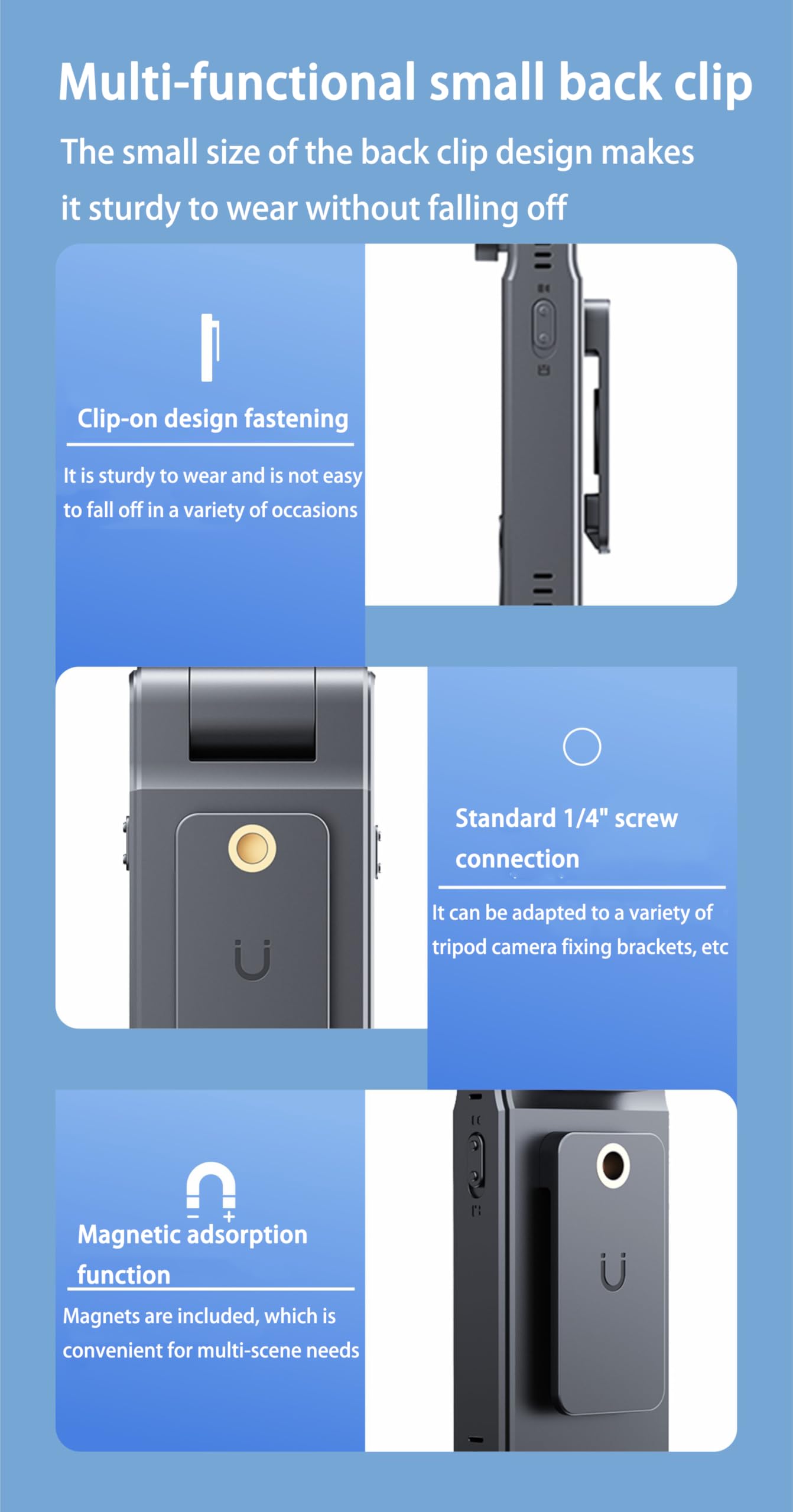
Image: Close-up views of the camera's back clip, highlighting its clip-on mechanism, 1/4" screw thread, and magnetic feature.
Maintenance
Cleaning
To maintain optimal performance, regularly clean your camera. Use a soft, dry, lint-free cloth to wipe the camera body. For the lens, use a specialized lens cleaning cloth and solution if necessary, avoiding harsh chemicals or abrasive materials that could scratch the lens surface.
Storage
When not in use, store the camera in a cool, dry place, away from direct sunlight, extreme temperatures, and high humidity. Remove the Micro SD card if storing for extended periods. Ensure the battery is partially charged (around 50%) before long-term storage to preserve battery health.
Troubleshooting
Micro SD Card Not Recognized
- Ensure the Micro SD card is inserted correctly and fully into the slot.
- Verify that the card capacity is between 8GB and 128GB.
- Try formatting the Micro SD card using the camera's settings menu (if available) or on a computer.
- Test with a different, known-good Micro SD card to rule out card issues.
Wi-Fi Connection Issues
- Ensure the 'Viidure' app is installed and updated on your mobile device.
- Confirm that the camera's Wi-Fi hotspot is activated.
- Check that your mobile device is connected to the camera's specific Wi-Fi network.
- Restart both the camera and your mobile device, then attempt to reconnect.
Short Battery Life
- Ensure the battery is fully charged before each use.
- Battery life can vary based on recording resolution (4K consumes more power), Wi-Fi usage, and environmental temperature.
- Reduce screen brightness or turn off the screen when not actively viewing to conserve power.
Specifications
| Feature | Specification |
|---|---|
| Brand | TKMARS |
| Model Number | 24A09001 |
| Screen Size | 1.5 inches |
| Video Resolution | 4K/2K/1080P |
| Video Format | AVI |
| Photo Format | JPG |
| Image Ratio | 16:9 |
| Lens Angle | 170° Wide Angle |
| Lens Rotation | 180° |
| Battery Capacity | 1400 mAh |
| Micro SD Card Support | 8GB to 128GB (not included) |
| Loop Recording Intervals | 3/5/10/15 minutes |
| Connectivity | Wi-Fi, USB |
| Special Features | Night Vision, Motion Detection |
| Supported Languages | English, French, German, Portuguese, Spanish, Dutch |
| Image Stabilization | No |
| Water Resistance | Not waterproof |
Package Contents
The following items are included in your TKMARS 4K Action Camera package:
- 1 x TKMARS Mini WiFi Camera
- 1 x User Manual
- 1 x Charging Cable
Warranty and Support
For warranty information, technical assistance, or customer support, please refer to the documentation provided with your purchase or contact TKMARS customer service through their official channels. Keep your proof of purchase for warranty claims.