
1. Introduction
This manual provides instructions for the setup, operation, maintenance, and troubleshooting of your Arteck HW392-3 2.4G USB Wireless Keyboard. Please read this manual thoroughly before using the product to ensure proper function and longevity.
The Arteck HW392-3 is a full-size 2.4G USB wireless keyboard designed for use with various devices, including desktop computers, laptops, PCs, and Smart TVs. It features a numeric keypad, media hotkeys, and an ultra-slim design.
2. Package Contents
Verify that all items are present in your package:
- Arteck Full Size 2.4G USB Wireless Keyboard
- Nano USB Receiver
- USB-C Charging Cable
- Welcome Guide (this manual)
3. Setup Instructions
3.1 Connecting the Keyboard
The Arteck HW392-3 keyboard utilizes a 2.4G wireless connection via a nano USB receiver. No additional drivers are required for installation.
- Locate the nano USB receiver. It may be stored in a compartment on the back of the keyboard.
- Insert the nano USB receiver into an available USB port on your computer (desktop, laptop, PC, Surface, or Smart TV).
- Turn on the keyboard using the power switch, typically located on the back or side of the keyboard.
- The keyboard should connect automatically. You can begin using the keyboard instantly.

Figure 1: Close-up of Arteck wireless keyboard keys and the nano USB receiver. The receiver is designed for easy plug-and-play setup.
3.2 Initial Charging
For optimal performance, it is recommended to fully charge the keyboard before its first use. Use the provided USB-C charging cable to connect the keyboard to a power source (e.g., computer USB port, USB wall adapter).
Video 1: This video demonstrates the key features of the Arteck Full Size USB Wireless Keyboard, including its easy plug-and-play setup and adjustable legs for ergonomic typing.
4. Operating Instructions
4.1 Basic Keyboard Functions
The Arteck HW392-3 provides a standard full-size QWERTY layout with a numeric keypad and dedicated arrow keys. The low-profile keys are designed for comfortable and quiet typing.

Figure 2: Close-up of Arteck wireless keyboard numeric keypad and a diagram of the scissor-switch key mechanism for comfortable keystrokes.
4.2 Media Hotkeys
The keyboard includes media hotkeys for quick access to common functions such as volume control, playback control, and screen brightness. These keys are typically located in the function key row (F1-F12) and may require pressing the Fn key simultaneously, depending on your operating system and settings.
4.3 Adjustable Typing Angle
The keyboard features built-in foldable legs on the underside. Extend these legs to raise the keyboard's tilt angle, which can provide a more comfortable and ergonomic typing position.

Figure 3: Side view of the Arteck wireless keyboard with its foldable legs extended to provide an ergonomic typing angle.
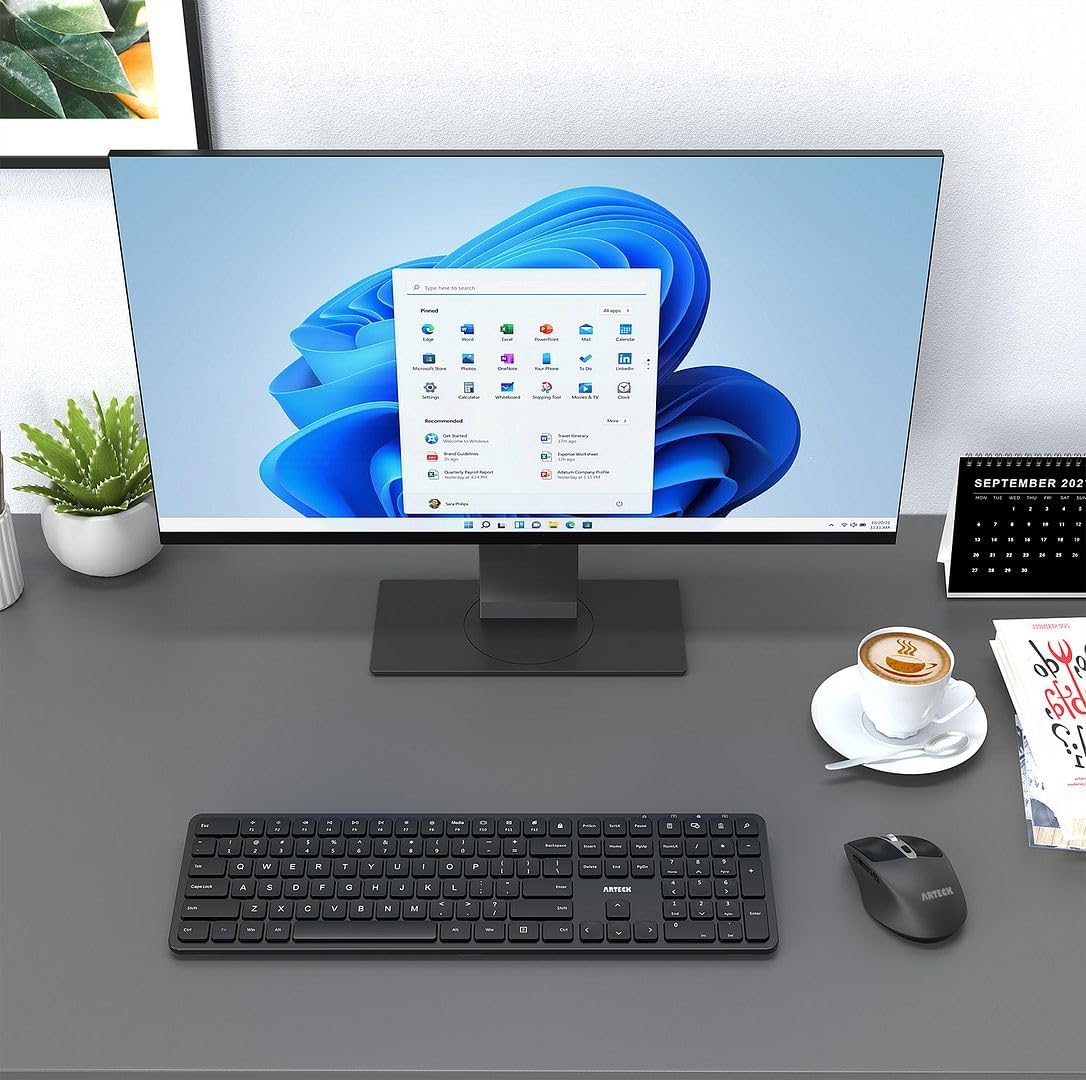
Figure 4: The Arteck wireless keyboard is shown as part of a complete desktop setup, positioned in front of a computer monitor, illustrating its integration into a workspace.
5. Maintenance
5.1 Charging the Battery
The keyboard has a built-in rechargeable Li-polymer battery. A full charge can provide approximately 6 months of use, based on 2 hours of non-stop use per day. When the battery is low, the indicator light will typically blink or change color.
To charge, connect the provided USB-C cable to the charging port on the keyboard and to a USB power source. The charge indicator light will illuminate during charging and typically turn off when fully charged. Note that the indicator may not turn green but simply go off when charging is complete.

Figure 5: The back of the Arteck keyboard is displayed, indicating the location of the power switch, the USB-C charging port, and a dedicated slot for storing the nano USB receiver when not in use.
5.2 Cleaning
To clean the keyboard, gently wipe the surface with a soft, damp cloth. Avoid using harsh chemicals or abrasive materials. The design of the keys minimizes space between them, which helps in keeping the interior clean.
6. Troubleshooting
- Keyboard not responding:
- Ensure the keyboard is powered on.
- Check if the nano USB receiver is securely plugged into a working USB port on your computer.
- Recharge the keyboard battery. A low battery can cause intermittent connection issues or unresponsiveness.
- Move the keyboard closer to the USB receiver to ensure it is within the 33-foot (10-meter) operating range.
- Try plugging the USB receiver into a different USB port on your computer.
- Lagging or delayed input:
- This can often be caused by a low battery. Charge the keyboard fully.
- Ensure there are no significant obstructions between the keyboard and the USB receiver.
- Minimize interference from other 2.4GHz wireless devices.
- Charge indicator light behavior:
- The charge indicator light typically illuminates during charging and turns off when the battery is full. It may not change to a green color.
- When checking battery status by pressing the power meter button, the light may only blink once regardless of the charge level. This is normal operation.
7. Specifications
| Brand | Arteck |
| Model Number | HW392-3 |
| Connectivity Technology | 2.4G USB Wireless |
| Compatible Devices | Desktop, Laptop, PC, Smart TV |
| Keyboard Description | Multimedia, Full Size |
| Special Features | Full Size, Low-Profile Key, Rechargeable, Foldable Legs |
| Product Dimensions (L x W x H) | 16.9" x 4.96" x 0.4" (43 cm x 12.6 cm x 1.1 cm) |
| Weight | 19.9 oz (564.3 g) |
| Material | Plastic |
| Power Source | Battery Powered (Rechargeable Li-polymer) |
| Number of Keys | 101 |
| Keyboard Layout | QWERTY |
| Operating System Family | Windows |

Figure 6: A top-down view of the Arteck keyboard is shown, illustrating its full-size layout and physical dimensions, including length, width, height, and weight.
8. Warranty Information
The Arteck HW392-3 keyboard comes with a 2-year manufacturer warranty. This warranty covers defects in materials and workmanship under normal use. Please retain your proof of purchase for warranty claims.
9. Customer Support
For any questions, technical assistance, or warranty claims, please contact Arteck customer service. Refer to the welcome guide or the Arteck official website for contact details.


