
Introduction
Thank you for choosing the GENBOLT GB102HD Dual-Lens Wi-Fi Indoor Security Camera. This manual provides essential information for the safe and efficient use of your device. Please read it thoroughly before installation and operation, and retain it for future reference.
The GB102HD camera is designed for indoor surveillance, offering advanced features such as dual lenses for comprehensive coverage, 1080P HD video, AI-powered motion detection, two-way audio, and versatile recording options. It is ideal for monitoring pets, children, or the elderly, providing peace of mind through remote access and smart alerts.
Product Overview
Key Features
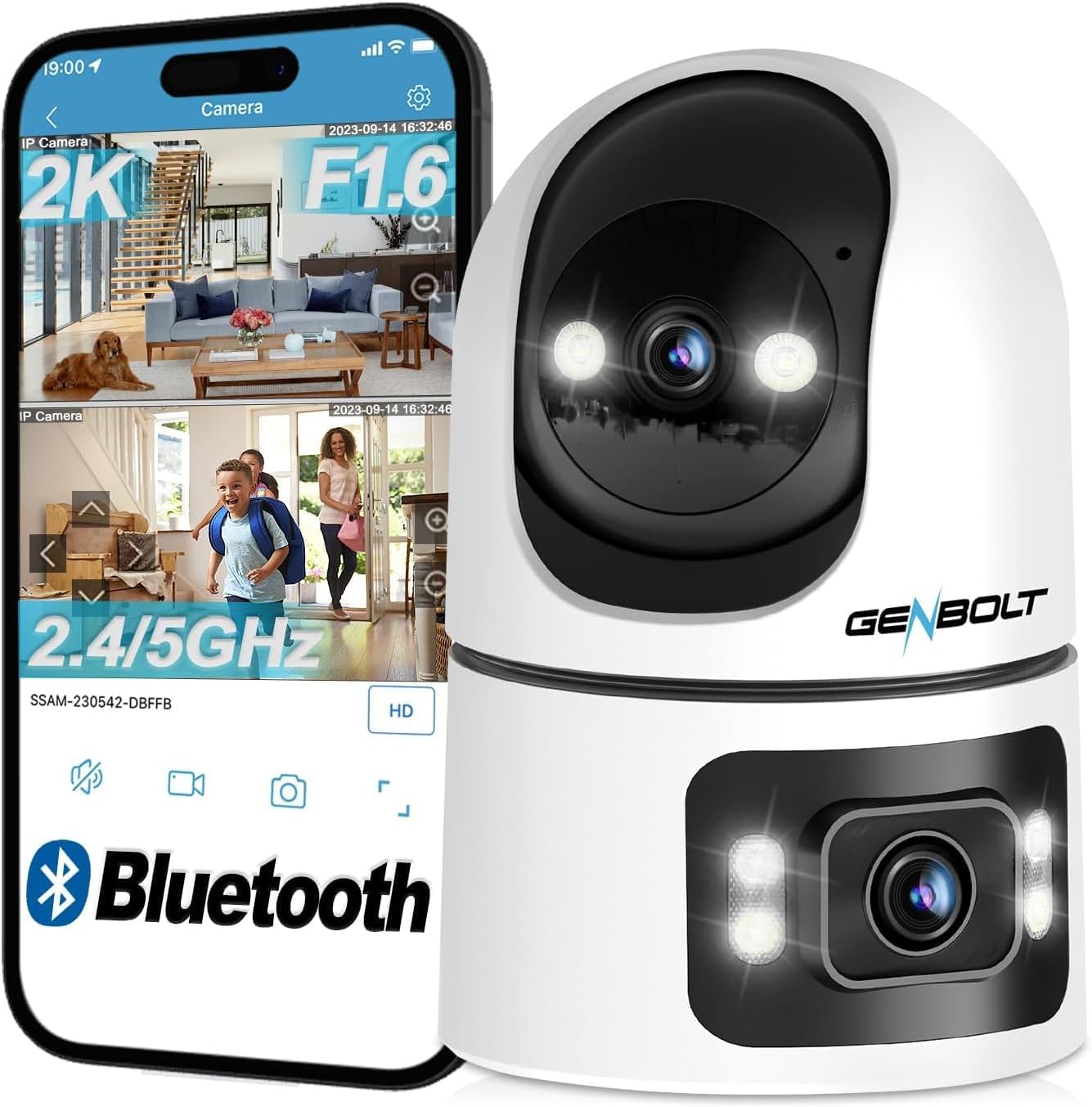
- Dual-Lens System: Combines a pan-tilt lens for dynamic tracking and a fixed wide-angle lens for static overview, providing a 360-degree field of view.
- 1080P HD Resolution: Delivers clear and detailed video footage.
- AI Human & Motion Detection: Intelligent algorithms detect human shapes and motion, reducing false alarms and triggering automatic tracking.
- Automatic Tracking: The camera automatically follows detected subjects within its field of view.
- Two-Way Audio: Built-in speaker and microphone allow for real-time communication.
- Full-Color Night Vision: Provides clear, colorful images even in low-light conditions, up to 10 meters.
- Flexible Storage: Supports up to 128GB MicroSD card and offers a 7-day free trial for cloud storage.
- Multi-Platform Access: View live feeds and recordings via smartphone (iOS/Android), tablet, or computer (macOS/Windows) applications.
- Wi-Fi Connectivity: Supports 2.4GHz and 5GHz Wi-Fi for stable and fast network connection.
Package Contents
- GENBOLT GB102HD Camera Body
- User Manual
- Power Adapter (USB)
- Mounting Accessories (if applicable, not explicitly listed but common for cameras)
Product Diagram
Setup Guide
1. Powering On the Device
Connect the camera to a power source using the provided USB power adapter. The camera will initiate its startup sequence. Wait for the voice prompt indicating that the camera has started and is ready for network configuration.

2. App Installation
Download the "GENBOLT CAM" application from your smartphone's app store (available for iOS and Android). Install the application on your device.
3. Initial Device Pairing
- Open the "GENBOLT CAM" app.
- Tap the "+" icon to add a new camera.
- The app may request permission to access location services and Bluetooth. Grant these permissions for proper device detection and setup. For iPhone users, ensure "New Connections" is allowed for Bluetooth.
- The app will scan for nearby Bluetooth devices. Select your camera from the list (e.g., "SSAS-200386-DFAAF") and tap "Add" or "Connect".
4. Wi-Fi Connection
- After successful Bluetooth pairing, the app will prompt you to select your Wi-Fi network. Choose your 2.4GHz or 5GHz Wi-Fi network (note: some older models may only support 2.4GHz).
- Enter your Wi-Fi password and confirm.
- The camera will attempt to connect to the Wi-Fi network. Once connected, the app will confirm the successful addition of the device.
- You can then name your camera (e.g., "Living Room", "Baby Room") and begin monitoring.

Operating Instructions
1. Live View and Dual-Lens Control
Access the live feed through the GENBOLT CAM app. The dual-lens system allows for simultaneous monitoring of two areas. The upper lens provides a pan-tilt view that can be remotely controlled, while the lower lens offers a fixed 90-degree wide-angle view.

2. Pan/Tilt and Digital Zoom
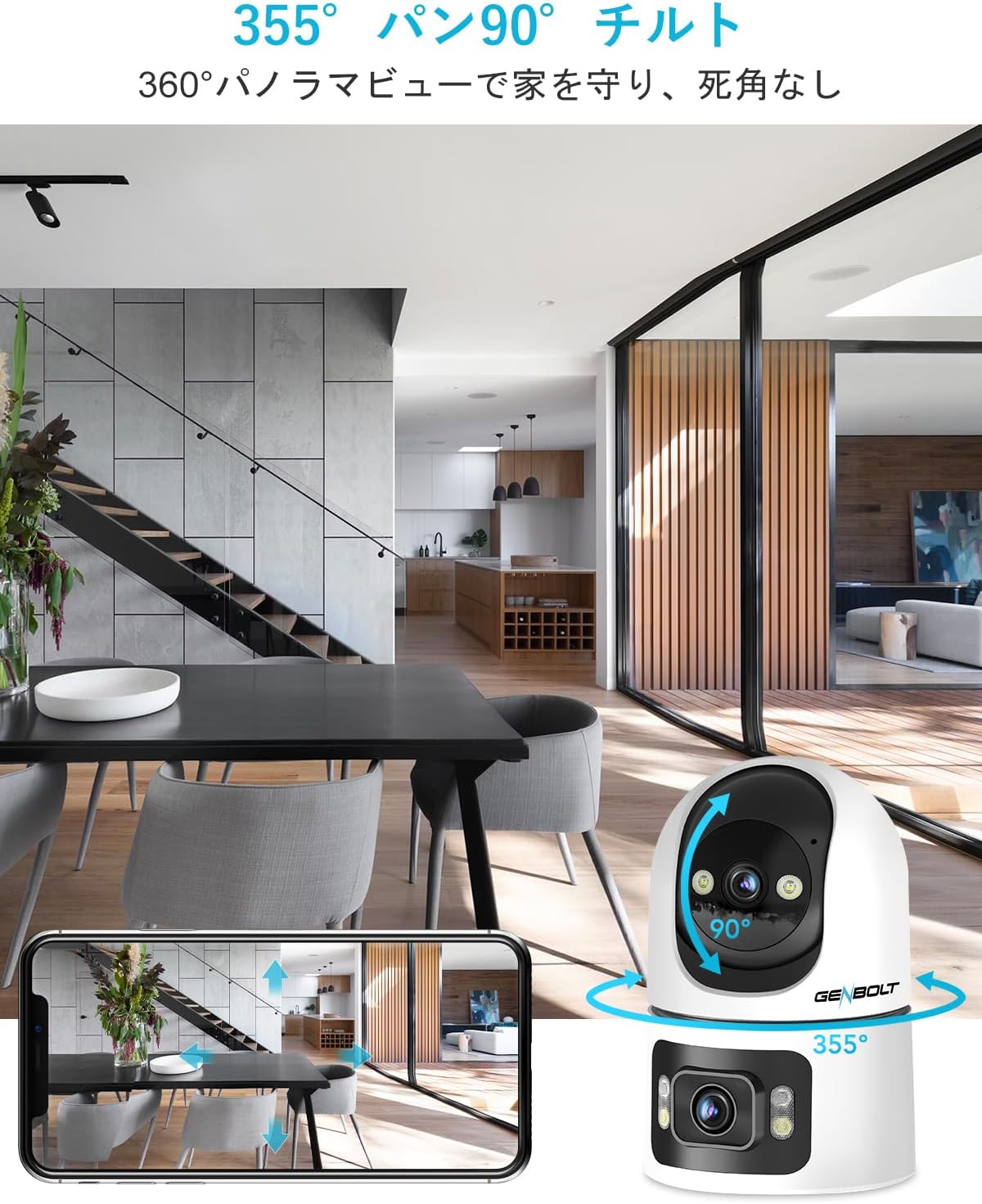
Use the controls within the app to remotely pan the upper lens 355 degrees horizontally and tilt it 90 degrees vertically. The camera also supports 4x digital zoom to focus on specific details.
3. Motion Detection and Alerts
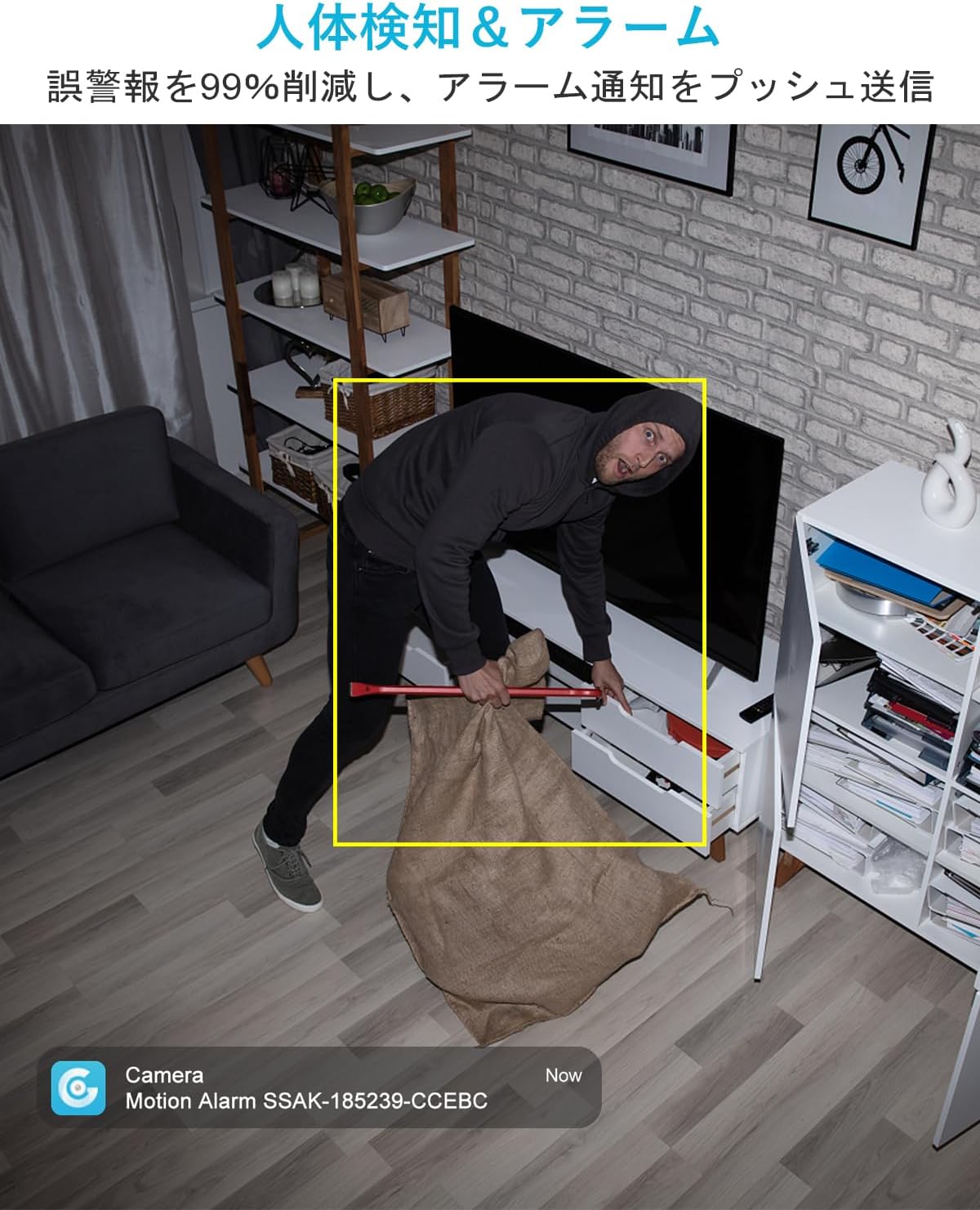
The camera features AI-powered human and motion detection. When unusual movement or a human shape is detected, the camera will automatically track the subject, record video, and send instant notifications to your smartphone. This helps ensure you don't miss important events.

4. Two-Way Audio Communication
Utilize the built-in speaker and microphone for two-way communication. This allows you to speak to family members, pets, or even deter intruders directly through the camera from your smartphone, regardless of your location.

5. Night Vision Modes
The GB102HD offers advanced night vision capabilities. It can automatically switch to full-color night vision mode in low-light conditions, providing clear and vibrant images up to 10 meters. You can also customize LED brightness and motion-triggered lighting.

6. Recording and Playback
The camera supports continuous recording or event-triggered recording to a MicroSD card (up to 128GB) or cloud storage. A 7-day free trial for cloud storage is available. Easily review recorded footage directly from the app.

7. Multi-Device Access
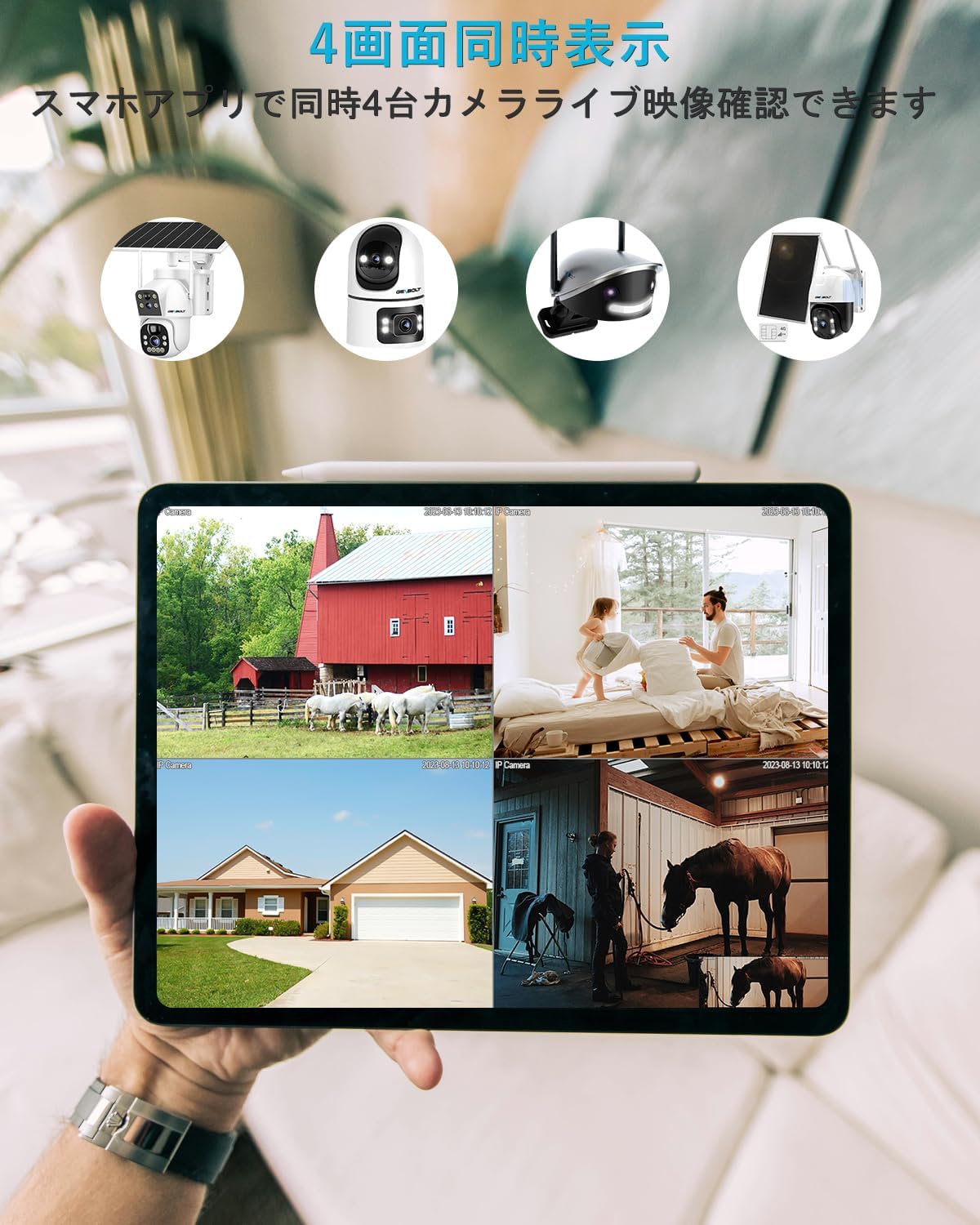
Monitor your camera feed from various devices, including smartphones (iPhone/Android), tablets, and computers (macOS/Windows). The app allows for simultaneous viewing of up to four cameras.

Maintenance
- Cleaning: Gently wipe the camera lens and body with a soft, dry cloth. Avoid using harsh chemicals or abrasive materials that could damage the surface or lens.
- Placement: Ensure the camera is placed in a stable indoor environment, away from direct sunlight, extreme temperatures, and high humidity.
- Software Updates: Regularly check the GENBOLT CAM app for firmware updates to ensure optimal performance and security.
- Power Supply: Use only the original power adapter provided with the camera to prevent damage.
Troubleshooting
- Camera not connecting to Wi-Fi: Ensure your Wi-Fi network is 2.4GHz or 5GHz (depending on camera model compatibility) and the password is correct. Move the camera closer to the router.
- Frequent disconnections: Check your Wi-Fi signal strength. Reduce interference from other electronic devices.
- No notifications: Verify that app notifications are enabled in your phone settings and within the GENBOLT CAM app. Check motion detection sensitivity settings.
- Poor image quality: Ensure the lens is clean. Check your internet connection speed.
- Two-way audio issues: Ensure microphone and speaker permissions are granted to the app. Check volume settings on both the camera and your smartphone.
- Camera not responding: Try restarting the camera by unplugging and re-plugging the power adapter. If issues persist, perform a factory reset (refer to the app for instructions).
Specifications
| Feature | Specification |
|---|---|
| Model Name | GB102HD |
| Video Capture Resolution | 1080p |
| Color | White |
| Number of Items | 1 |
| Wireless Communication Technology | Wi-Fi (2.4GHz/5GHz) |
| Installation Type | Freestanding / Tabletop Mount |
| Night Vision Range | Up to 8 meters (approx. 26 feet) |
| Material | Acrylonitrile Butadiene Styrene (ABS) |
| Product Dimensions (LxWxH) | 7.5 x 7.5 x 15 cm (approx. 2.95 x 2.95 x 5.9 inches) |
| Water Resistance Level | Not Waterproof (Indoor Use Only) |
| Output Mode | USB |
| Control Type | App Control |
| Recommended Uses | Pet Monitoring, Baby Monitoring, Home Security |
| Compatible Devices | Smartphones, Tablets, Desktops, Laptops |
Warranty and Support
GENBOLT is committed to providing reliable products and excellent customer service.
- 12-Month Service Warranty: Your GENBOLT GB102HD camera is covered by a 12-month service warranty from the date of purchase.
- 30-Day Money-Back Guarantee: If you are not satisfied with your purchase, you may be eligible for a refund within 30 days.
- Lifetime Technical Support: GENBOLT offers lifetime technical support for its products.
For detailed instructions, application downloads, and further assistance, please visit our official website: www.genbolt.com. If you have any questions or encounter issues, please do not hesitate to contact our support team.