
1. Introduction
This manual provides detailed instructions for the installation, operation, and maintenance of your Podofo DSP 46EQ Car Stereo. This unit is designed for Toyota RAV4 models manufactured between 2013 and 2019, offering advanced features such as an 8-core processor, 10.1-inch high-definition touchscreen, wireless CarPlay, Android Auto, GPS navigation, and AHD backup camera support.
Please read this manual thoroughly before installation and use to ensure proper functionality and to maximize your experience with the product. Keep this manual for future reference.

Figure 1.1: Key features of the Podofo DSP 46EQ Car Stereo.
2. Package Contents
Verify that all items listed below are included in your package. If any items are missing or damaged, please contact customer support.
- Main Head Unit (Host)
- Custom Frame for Toyota RAV4 (2013-2019)
- Power Cable
- RCA Cable Set
- USB Cable
- GPS Antenna
- External Microphone (MIC)
- AHD Backup Camera
- Rear Camera Input Cable
- Installation Tool Kit
- User Manual
- Additional Accessories

Figure 2.1: Podofo DSP 46EQ Car Stereo Package List.
3. Setup & Installation
Professional installation is recommended. Ensure the vehicle's ignition is off and the battery is disconnected before beginning installation.
3.1 Compatibility Check
This car stereo is specifically designed for Toyota RAV4 models from 2013 to 2019. Before installation, compare the dimensions and shape of your car's center console with the provided frame to ensure a proper fit.
3.2 Wiring Connections
- Power Connection: Connect the main power harness to the vehicle's wiring. Ensure correct polarity for constant power (B+), accessory power (ACC), and ground (GND).
- Speaker Connections: Connect the speaker wires according to the vehicle's wiring diagram. Ensure correct positive and negative connections for each speaker.
- GPS Antenna: Mount the GPS antenna in a location with a clear view of the sky, typically on the dashboard or under the windshield.
- USB Cables: Route the USB cables to an accessible location, such as the glove compartment or center console, for connecting external devices.
- External Microphone: Connect the external microphone and position it near the driver for optimal call quality.
- RCA Cables: Connect RCA cables for external amplifiers, subwoofers, or auxiliary video inputs/outputs as needed.
- Backup Camera: Connect the AHD backup camera. The camera's power wire (RED) should connect to the vehicle's reverse light positive (+12V), and the ground wire (BLACK) to the vehicle's chassis ground. The video signal cable connects to the 'CAM IN' port on the head unit.
- Steering Wheel Controls (SWC): Connect the SWC wires to your vehicle's steering wheel control interface. Configuration may be required in the unit's settings.

Figure 3.1: Before and after installation in a Toyota RAV4 (2013-2019).

Figure 3.2: Rear Camera Wiring Diagram.
4. Operating Instructions
4.1 Power On/Off
The unit will power on automatically when the vehicle's ignition is turned on. To manually power off or restart, press and hold the power button on the unit or use the software controls.
4.2 Touchscreen Operation
The 10.1-inch IPS capacitive touchscreen supports multi-touch gestures. Navigate through menus, select applications, and control functions by tapping, swiping, and pinching.
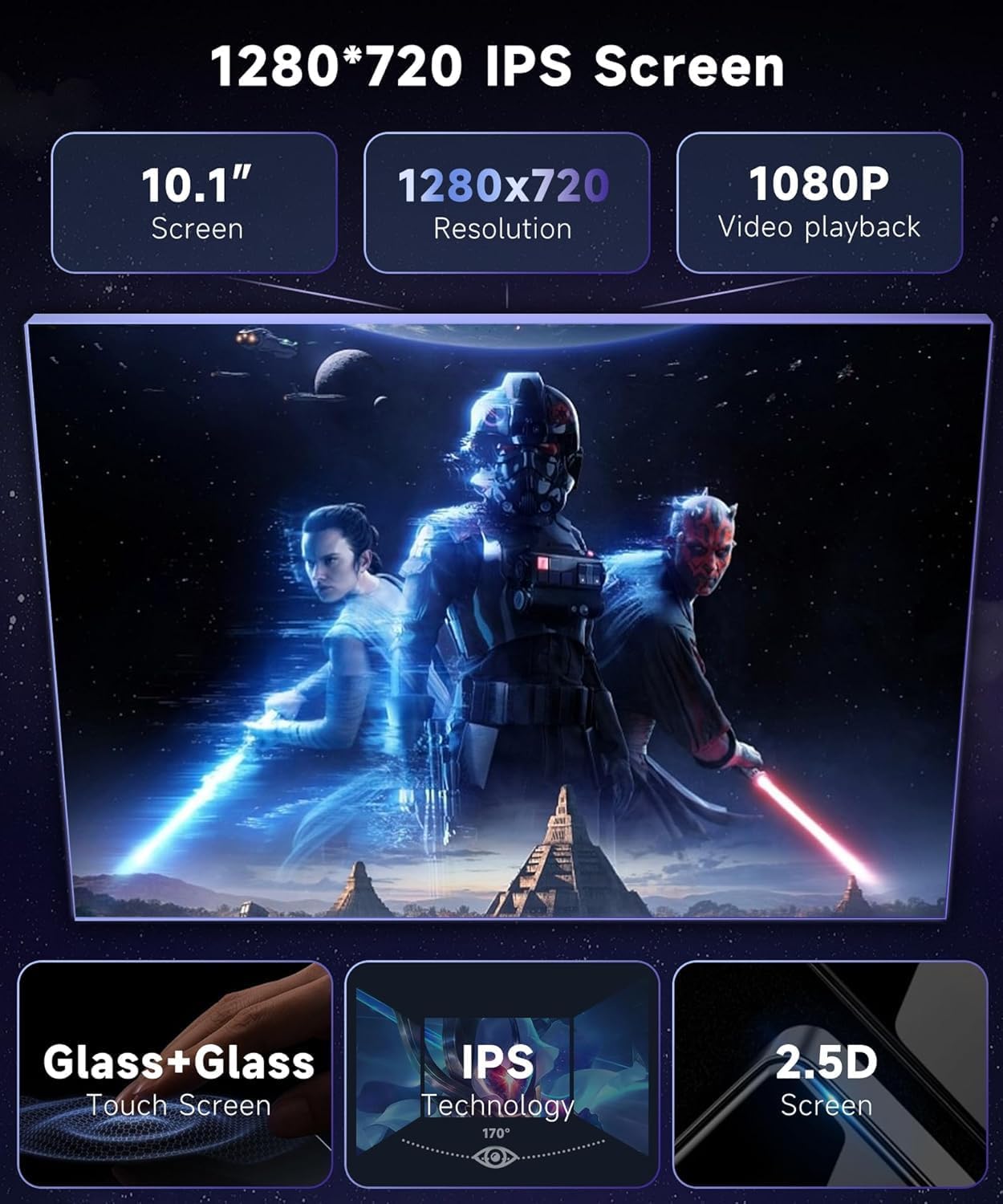
Figure 4.1: 10.1-inch 1280x720 IPS Touch Screen.
4.3 Wireless CarPlay & Android Auto
Connect your iPhone or Android smartphone wirelessly or via USB to access CarPlay or Android Auto. This allows for hands-free operation of navigation, calls, messages, and music through voice commands or the touchscreen.
- Wireless Connection: Enable Bluetooth and Wi-Fi on your phone. Pair your phone with the car stereo via Bluetooth. Follow the on-screen prompts to initiate CarPlay or Android Auto.
- Wired Connection: Connect your phone to the stereo's USB port using a certified USB cable. The system will automatically detect and launch CarPlay or Android Auto.
4.4 MirrorLink (Screen Mirroring)
MirrorLink allows you to display your smartphone's screen directly onto the car stereo's display. This feature supports both wireless (Wi-Fi) and wired (USB) connections for compatible iOS (up to 13.4) and Android (up to 11.0) devices.
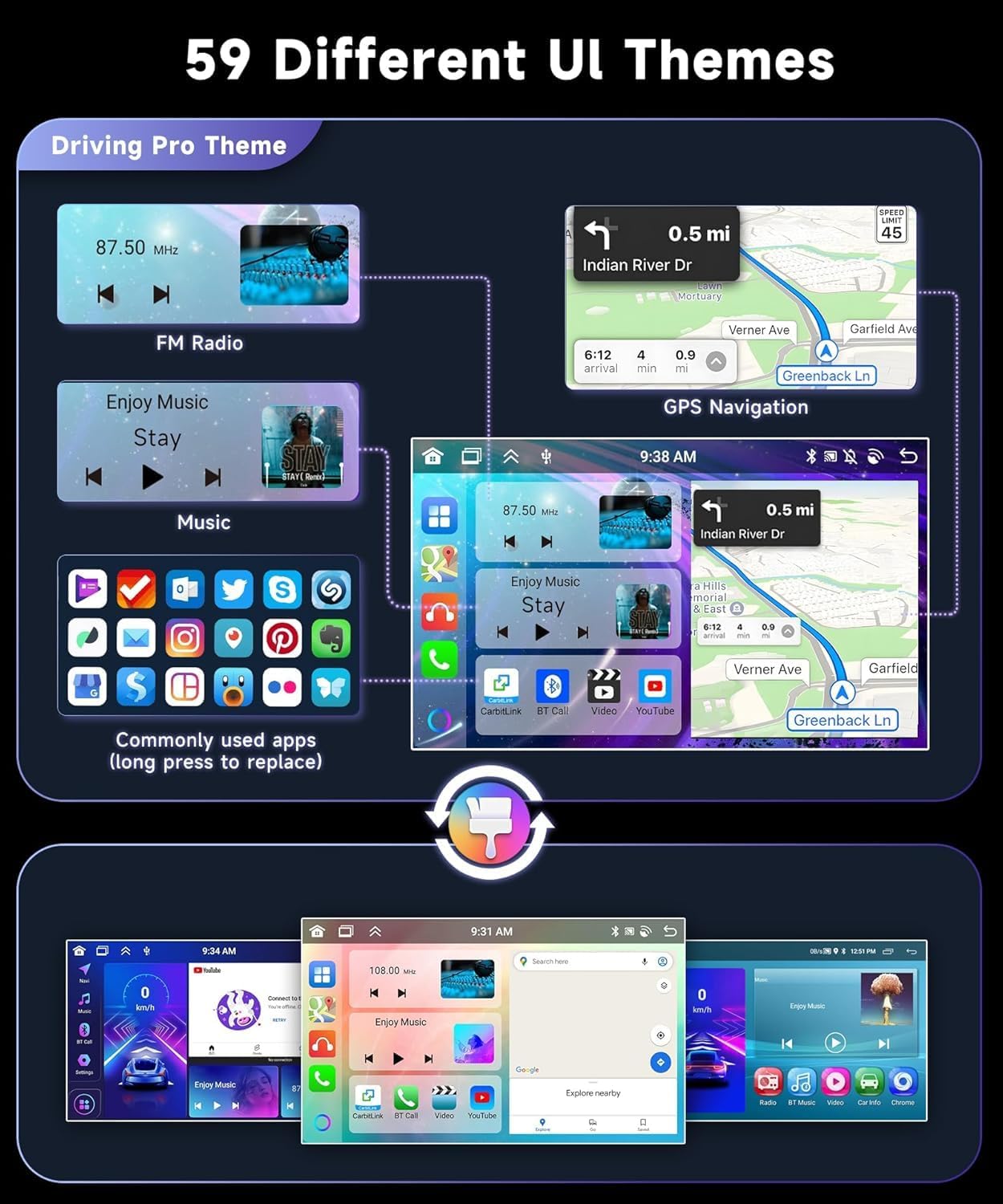
Figure 4.2: CarAutoPlay, Android Auto, and Screen Mirroring functionality.
4.5 Bluetooth 5.0
The integrated Bluetooth 5.0 module enables hands-free calling, audio streaming, and phonebook synchronization.
- Pairing: Go to the Bluetooth settings on the stereo and your phone. Search for available devices and select the car stereo's name to pair.
- Hands-Free Calling: Make and receive calls directly from the stereo's interface.
- Audio Streaming: Play music from your phone through the car's speakers.
4.6 GPS Navigation & WiFi
The unit features built-in GPS for offline navigation and Wi-Fi connectivity for online maps and other applications.
- GPS: Access pre-installed navigation software or download your preferred GPS applications from the app store.
- WiFi: Connect to a Wi-Fi hotspot (e.g., from your smartphone) to access online services, browse the internet, and download apps like YouTube, TikTok, and Spotify.
4.7 FM/RDS Radio
Tune into your favorite FM radio stations. The RDS (Radio Data System) feature displays station information, song titles, and other relevant data where available.
- Scanning: Use the auto-scan function to find and save available radio stations.
- Presets: Save your preferred stations for quick access.
4.8 DSP Sound & EQ
The built-in Digital Sound Processor (DSP) and 36-band equalizer allow for precise audio customization to enhance your listening experience.
- Equalizer: Adjust frequency bands to tailor the sound output to your preferences.
- Sound Effects: Explore various sound effects and presets for different music genres.

Figure 4.3: DSP, WiFi, Bluetooth 5.0, and Rear Camera Input features.
4.9 Split-Screen & UI Themes
The unit supports split-screen functionality, allowing two applications to run simultaneously. You can also customize the interface with 59 different UI themes.
- Split-Screen: Drag an app icon to one side of the screen to activate split-screen mode, then select another app for the other side.
- UI Themes: Access the theme settings to choose from various pre-installed user interface designs.

Figure 4.4: Examples of UI Themes and Split-Screen functionality.
4.10 Steering Wheel Controls (SWC)
If properly connected, the unit supports your vehicle's existing steering wheel controls for functions such as volume adjustment, track skipping, and call answering. These controls can typically be configured in the system settings.
4.11 AHD Backup Camera
When the vehicle is shifted into reverse, the display automatically switches to the AHD backup camera view, providing a clear, wide-angle image to assist with parking and maneuvering. The camera is waterproof and offers night vision capabilities.
5. Maintenance
- Screen Cleaning: Use a soft, lint-free cloth to clean the touchscreen. For stubborn smudges, lightly dampen the cloth with water or a screen-safe cleaner. Avoid abrasive materials or harsh chemicals.
- Software Updates: Periodically check for software updates to ensure optimal performance and access to new features. Updates can typically be found on the manufacturer's website or through the unit's system settings if connected to Wi-Fi.
- General Care: Avoid exposing the unit to extreme temperatures, direct sunlight for prolonged periods, or excessive moisture.
6. Troubleshooting
If you encounter issues, refer to the following common troubleshooting steps:
| Problem | Possible Cause | Solution |
|---|---|---|
| Unit does not power on | Incorrect wiring, blown fuse, vehicle battery issue | Check power connections (B+, ACC, GND). Inspect vehicle fuses. Ensure vehicle battery is charged. |
| No sound output | Speaker wiring incorrect, volume too low, mute activated | Verify speaker connections. Increase volume. Check if unit is muted. |
| GPS signal lost or inaccurate | GPS antenna obstructed or improperly installed | Ensure GPS antenna has a clear view of the sky. Check antenna connection. |
| CarPlay/Android Auto not connecting | Incorrect phone settings, faulty USB cable, software glitch | Ensure Bluetooth/Wi-Fi is on (for wireless). Try a different USB cable (for wired). Restart phone and stereo. |
| Backup camera not displaying | Camera wiring incorrect, camera faulty, reverse signal not detected | Check camera power and video connections. Ensure reverse gear is engaged. |
| Touchscreen unresponsive | Temporary software issue, screen damage | Restart the unit. If issue persists, contact support. |
For issues not covered here, or if troubleshooting steps do not resolve the problem, please contact Podofo customer support.
7. Specifications
| Feature | Detail |
|---|---|
| Brand | podofo |
| Model Name | DSP 46EQ |
| Operating System | Android |
| CPU | 8-Core |
| RAM | 2GB |
| Memory Storage Capacity | 64GB |
| Screen Size | 10.1 Inches |
| Display Type | LCD, IPS |
| Resolution | 1280x720P |
| Touch Screen Type | Capacitive |
| Connectivity Technology | Bluetooth 5.0, USB, Wi-Fi |
| Special Features | Wireless CarPlay, Android Auto, MirrorLink, Built-in DSP (36-band EQ), GPS, FM RDS, AHD Backup Camera Support, Steering Wheel Controls |
| Supported Satellite Navigation System | GPS |
| Audio Output Mode | APE/FLAC/WAV/MP3/WMA, etc. |
| Mounting Type | Dashboard Mount |
| Compatible Vehicle Type | Toyota RAV4 (2013-2019) |
8. Warranty & Support
8.1 Warranty Information
This Podofo product comes with a 2-year warranty covering both labor and parts from the date of purchase. This warranty covers manufacturing defects and malfunctions under normal use. It does not cover damage caused by improper installation, misuse, accidents, or unauthorized modifications.
8.2 Customer Support
For technical assistance, warranty claims, or any questions regarding your Podofo DSP 46EQ Car Stereo, please contact Podofo customer support. Refer to the contact information provided with your purchase or visit the official Podofo website for support resources.
When contacting support, please have your product model (DSP 46EQ) and purchase details readily available.


