
1. Introduction
The Xigmatek Aqua V AIR is a high-performance mid-tower PC case designed for gaming enthusiasts. It features a spacious interior, optimized airflow, and tempered glass panels on the front and side to showcase your components. Equipped with seven 120mm ARGB fans, it supports graphics cards up to 410mm in length and is compatible with motherboards featuring hidden connectors for a clean build.
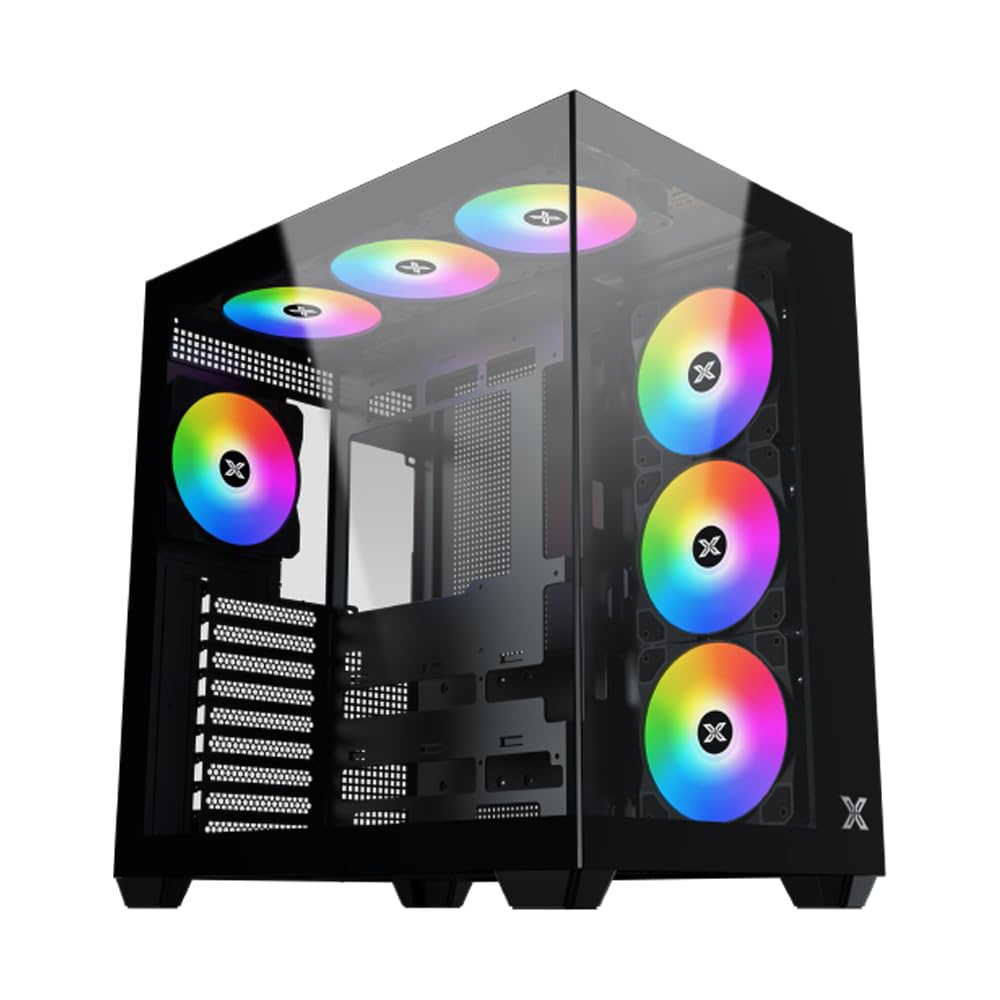
Figure 1: Overall view of the Xigmatek Aqua V AIR PC Case.
2. Key Features
- Material: Constructed from high-quality steel for durability and reliability.
- Dimensions: 427 x 285 x 455 mm (L x W x H), offering a spacious interior.
- Cooling System: Supports up to three 120mm or two 140mm fans for optimal cooling performance.
- Radiator Support: Compatible with 240/280/360mm radiators on the top, bottom, and rear for versatile cooling options.
- I/O Panel: Features 2x USB 3.0 ports, 1x USB-C port, and HD audio for convenient connectivity.
- Motherboard Compatibility: Supports ATX, Micro ATX, and Mini ITX motherboards, including those with hidden connectors.
- GPU Length: Accommodates graphics cards up to 410mm in length.
- Storage Support: Provides ample space for multiple storage drives.
3. Specifications
| Feature | Detail |
|---|---|
| Brand | Xigmatek |
| Model Number | EN45820 |
| Series | Aqua V AIR BLACK |
| Color | Black |
| Dimensions (L x W x H) | 42.7 x 28.5 x 45.5 cm |
| Product Weight | 8.8 Kilograms |
| Material | Alloy Steel, Tempered Glass |
| Motherboard Compatibility | ATX, Micro ATX, Mini ITX |
| Case Type | Mid-Tower |
| Recommended Uses | Gaming, High-Performance Computing |
| USB 3.0 Ports | 2 |
| USB-C Ports | 1 |
| Cooling Method | Water (Liquid Cooling Support) |
| Fan Size | 120 Millimeters (Pre-installed ARGB fans) |
| PSU Mounting Type | Bottom Mount |
4. Setup and Installation
This section provides general guidance for installing components into your Xigmatek Aqua V AIR PC case. Always refer to the specific manuals for your motherboard, power supply, and other components for detailed instructions.
4.1 Preparing the Case
- Unpack the PC case and remove all packaging materials.
- Carefully remove the tempered glass side panel(s) and front panel (if applicable) to access the interior. Store them safely to prevent damage.
- Identify the accessory box, which typically contains screws, cable ties, and other small parts.
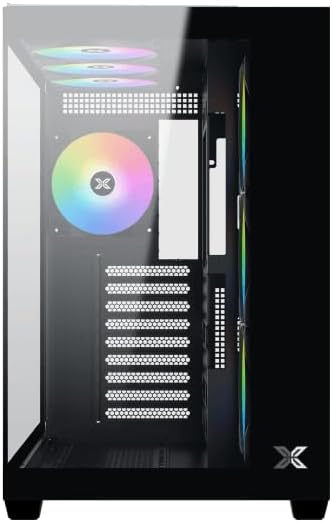
Figure 2: Interior view with side panel removed.
4.2 Motherboard Installation
- Install the I/O shield (if not pre-installed on your motherboard) into the rear opening of the case.
- Align your ATX, Micro ATX, or Mini ITX motherboard with the standoffs inside the case. Ensure all standoffs match the screw holes on your motherboard.
- Secure the motherboard with the appropriate screws provided in the accessory kit.

Figure 3: Motherboard tray and cable management area.
4.3 Power Supply Unit (PSU) Installation
- Locate the PSU mounting area at the bottom rear of the case.
- Slide your PSU into position, ensuring the fan faces downwards (if the case has a bottom vent) or upwards.
- Secure the PSU with screws from the rear of the case.
4.4 Storage Drive Installation
The case supports various storage configurations. Refer to the case diagram for specific drive bay locations.
- Install 2.5" SSDs or 3.5" HDDs into the designated drive bays or mounting brackets.
- Secure the drives with screws.
4.5 Graphics Card (GPU) Installation
- Remove the necessary PCIe slot covers from the rear of the case.
- Insert your graphics card into the appropriate PCIe slot on the motherboard.
- Secure the graphics card with screws.
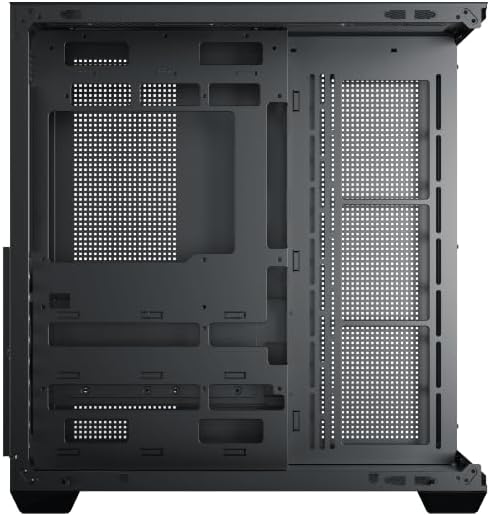
Figure 4: Components installed inside the case.
4.6 Cable Management
Utilize the cable routing cutouts and tie-down points behind the motherboard tray to manage cables for improved airflow and aesthetics.
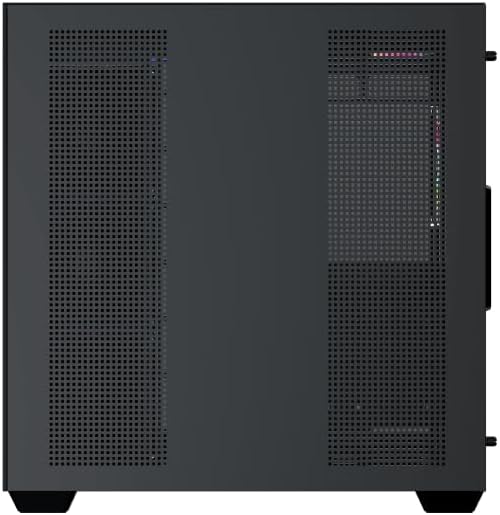
Figure 5: Top panel and I/O ports.
5. Operating Instructions
5.1 Powering On
Once all components are securely installed and connected, close the side panels. Connect your power cable to the PSU and press the power button on the case's front I/O panel.
5.2 ARGB Fan Control
The Xigmatek Aqua V AIR comes with pre-installed ARGB fans. These fans can typically be controlled via:
- Motherboard Software: If your motherboard supports ARGB synchronization, connect the fan's ARGB cables to the motherboard's 3-pin 5V ARGB header and use the motherboard's software (e.g., ASUS Aura Sync, MSI Mystic Light, Gigabyte RGB Fusion) to customize lighting effects.
- Integrated Controller: If your case includes a built-in ARGB controller, use the dedicated button on the I/O panel to cycle through various lighting modes and colors.
6. Maintenance
Regular maintenance helps ensure optimal performance and longevity of your PC components.
6.1 Dust Filter Cleaning
The Xigmatek Aqua V AIR case is equipped with dust filters to prevent dust buildup. Locate and gently remove the dust filters (typically on the top, front, and bottom). Clean them with compressed air or by rinsing with water. Ensure they are completely dry before reattaching.
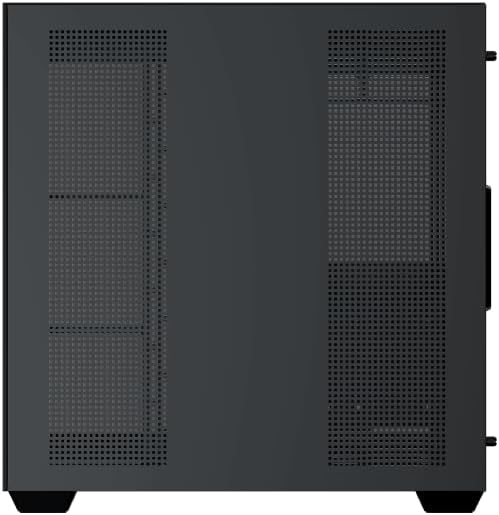
Figure 6: Bottom dust filter.
6.2 General Cleaning
Use a soft, dry cloth to wipe down the exterior of the case. For tempered glass panels, use a glass cleaner and a microfiber cloth to avoid streaks. Avoid using abrasive cleaners or solvents.
7. Troubleshooting
If you encounter issues, consider the following common troubleshooting steps:
- No Power:
- Ensure the PSU is switched on and properly connected to the wall outlet and motherboard.
- Check all power connections to components (motherboard, CPU, GPU, drives).
- Verify the front panel power switch cable is correctly connected to the motherboard.
- Fans Not Spinning / RGB Not Working:
- Check if fan power cables are securely connected to the motherboard or fan controller.
- Ensure ARGB cables are connected to the correct 3-pin 5V ARGB header (not 4-pin 12V RGB).
- If using a controller, ensure it has power and is functioning correctly.
- Overheating:
- Ensure all fans are spinning and oriented correctly for optimal airflow (intake/exhaust).
- Clean dust filters and internal components.
- Verify CPU cooler and GPU cooler are properly seated and functioning.
8. Warranty and Support
The Xigmatek Aqua V AIR PC Case comes with a 2-year manufacturer's warranty. For technical support, warranty claims, or further assistance, please contact Xigmatek customer service or visit their official website.
Please retain your proof of purchase for warranty purposes.