
Introduction
This user manual provides comprehensive instructions for the installation, operation, and maintenance of your Veise VE06 and VE06L Smart Lock. Please read this manual carefully before installation and use to ensure proper function and safety.

Figure 1: Veise VE06 and VE06L Smart Lock components and app interface.
Product Features
- Multiple Unlock Methods: Unlock your smart lock using the mobile application, a numerical passcode, RFID fobs, a traditional mechanical key, or the internal thumb turn.
- Flexible Locking Options: The smart deadbolt offers several ways to lock, including automatic locking with adjustable delay (5-900 seconds), a one-touch lock function by pressing '#' on the keypad for 2 seconds, physical key locking, and thumb turn locking.
- Smartphone Control & eKeys: Manage your lock remotely via the dedicated smartphone application. Generate eKeys, manage user access, and review access logs directly from your device or a web interface.
- Remote Access (with optional Gateway): When paired with a G2 WiFi gateway (sold separately), the lock integrates with smart home systems, enabling real-time access log viewing, voice control via Alexa and Google Assistant, battery level monitoring, and status checks from any location.
- Enhanced Security Features: Includes privacy mode, silent mode, low battery alerts, passage mode, wrong entry PIN code limits, and anti-peeping technology for increased home security. The lock is IP54 weatherproof and certified to ANSI Grade 3 standards for durability and reliability.

Figure 2: Multiple convenient ways to unlock your Veise Smart Lock.
Before Installation
Door Compatibility Check
Before proceeding with installation, ensure your door meets the following specifications:
- Door Thickness: 1-3/8" to 2" (35mm-50mm)
- Hole Diameter (Main): 1-1/2" to 2-1/8" (38mm or 54mm)
- Hole Diameter (Latch): 2-1/8" (54mm)
- Backset: 2-3/8" or 2-3/4" (60mm or 70mm)
- Minimum Distance between holes: 4" (101.6mm)
- Ensure the latch hole is chiseled for proper fit.
- The lock is designed for single cylinder doors; it is not compatible with mortise or integrated lock systems.
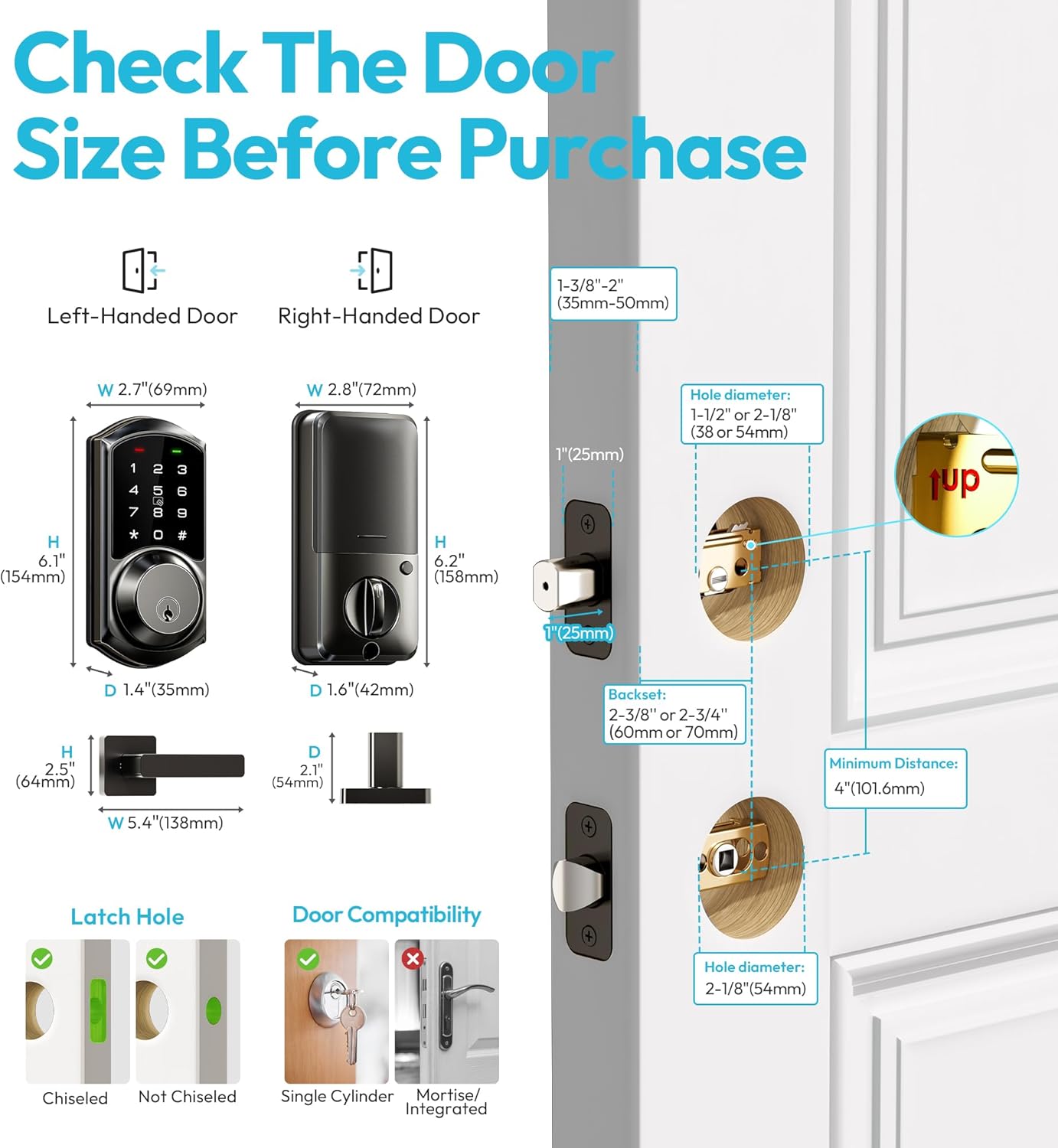
Figure 3: Door measurement and compatibility guide.
Installation Guide
Follow these steps for a successful installation of your Veise Smart Lock. A Phillips head screwdriver is typically the only tool required.
Step 1: Install the Latch and Strike Plate
- Insert the latch into the door edge, ensuring the "UP" arrow is facing upwards.
- Secure the latch with screws.
- Install the strike plate on the door frame, aligning it with the latch.
Step 2: Install the Exterior Assembly
- Feed the cable from the exterior assembly through the latch hole.
- Align the exterior assembly with the door holes and press it firmly against the door.
Step 3: Install the Interior Mounting Plate
- Pass the cable through the mounting plate.
- Secure the mounting plate to the exterior assembly using the provided screws.
Step 4: Connect the Cable and Install the Interior Assembly
- Connect the cable from the exterior assembly to the interior assembly. Ensure the connection is secure.
- Carefully tuck the excess cable into the door.
- Align the interior assembly with the mounting plate and secure it with screws.
Step 5: Install Batteries and Test
- Insert 4 AA batteries (not included) into the battery compartment of the interior assembly.
- Test the lock's functionality by using the mechanical key and the thumb turn. Ensure smooth operation.

Figure 4: The Veise Smart Lock is designed for easy installation and operation.
Operating Instructions
Initial Setup and App Pairing
- Download the DDLock App from your smartphone's app store (iOS or Android).
- Create an account and log in.
- Enable Bluetooth on your smartphone.
- In the app, tap "Add Lock" and select "Door Lock".
- Touch the keypad of your smart lock to activate it. The app should detect the lock.
- Follow the on-screen prompts to pair the lock with your account. You will be prompted to name your lock.

Figure 5: Components and app interface for the Veise Smart Lock.
Unlocking Methods
- Via App: Open the DDLock app, select your lock, and tap the unlock icon.
- Via Passcode: Enter your valid passcode on the keypad followed by the '#' key.
- Via Fob Card: Present the RFID fob card to the designated area on the lock's keypad.
- Via Mechanical Key: Insert the physical key into the keyhole and turn to unlock.
- Via Thumb Turn: From the inside, rotate the thumb turn to unlock.

Figure 6: Visual guide to unlocking your smart lock.
Locking Methods
- Automatic Lock: Configure auto-lock delay (5-900 seconds) in the app. The lock will automatically engage after the set time.
- One-Touch Lock: Press and hold the '#' key on the keypad for 2 seconds.
- Via App: Open the DDLock app, select your lock, and tap the lock icon.
- Via Mechanical Key: Turn the physical key to lock.
- Via Thumb Turn: From the inside, rotate the thumb turn to lock.

Figure 7: Auto-lock and one-touch lock features for enhanced safety.
User Management (via App)
- Add Users: Generate temporary, timed, or permanent passcodes/eKeys for guests or family members.
- Delete Users: Revoke access for specific users at any time.
- View Records: Access a log of all lock and unlock events, including timestamps and user information.
Maintenance
- Battery Replacement: The lock will provide a low battery alert. Replace all four AA batteries promptly when indicated. Use high-quality alkaline batteries for optimal performance.
- Cleaning: Wipe the keypad and exterior surfaces with a soft, damp cloth. Avoid abrasive cleaners or solvents that could damage the finish or electronic components.
- Lubrication: Periodically check the mechanical components (latch, deadbolt) for smooth operation. If necessary, apply a small amount of graphite lubricant to the internal mechanisms, avoiding liquid lubricants.
- Firmware Updates: Check the DDLock app regularly for available firmware updates for your lock. Updates can improve performance, add features, and enhance security.
Troubleshooting
| Problem | Possible Cause | Solution |
|---|---|---|
| Lock does not respond to keypad entry. | Low batteries; Incorrect passcode; Keypad malfunction. | Replace batteries; Verify passcode; Contact support if issue persists. |
| App cannot connect to the lock. | Bluetooth off; Lock out of range; App not updated; Lock battery low. | Ensure Bluetooth is on; Move closer to lock; Update app; Replace batteries. |
| Auto-lock not working. | Auto-lock feature disabled in app; Incorrect delay setting. | Enable auto-lock in app settings; Adjust delay time. |
| Mechanical key does not work. | Key is bent or damaged; Internal mechanism issue. | Try a spare key; Contact support for assistance. |
| Lock makes unusual noises. | Friction in mechanism; Loose components. | Lubricate mechanical parts; Check for loose screws; Contact support. |
Specifications
- Model: VE06, VE06L
- Brand: Veise
- Lock Type: Deadbolt with Lever Handle
- Material: Metal
- Color: Matte Black
- Power: 4 x AA Batteries (not included)
- Connectivity: Bluetooth (Optional G2 WiFi Gateway for remote access)
- Operating Temperature: -20°C to 70°C (-4°F to 158°F)
- Weather Resistance: IP54 (Weatherproof)
- Certifications: ANSI Grade 3
- Unlock Methods: App, Passcode, Fob, Mechanical Key, Thumb Turn
Warranty and Support
Veise products are designed for durability and reliability. For specific warranty information, please refer to the warranty card included with your product or visit the official Veise website.
For technical support, troubleshooting assistance, or any inquiries regarding your Veise Smart Lock, please contact Veise Customer Service:
- Website: www.veise.com/support (Example link, replace with actual)
- Email: support@veise.com (Example email, replace with actual)
- Phone: 1-800-XXX-XXXX (Example number, replace with actual)
Please have your model number (VE06 or VE06L) and purchase date ready when contacting support.


