
Introduction
The Audiopipe EQ-595BT is a 4-band wireless streaming graphic equalizer designed to provide precise audio control and enhancement for your car audio system. This unit features Bluetooth connectivity, a 15V audio signal line driver, and customizable illumination, offering a versatile solution for optimizing sound quality. This manual provides detailed instructions for installation, operation, and maintenance to ensure optimal performance.
Key Features
- Simplified Power Management: Integrated power on/off switch for the amplifier, streamlining setup and control.
- 4-Band Wireless Streaming with 15V Line Driver: Offers precise audio shaping across four frequency bands and provides a high-voltage signal for clean, undistorted audio.
- Adjustable Subwoofer Frequency Control: Customize subwoofer cutoff frequencies (50Hz, 80Hz, 120Hz) for balanced low-end response.
- Customizable Backlight and Aesthetic Control: Selectable blue or red illumination to match your system's aesthetic.
- Enhanced Low-End Performance: Dedicated subwoofer output with adjustable level controls for optimal bass enhancement.
- Three Gold-Plated RCA Stereo Outputs: Ensures high-quality, corrosion-resistant connections to amplifiers and other audio devices.
- Memory Stick & Wireless Music Streaming: Supports Bluetooth music streaming and features a memory stick input for audio settings or content. The memory stick and charging port are protected by a water-resistant silicone cover.
- Versatile Installation and Integration: Universal half-DIN chassis for flexible installation in various vehicle audio systems.
- Mounting Accessories Included: Comes with a mounting bracket, gasket, screws, and power plug for straightforward installation.
- Compact and Space-Efficient Design: Dimensions of 27.5mm * 123mm * 176mm allow for easy integration into tight spaces.
Product Overview
Familiarize yourself with the components and connections of your Audiopipe EQ-595BT.

Figure 1: Angled view of the Audiopipe EQ-595BT Graphic Equalizer, highlighting its compact design and front panel controls.

Figure 2: Close-up of the front panel controls, including Master Volume, Fader, Input Select, and 4-band equalization knobs for Sub, Sub Bass, Mid Bass, Mid, and Treble.

Figure 3: Close-up of the rear panel connections, showing RCA inputs and outputs for Front, Rear, and Subwoofer, along with the power connector.

Figure 4: Detail of the power connector, indicating connections for GND, REM IN, +12V, and REM OUT.
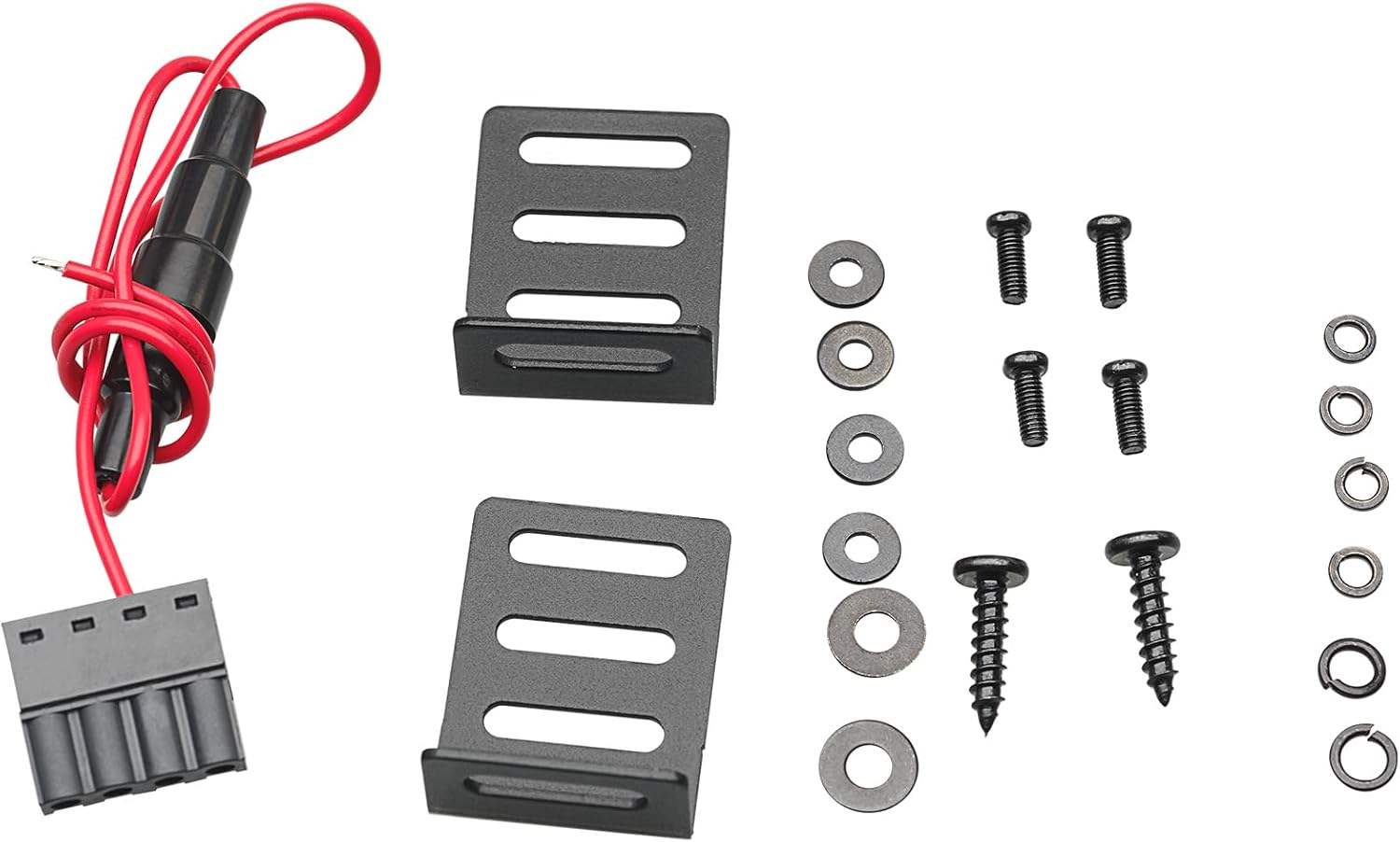
Figure 5: Included mounting accessories: mounting brackets, screws, and power plug for secure installation.
Setup
1. Mounting
The EQ-595BT features a universal half-DIN chassis for flexible installation. Use the provided mounting bracket, gasket, and screws to securely install the unit in your desired location, such as a dashboard, rack, or custom audio setup. Ensure adequate ventilation around the unit.
2. Wiring Connections
- Power (+12V): Connect to a switched +12V power source.
- Ground (GND): Connect to a solid chassis ground point.
- Remote In (REM IN): Connect to the remote output of your head unit.
- Remote Out (REM OUT): Connect to the remote input of your amplifier(s).
- RCA Inputs (AUX INPUT): Connect your audio source (e.g., head unit, media player) to the AUX INPUT RCA jacks.
- RCA Outputs (FRONT OUT, REAR OUT, SUB OUT): Connect these outputs to the corresponding inputs on your amplifiers.
3. Initial Power-On
After all connections are made, turn on your audio system. The EQ-595BT should power on, and the selected illumination (blue or red) will activate.
Operating Instructions
1. Basic Controls
- Master Volume: Adjusts the overall output volume of the system.
- Fader: Balances the audio output between the front and rear speakers.
- Input Level: Use the R and L input level potentiometers to match the input signal from your source unit, preventing distortion.
- Input Select (MS/AUX/BT): Press to cycle between Memory Stick, Auxiliary, and Bluetooth inputs.
2. Equalization
The EQ-595BT features 4 distinct frequency bands for precise audio shaping. Adjust the following knobs to fine-tune your sound:
- SUB: Controls the overall subwoofer level.
- SUB BASS: Adjusts the lower bass frequencies.
- MID BASS: Adjusts the mid-range bass frequencies.
- MID: Adjusts the mid-range frequencies.
- TREBLE: Adjusts the high frequencies.
3. Crossover Settings
Use the switches on the top panel to set the crossover frequencies:
- Subwoofer Frequency: Select between OFF, 50Hz, 80Hz, or 120Hz for the subwoofer output.
- Front/Rear Crossover: Select between OFF, 80Hz, 120Hz, or 200Hz for the front and rear outputs.
4. Bluetooth Streaming
To stream music wirelessly, select the Bluetooth input. Pair your device with the EQ-595BT via Bluetooth settings on your smartphone or other audio source. Once paired, you can control playback from your device.
5. Memory Stick Input
Insert a memory stick into the dedicated port for playing audio files or accessing stored settings. The port is protected by a water-resistant gel silicone snap cover.
6. Backlight Illumination
Use the 'COLOR' switch on the top panel to select between blue or red backlight illumination for the controls.
Maintenance
- Keep the unit clean by wiping it with a soft, dry cloth.
- Avoid exposing the unit to excessive moisture or direct sunlight.
- Ensure all connections are secure and free from corrosion.
- Regularly check the water-resistant cover for the memory stick/charging port to ensure it is properly sealed.
Troubleshooting
- No Power: Check all power connections (+12V, GND, REM IN). Ensure the remote wire is receiving a signal from the head unit.
- No Sound: Verify all RCA connections are secure. Check input selection (MS/AUX/BT). Ensure amplifier(s) are powered on and receiving a signal. Adjust Master Volume and individual band levels.
- Distorted Sound: Reduce the input level using the R/L potentiometers. Check for proper gain staging on connected amplifiers. Ensure speaker wires are not shorted.
- Bluetooth Connection Issues: Ensure the EQ-595BT is in Bluetooth mode. Forget the device on your smartphone and re-pair. Ensure no other devices are connected to the EQ-595BT.
- Incorrect Illumination Color: Use the 'COLOR' switch on the top panel to select your desired blue or red illumination.
Specifications
| Feature | Specification |
|---|---|
| Brand | Audiopipe |
| Model Number | EQ-595BT |
| Style | Compact |
| Color | Black |
| Voltage | 15 Volts |
| Hardware Interface | Bluetooth |
| Signal Format | Analog |
| Unit Count | 1.0 Count |
| Dimensions (L*W*H) | 176mm * 123mm * 27.5mm (approx. 6.9in * 4.8in * 1.1in) |
Warranty
This Audiopipe EQ-595BT unit comes with a 1-year manufacturer's warranty. Please retain your proof of purchase for warranty claims. For detailed warranty terms and conditions, refer to the official Audiopipe website or contact customer support.
Support
For further assistance, technical support, or inquiries regarding your Audiopipe EQ-595BT, please visit the official Audiopipe website or contact their customer service department. You can also refer to the product registration information included in your packaging.
Related Videos
Watch the official product video for an overview of the Audiopipe EQ-595BT's features and functionality.
Video: 4 Band Wireless Streaming Graphic Equalizer (EQ-595BT) - An official overview of the product's key features and design by Audiopipe USA.
