
TCL 65P7K-UK
TCL 65P7K-UK 65" QLED 4K Ultra HD HDR Google TV User Manual
Model: 65P7K-UK | Brand: TCL
Introduction
This user manual provides comprehensive instructions for setting up, operating, maintaining, and troubleshooting your TCL 65P7K-UK 65" QLED 4K Ultra HD HDR Google TV. Please read this manual thoroughly before using your television to ensure proper and safe operation. For optimal performance, a Google Account, a free TCL account, and a reliable broadband internet connection are required to access all smart features and services.

Image: The TCL 65P7K-UK 65-inch QLED 4K Google TV, showcasing its vibrant display with a detailed image of a blue flower, highlighting the visual quality.
1. Setup
1.1 Unpacking and Component Check
Carefully remove the television and all components from the packaging. Ensure all items listed below are present:
- TCL 65P7K-UK Television
- Remote Control
- Power Cable
- TV Stand (2 pieces)
- Screws for Stand Installation
- User Manual (this document)
1.2 Stand Installation
Place the television face down on a soft, flat surface to prevent screen damage. Align the stand pieces with the corresponding slots on the bottom of the TV. Secure each stand piece using the provided screws. Ensure the stands are firmly attached before placing the TV upright.

Image: Side view of the TCL 65P7K-UK television with its stand installed. This illustrates the TV's profile and how the stand supports the unit.
1.3 Wall Mounting (Optional)
If you intend to wall mount your television, please refer to the separate wall mount installation guide provided with your wall mount kit. Ensure you use a VESA-compatible wall mount appropriate for the 65-inch screen size and weight of the TCL 65P7K-UK.
1.4 Connecting Peripherals
Connect your external devices such as Blu-ray players, gaming consoles, sound systems, and USB drives to the appropriate ports on the back or side of the TV.
- HDMI: For high-definition audio and video devices. This model supports multiple HDMI inputs.
- USB: For connecting USB storage devices to play media files.
- Ethernet (LAN): For a wired internet connection.
- Wi-Fi: For wireless internet connection.
- Bluetooth: For connecting wireless accessories like headphones or soundbars.
1.5 Initial Power On and Google TV Setup
After connecting the power cable, press the power button on the remote control or on the TV. Follow the on-screen instructions to complete the initial setup, including language selection, network connection, and signing into your Google Account to activate Google TV features.
2. Operating
2.1 Remote Control Overview
The remote control allows you to navigate the TV's interface and control various functions. Familiarize yourself with the buttons for power, volume, channel, navigation, and smart feature access.
2.2 Google TV Interface Navigation
Google TV organizes your content from various streaming services into a personalized home screen. Use the directional pad and OK button on your remote to browse recommendations, access apps, and manage settings.
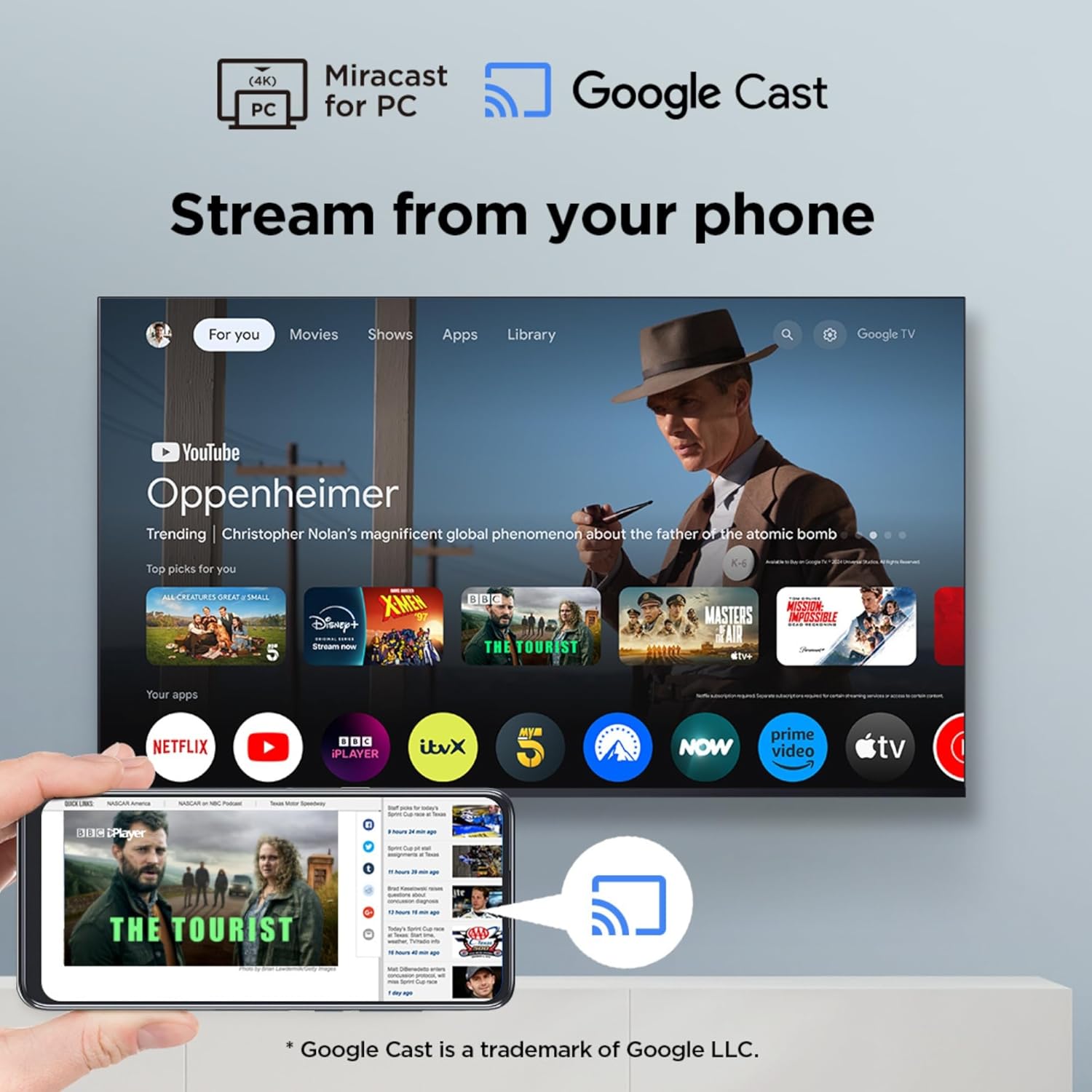
Image: A visual representation of the Google TV interface, displaying various streaming applications and content recommendations, demonstrating the user-friendly layout for content discovery.
2.3 Smart Features
- Streaming Apps: Access popular streaming services like Netflix, YouTube, Prime Video, and Disney+ directly from the Google TV home screen.
- Google Assistant: Use voice commands via the remote control to search for content, control smart home devices, and get information.
- Google Cast: Wirelessly stream content from your compatible smartphone, tablet, or computer to the TV.
2.4 Picture Settings
Your TCL TV features advanced picture technologies for an immersive viewing experience:
- QLED Technology: Delivers over a billion hues of vivid color with unmatched brilliance and depth.
- AiPQ Processor: TCL's self-developed processor intelligently optimizes image quality with pixel-level adjustments for a top-notch viewing experience.
- Multiple HDR Formats: Supports Dolby Vision and HDR10+ for superior contrast, exceptional shadow details, and vivid colors across various content providers.
- HVA Screen: Enhances contrast and detail while reducing halo effects and ambient light interference, providing clearer images and wider viewing angles.

Image: A vibrant display showcasing the wide color gamut and precision offered by QLED technology, illustrating the richness of hues.

Image: A comparison illustrating the benefits of HVA Screen technology, highlighting improved contrast, reduced halo, and wider viewing angles compared to conventional screens.
2.5 Sound Settings
- Dolby Atmos: Experience immersive, three-dimensional audio that transcends traditional channel limitations, delivering astounding clarity and emotional impact.

Image: A visual representation of the immersive sound experience provided by Dolby Atmos, suggesting a theatrical audio environment.
2.6 Gaming Features
- 120Hz Game Accelerator: Enjoy smoother gameplay with a high refresh rate, reducing motion blur and input lag. (Note: 120Hz refresh rate is available on 55", 65", 75", and 85" models).
- VRR (Variable Refresh Rate): Synchronizes the TV's refresh rate with the game console's frame rate, minimizing screen tearing and stuttering for a fluid gaming experience.
3. Maintenance
3.1 Cleaning the Television
To clean the screen, gently wipe it with a soft, lint-free cloth. For stubborn marks, slightly dampen the cloth with water or a screen-specific cleaning solution. Avoid using harsh chemicals or abrasive materials. For the TV body, use a dry, soft cloth to remove dust.
3.2 Software Updates
Your Google TV will periodically check for and install software updates to improve performance and add new features. Ensure your TV is connected to the internet for automatic updates. You can also manually check for updates in the TV's settings menu.
3.3 General Care
Avoid placing the TV in direct sunlight or near heat sources. Ensure adequate ventilation around the TV. Do not block the ventilation openings. Protect the power cord from being walked on or pinched.
4. Troubleshooting
If you encounter issues with your television, refer to the following common problems and solutions:
| Problem | Possible Solution |
|---|---|
| No Power | Ensure the power cable is securely plugged into both the TV and a working power outlet. Check the power indicator light on the TV. |
| No Picture / Black Screen | Verify the correct input source is selected. Check all HDMI cable connections. Try restarting the TV by holding the power button on the remote until the restart option appears, then select restart. |
| No Sound | Check the volume level and ensure the TV is not muted. If using external audio devices, ensure they are properly connected and powered on. Check audio output settings in the TV menu. |
| Network Connection Issues | For Wi-Fi, ensure the router is on and within range. Try restarting your router. For wired connection, ensure the Ethernet cable is securely connected. Check network settings on the TV. |
| Remote Control Not Responding | Replace the batteries in the remote control. Ensure there are no obstructions between the remote and the TV's IR sensor. Try re-pairing the remote if it's a Bluetooth remote. |
| Random Lines/Artifacts on Screen | This can sometimes occur. Try restarting the TV by holding the power button on the remote until the restart option appears, then select restart. If the issue persists, contact customer support. |
5. Specifications
Key technical specifications for the TCL 65P7K-UK television:
- Model Number: 65P7K-UK
- Screen Size: 65 Inches (166 cm visible diagonal)
- Display Technology: QLED
- Resolution: 4K Ultra HD (3840 x 2160)
- Refresh Rate: 120Hz (Game Accelerator)
- Special Features: AiPQ Processor, Dolby Atmos, Multiple HDR Formats (Dolby Vision, HDR10+), HVA Screen, Google TV, Google Assistant, Freeview Play
- Connectivity: Bluetooth, Wi-Fi, USB, Ethernet, HDMI
- Product Dimensions (with stand): 30.3D x 144.4W x 89.3H centimeters
- Weight: 17.3 kg
- Aspect Ratio: 16:9
- Included Components: Power Cable, Remote Control, Stand
- Energy Efficiency Class: F
- Manufacturer: TCL
6. Warranty and Support
6.1 Warranty Information
Your TCL television comes with a manufacturer's warranty. Please refer to the warranty card included in your product packaging for specific terms, conditions, and duration. Keep your proof of purchase for warranty claims.
6.2 Customer Support
For technical assistance, troubleshooting beyond this manual, or warranty inquiries, please contact TCL customer support. Contact details can typically be found on the TCL official website or on your warranty documentation.
Related documents65P7K-UK


Ask a question about this manual
Ask about setup, troubleshooting, compatibility, parts, safety, or missing instructions. Manuals+ will review the question and use this page’s manual context to help answer it.