
BlackboxMyCar S-Drive
BlackboxMyCar S-Drive 10.26" Smart Display Instruction Manual
Model: S-Drive | Brand: BlackboxMyCar
1. Introduction
The BlackboxMyCar S-Drive 10.26" Smart Display is an all-in-one solution designed to enhance your driving experience with advanced connectivity and security features. This portable unit integrates wireless Apple CarPlay and Android Auto, a 1080p front dashcam, and a 1080p backup camera, providing convenience, entertainment, and peace of mind on the road. This manual provides detailed instructions for setup, operation, maintenance, and troubleshooting.

Figure 1: BlackboxMyCar S-Drive 10.26" Smart Display
2. What's Included
Verify that all components are present in your package:
- BlackboxMyCar SmartDrive 10.26" Display with Front Camera and Monitor Base
- Type-C Cigarette Lighter Power Cable
- Rear Backup Camera, Cable, and Mount
- AUX Cable
- 64GB microSD Card (pre-installed or included separately)

Figure 2: Package Contents
3. Setup and Installation
The BlackboxMyCar S-Drive is designed for quick and easy installation.
3.1 Mounting the Display
- Choose a suitable location on your dashboard or windshield that does not obstruct your view or interfere with airbags.
- Clean the mounting surface thoroughly to ensure proper adhesion.
- Attach the monitor base to the display unit.
- Peel off the protective film from the self-adhesive mount on the base.
- Firmly press the display unit onto the chosen surface for at least 30 seconds.
- Adjust the angle of the display for optimal viewing. The mount allows for 180-degree adjustment.

Figure 3: Easy Installation and Angle Adjustment
3.2 Power Connection
Connect the Type-C Cigarette Lighter Power Cable to the display unit and plug the other end into your vehicle's 12V cigarette lighter socket. The unit will power on automatically.

Figure 4: Power Connection
3.3 Rear Backup Camera Installation (Optional)
For the rear backup camera to function, it requires wiring to your vehicle's reverse light. Professional installation is recommended for this step.
- Mount the rear backup camera at the rear of your vehicle, typically near the license plate.
- Route the camera cable from the rear of the vehicle to the main display unit.
- Connect the red power wire of the camera cable to your vehicle's reverse light power supply.
- Connect the black ground wire to a suitable ground point on the vehicle's chassis.
- Plug the camera's video output into the designated input on the S-Drive display.
3.4 Initial Pairing for Wireless CarPlay/Android Auto
- Ensure Bluetooth and Wi-Fi are enabled on your smartphone.
- On the S-Drive display, navigate to the Apple CarPlay or Android Auto icon.
- Follow the on-screen prompts to pair your phone via Bluetooth.
- Once paired, the unit will automatically establish a Wi-Fi connection for wireless CarPlay or Android Auto functionality.

Figure 5: Wireless Connectivity for Apple CarPlay and Android Auto
4. Operating Instructions
4.1 Main Interface and Touchscreen Navigation
The 10.26-inch HD touchscreen provides a clear and responsive interface. Navigate through menus and applications by tapping and swiping. The main screen displays icons for various functions, including Apple CarPlay, Android Auto, DVR (dashcam), Playback, and Audio Output options.

Figure 6: 10.26" HD Touch Screen Display
4.2 Apple CarPlay & Android Auto
Once connected, your smartphone's compatible apps will be mirrored on the S-Drive display, allowing access to navigation (e.g., Google Maps), music streaming (e.g., Spotify, Apple Music), hands-free calling, and messaging. Use the touchscreen or voice commands for interaction.

Figure 7: Wireless CarPlay and Android Auto Interface
4.3 Dashcam Functionality (DVR)
The S-Drive features a built-in 1080p front dashcam and supports an optional 1080p rear backup camera for comprehensive recording.
- Recording: The dashcam automatically begins recording when the unit powers on. Footage is saved to the included 64GB microSD card.
- Loop Recording: Older files are overwritten automatically when the memory card is full.
- Collision Detection: The unit features a G-sensor that detects sudden impacts and automatically locks the current video file to prevent it from being overwritten.
- Motion Detection: When parked, the dashcam can be set to record automatically if motion is detected around your vehicle, providing security surveillance.
- Viewing Footage: Access recorded videos and photos through the 'Playback' option on the main screen.
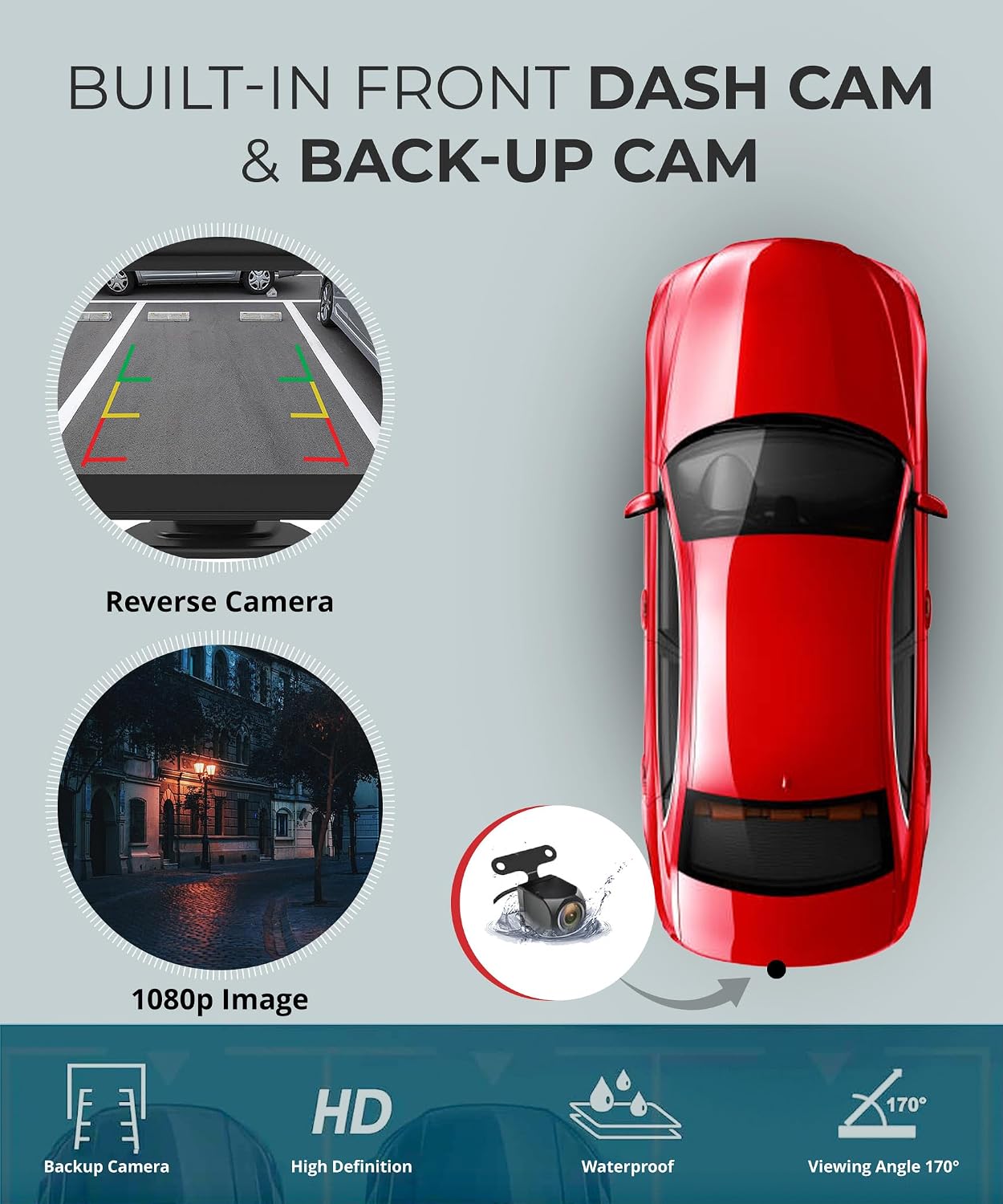
Figure 8: Built-in Front Dashcam and Backup Camera
4.4 Backup Camera Display
If the rear backup camera is installed and wired correctly, the display will automatically switch to the rear camera view when your vehicle is put into reverse, providing parking guidelines for assistance.
4.5 Audio Output Options
The S-Drive offers multiple ways to output audio to your car's sound system:
- Built-in Speakers: The unit has integrated speakers for direct audio playback.
- Bluetooth: Connect your phone to the S-Drive via Bluetooth to stream audio.
- AUX Cable: Use the included AUX cable to connect the S-Drive to your car's auxiliary input for higher quality audio.
- FM Transmission: Broadcast audio from the S-Drive to your car's FM radio. Select an unused FM frequency on the S-Drive and tune your car's radio to the same frequency.

Figure 9: Audio Output Options
4.6 Voice Control
Utilize the built-in microphone for voice commands through Apple CarPlay or Android Auto, allowing for hands-free operation of navigation, calls, and music playback.
4.7 Product Overview Video
Video 1: BlackboxMyCar S-Drive 10.26" Android Auto and Apple CarPlay Overview
5. Maintenance
- Cleaning: Use a soft, lint-free cloth to clean the display screen and camera lenses. Do not use abrasive cleaners or solvents.
- MicroSD Card: Regularly format the microSD card (at least once a month) to ensure optimal recording performance and prevent data corruption. Back up any important footage before formatting.
- Firmware Updates: Check the BlackboxMyCar website periodically for any available firmware updates to improve performance and add new features.
6. Troubleshooting
| Issue | Possible Cause | Solution |
|---|---|---|
| Unit does not power on | No power from cigarette lighter socket; loose connection | Check cigarette lighter fuse; ensure power cable is securely plugged in. |
| CarPlay/Android Auto not connecting wirelessly | Bluetooth/Wi-Fi off on phone; incorrect pairing | Ensure phone's Bluetooth and Wi-Fi are on; delete previous pairing and re-pair. |
| Dashcam not recording | MicroSD card full or corrupted; card not inserted correctly | Format the microSD card; reinsert the card; replace if corrupted. |
| No audio output to car speakers | Incorrect audio output setting; loose AUX cable; FM frequency interference | Check S-Drive audio output settings (Bluetooth, AUX, FM); ensure AUX cable is fully inserted; try a different FM frequency. |
| Rear camera not displaying | Incorrect wiring; camera cable loose | Verify rear camera wiring to reverse light; check cable connections. |
7. Specifications
| Feature | Detail |
|---|---|
| Screen Size | 10.26 Inches |
| Display Type | LCD |
| Front Camera Resolution | 1080p Full HD |
| Rear Camera Resolution | 1080p Full HD |
| Connectivity | Bluetooth, Wi-Fi |
| Operating System | Linux |
| Human Interface Input | Touchscreen |
| Item Weight | 2.11 pounds |
| Package Dimensions | 10.71 x 5.39 x 4.06 inches |
8. Warranty and Support
The BlackboxMyCar S-Drive 10.26" Smart Display comes with a 1-year warranty from the date of purchase, covering manufacturing defects. For detailed warranty information, technical support, or to download the latest user manual, please visit the official BlackboxMyCar website:
BlackboxMyCar Manuals & Support
You can also find additional resources and FAQs on the support page.

Figure 10: Product Box with Manual QR Code
Ask a question about this manual
Ask about setup, troubleshooting, compatibility, parts, safety, or missing instructions. Manuals+ will review the question and use this page’s manual context to help answer it.