
Phezer 5-Inch Touch Screen
Automatic Continuous Inkjet Coding Machine
Model: 5-Inch Touch Screen
Brand: Phezer
Introduction
This manual provides comprehensive instructions for the setup, operation, and maintenance of your Phezer Automatic Continuous Inkjet Coding Machine. This intelligent printer is designed for efficient marking of production dates, times, barcodes, QR codes, and logos on various materials, making it suitable for small to medium-sized businesses. Please read this manual thoroughly before operating the device to ensure proper usage and optimal performance.

Image: The Phezer 5-inch touch screen inkjet coding machine, shown with a small bottle on its adjustable positioning plate, displaying a printed manufacturing and expiration date.
What's in the Box
Verify that all components listed below are included in your package:
- Inkjet Printer (Host Machine)
- 42ml Original Quick-drying Ink Cartridge
- Press/Foot Switch
- Power Adapter
- Positioning Plate
- Photoelectric Sensor (optional, may need to be purchased separately)
- User's Manual

Image: A visual representation of the components included with the Phezer inkjet coding machine, arranged in two rows. These include the main printer unit, an ink cartridge, a foot pedal, a power adapter, a positioning plate, a photoelectric sensor, and the user manual.
Product Features
Fast Drying Ink for Various Materials
The printer is equipped with a 42ml black fast-drying ink cartridge. This ink is suitable for printing on both porous and non-porous surfaces, ensuring quick and stable printing on materials such as glass, metal, plastic, cartons, foil bags, ceramics, PE bags, cloth, pipes, and wood.
Variety of Content
The desktop inkjet printer supports printing various content types to meet diverse industry needs. This includes text, serial batch/lot numbers, barcodes, QR codes (including variable QR codes), production dates, times, expiration dates, and images (JPG, PNG, BMP formats). The printer features built-in fonts and supports importing additional fonts in TTF format via USB.

Image: A display of various printing capabilities of the Phezer machine, showing examples of custom dates, bitmap fonts, barcodes (e.g., 0012345678905), variable serial numbers, logos, QR codes, standard text, and custom fonts.
Three Printing Methods
The inkjet coding machine offers three operational modes for fast printing: foot pedal, hand press (button), and photoelectric sensor (sensor may be sold separately). The adjustable positioning plate ensures precise printing. Printing height ranges from 0.08 inches (2mm) to 0.5 inches (12.7mm), with an adjustable number of printing lines and a printing length of 1-6.5cm per print.

Image: Illustrations demonstrating the three methods of initiating a print job: pressing a button on the machine, using a foot pedal, and automatic activation via a photoelectric sensor.
Easy Operation with 5-Inch Touch Screen
The printer features a 5-inch high-definition capacitive touch screen with an intuitive and simple operation interface. Precise positioning eliminates the need for manual sliding during printing, contributing to fast and stable print speeds and improved efficiency for small and medium-sized products.

Image: A side-by-side comparison of the Phezer inkjet printer models, highlighting the difference between the 7-inch and 5-inch touch screen versions. This product is the 5-inch model.
Versatile Applications and Materials
This lightweight and compact machine is suitable for various industries, including warehousing, logistics, packaging, retail, and food. It can print on a wide range of materials such as wood, glass, plastic, paper bags, leather, cartons, ceramics, and metal.

Image: A collage demonstrating the printer's ability to mark various small to medium products, such as dates on bottle caps, batch numbers on cans, codes on eggs, and information on packaging materials.
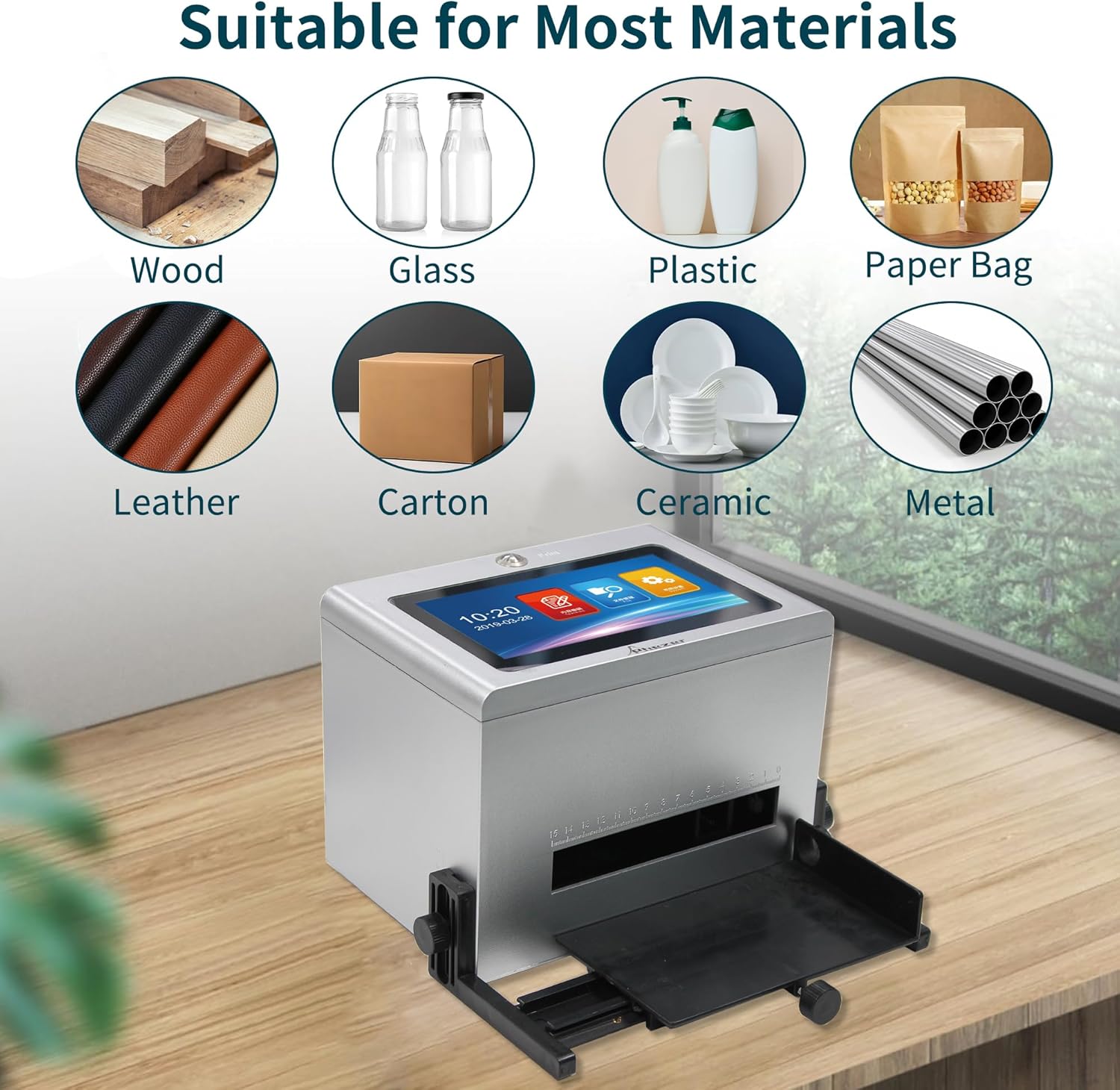
Image: An infographic illustrating the diverse range of materials compatible with the Phezer inkjet printer, including wood, glass, plastic, paper bags, leather, cartons, ceramics, and metal.
Setup
- Unpacking: Carefully remove all components from the packaging. Retain packaging for future storage or transport.
- Ink Cartridge Installation: Open the ink cartridge compartment on the side of the printer. Insert the 42ml quick-drying ink cartridge firmly into its slot until it clicks into place. Ensure the nozzle is clean and free from obstructions.
- Positioning Plate Attachment: Attach the adjustable positioning plate to the front of the printer. Secure it using the provided knobs or screws, ensuring it is stable and can be adjusted for different product sizes.
- Power Connection: Connect the power adapter to the printer's power input port and then plug it into a suitable electrical outlet.
- Optional Sensor/Foot Pedal Connection: If using the photoelectric sensor or foot pedal, connect them to their respective ports on the rear of the printer.
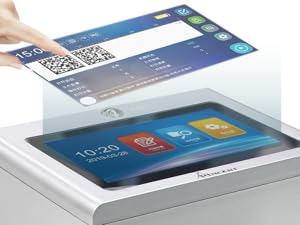
Image: A detailed view of the Phezer inkjet printer, showing the ink cartridge correctly installed in its compartment.
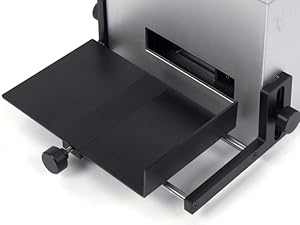
Image: A close-up of the adjustable positioning plate, demonstrating how it is attached to the front of the printer to guide products for accurate printing.
Operating Instructions
Basic Operation
- Power On: Press the power button to turn on the printer. The 5-inch touch screen will display the main interface.
- Content Editing: Navigate the touch screen to select the desired printing content (text, date, barcode, QR code, image). Use the on-screen keyboard or import files via the USB interface to customize your print.
- Adjust Settings: Adjust parameters such as print height, line count, and print length as needed for your specific application.
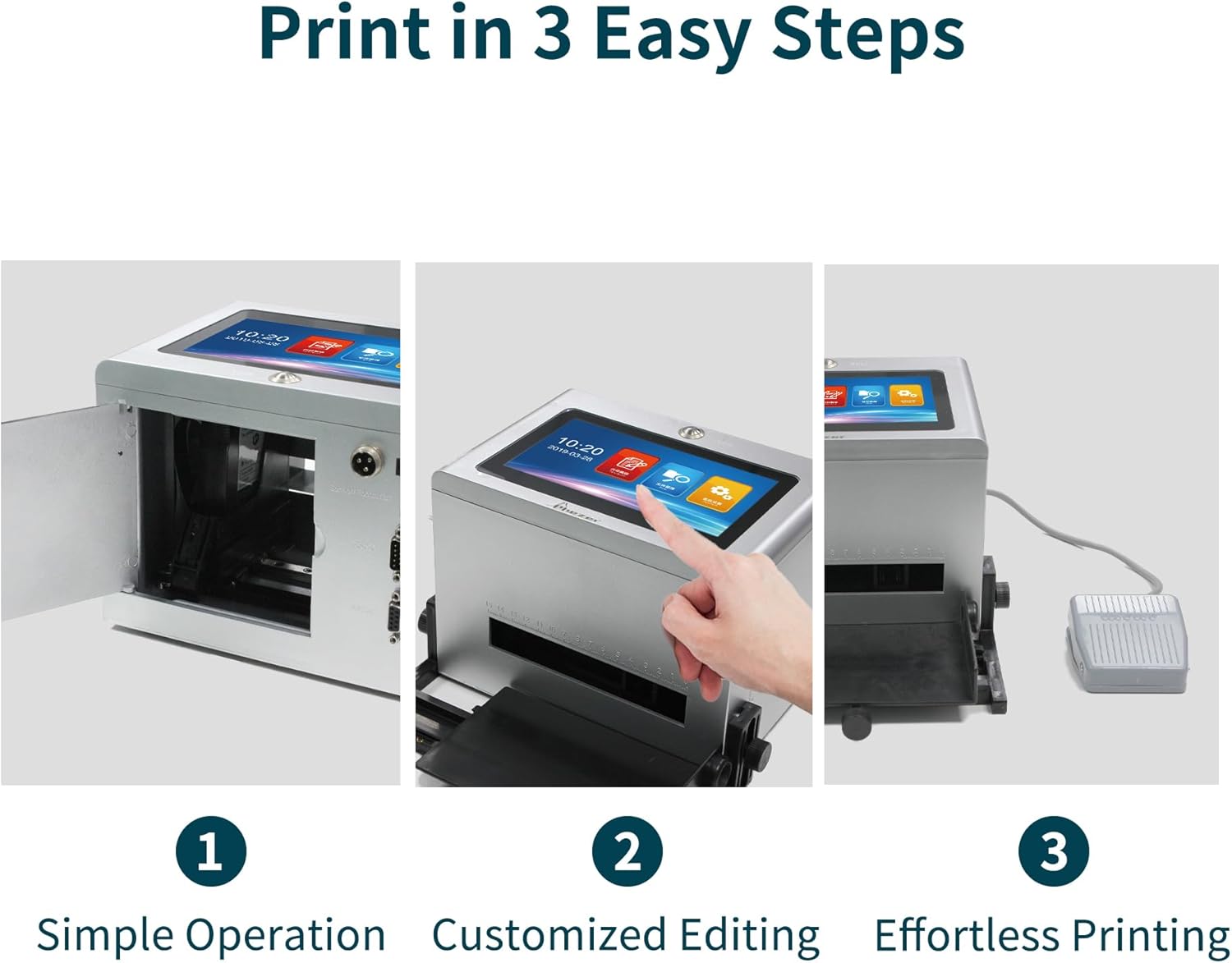
Image: A three-panel image illustrating the operational flow: opening the printer's side panel, interacting with the touch screen for content editing, and initiating a print using the foot pedal.
Printing Methods
- Button Print: Place the product on the positioning plate. Press the designated print button on the machine's interface to initiate printing.
- Foot Pedal Print: Place the product on the positioning plate. Press the foot pedal to trigger the print. This method allows for hands-free operation.
- Photoelectric Sensor Print: For automated production lines, position the photoelectric sensor to detect the product. When the product passes the sensor, the printer will automatically initiate printing.
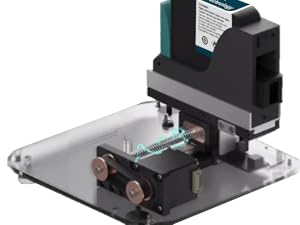
Image: The Phezer inkjet printer shown with both the foot pedal and the photoelectric sensor connected, illustrating the options for print activation.
Content Customization
- Importing Files: Use the USB port on the rear of the machine to import images (JPG, PNG, BMP) or custom fonts (TTF) for printing.
- Variable Data: The machine supports variable data printing, allowing for sequential numbering or other dynamic content.
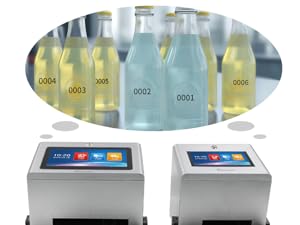
Image: A rear view of the Phezer inkjet printer, highlighting the USB port for data transfer and customization.
Maintenance
- Ink Cartridge Care: When not in use for extended periods, remove the ink cartridge and store it properly according to the manufacturer's recommendations to prevent drying.
- Nozzle Cleaning: Regularly clean the print nozzle with a lint-free cloth and appropriate cleaning solution (if specified by the manufacturer) to ensure clear and consistent prints.
- General Cleaning: Keep the printer's exterior and touch screen clean using a soft, dry cloth. Avoid using harsh chemicals.
Troubleshooting
If you encounter any issues with your Phezer Inkjet Coding Machine, please refer to the following general advice:
- Poor Print Quality: Check the ink cartridge level. Ensure the print nozzle is clean. Verify that the print settings (height, speed) are appropriate for the material.
- Printer Not Responding: Ensure the power adapter is securely connected and the printer is turned on. If using a foot pedal or sensor, check their connections.
- Error Messages: Consult the on-screen error message for specific guidance. If the issue persists, contact customer support.
For more detailed troubleshooting or persistent problems, please contact Phezer technical support.
Specifications
| Product Dimensions | 6"D x 7"W x 7"H |
| Item Weight | 5.5 pounds |
| Model Name | PO1 |
| Item Model Number | 5-Inch Touch Screen |
| Brand | Phezer |
| Manufacturer | Phezer |
| Printing Technology | Inkjet |
| Ink Color | Black |
| Compatible Cartridge | 42ml Original Quick-drying Ink Cartridge |
| Control Method | Touch |
| Hardware Interface | USB |
| Connectivity Technology | Ethernet, USB |
| Max Copy Resolution (B&W) | 600 dpi |
| Max Print Speed (Monochrome) | 60 ppm |
| Specific Uses For Product | Barcode Printing, Date Coding, Time Coding |
Warranty and Support
Phezer is committed to providing reliable coding solutions and customer satisfaction. For any technical support or warranty inquiries, please contact Phezer customer service through the platform where the product was purchased.
To contact Phezer on Amazon:
- Navigate to the product page on Amazon.
- Locate the 'Sold by' section, usually near the 'Add to Cart' button.
- Click on the seller's name, 'Phezer Coding & Marking Solution'.
- On the seller's page, click 'Ask a question' to send a message.

Image: A visual guide detailing the process of contacting Phezer customer support via the Amazon platform, including screenshots of the relevant sections to click.
Ask a question about this manual
Ask about setup, troubleshooting, compatibility, parts, safety, or missing instructions. Manuals+ will review the question and use this page’s manual context to help answer it.