
1. Introduction
The Gleesfun G11PRO is a professional-grade drone designed for exceptional aerial photography and videography. It features a 3-axis brushless gimbal for stable footage, a 6K camera for stunning clarity, and an advanced digital transmission system for extended range. This manual provides essential information for safe operation, setup, maintenance, and troubleshooting to ensure you get the most out of your G11PRO drone.
2. What's in the Box
Your Gleesfun G11PRO drone package includes the following components:

Image: All components included with the Gleesfun G11PRO drone.
- 1 x Gleesfun G11PRO Drone
- 1 x Remote Controller
- 1 x Camera Protector
- 1 x Portable Bag
- 1 x Type-C to Micro-USB Cable
- 1 x Type-C to Type-C Cable
- 1 x Type-C to Lightning Cable
- 1 x Screwdriver
- 2 x 7.7V 3200mAh Batteries
- 4 x Remote Control Sticks
- 2 x Type-C Cables for the Drone
- 2 x User Manuals
- 4 x Spiral Casings
- 8 x Propeller Blades (4 installed, 4 spare)
- 10 x Screws
3. Key Features
3-Axis Brushless Gimbal

Image: The G11PRO's 3-axis brushless gimbal for stable footage.
The G11PRO features a three-axis brushless gimbal system for stable and clear aerial footage. It precisely controls pitch, roll, and yaw, ensuring balance in various conditions. Brushless motors enhance reliability and maneuverability, while a high-performance control chip ensures millisecond synchronization with flight and imaging systems.
6K Photo & 4K/30fps Video

Image: The G11PRO drone capturing high-resolution 6K photos and 4K video.
Equipped with advanced high-resolution technology and a 1/3.2 inch CMOS sensor, the G11PRO delivers stunning 6K image quality and smooth 4K/30fps video. This ensures rich detail, vivid colors, and a wide dynamic range for professional-grade content.
Cruise Control Technology
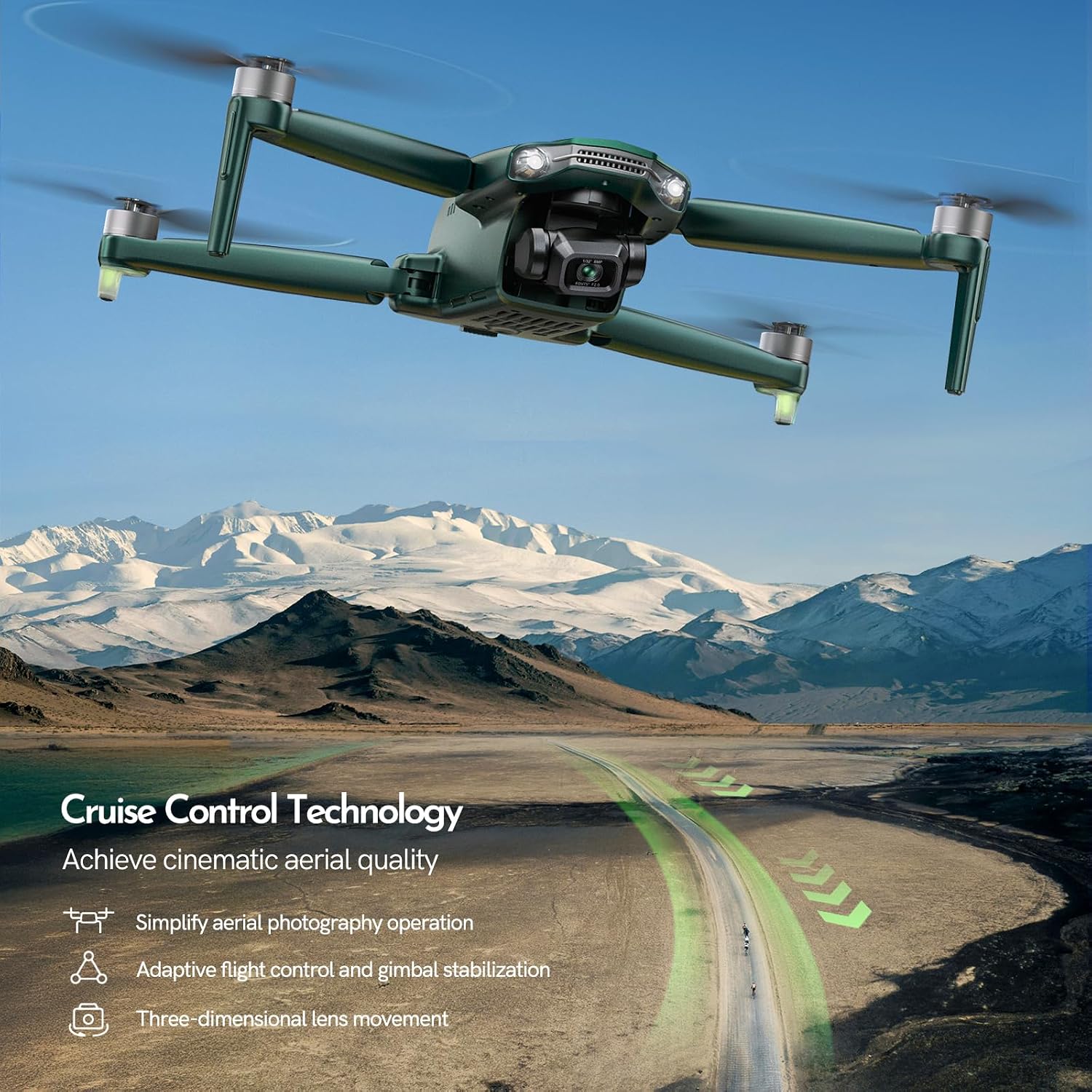
Image: The G11PRO utilizing Cruise Control for smooth, cinematic aerial footage.
The innovative Cruise Control technology simplifies aerial photography. By combining one-key takeoff and joystick control, the flight control system and gimbal automatically maintain stability, ensuring high-definition, lossless aerial photography. It also supports multi-directional 3D aerial photography.
GQ2.0 Digital Image Transmission System

Image: The GQ2.0 Digital Image Transmission System with a 10,000ft range.
This system uses a high-performance image transmission chip for faster, more stable transmission. Its two-way, dual-antenna design provides clear transmission up to 10,000 ft without lag or frame drops. The remote control is ergonomically designed for comfortable and easy operation, supporting plug-and-play wired connections.
GL2.0 Smart Battery Management System

Image: The GL2.0 Smart Battery Management System for extended flight time and fast charging.
The GL2.0 system offers approximately 2.5 hours of fast charging and supports over 300 charge cycles with 80% performance retention. It includes a breathing alert light for safety and adjusts charging for stability. With two batteries, it provides up to 70 minutes of total flight time (35 minutes per battery).
FAA Compliance
The G11PRO drone meets FAA Remote ID requirements and adheres to the FAA Declaration of Compliance. A QR code containing its remote ID is included on the drone. For further inquiries regarding FAA Remote ID, refer to the contact information in this manual or the Gleesfun drone APP.
4. Setup
4.1 Charging the Batteries
Before first use, fully charge both drone batteries and the remote controller. Connect the provided Type-C cables to a suitable USB power adapter (not included). The GL2.0 Smart Battery Management System allows for fast charging in approximately 2.5 hours per battery.
4.2 Installing Propellers
Attach the propeller blades to the drone's motors. Ensure correct orientation as indicated in the drone's quick start guide or by markings on the propellers and motors. Use the provided screwdriver and screws to secure them firmly.
4.3 Remote Controller and App Connection

Image: The G11PRO drone and remote controller with a smartphone connected.
Attach your smartphone to the remote controller using one of the provided Type-C to Micro-USB, Type-C to Type-C, or Type-C to Lightning cables. Download and install the Gleesfun drone APP on your smartphone. Power on the remote controller, then the drone. Follow the in-app instructions to establish a connection and perform initial calibration.
4.4 FAA Registration
As the G11PRO drone meets FAA Remote ID requirements, ensure you complete any necessary FAA registration before flying. Refer to the FAA Declaration of Compliance and the QR code on your drone for details. The Gleesfun drone APP or the contact information in this manual can provide further assistance.
5. Operating Instructions
5.1 Basic Flight Operations

Image: The G11PRO drone in flight during operation.
- Takeoff: Place the drone on a flat, open surface. Ensure GPS signal is strong. Use the one-key takeoff button on the remote or in the app.
- Landing: Use the one-key landing button or manually descend the drone to a safe landing spot.
- Controlling Flight: Use the joysticks on the remote controller to control the drone's ascent/descent, forward/backward movement, and rotation. Refer to the app for real-time flight data.
5.2 Camera and Video Functions
- Capturing Photos: Press the dedicated photo button on the remote or in the app to take 6K resolution still images.
- Recording Videos: Press the dedicated video button to start/stop recording 4K/30fps video. Ensure a compatible Micro SDXC card is inserted into the drone.
- Gimbal Control: Adjust the camera's pitch using the gimbal dial on the remote controller for optimal framing.
5.3 Smart Flight Modes
The G11PRO supports various intelligent flight modes for enhanced creativity and ease of use:
- Circle Flight: The drone will fly in a circular path around a designated point.
- Waypoint Flight: Plan a custom flight path by setting multiple waypoints on the map in the app. The drone will automatically follow this path.
- Follow Me: The drone will automatically follow the remote controller or your mobile device, keeping you in the frame.
- Cruise Control: Activates stable flight and gimbal control for cinematic shots, as described in the Key Features section.
6. Maintenance
6.1 Battery Care
- Always use original Gleesfun batteries and chargers.
- Do not overcharge or over-discharge batteries.
- Store batteries in a cool, dry place away from direct sunlight and extreme temperatures.
- If not used for extended periods, charge batteries to approximately 50-60% capacity every three months.
6.2 Cleaning and Storage
- Regularly clean the drone's body, propellers, and camera lens with a soft, dry cloth.
- Avoid using liquid cleaners or solvents.
- Store the drone and all accessories in the portable bag provided to protect them from dust and damage.
6.3 Propeller Replacement
Inspect propellers for any cracks, bends, or damage before each flight. If a propeller is damaged, replace it immediately using the spare blades and screwdriver provided in the kit. Ensure the new propeller is correctly oriented and securely fastened.
7. Troubleshooting
If you encounter issues with your Gleesfun G11PRO drone, refer to the following common troubleshooting tips:
- Drone not powering on: Ensure batteries are fully charged and correctly inserted.
- No signal from remote controller: Check that both the drone and remote are powered on and properly paired. Ensure no strong interference sources are nearby.
- Poor image/video quality: Clean the camera lens. Ensure sufficient lighting. Check if the Micro SDXC card is properly inserted and has enough free space.
- Unstable flight: Perform IMU and compass calibration as instructed in the Gleesfun drone APP. Check for damaged propellers.
- App not connecting: Ensure your smartphone's Wi-Fi is enabled and connected to the drone's network (if applicable), or that the wired connection is secure. Restart the app and devices.
For more detailed troubleshooting or persistent issues, please consult the comprehensive user manual provided in the box or contact Gleesfun customer support.
8. Specifications
| Feature | Specification |
|---|---|
| Brand | Gleesfun |
| Model Name | G11PRO |
| Item Weight | 357 Grams (12.6 ounces) |
| Product Dimensions | 6.5"L x 3.54"W x 2.56"H |
| Video Capture Resolution | 4K@30fps |
| Supported Image Format | JPEG (6K Photo) |
| Optical Sensor Technology | CMOS (1/3.2 inch) |
| Connectivity Technology | Digital Transmission (GQ2.0) |
| Maximum Range | 10,000 ft |
| Battery Capacity | 3200 Milliamp Hours (7.7V) |
| Flight Time | Up to 35 minutes per battery (70 minutes total with 2 batteries) |
| Charging Time | Approx. 2.5 hours |
| Skill Level | All (Beginner - Professional) |
| Special Features | FAA Compliance, 3-Axis Brushless Gimbal, Smart GPS (Auto Return, Follow Me, Circle Fly, Waypoint Fly), Cruise Control |
9. Warranty and Support

Image: Gleesfun Customer Service Contact Information.
Gleesfun is committed to providing high-quality products and excellent customer service. For any questions, technical support, or warranty inquiries regarding your G11PRO drone, please contact us using the information below:
- Telephone: +1(586) 571-8567
- Email: gleesfun01@gmail.com
Please have your product model and purchase details ready when contacting support to ensure a swift resolution.


