Introduction
The bea-fon Smartwatch 102 is designed to seamlessly integrate into your daily life, offering a blend of style and advanced functionality. Featuring a sleek rectangular design with a 1.83-inch digital display, this smartwatch provides essential health monitoring capabilities, including heart rate, blood oxygen, and sleep tracking. It is compatible with smartphones via the FitCloudPro app, ensuring seamless connectivity. Built for durability, it boasts an IP68 waterproof rating and a long-lasting battery.

Figure 1: Front view of the bea-fon Smartwatch 102, displaying time and health metrics.
Package Contents
Please ensure all the following items are present in your package:
- bea-fon Smartwatch 102 (with silicone strap)
- Magnetic Charging Cable/Base
- User Manual (this document)
Product Overview
The bea-fon Smartwatch 102 features a durable black silicone strap with a magnetic clasp, a rectangular display, and integrated sensors on the back for health monitoring.
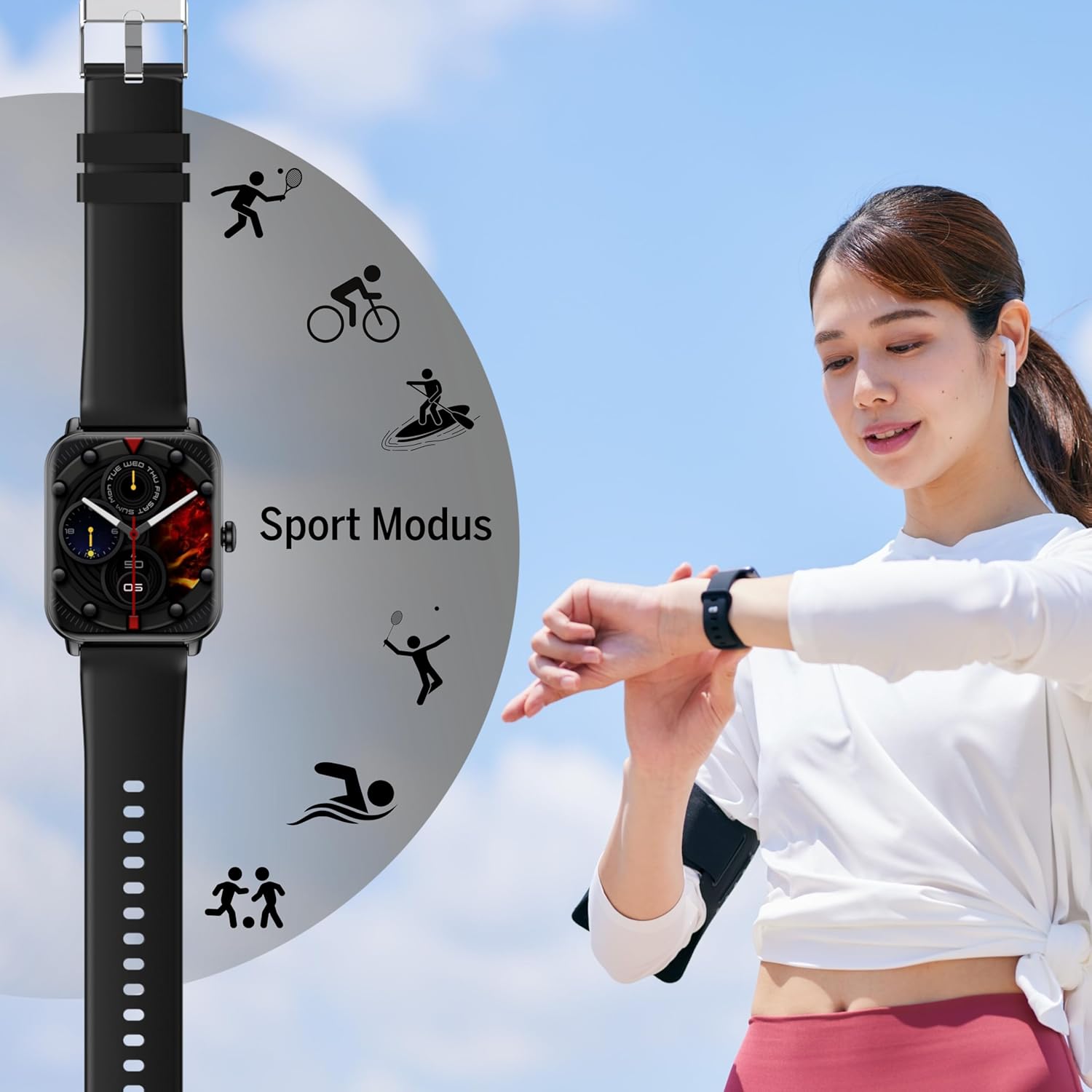
Figure 2: Side view of the Smartwatch 102, highlighting its sleek profile.

Figure 3: Back view of the Smartwatch 102, showing the integrated health sensors.
Key Features:
- Display: 1.83-inch (4.64 cm) digital screen for clear visibility.
- Battery Life: Up to 4-5 days of normal use with a 250mAh Li-ion battery.
- Water Resistance: IP68 rated, suitable for immersion up to 1 meter.
- Health Monitoring: Integrated heart rate monitor, blood oxygen sensor, and sleep tracker.
- Connectivity: Bluetooth for seamless smartphone pairing via FitCloudPro app.
- Design: Rectangular watch face with a comfortable silicone strap and magnetic clasp.
Setup
1. Charging the Device
Before first use, fully charge your bea-fon Smartwatch 102. The device comes with a magnetic charging cable/base.
- Connect the magnetic charging cable to a USB power adapter (not included) or a computer's USB port.
- Align the magnetic end of the cable with the charging contacts on the back of the smartwatch. The magnets will snap into place.
- The watch display will indicate charging status. A full charge takes approximately 3 hours.
2. Pairing with Your Smartphone (FitCloudPro App)
To unlock the full potential of your smartwatch, pair it with your smartphone using the FitCloudPro application.
- Download the FitCloudPro app from the App Store (iOS) or Google Play Store (Android).
- Ensure Bluetooth is enabled on your smartphone.
- Open the FitCloudPro app and follow the on-screen instructions to create an account or log in.
- In the app, navigate to the "Device" or "Add Device" section.
- The app will search for nearby devices. Select "Smartwatch 102" or the corresponding device ID when it appears.
- Confirm the pairing request on both your smartphone and the smartwatch if prompted.
- Once paired, the app will synchronize data with your smartwatch.

Figure 4: The Smartwatch 102 demonstrating Bluetooth connectivity for smartphone pairing.
Operating Instructions
Navigating the Interface
- Swipe Up/Down: Scroll through menus and notifications.
- Swipe Left/Right: Access quick functions or different widgets (e.g., heart rate, steps, weather).
- Tap: Select an item or confirm an action.
- Side Button: Press to wake the screen, return to the watch face, or access the main menu.
Health Monitoring Features
The Smartwatch 102 is equipped with sensors to help you monitor your health.
- Heart Rate Monitoring: The watch continuously tracks your heart rate. View real-time data on the watch or detailed graphs in the FitCloudPro app.
- Blood Oxygen (SpO2) Sensor: Measure your blood oxygen levels. Ensure the watch is snug on your wrist for accurate readings.
- Sleep Tracking: Wear the watch to bed to monitor your sleep patterns, including deep sleep, light sleep, and awake times. Data is synchronized with the app for analysis.
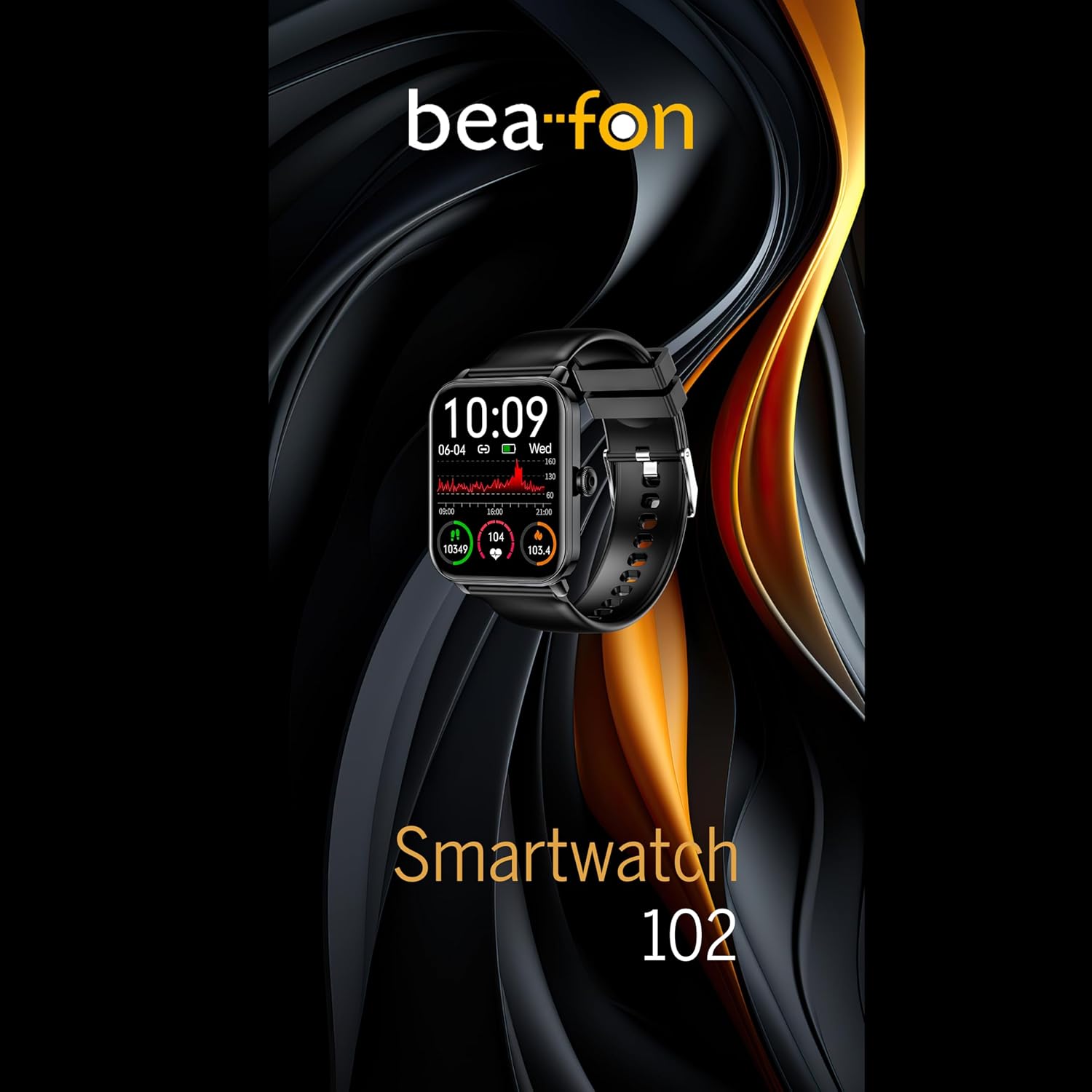
Figure 5: Visual representation of the Smartwatch 102's health monitoring capabilities, including heart rate, sleep, and blood oxygen.
Sport Modes
Track your workouts with various built-in sport modes.
- Access the "Sport" menu on your watch.
- Select your desired activity (e.g., running, cycling, swimming).
- The watch will begin tracking relevant metrics such as duration, calories burned, and heart rate.
- End your workout by following the on-screen prompts. Data will sync to the FitCloudPro app.
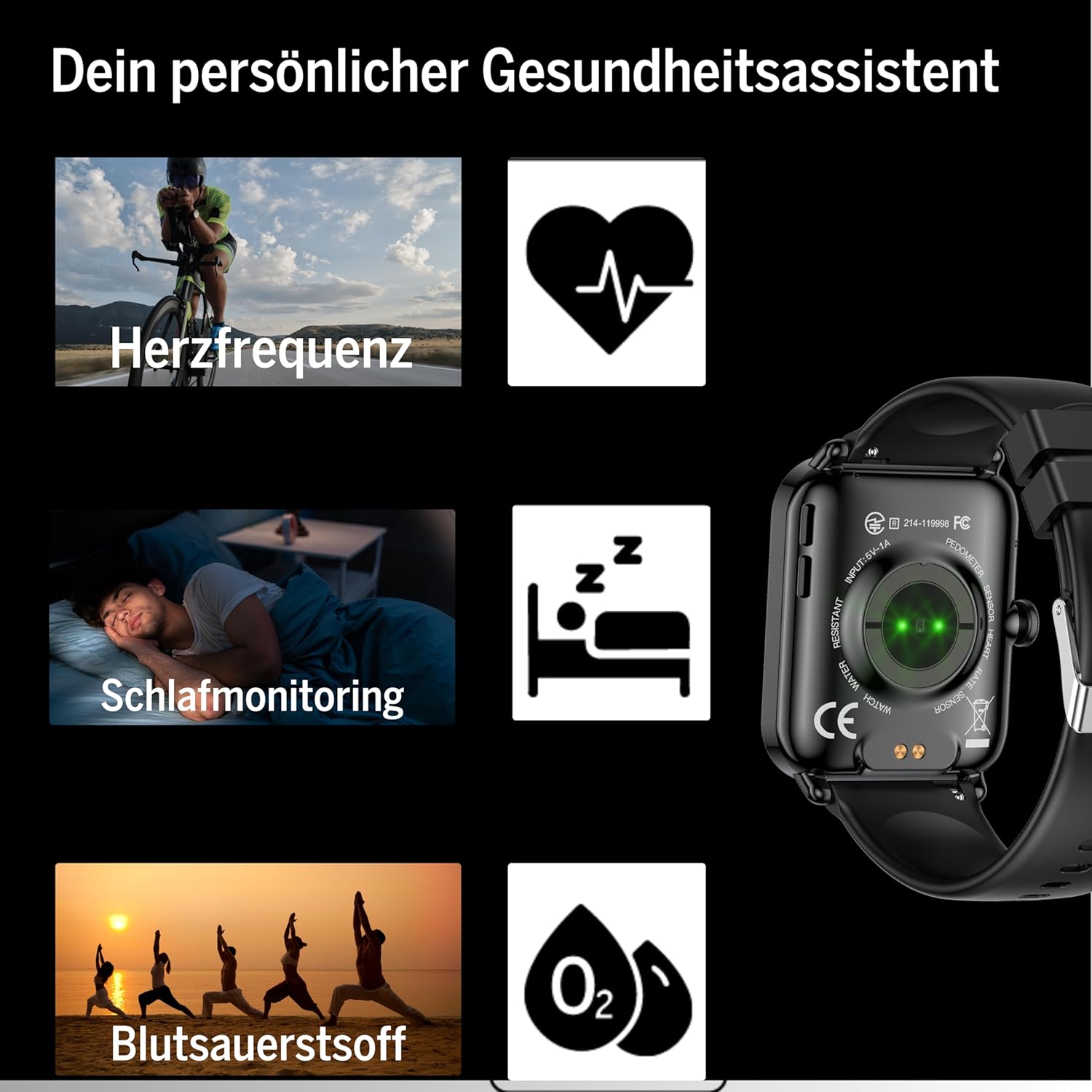
Figure 6: The Smartwatch 102 displaying various sport modes for activity tracking.
Notifications and Calls
Once paired, your smartwatch can receive notifications from your smartphone.
- Enable app notifications in the FitCloudPro app settings.
- Incoming calls and messages will be displayed on your watch. You can typically reject calls from the watch, but not answer them directly.
Maintenance
Cleaning the Smartwatch
To maintain the appearance and functionality of your smartwatch:
- Wipe the screen and strap regularly with a soft, damp, lint-free cloth.
- Avoid using harsh chemicals, abrasive cleaners, or solvents.
- Ensure the charging contacts are clean and dry before charging.
Water Resistance (IP68)
The bea-fon Smartwatch 102 has an IP68 water resistance rating, meaning it is protected against dust ingress and can withstand immersion in water up to 1 meter for 30 minutes.
- It is suitable for daily use, such as hand washing, rain, and shallow swimming.
- Do not use the watch in hot water, saunas, or steam rooms, as steam can penetrate the seals.
- Avoid exposing the watch to high-velocity water or sudden temperature changes.
- After exposure to water, especially saltwater, rinse the watch with fresh water and dry it thoroughly.
Troubleshooting
- Watch not turning on: Ensure the watch is fully charged. Connect it to the magnetic charger and leave it for at least 30 minutes.
- Unable to pair with smartphone:
- Make sure Bluetooth is enabled on your phone and the watch is within range.
- Restart both your phone and the smartwatch.
- Clear the Bluetooth cache on your phone (if applicable) and try pairing again.
- Ensure the FitCloudPro app has necessary permissions.
- Inaccurate health readings:
- Ensure the watch is worn snugly on your wrist, not too loose or too tight.
- Clean the sensors on the back of the watch.
- Avoid excessive movement during readings.
- Notifications not appearing:
- Check notification settings within the FitCloudPro app.
- Ensure your phone's notification settings allow the FitCloudPro app to display alerts.
- Verify that the watch is connected via Bluetooth.
Specifications
| Feature | Specification |
|---|---|
| Brand | Beafon |
| Model | 102 |
| Display Size | 1.83 inches (4.64 cm) |
| Battery Type | 3.7V 250mAh Li-ion rechargeable |
| Battery Life | 4-5 days (normal use) |
| Charging Time | Approx. 3 hours |
| Water Resistance | IP68 (up to 1 meter) |
| Connectivity | Bluetooth |
| Health Sensors | Heart Rate, Blood Oxygen, Sleep Tracker |
| Dimensions | 16.5 x 7.3 x 3.7 cm (Package); 160 g (Product Weight) |
| Strap Material | Silicone |
| Color | Black |
Warranty Information
Specific warranty details for the bea-fon Smartwatch 102 may vary by region and retailer. Please refer to the warranty card included with your product or contact your point of purchase for precise warranty terms and conditions. Generally, electronic devices come with a standard manufacturer's warranty covering defects in materials and workmanship under normal use.
Support
For technical support, troubleshooting assistance, or further inquiries regarding your bea-fon Smartwatch 102, please refer to the following resources:
- Online Resources: Visit the official Beafon website for FAQs, updated manuals, and support articles.
- FitCloudPro App: The app may offer an in-app support section or contact information.
- Customer Service: Contact the retailer from whom you purchased the product for initial support.
When contacting support, please have your product model number (102) and purchase details ready.


