
1. Introduction
Thank you for purchasing the ZEBRONICS PROTONE ONE Portable Bluetooth Speaker. This powerful and versatile speaker is designed to deliver an immersive audio experience with its 120W output, dual full-range drivers, and dual tweeters. It features multiple connectivity options, including Bluetooth v5.0, USB, mSD, and AUX, along with dedicated inputs for a microphone and guitar. The PROTONE ONE also includes a wireless UHF microphone for karaoke and recording functions, making it ideal for various entertainment needs. Please read this manual carefully before using the product to ensure proper operation and to maximize its lifespan.
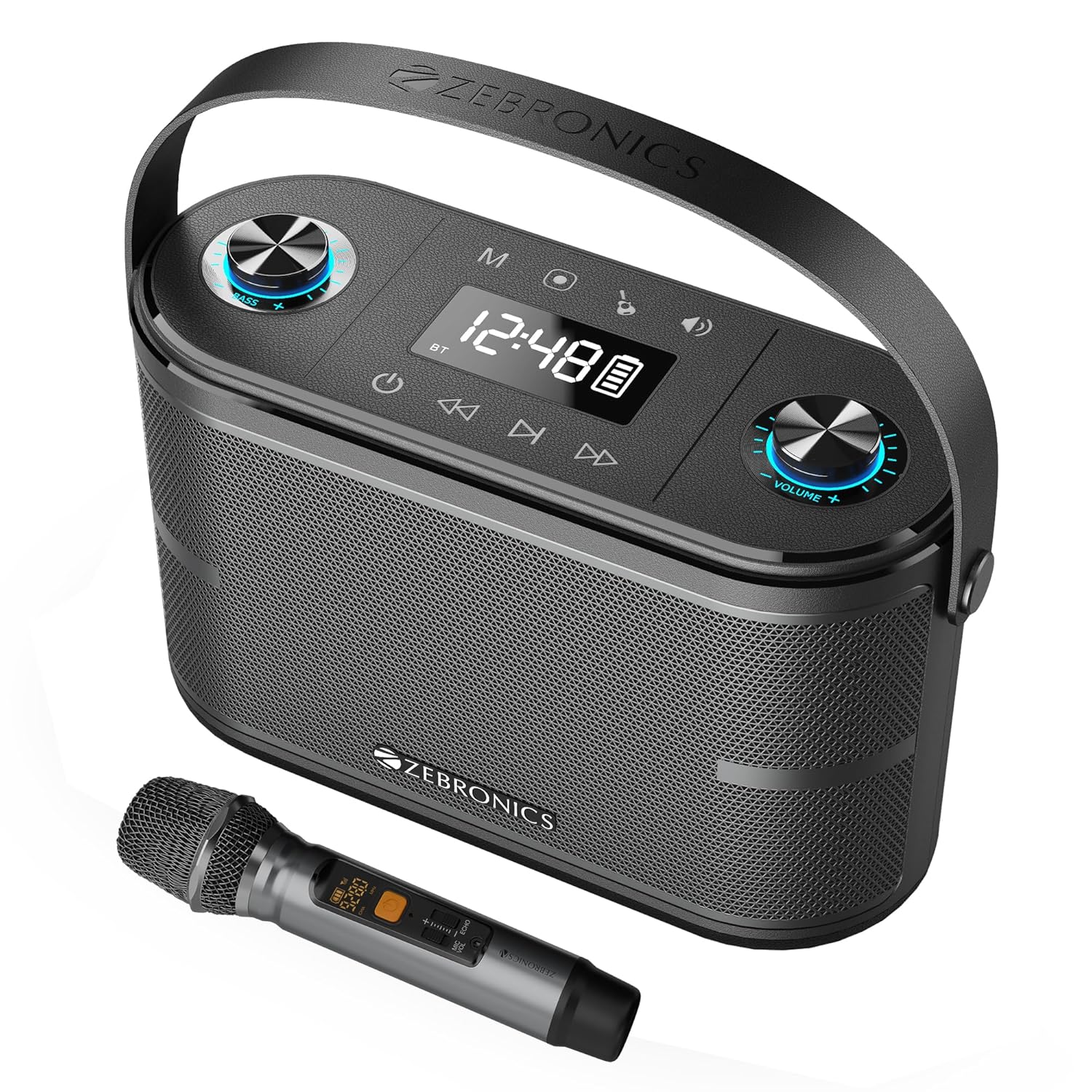
Image: The ZEBRONICS PROTONE ONE speaker shown with its accompanying wireless microphone, highlighting its portable design and integrated handle.
2. Safety Instructions
To ensure safe operation and prevent damage, please observe the following precautions:
- Do not expose the speaker to water, moisture, or extreme temperatures.
- Avoid placing the speaker near heat sources such as radiators, stoves, or other heat-producing appliances.
- Do not block any ventilation openings. Ensure proper airflow around the speaker.
- Use only attachments/accessories specified by the manufacturer.
- Unplug the speaker during lightning storms or when unused for long periods.
- Refer all servicing to qualified service personnel. Servicing is required when the apparatus has been damaged in any way, such as power-supply cord or plug is damaged, liquid has been spilled or objects have fallen into the apparatus, the apparatus has been exposed to rain or moisture, does not operate normally, or has been dropped.
- Do not disassemble the unit. This will void the warranty.
3. Package Contents
Please check the package contents upon unboxing:
- ZEBRONICS PROTONE ONE Portable Bluetooth Speaker: 1 Unit
- Wireless UHF Microphone: 1 Unit
- Charging Adapter: 1 Unit
- AUX Cable: 1 Unit
- User Manual: 1 Unit
4. Product Layout and Controls
Familiarize yourself with the various parts and controls of your PROTONE ONE speaker.
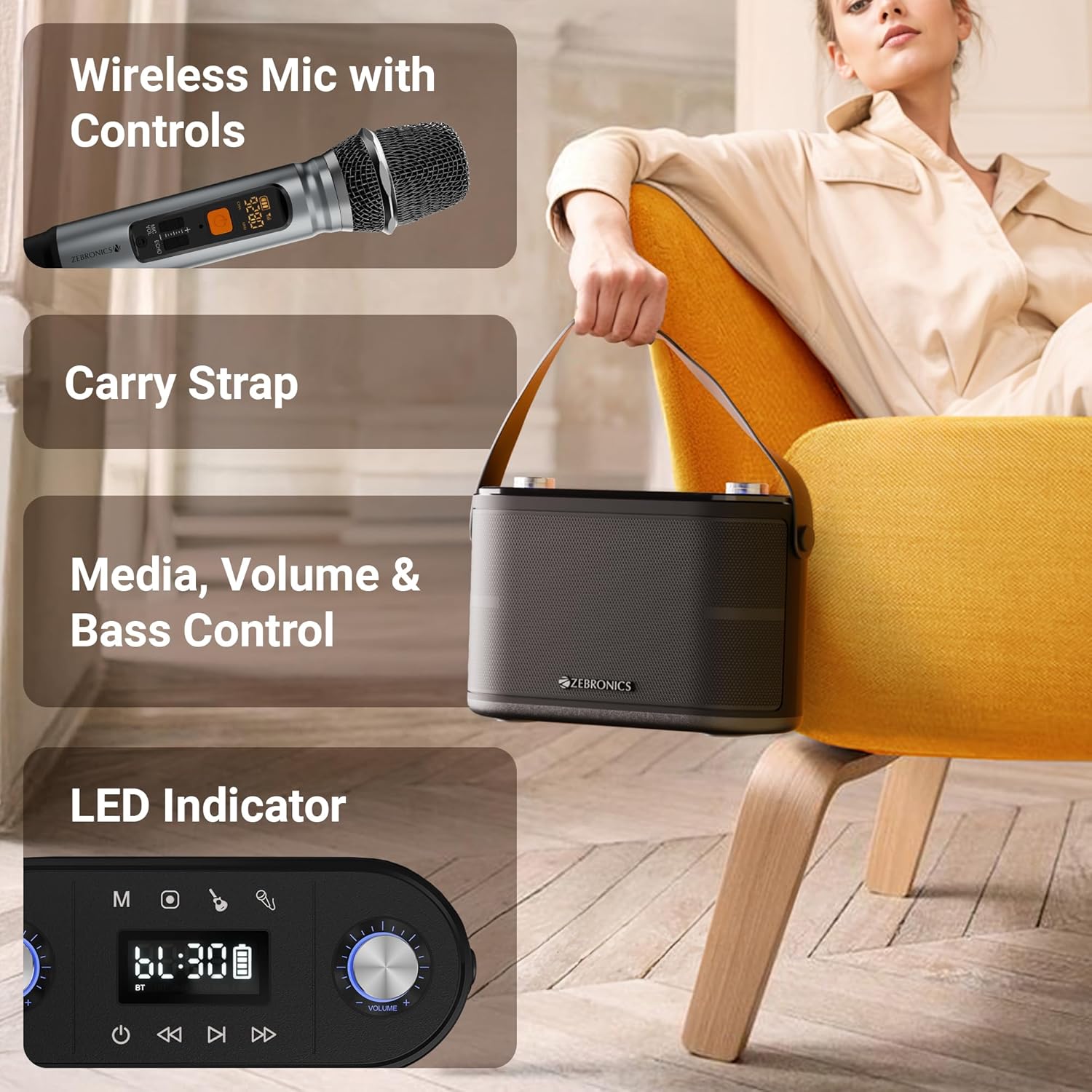
Image: Detailed view of the speaker's top panel showing control knobs, LED display, and media controls, alongside the wireless microphone with its own display.
Top Panel Controls:
- Power Button: Press and hold to turn the speaker ON/OFF.
- Mode Button (M): Press to switch between Bluetooth, USB, mSD, and AUX modes.
- Play/Pause Button: Press to play or pause audio.
- Previous Track Button: Press to go to the previous track.
- Next Track Button: Press to go to the next track.
- Volume Knob: Rotate to adjust the main speaker volume.
- Echo Knob: Rotate to adjust the echo effect for the microphone.
- Mic Volume Knob: Rotate to adjust the microphone volume.
- Bass Knob: Rotate to adjust the bass level.
- LED Display: Shows current mode, track information, and battery status.
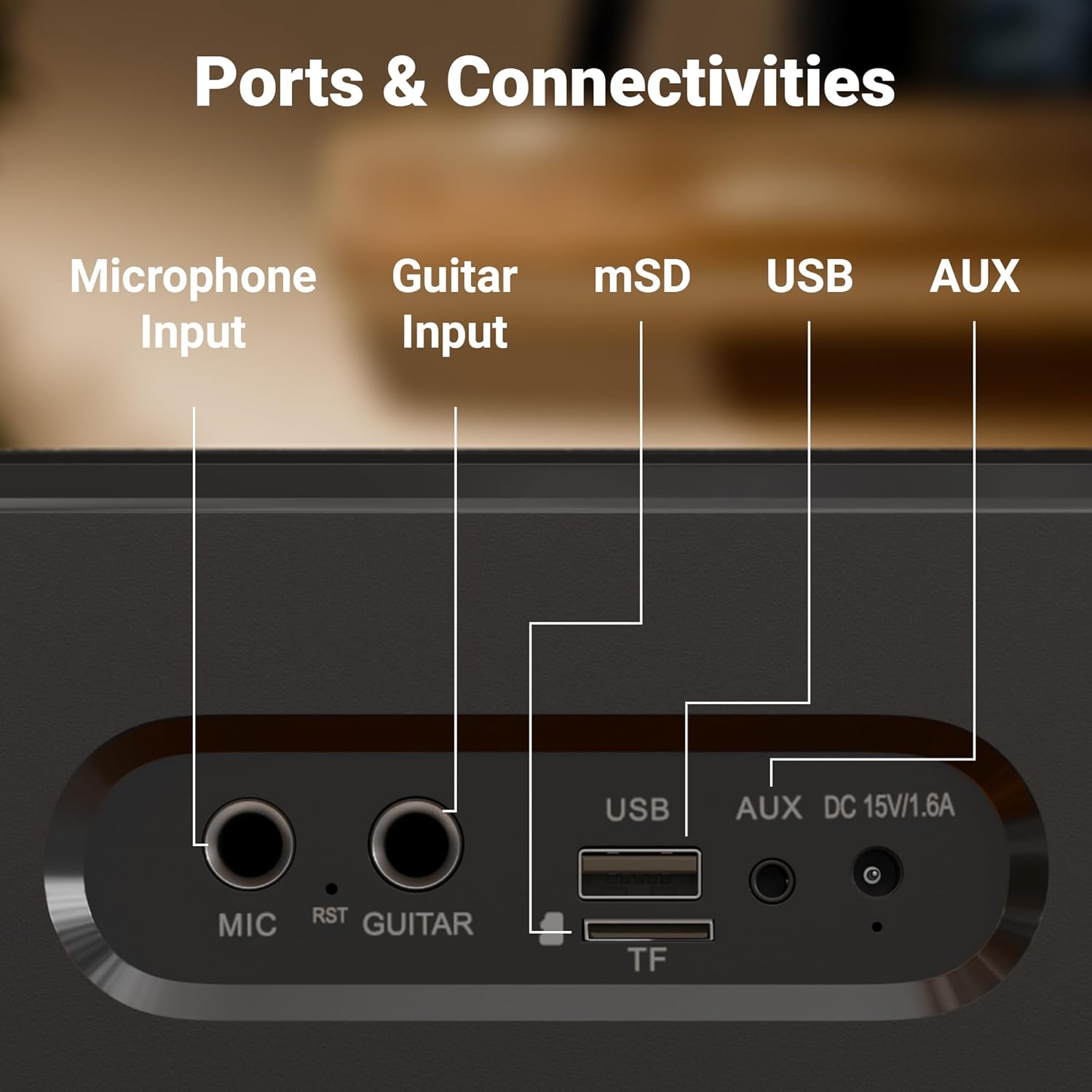
Image: Close-up view of the rear panel of the speaker, clearly labeling the Microphone Input, Guitar Input, mSD card slot, USB port, AUX input, and DC 15V/1.6A charging port.
Rear Panel Ports:
- MIC Input (6.3mm): For connecting an external wired microphone.
- GUITAR Input (6.3mm): For connecting a guitar.
- mSD Card Slot (TF): For playing audio from a microSD card.
- USB Port: For playing audio from a USB flash drive.
- AUX Input: For connecting external audio devices via a 3.5mm cable.
- DC 15V/1.6A Input: For charging the speaker.
5. Setup
Initial Charging:
Before first use, fully charge the speaker. Connect the provided charging adapter to the DC 15V/1.6A input port on the speaker and plug it into a power outlet. The LED display will indicate charging status. Once fully charged, the charging indicator will change or turn off. A full charge provides up to 8 hours of playtime at 50% volume.
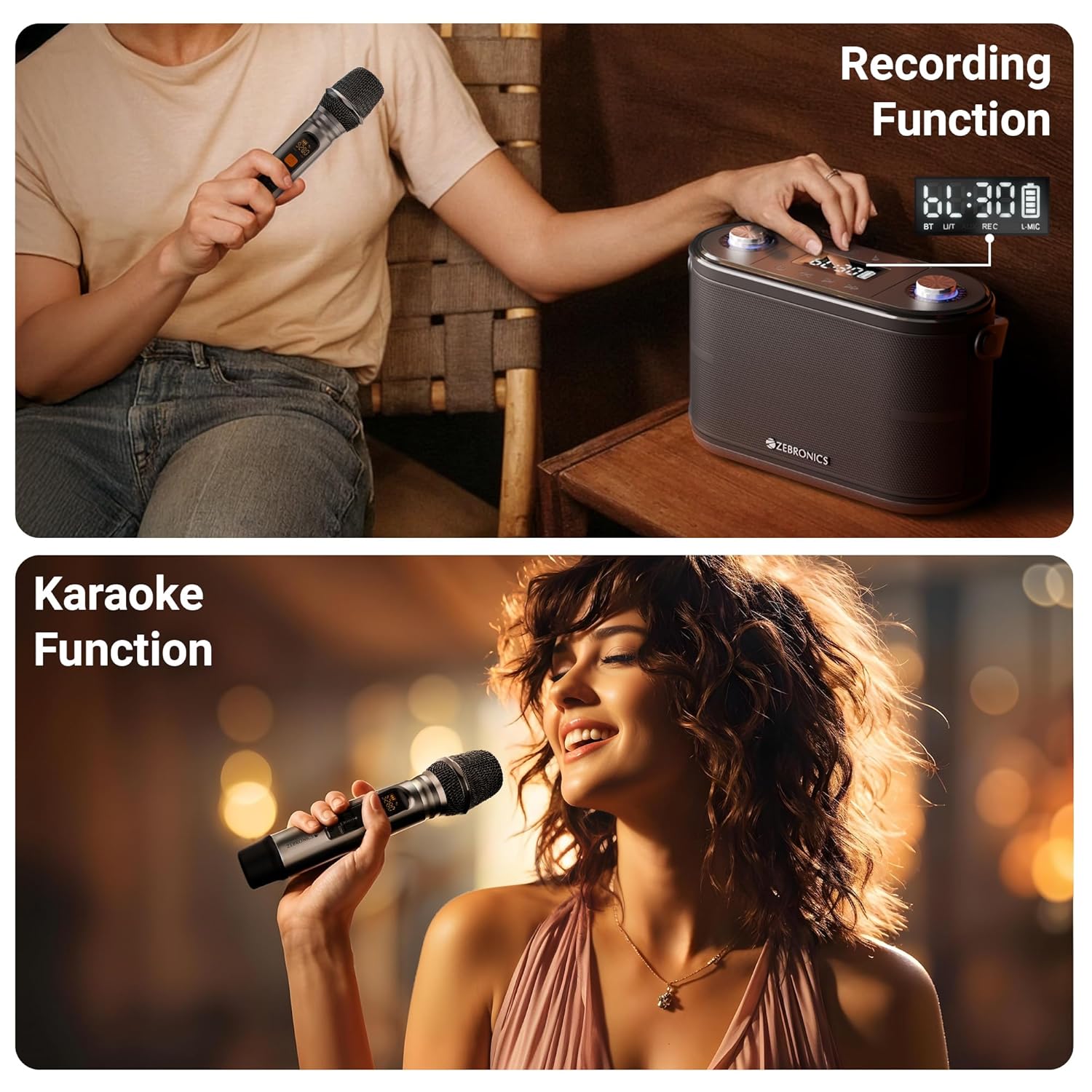
Image: The speaker is shown with an overlay indicating "Built-in Rechargeable Battery" and "Up to 8h* Backup", illustrating its portability and battery life.
Wireless Microphone Setup:
The wireless UHF microphone is pre-paired with the speaker. Simply insert batteries into the microphone (not included) and turn it on. The microphone will automatically connect to the speaker. Ensure the microphone's display shows a stable connection.
6. Operating Instructions
Power On/Off:
Press and hold the Power button on the top panel to turn the speaker ON or OFF.
Mode Selection:
Press the "M" (Mode) button repeatedly to cycle through available input modes: Bluetooth, USB, mSD, and AUX.
Bluetooth Mode (BT v5.0):
- Turn on the speaker and switch to Bluetooth mode. The LED display will show "BT" and a blinking Bluetooth icon, indicating it's in pairing mode.
- Enable Bluetooth on your mobile device or computer.
- Search for "ZEB-PROTONE ONE" in the list of available devices and select it to connect.
- Once connected, the Bluetooth icon on the speaker's display will stop blinking, and you will hear a confirmation tone.
- You can now play audio from your device through the speaker.
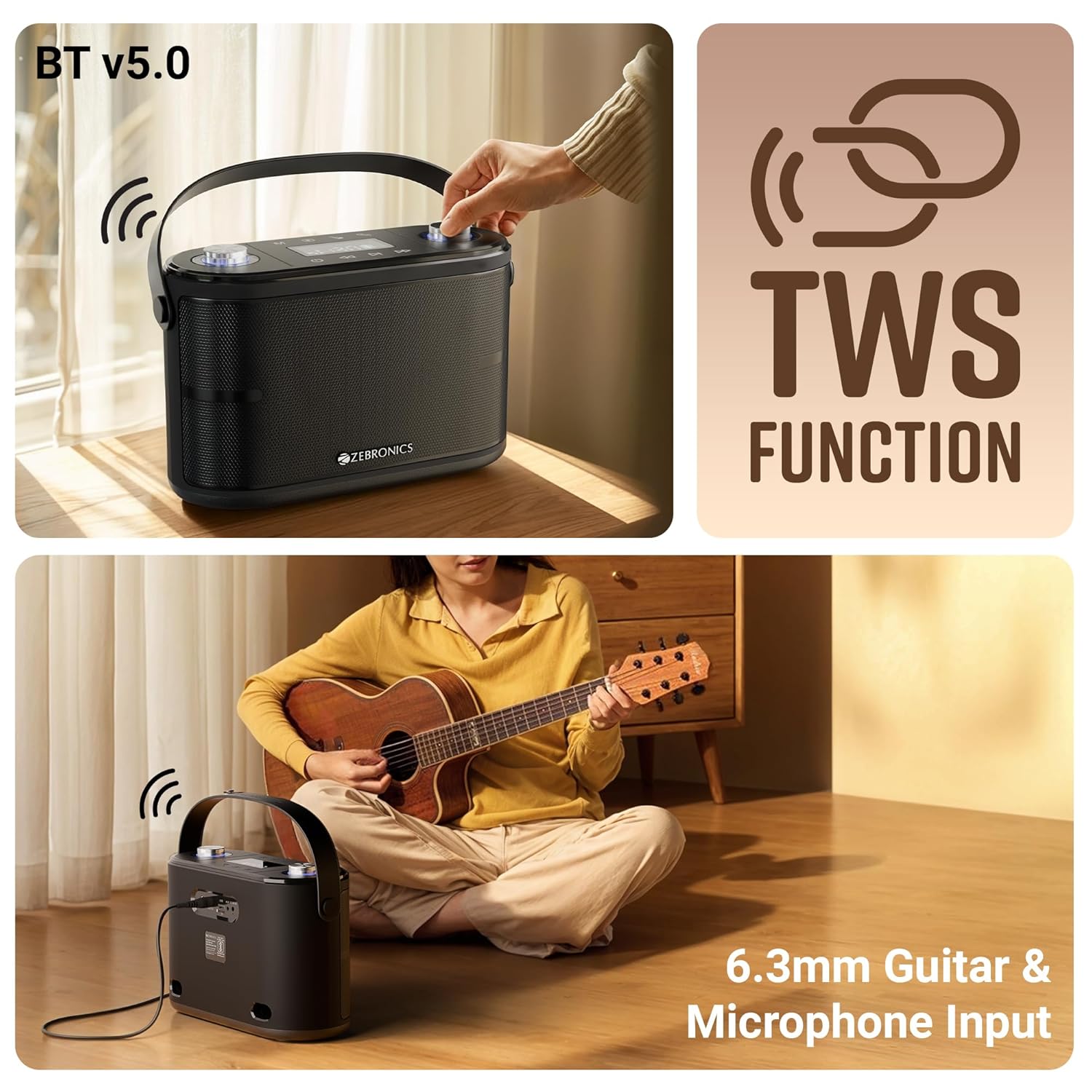
Image: This composite image illustrates the speaker's Bluetooth v5.0 connectivity, the TWS (True Wireless Stereo) function, and the 6.3mm Guitar & Microphone Input ports.
USB / mSD Mode:
Insert a USB flash drive or a microSD card (with pre-loaded MP3/WAV files) into the respective port. The speaker will automatically switch to USB or mSD mode and begin playing audio. Use the Play/Pause, Previous, and Next buttons to control playback.
AUX Mode:
Connect an external audio device (e.g., smartphone, MP3 player) to the AUX input port using the provided 3.5mm AUX cable. Switch the speaker to AUX mode using the Mode button. Audio will now play from your connected device.
Microphone Usage (Wireless & Wired):
- Wireless Mic: Ensure the wireless microphone is powered on. It will automatically connect. Adjust microphone volume using the "Mic Vol" knob and echo effect using the "Echo" knob on the speaker.
- Wired Mic: Plug a 6.3mm wired microphone (not included) into the "MIC" input port. Adjust volume and echo as with the wireless mic.
Guitar Input:
Connect your guitar to the "GUITAR" input port using a 6.3mm cable. You can play your guitar along with music from other input sources.
TWS (True Wireless Stereo) Function:
To experience true stereo sound, you can connect two ZEB-PROTONE ONE speakers together:
- Ensure both speakers are powered on and in Bluetooth mode.
- On one of the speakers (this will be the primary unit), press and hold the "Play/Pause" button for a few seconds until you hear a confirmation tone, indicating TWS pairing mode.
- The primary speaker will automatically search for and connect to the second speaker.
- Once connected, both speakers will play audio in stereo. You can control playback and volume from either speaker or your connected Bluetooth device.
Recording Function:
The speaker supports recording your microphone input directly to a USB drive or mSD card.
- Insert a USB drive or mSD card into the respective slot.
- Ensure the microphone is connected and working.
- Press the "REC" button (if available, or a combination of buttons as per specific model, typically Play/Pause or Mode button long press in recording mode) to start recording. The display may show "REC".
- Press the "REC" button again to stop recording. The recorded file will be saved on your USB drive or mSD card.

Image: This image demonstrates the speaker's recording capability, showing the display indicating recording status, and also illustrates the karaoke function with a person singing into the microphone.
Karaoke Function:
To use the karaoke function, simply play music from any source (Bluetooth, USB, mSD, AUX) and use the connected microphone to sing along. Adjust the music volume, microphone volume, and echo effect to your preference for the best karaoke experience.
7. Charging
The ZEBRONICS PROTONE ONE speaker features a built-in rechargeable battery. When the battery is low, the speaker will indicate this via the LED display or an audible prompt. To charge the speaker:
- Connect the provided charging adapter to the DC 15V/1.6A input port on the rear of the speaker.
- Plug the adapter into a standard wall power outlet.
- The LED display will show a charging indicator.
- Once fully charged, the indicator will change or turn off. Disconnect the charger to preserve battery life.
Note: Do not use any charger other than the one provided by the manufacturer. Overcharging or using an incompatible charger may damage the battery and void the warranty.
8. Maintenance
Proper care and maintenance will ensure the longevity of your speaker:
- Cleaning: Use a soft, dry cloth to clean the exterior of the speaker. Do not use abrasive cleaners, waxes, or solvents.
- Storage: When not in use for extended periods, store the speaker in a cool, dry place, away from direct sunlight and extreme temperatures.
- Battery Care: To prolong battery life, avoid fully discharging the battery frequently. Charge the speaker regularly, even if not in use, to maintain battery health.
- Handling: Handle the speaker with care. Avoid dropping it or subjecting it to strong impacts.
9. Troubleshooting
If you encounter any issues with your ZEBRONICS PROTONE ONE speaker, please refer to the following common problems and solutions:
| Problem | Possible Cause | Solution |
|---|---|---|
| Speaker does not turn on. | Battery is depleted. | Charge the speaker fully. |
| No sound from speaker. | Volume is too low or muted. Incorrect mode selected. Device not connected properly. | Increase volume. Ensure correct input mode (BT, USB, AUX). Reconnect device. |
| Bluetooth pairing fails. | Speaker not in pairing mode. Device Bluetooth off. Too far from speaker. | Ensure speaker is in BT pairing mode. Turn on device Bluetooth. Move device closer (within 10m). Forget device and re-pair. |
| Microphone not working. | Microphone not powered on. Batteries low/dead. Not connected properly. | Ensure mic is ON. Replace mic batteries. Check mic connection (for wired mic). Adjust mic volume. |
| Poor sound quality/distortion. | Volume too high. Source audio quality poor. Interference. | Reduce volume. Try different audio source. Move away from other electronic devices. |
| USB/mSD not playing. | Unsupported file format. Corrupted files. Drive/card not inserted correctly. | Ensure files are MP3/WAV. Reinsert drive/card. Try different drive/card. |
If the problem persists after trying these solutions, please contact ZEBRONICS customer support for further assistance.
10. Specifications
| Feature | Specification |
|---|---|
| Brand | ZEBRONICS |
| Model Name | PROTONE ONE |
| Speaker Maximum Output Power | 120 Watts |
| Connectivity Technology | Bluetooth v5.0, Auxiliary, USB, mSD |
| Audio Output Mode | Stereo |
| Mounting Type | Floor Standing |
| Drivers | Dual 9.3 cm full-range drivers, Dual 3.1 cm tweeters |
| Playback Time | Up to 8 hours (@ 50% volume) |
| Microphone | Wireless UHF Microphone included |
| Inputs | 6.3mm Mic Input, 6.3mm Guitar Input |
| Special Features | TWS Function, Karaoke, Recording Function, Carry Strap, LED Display, Control Knobs |
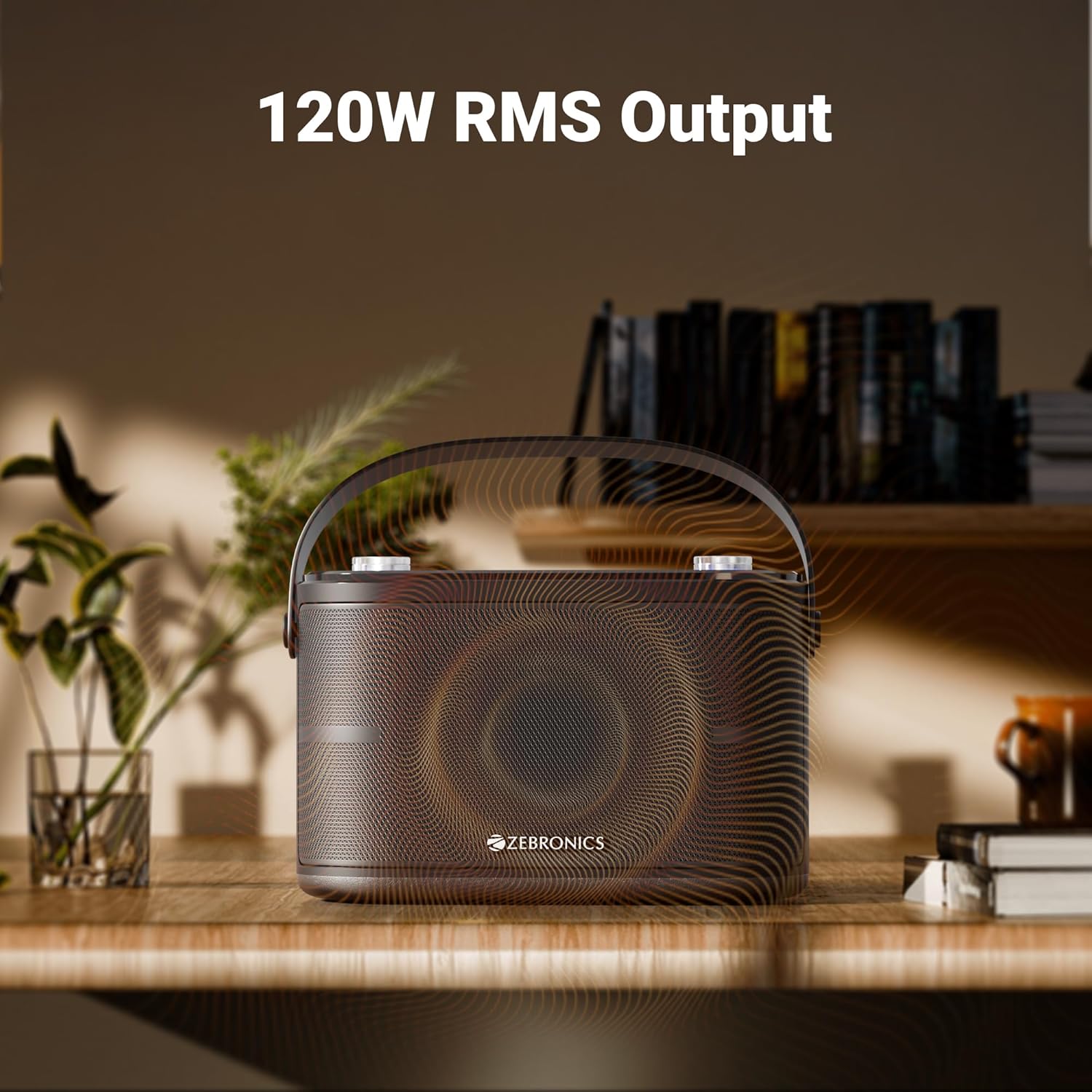
Image: The speaker is depicted with an overlay highlighting its "120W RMS Output", emphasizing its powerful audio capabilities.
11. Warranty and Support
For warranty information and customer support, please refer to the warranty card included in your package or visit the official ZEBRONICS website. Keep your purchase receipt as proof of purchase for warranty claims.
ZEBRONICS Customer Service:
- Website: www.zebronics.com
- Email: Refer to website for support email.
- Phone: Refer to website for customer care numbers.
