
Introduction
This manual provides instructions for the safe and efficient use of your Squishmallows Cam The Cat Plush Portable Speaker. Please read this manual thoroughly before operating the device and retain it for future reference.
The Squishmallows Cam The Cat Plush Portable Speaker combines a soft plush design with portable audio functionality. It features Bluetooth connectivity, volume control, and a built-in microphone for hands-free calls.

Image: Front view of the Squishmallows Cam The Cat Plush Portable Speaker, showcasing its soft, cat-shaped design.
What's in the Box
Verify that all items are present in the package:
- 1 x Cam The Cat Portable Bluetooth Speaker
- 1 x USB Type-C Charging Cable
- 1 x 3.5mm Audio Cable

Image: The Squishmallows Cam The Cat speaker shown with its USB Type-C charging cable and 3.5mm audio cable.
Setup
Charging the Speaker
Before first use, fully charge the speaker. Use the provided USB Type-C cable.
- Connect the USB Type-C end of the charging cable to the charging port on the speaker.
- Connect the USB-A end of the charging cable to a compatible USB power adapter (not included) or a computer's USB port.
- The charging indicator light will illuminate. Once fully charged (approximately 2 hours), the indicator light will change or turn off.

Image: Close-up of the speaker's charging port, indicating where to connect the USB Type-C cable.
Bluetooth Pairing
The speaker features automatic device pairing for quick connection.
- Power On: Press and hold the power button on the speaker until you hear an audible cue or see an indicator light.
- Activate Bluetooth: On your smartphone, tablet, or Bluetooth-enabled PC, go to the Bluetooth settings and ensure Bluetooth is enabled.
- Select Device: Look for "Squishmallows Speaker" or a similar name in the list of available devices and select it to pair.
- Confirmation: Once paired, you will hear a confirmation sound from the speaker. The speaker is now ready to play audio.

Image: The speaker next to a smartphone, illustrating Bluetooth connectivity.
Operating Instructions
Music Playback Control
Manage your audio playback using the controls located on the speaker.
- Play/Pause: Press the Play/Pause button once to play or pause audio.
- Next Track: Press the Next Track button to skip to the next song.
- Previous Track: Press the Previous Track button to go back to the beginning of the current song or to the previous song.
- Volume Control: Use the volume up (+) and volume down (-) buttons to adjust the playback volume.

Image: Close-up of the speaker's control panel, highlighting the play/pause, track, and volume buttons.
Hands-Free Calling
The built-in microphone allows for hands-free phone calls when connected via Bluetooth.
- Answer Call: Press the Play/Pause button once to answer an incoming call.
- End Call: Press the Play/Pause button once during a call to end it.
- Reject Call: Press and hold the Play/Pause button to reject an incoming call.
Wired Connection (AUX)
For devices without Bluetooth or for a wired connection, use the included 3.5mm audio cable.
- Connect one end of the 3.5mm audio cable to the AUX-in port on the speaker.
- Connect the other end to the headphone jack or audio output of your device.
- The speaker will automatically switch to AUX mode.
Stereo Pairing (TWS Function)
Two Squishmallows plush Bluetooth speakers (purchased separately) can be paired together for a stereo audio experience.
- Ensure both speakers are powered on and not connected to any other Bluetooth device.
- On one speaker (this will be the primary speaker), press and hold the TWS pairing button (refer to speaker diagram if available, otherwise assume a dedicated button or a combination).
- The primary speaker will search for the secondary speaker. Once connected, you will hear a confirmation sound.
- Now, connect your device to the primary speaker via Bluetooth as described in the "Bluetooth Pairing" section. Audio will play in stereo through both speakers.
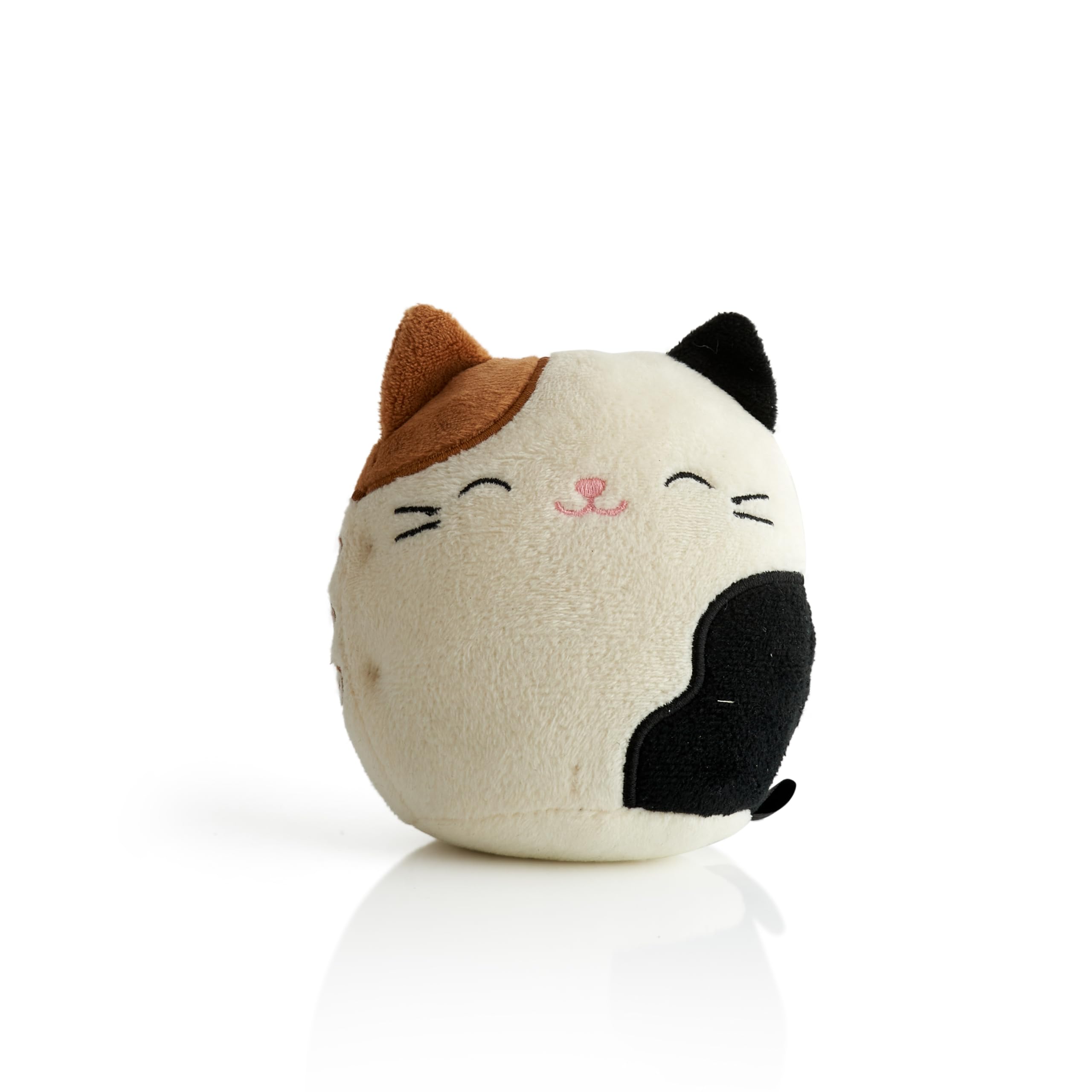
Image: Two Squishmallows speakers, one Cam the Cat and one unicorn, shown wirelessly connected to a smartphone for a stereo experience.
Maintenance
Proper care ensures the longevity of your speaker.
- Cleaning: Gently wipe the plush exterior with a soft, dry cloth. Do not use liquid cleaners or immerse the speaker in water.
- Storage: Store the speaker in a cool, dry place away from direct sunlight and extreme temperatures.
- Battery Care: To maintain battery life, charge the speaker regularly, even if not in frequent use. Avoid fully discharging the battery for extended periods.
Troubleshooting
| Problem | Possible Cause | Solution |
|---|---|---|
| Speaker does not power on. | Low battery. | Charge the speaker using the provided USB Type-C cable. |
| Cannot pair via Bluetooth. | Bluetooth not enabled on device; speaker not in pairing mode; too far from device. | Ensure Bluetooth is active on your device. Power cycle the speaker. Move the speaker closer to your device (within 10 meters). Disconnect from other devices. |
| No sound during playback. | Volume too low; speaker not connected; incorrect audio source. | Increase volume on both the speaker and your connected device. Verify Bluetooth or AUX connection. Ensure the correct audio output is selected on your device. |
| Call quality is poor. | Interference; speaker too far from user; microphone obstructed. | Move closer to the speaker. Ensure the microphone area is clear. Reduce environmental noise. |
Specifications
- Model Name: Squishmallows Bluetooth Speaker - Cam
- Model Number: SPSQM-BT-CAM
- Material: Plush
- Speaker Type: Portable Speaker
- Connectivity Technology: Bluetooth
- Bluetooth Range: 10 Meters
- Audio Output Mode: Stereo
- Speaker Maximum Output Power: 5 Watts
- Battery: 1 x 9V battery (included), 400 mAh capacity
- Charging Time: 2 Hours
- Product Dimensions: 3.39"D x 3.54"W x 4.33"H
- Item Weight: 3.88 ounces (110 Grams)
- Special Features: Built-in microphone for phone calls, Can be connected to more speakers (TWS), Lightweight, Portable
- Included Components: Speaker, USB Type-C Charging Cable, 3.5mm Audio Cable
Warranty and Support
This product comes with a Limited Warranty. For detailed warranty information, please refer to the documentation provided with your purchase or contact the manufacturer directly.
For technical support or customer service inquiries, please visit the official Squishmallows website or contact their customer support channels. Keep your purchase receipt for warranty claims.