
Introduction
This manual provides detailed instructions for the setup, operation, and maintenance of your ATTACK SHARK X66 Wireless Mechanical Gaming Keyboard. Please read this manual thoroughly to ensure proper use and to maximize your keyboard's performance.

Image: The ATTACK SHARK X66 Wireless Mechanical Gaming Keyboard, showcasing its compact 66-key layout and volume knob.
Setup
Before using your ATTACK SHARK X66 keyboard, please follow these steps for initial setup.
1. Unboxing and Contents
Carefully remove all items from the packaging. Verify that all components are present:
- 1 x ATTACK SHARK X66 Mechanical Keyboard
- 1 x 2-in-1 Keycap and Switch Puller
- 1 x USB-C Cable
- 2 x Spare Strawberry Switches
- 1 x User Manual

Image: A visual representation of the ATTACK SHARK X66 keyboard and its included accessories, such as the USB-C cable, keycap/switch puller, and spare switches.
2. Initial Charging
For optimal performance, it is recommended to fully charge the keyboard before its first use. Connect the provided USB-C cable to the keyboard's USB-C port and the other end to a power source (e.g., computer USB port, USB wall adapter). The charging indicator light will provide feedback on the charging status.
Operating Modes
The ATTACK SHARK X66 keyboard supports three connection modes: Wired (USB-C), 2.4G Wireless, and Bluetooth 5.0. You can seamlessly switch between these modes.

Image: The side of the ATTACK SHARK X66 keyboard, highlighting the 2.4G, BT, and USB-C connection mode switches, along with the USB receiver storage slot.
1. Wired Mode (USB-C)
Connect the keyboard to your device using the provided USB-C cable. This mode provides a stable connection and charges the keyboard simultaneously.
2. 2.4G Wireless Mode
- Locate the 2.4G USB receiver, typically stored in a dedicated slot on the keyboard.
- Plug the 2.4G USB receiver into an available USB port on your computer.
- Set the mode switch on the keyboard to '2.4G'.
- The keyboard should automatically connect.
3. Bluetooth 5.0 Mode
- Set the mode switch on the keyboard to 'BT'.
- On your device (computer, tablet, smartphone), enable Bluetooth and search for new devices.
- The keyboard will appear as 'ATTACK SHARK X66' or similar. Select it to pair.
- The keyboard supports up to three Bluetooth devices. Switch between paired devices using FN+Q, FN+W, or FN+E.
4. System Switch (Win/Mac)
The keyboard features a dedicated switch to toggle between Windows and Mac operating system layouts, ensuring full compatibility and correct key functions for your chosen system.
Video: An official product video demonstrating the tri-mode connectivity (wired, 2.4G, Bluetooth) and system switching capabilities of the ATTACK SHARK X66 Mechanical Gaming Keyboard.
Key Functions
The ATTACK SHARK X66 keyboard includes a functional knob and various FN key combinations to enhance usability.
1. Multimedia Knob
The aluminum alloy knob located on the top right of the keyboard provides quick access to multimedia controls:
- Rotate Clockwise: Increase Volume
- Rotate Counter-clockwise: Decrease Volume
- Press: Mute/Unmute Audio

Image: A detailed view of the functional aluminum metal knob on the ATTACK SHARK X66 keyboard, illustrating its volume control and mute/unmute capabilities.
2. FN Key Combinations
The Fn key (Function key) allows access to secondary functions printed on various keys. Refer to the keycaps for specific combinations. Common functions include:
- FN + [Key]: Activates the secondary function of the key.
- FN + Backspace: Displays battery level (keys 1-0 will light up to indicate charge).
- FN + PgDn: Cycles through RGB backlight modes.
- FN + Up Arrow: Increases backlight brightness.
- FN + Down Arrow: Decreases backlight brightness.
- FN + Left Arrow: Changes backlight color.
- FN + Right Arrow: Changes backlight color.
- FN + X: Toggles backlight On/Off.
RGB Backlight Control
The ATTACK SHARK X66 keyboard features dynamic RGB backlighting with multiple effects and customization options.

Image: The ATTACK SHARK X66 keyboard illuminated with vibrant RGB lighting, demonstrating its 16+ million color capabilities and dynamic effects.
- Change Backlight Mode: Press FN + PgDn to cycle through 18 dynamic chroma backlit modes, 7 monochrome colors, and 1 rainbow color light.
- Adjust Brightness: Use FN + Up Arrow to increase brightness and FN + Down Arrow to decrease brightness.
- Change Color: Use FN + Left Arrow or FN + Right Arrow to change the backlight color in certain modes.
- Toggle Backlight: Press FN + X to turn the backlight on or off.
Hot-Swappable Switches
The ATTACK SHARK X66 keyboard is equipped with hot-swappable sockets, allowing you to customize your typing experience by changing switches without soldering.

Image: A detailed view of the hot-swappable sockets and custom Strawberry switches on the ATTACK SHARK X66 keyboard, demonstrating the ease of switch replacement.
- Compatibility: Supports most 3-pin and 5-pin mechanical switches.
- Switch Replacement: Use the provided 2-in-1 keycap and switch puller to carefully remove keycaps and switches. Align new switches with the sockets and press firmly until they click into place.
- Included Switches: The keyboard comes with linear Strawberry switches, known for their smooth and responsive feel.
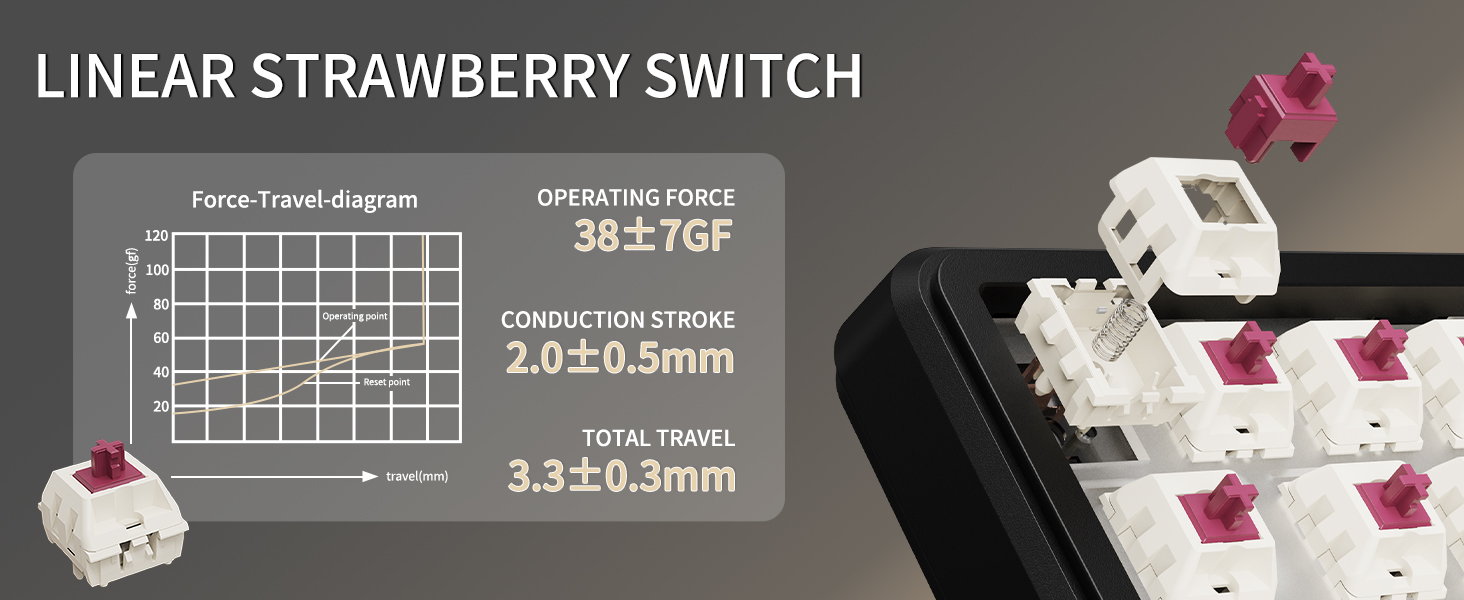
Image: A diagram illustrating the force-travel characteristics of the Linear Strawberry Switch, detailing operating force, conduction stroke, and total travel.
Battery Management
The ATTACK SHARK X66 keyboard is equipped with a 3000mAh battery for extended wireless use.

Image: A close-up of the indicator lights on the ATTACK SHARK X66 keyboard, showing status for Caps Lock, Win Lock, and charging.
- Charging Indicator: A dedicated indicator light shows the charging status.
- Battery Level Check: Long press FN + Backspace. The number keys (1-0) will light up to visually represent the current battery level (e.g., 10 keys lit for 100%, 1 key lit for 10%).
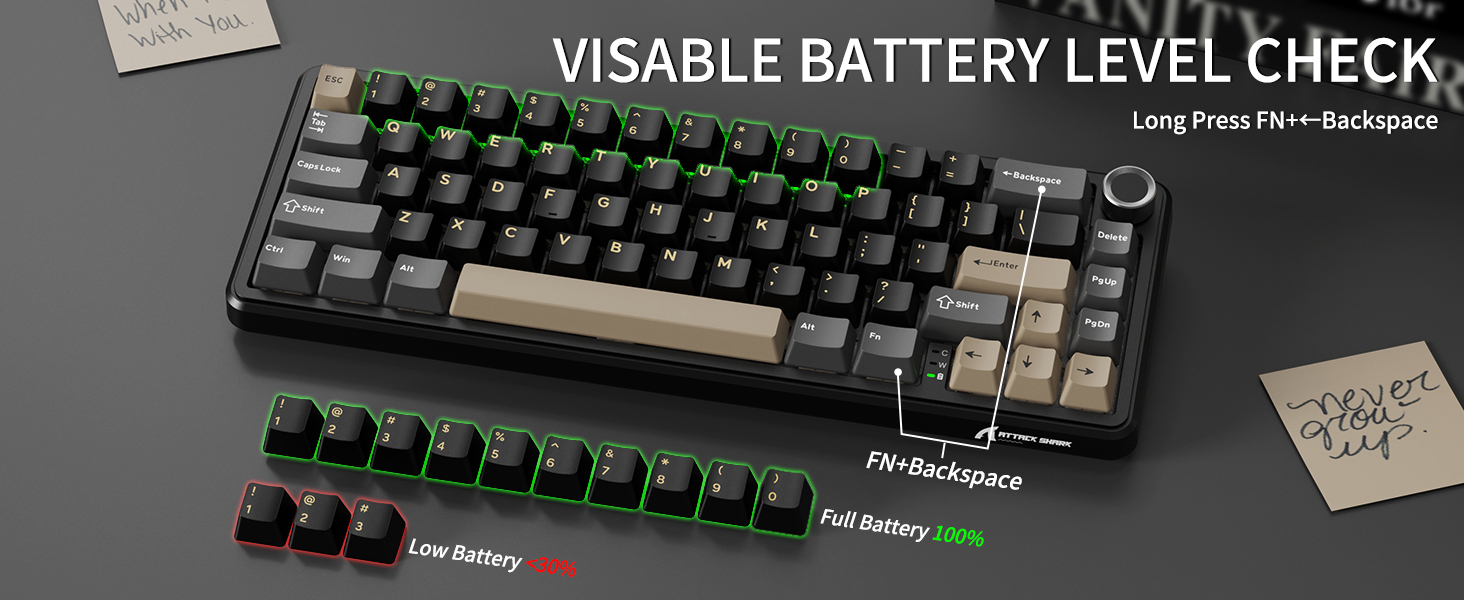
Image: The ATTACK SHARK X66 keyboard demonstrating the visible battery level check feature, where pressing FN+Backspace illuminates number keys to indicate charge percentage.
Maintenance
Regular maintenance helps prolong the life and performance of your keyboard.
- Cleaning: Use a soft, dry cloth to wipe the keyboard surface. For deeper cleaning, remove keycaps using the provided puller and use compressed air to clear debris.
- Keycap and Switch Care: Avoid excessive force when removing or installing keycaps and switches to prevent damage to the stems or sockets.
- Storage: When not in use for extended periods, store the keyboard in a dry, dust-free environment.
Troubleshooting
If you encounter issues with your ATTACK SHARK X66 keyboard, refer to the following common solutions:
- Keyboard Not Responding:
- Ensure the keyboard is charged.
- Check the connection mode switch (Wired, 2.4G, BT) matches your intended connection.
- For 2.4G, ensure the USB receiver is securely plugged in.
- For Bluetooth, ensure the keyboard is paired and selected in your device's Bluetooth settings.
- Try restarting the keyboard and your device.
- Spacebar Not Functioning: If the spacebar does not register presses, carefully remove the spacebar keycap using the provided puller. Check for any packing foam or foreign objects underneath that might be obstructing the switch's travel. Remove any obstructions and re-install the keycap.
- Backlight Issues:
- Ensure the backlight is not turned off (FN + X).
- Adjust brightness using FN + Up/Down Arrow.
- Cycle through modes using FN + PgDn.
- Incorrect Key Functions (Windows/Mac): Ensure the system switch on the keyboard is set to the correct operating system (Win or Mac).
- Typo in Manual (FN+BiidAb): Please note that some early documentation may contain a typo referring to a 'BiidAb' key. The correct key combination to change backlight modes is FN + PgDn.
Specifications
| Feature | Description |
|---|---|
| Model | X66 |
| Brand | ATTACK SHARK |
| Connectivity | USB-C Wired, 2.4G Wireless, Bluetooth 5.0 |
| Layout | 66-Key, 60% Gasket Mounted |
| Switches | Hot-Swappable (3/5 pin), Linear Strawberry Switches |
| Keycaps | PBT Keycaps, OEM Profile |
| Backlight | RGB (18 dynamic modes, 7 monochrome, 1 rainbow) |
| Battery Capacity | 3000mAh |
| Special Features | Multimedia Knob, Dual System Compatibility (Win/Mac), Gasket Mount, 5-layer Sound Absorbing Material, Adjustable Two-stage Bracket |
| Dimensions | 14.02 x 6.5 x 2.05 inches |
| Weight | 1.96 pounds |
Warranty and Support
For warranty information and technical support, please refer to the official ATTACK SHARK website or contact their customer service directly. Keep your purchase receipt as proof of purchase.


