
Introduction
Thank you for choosing the ATTACK SHARK X66 60% Wireless Mechanical Gaming Keyboard. This keyboard is designed for optimal performance and customization, featuring a compact layout, versatile connectivity options, and dynamic RGB lighting. This manual will guide you through the setup, operation, and maintenance of your new keyboard to ensure a seamless user experience.

The ATTACK SHARK X66 keyboard, showing its compact design, coiled USB-C cable, and 2.4G wireless receiver.
Product Features
- 60% Compact Layout: Features 66 essential keys to maximize desk space while maintaining full functionality.
- CNC Metal Volume Knob: High-quality anodized metal knob for easy volume adjustment and mute function.
- Tri-Mode Connectivity: Supports Bluetooth 5.0, 2.4G wireless, and wired USB-C connections for versatile use across multiple devices.
- Hot-Swappable Design: Compatible with 3-pin or 5-pin switches, allowing for easy customization of typing feel.
- Pre-Lubricated Linear Strawberry Switches: Provides a light touch and crisp sound for a smooth typing experience.
- Gasket Structure with 5-Layer Sound Dampening: Reduces noise from key impacts, delivering a pure and pleasant typing sound.
- Durable PBT Keycaps: Triple-color OEM height PBT keycaps are abrasion and oil resistant, designed for long-term comfort.
- Vibrant RGB Backlight: 16.8 million colors with 18 dynamic lighting effects, including music-synced modes.
- 3000mAh High-Capacity Battery: Ensures long-lasting wireless operation.
- Custom Software Support: Allows for customized key functions, macro editing, and lighting effects.
- N-Key Rollover: Ensures accurate registration of multiple simultaneous key presses without ghosting.

An overview of the ATTACK SHARK X66 keyboard highlighting its mini 60% layout, 3 modes, full RGB backlight, knob design, 3000mAh battery, gasket structure, hot-swap capability, and custom driver support.

Detailed diagram illustrating the 5-layer gasket-mounted structure of the keyboard, including the upper cover, volume knob, PBT keycaps, mechanical switch, fog through positioning plate, PORON filled cotton, shaft underpad, PET singing pad, single key slotted PCB, silica gel, and bottom casing.
Package Contents
Please check the package for the following items:
- ATTACK SHARK X66 Mechanical Gaming Keyboard
- USB-C Coiled Cable
- 2.4G Wireless Receiver
- User Manual (this document)
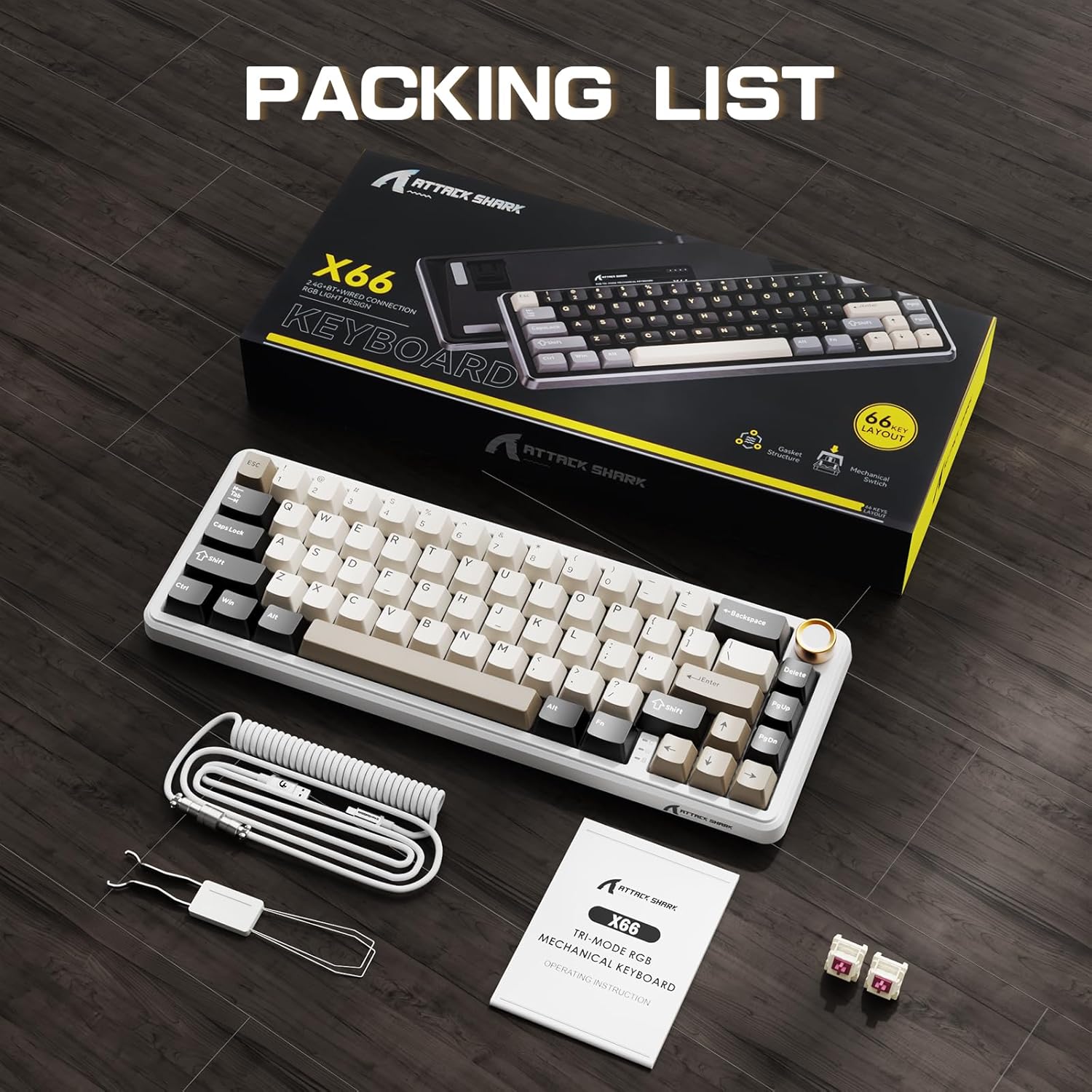
The ATTACK SHARK X66 keyboard, its packaging, coiled cable, and user manual, as found in the box.
Setup
Connection Modes
The ATTACK SHARK X66 keyboard supports three connection modes:
- 2.4G Wireless Mode: For a stable and low-latency wireless connection.
- Bluetooth Mode: For connecting to multiple devices simultaneously.
- Wired Mode (USB-C): For a direct and reliable connection, also charges the keyboard.

A close-up view of the keyboard's side, showing the 2.4G wireless receiver slot, USB-C port, and switches for Bluetooth (BT), 2.4G, and system compatibility (Win/Mac).
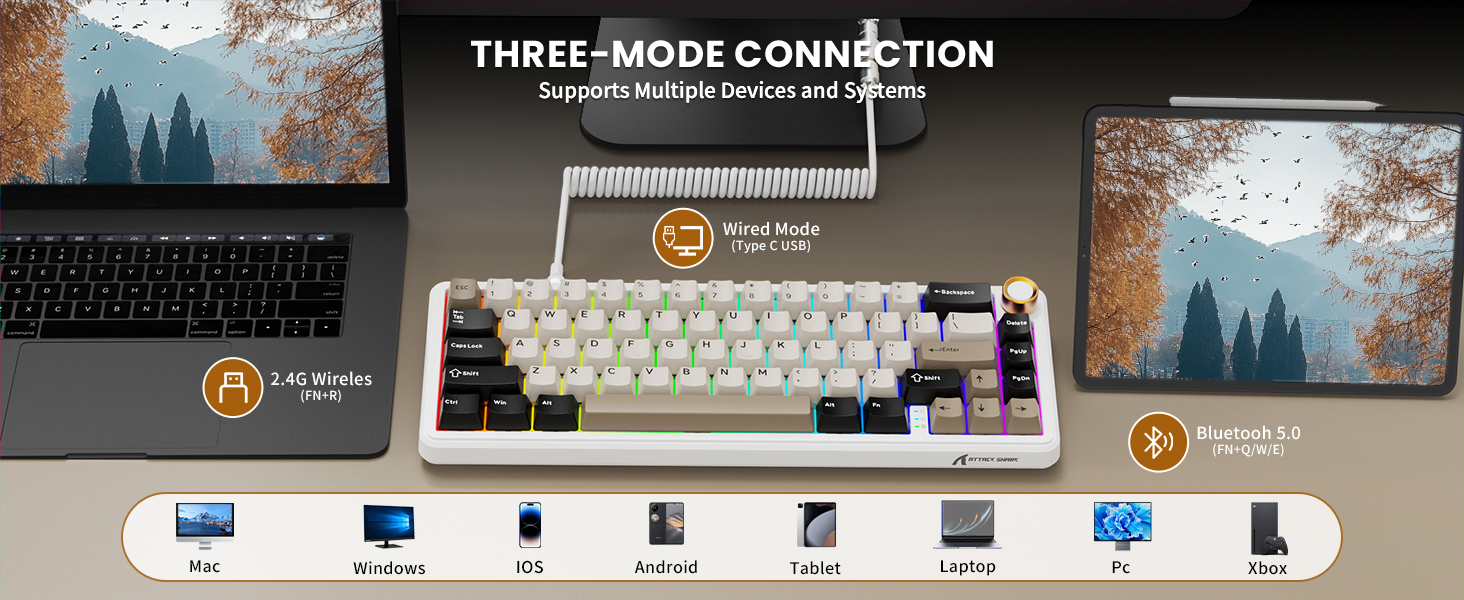
Visual representation of the three connection modes: 2.4G Wireless (FN+R), Wired (Type-C USB), and Bluetooth 5.0 (FN+Q/W/E), along with compatible devices such as Mac, Windows, iOS, Android, Tablet, Laptop, PC, and Xbox.
2.4G Wireless Connection:
- Locate the 2.4G wireless receiver stored in the slot on the back of the keyboard.
- Plug the 2.4G receiver into an available USB port on your computer.
- Switch the keyboard to 2.4G mode using the toggle switch on the side/back of the keyboard.
- The keyboard should automatically connect.
Bluetooth Connection:
- Switch the keyboard to Bluetooth mode using the toggle switch.
- Press and hold FN + Q, FN + W, or FN + E to enter pairing mode for one of the three Bluetooth channels. The indicator light will flash.
- On your device (computer, tablet, smartphone), search for Bluetooth devices and select "ATTACK SHARK X66".
- Once paired, the indicator light will become solid. You can switch between paired devices by pressing FN + Q/W/E.
Wired Connection:
- Connect the provided USB-C coiled cable to the keyboard's USB-C port.
- Connect the other end of the cable to an available USB port on your computer.
- The keyboard will automatically switch to wired mode and begin charging.
System Compatibility
The keyboard is compatible with Windows and Mac operating systems. Use the dedicated switch on the side/back of the keyboard to select the appropriate system mode for optimal key mapping.

A close-up of the keyboard's underside, showing the adjustable feet for ergonomic positioning and the system compatibility switch (Win/Mac).
Operating Instructions
Volume Knob Functionality
- Rotate Clockwise: Increase volume.
- Rotate Counter-clockwise: Decrease volume.
- Press Down: Mute/Unmute audio.

A detailed view of the high-quality CNC metal volume knob, illustrating its functions: clockwise for volume up, counter-clockwise for volume down, and pressing to mute/unmute sound.

An image highlighting the functional aluminum metal knob, detailing its press-to-mute/unmute, counter-clockwise volume down, and clockwise volume up capabilities.
RGB Backlight Control
The keyboard features 16.8 million color RGB LEDs with 18 dynamic lighting effects. Use the following key combinations to control the backlight:
- FN + PgDn: Switch Backlight Effect (Cycle through 18 effects).
- FN + \|: Turn on/off Backlight.
- FN + ↑: Backlight Brightness+
- FN + ↓: Backlight Brightness-
- FN + ←: Backlight Speed-
- FN + →: Backlight Speed+
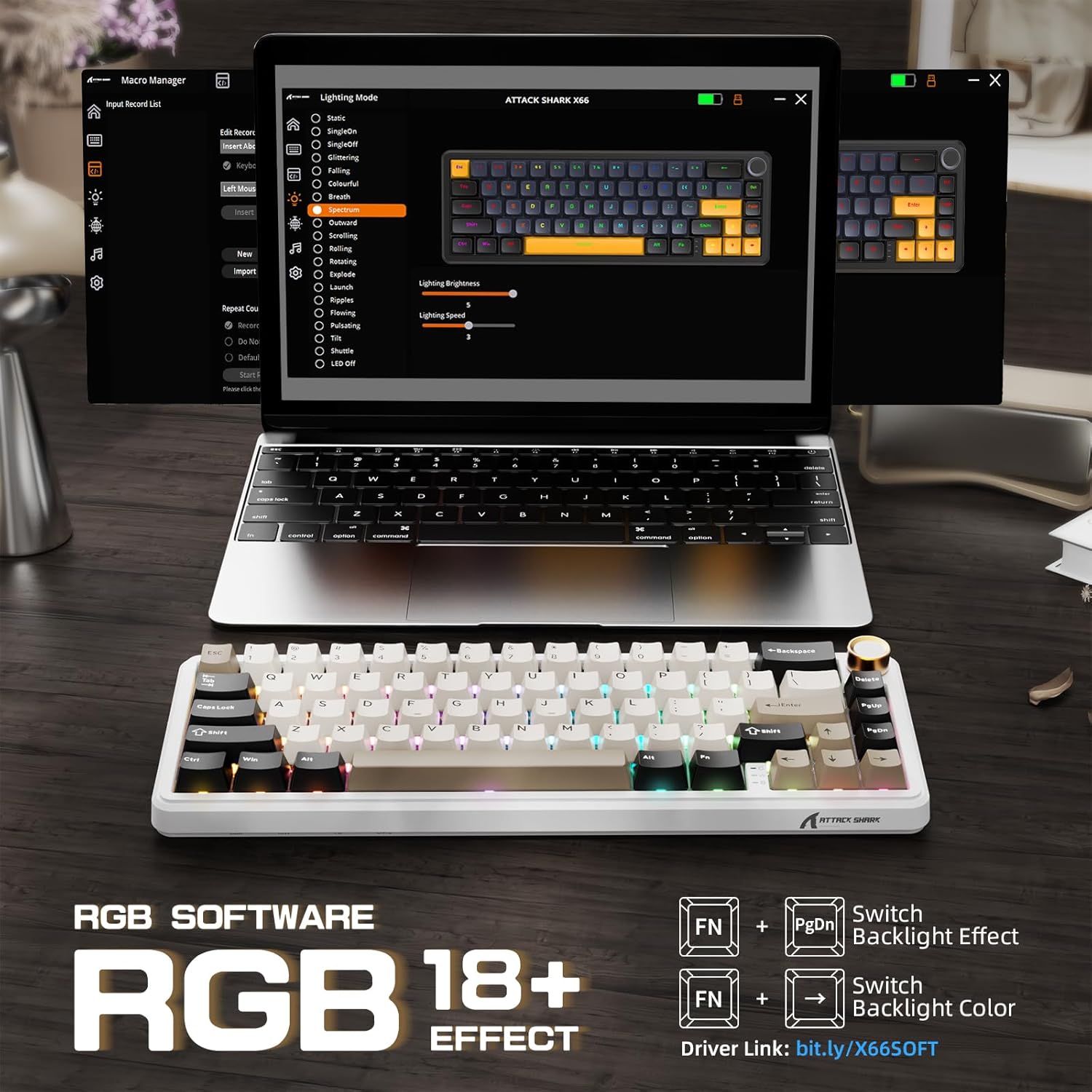
The keyboard displaying various RGB backlight effects, with instructions for controlling them using FN key combinations.

An image showcasing the 16 million RGB backlight, supporting gorgeous RGB backlight and dancing with music rhythm, along with key combinations to adjust 18 backlight effects, turn on/off backlight, adjust brightness, and adjust speed.
Battery Level Check (Wireless Mode)
To check the battery level in wireless mode, press FN + BackSpace. The backlight will temporarily turn off, and the number keys 1 to 0 will light up to indicate the remaining battery percentage (e.g., 1-5 for low, 6-10 for high).

An illustration of the 3000mAh high-capacity battery and how to check its level in wireless mode by pressing FN+BackSpace, with number keys 1-10 indicating battery percentage.
Indicator Lights
The keyboard features smart indicator lights for various statuses:
- Caps Lock Indicator: Indicates Caps Lock status.
- Win Lock Indicator: Indicates Windows key lock status.
- Charging Indicator: Shows charging status.

A close-up of the keyboard's smart indicator lights, showing the Caps Lock (C), Win Lock (W), and Charging Indicator.
Custom Software
Enhance your keyboard experience with the custom software. It allows you to:
- Customize key functions for all buttons.
- Edit and assign macros.
- Create customized lighting effects.
- Customize 16 million light colors.
- Support music rhythm lighting effects.
- Set sleep time for power saving.
The software can typically be downloaded from the official ATTACK SHARK website or via the link provided in the product packaging/description (e.g., Driver link: bit.ly/X66SOFT).

Screenshots of the custom software interface, demonstrating options for macro management, lighting mode selection, and various customization features for the keyboard.
Official product video demonstrating the features and functionality of the ATTACK SHARK X66 Keyboard, including its compact design, connectivity options, hot-swappable switches, RGB lighting, and typing experience.
Maintenance
Cleaning the Keyboard
- Disconnect the keyboard from your device before cleaning.
- Use a soft, lint-free cloth dampened with a small amount of water or a mild cleaning solution to wipe the keycaps and chassis.
- For dust and debris between keys, use compressed air or a small brush.
- Avoid using harsh chemicals or abrasive materials, as they may damage the keyboard's finish.
Hot-Swapping Switches
The hot-swappable design allows you to change switches without soldering. Use the included switch puller tool:
- Gently grip the switch with the switch puller and pull upwards to remove it.
- Align the pins of the new 3-pin or 5-pin switch with the holes on the PCB.
- Press the new switch firmly into place until it clicks. Ensure the pins are not bent.

A close-up demonstrating the hot-swappable feature, showing a linear switch being removed from the keyboard, with other switches and keycaps visible.

An image illustrating the hot-swappable capability of the keyboard, compatible with both 3-pin and 5-pin mechanical switches, showing switches being inserted and removed.
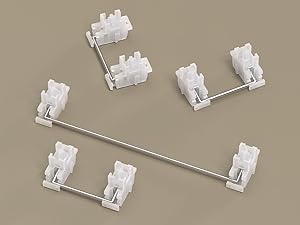
A close-up view of the keyboard's stabilizers, which ensure smooth and consistent key presses for larger keys like the spacebar and shift keys.
Troubleshooting
- Keyboard not responding: Ensure the keyboard is charged. Check the connection mode (wired, 2.4G, Bluetooth) and ensure it matches your device's connection. Try restarting the keyboard or your device.
- 2.4G connection issues: Ensure the 2.4G receiver is securely plugged in. Try a different USB port. Ensure the keyboard is in 2.4G mode.
- Bluetooth pairing issues: Ensure the keyboard is in Bluetooth pairing mode (indicator flashing). Delete previous pairings on your device and try re-pairing. Ensure your device's Bluetooth is enabled.
- RGB lighting not working: Check if the backlight is turned off (FN + \|). Adjust brightness (FN + ↑/↓).
- Keys not registering or double-typing: Ensure switches are properly seated. If a specific switch is faulty, consider hot-swapping it with a new one.
- Volume knob not working: Ensure the keyboard is powered on and connected. Check for any physical obstructions.
Specifications
| Feature | Description |
|---|---|
| Model | X66 |
| Layout | 60% (66 Keys) |
| Connectivity | Bluetooth 5.0, 2.4G Wireless, USB-C Wired |
| Switches | Pre-lubricated Linear Strawberry Switches (Hot-Swappable) |
| Keycaps | PBT Keycaps (OEM Height) |
| Structure | Gasket Mounted with 5-Layer Sound Dampening |
| Backlight | RGB (16.8 Million Colors, 18 Effects) |
| Battery Capacity | 3000mAh |
| Dimensions | 12.7 x 4.53 x 1.37 inches (32.3 x 11.5 x 3.5 cm) |
| Item Weight | 2.14 pounds (0.97 kg) |
| Compatible Devices | Laptop, PC, Tablet, Smartphone, Mac |

Detailed dimensions of the 60% layout keyboard, showing its length, width, and height.
Warranty and Support
ATTACK SHARK products are manufactured to the highest quality standards. For warranty information, technical support, or customer service inquiries, please refer to the contact information provided on the product packaging or visit the official ATTACK SHARK website. Please retain your proof of purchase for any warranty claims.


