
1. Introduction
This manual provides detailed instructions for the setup, operation, and maintenance of your Hollyland Solidcom SE PRO Wireless Intercom Headset System. Designed for professional team communication, this system offers clear audio, extended range, and user-friendly features. Please read this manual thoroughly before using the product to ensure optimal performance and safety.
2. Product Overview and Key Features
The Solidcom SE PRO system is engineered for reliable and efficient team communication in various professional environments, such as film production, live events, and more. It operates on the 1.9 GHz frequency band to minimize interference and offers a range of features for enhanced usability.
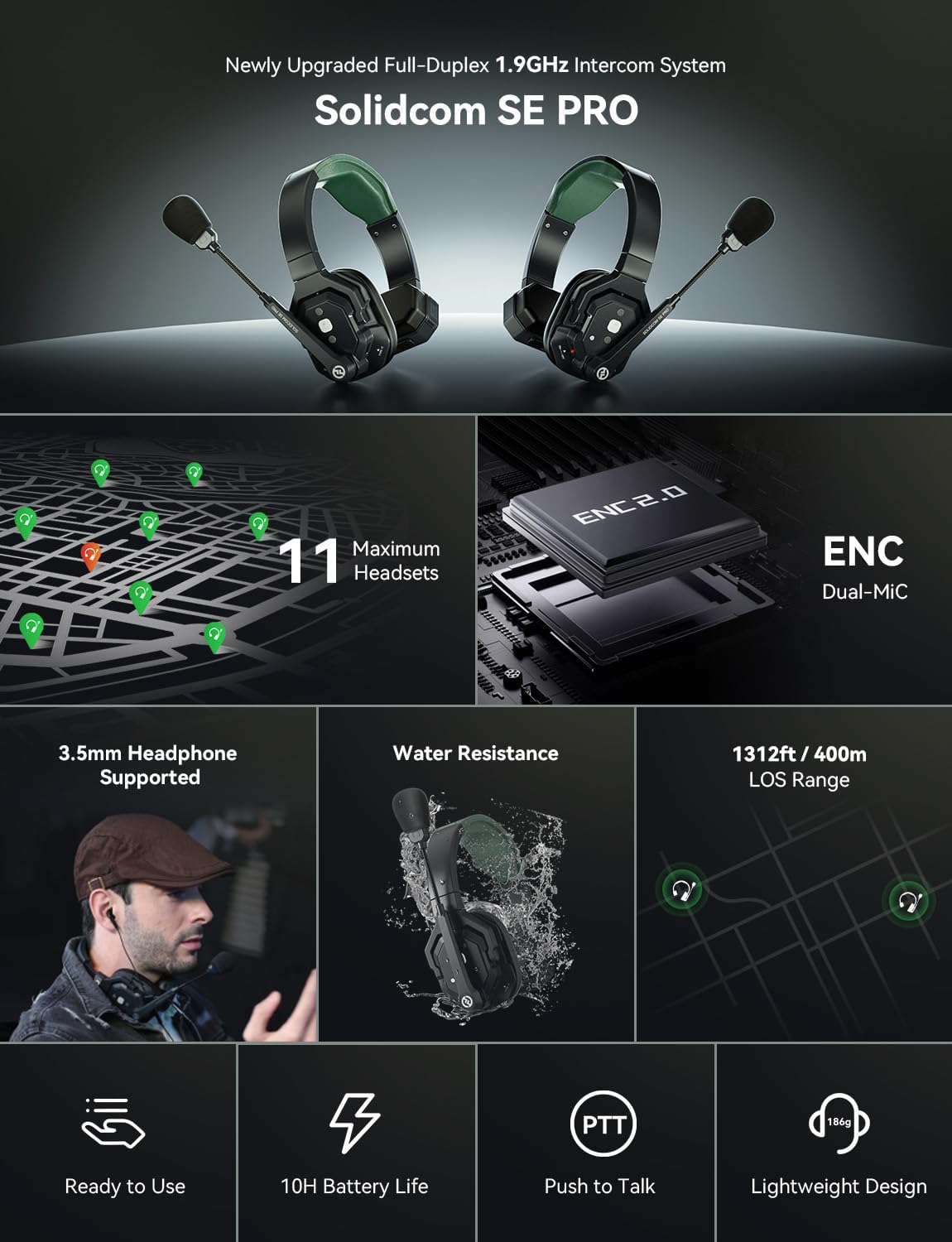
Figure 2.1: Overview of the Solidcom SE PRO system highlighting its main features.
2.1. Extended Range and Stable Performance
- 1.9 GHz Frequency: Operates on the 1.9 GHz band to reduce interference from 2.4 GHz devices.
- Long Line-of-Sight (LOS) Range: Supports communication up to 1312 feet (400 meters) in open areas.
- Auto Frequency Hopping: Intelligently avoids disruptions for stable and reliable communication.
2.2. Multi-User Support and Headphone Compatibility
- Scalable System: Supports up to 11 users without requiring an external hub, ideal for small to medium-sized teams.
- 3.5mm Headphone Port: Allows connection of dedicated 3.5mm headphones via a USB-C to 3.5mm adapter (sold separately) for flexible audio monitoring.

Figure 2.2: Headset with 3.5mm headphone compatibility. Note: USB-C to 3.5mm adapter is not included.
2.3. Enhanced Audio and Durability
- ENC Noise Cancellation: Features dual-mic noise cancellation to minimize ambient sounds, ensuring clear voice transmission.
- Wideband Frequency Response: Delivers rich audio quality with a 150Hz–7kHz frequency response.
- Dust and Water Resistance: Built to withstand rain and splashes, ensuring reliable performance in various environments.

Figure 2.3: Dual-mic noise cancellation effectively reduces ambient sound.
2.4. Power and Comfort
- 10-Hour Battery Life: Each included Li-ion battery provides up to 10 hours of runtime.
- Flexible Charging: Supports USB-C charging via a power bank while in use. Each headset comes with two batteries for extended operation.
- Lightweight Design: Weighs under 186g, providing a secure and comfortable fit for prolonged use.
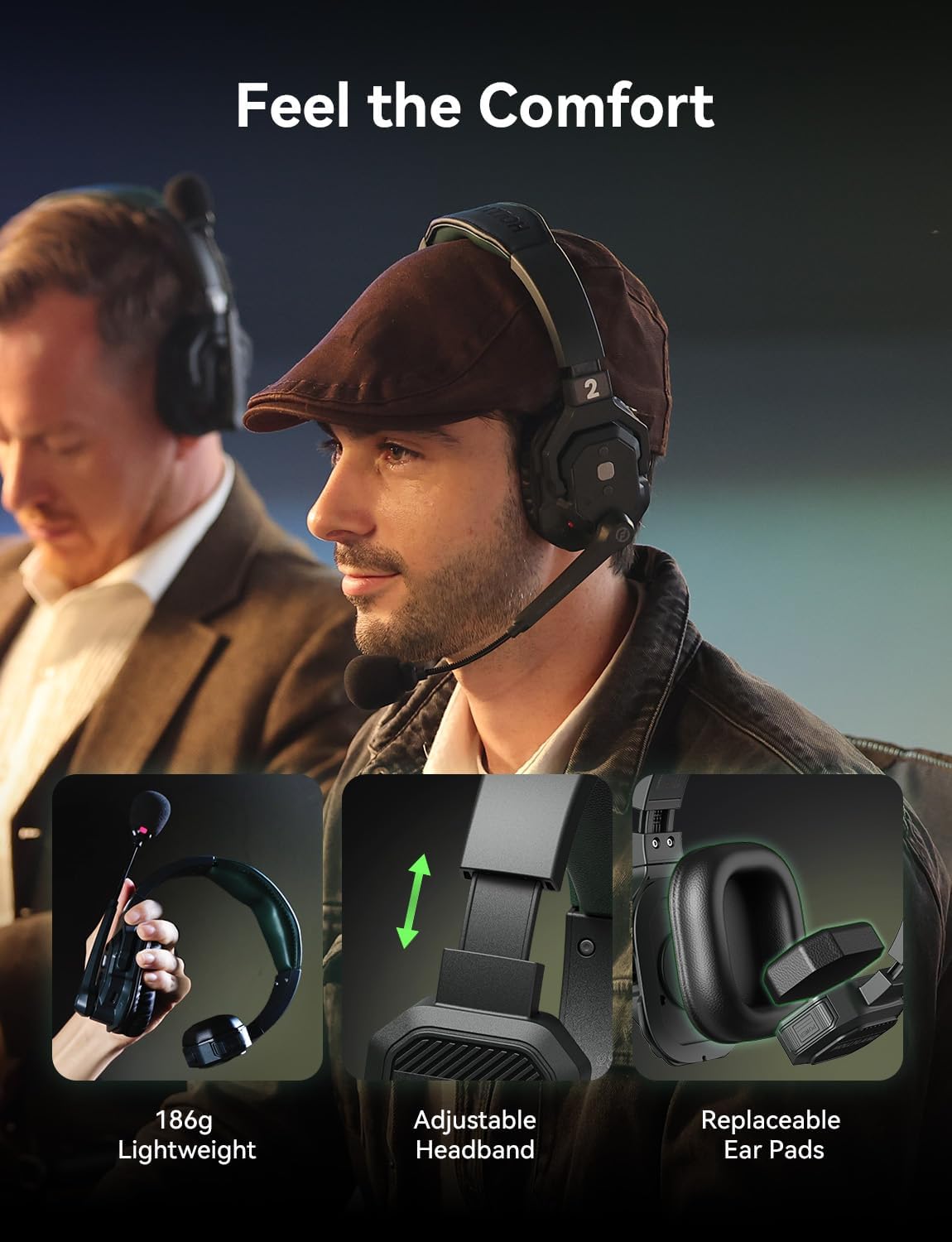
Figure 2.4: Ergonomic design ensures comfort during long periods of use.
2.5. Intuitive Control
- Ready Out of Box: Headsets are pre-paired for immediate use.
- Boom Mic Mute: Simply pull down the boom mic to communicate and lift it up to mute.
- Dedicated MUTE Button: Provides an additional option for muting the microphone.
- PTT Mode: Supports Push-to-Talk functionality for controlled communication.

Figure 2.5: Control functions for PTT, Talk, and Mute.
2.6. Official Product Video
Video 2.1: An official overview of the Hollyland Solidcom SE PRO, detailing its features and applications. This video provides a visual guide to the system's capabilities and design.
3. What's in the Box
Your Hollyland Solidcom SE PRO 5-Set package includes the following components:
- 1 x Solidcom SE PRO Wireless Master Headset (Single-Ear Version)
- 4 x Solidcom SE PRO Wireless Remote Headset (Single-Ear Version)
- 10 x Li-ion Battery Pack 770
- 1 x 6-Slot Charging Base
- 1 x USB-A to USB-C Cable
- 2 x Number Stickers 01
- 1 x User Manual
- 1 x Warranty Card

Figure 3.1: All items included in the Solidcom SE PRO 5-Set package.
4. Setup
Follow these steps for initial setup of your Solidcom SE PRO system:
- Charge Batteries: Insert all Li-ion Battery Pack 770 into the 6-Slot Charging Base. Connect the charging base to a power source using the provided USB-A to USB-C cable and a compatible USB power adapter (not included). Ensure all batteries are fully charged before first use.
- Insert Batteries: Once charged, insert one battery into each headset. The battery compartment is typically located on the side of the earcup. Press firmly until it clicks into place.
- Power On: Press and hold the power button on each headset for approximately 3 seconds until the indicator light illuminates. The headsets are pre-paired from the factory and should connect automatically.
- Adjust Fit: Adjust the headband and microphone boom for a comfortable and secure fit. The microphone should be positioned approximately 1-2 cm from your mouth.
5. Operating Instructions
Understanding the basic operations will ensure smooth communication during your projects.
5.1. Microphone Control (Boom Mic)
- Talk: To speak, pull the microphone boom down to the active position. The headset will automatically switch to talk mode.
- Mute: To mute your microphone, lift the microphone boom up towards the headband. The headset will automatically switch to mute mode.
5.2. Volume Adjustment
Use the volume control buttons located on the earcup to adjust the listening volume. Press '+' to increase volume and '-' to decrease volume.
5.3. Push-to-Talk (PTT) Mode
The system supports a Push-to-Talk (PTT) mode for controlled communication. This mode can be activated via a dedicated PTT button on the headset.
- Activate PTT: When the mic lever is down and in 'MUTE' state, long press the 'PTT' button to open the mic.
- Release PTT: Release the 'PTT' button to return to the 'MUTE' state.
6. Maintenance
Proper maintenance ensures the longevity and optimal performance of your headset system.
- Cleaning: Use a soft, dry cloth to clean the headsets and charging base. Do not use harsh chemicals or abrasive materials.
- Battery Care: Store batteries in a cool, dry place. Avoid extreme temperatures. If not used for extended periods, charge and discharge batteries periodically to maintain their health.
- Storage: When not in use, store the headsets and accessories in the provided hard carrying case to protect them from dust, moisture, and physical damage.
- Water Resistance: While resistant to rain and splashes, avoid submerging the headsets in water. Ensure all ports are dry before charging.
7. Troubleshooting
If you encounter issues with your Solidcom SE PRO system, refer to the following common solutions:
- No Audio/Communication:
- Ensure all headsets are powered on and within range.
- Check battery levels and replace/recharge if necessary.
- Verify the microphone boom is in the 'Talk' position and not muted.
- Adjust volume levels on the headset.
- Interference/Poor Audio Quality:
- Move to an area with fewer 2.4 GHz wireless devices. The 1.9 GHz band is designed to mitigate this, but extreme congestion can still affect performance.
- Ensure there are no major obstructions (e.g., thick walls, large metal structures) between headsets.
- The system's Auto Frequency Hopping should automatically select the clearest channel.
- Headset Not Powering On:
- Ensure the battery is correctly inserted and fully charged.
- Try a different charged battery.
If problems persist, please contact Hollyland customer support.
8. Specifications
| Feature | Specification |
|---|---|
| Model Number | Solidcom SE 1.9G |
| Connectivity Technology | Wireless (RF, 1.9 GHz) |
| Headphones Jack | 3.5 mm Jack (via adapter, not included) |
| Noise Control | Active Noise Cancellation (ENC) |
| Battery Life | Up to 10 Hours per battery |
| Item Weight (per headset) | Under 186g |
| Water Resistance Level | Waterproof (Rain and splash resistant) |
| Operating Range (LOS) | Up to 1312 ft (400 m) |
| Material | Plastic |
9. Warranty and Support
Your Hollyland Solidcom SE PRO system comes with a warranty. Please refer to the included Warranty Card for specific terms and conditions regarding coverage and duration.
For technical support, service, or additional product information, please visit the official Hollyland website or contact their customer service department. Keep your purchase receipt and warranty card for any warranty claims.


