
1. Introduction
This manual provides detailed instructions for the setup, operation, maintenance, and troubleshooting of your ATTACK SHARK X66 Gasket Wireless Mechanical Keyboard. Please read this manual thoroughly before using the product to ensure optimal performance and longevity.

Image: Top-down view of the ATTACK SHARK X66 Gasket Wireless Mechanical Keyboard, showcasing its compact layout and keycap design.
2. Product Overview
2.1 Key Features
- 60% Compact Design: Features 66 keys and a volume knob, optimizing desktop space while maintaining portability.
- Upgraded Gasket Mount: Incorporates 5 layers of sound insulation (PORON Sandwich Foam, Foamed IXPE Under Shaft Pads, PET Acoustic Premium Pads, Shaft Seat Sound Deadening Foam, Customized Bottom Foams) for reduced noise and a smooth typing experience.
- Triple Mode Connectivity: Supports Bluetooth, 2.4GHz wireless, and USB-C wired connections.
- Multi-Device Tasking: Three Bluetooth channels (FN+Q/FN+W/FN+E) for efficient switching between devices.
- Long-lasting Battery: Equipped with a 3000mAh large-capacity rechargeable battery.
- Hot Swappable Switches: Full hot-swappable design compatible with 3-pin/5-pin switches, featuring pre-lubed Strawberry switches for a creamy sound and smooth keystroke.
- Dynamic RGB Backlight: Offers 9 backlight colors and 18 lighting effects with 16 million LED colors, customizable via software.
- Durable Keycaps: Features side-printed gradient PBT keycaps that are resistant to oiling, non-slip, and wear-resistant.

Image: Overview of the X66 keyboard highlighting key features such as RGB Backlight, Triple Mode Connectivity, Hot Swappable switches, PBT Keycaps, 60% Layout, 3000mAh Battery, and Gasket Structure.
2.2 Package Contents
- ATTACK SHARK X66 Mechanical Keyboard
- USB-C Cable (1.5 meters)
- 2-in-1 Key Puller and Switch Puller
- Additional Strawberry Switches (2 pieces)
- User Manual
3. Setup
3.1 Connectivity Modes
The X66 keyboard supports three connection modes: 2.4GHz wireless, Bluetooth, and USB-C wired.

Image: Diagram illustrating the three connectivity modes: Bluetooth 5.0, 2.4GHz Wireless with a USB dongle, and Type-C Wired connection.
- 2.4GHz Wireless Connection:
- Locate the 2.4GHz USB receiver.
- Plug the receiver into an available USB port on your computer.
- On the keyboard, slide the mode switch to the '2.4G' position. The keyboard will automatically connect.
- Bluetooth Connection:
- On the keyboard, slide the mode switch to the 'BT' position.
- To enter pairing mode, press and hold FN + Q, FN + W, or FN + E for 3-5 seconds until the corresponding key's backlight flashes rapidly.
- On your device (PC, Mac, Tablet), search for Bluetooth devices and select 'ATTACK SHARK X66' to pair.
- Once paired, the key's backlight will stop flashing and remain steadily lit. You can pair up to three Bluetooth devices and switch between them using FN + Q/W/E.
- USB-C Wired Connection:
- Connect the provided USB-C cable to the keyboard's USB-C port.
- Connect the other end of the cable to an available USB port on your computer.
- The keyboard will automatically switch to wired mode and begin charging.
3.2 Operating System Switch
The keyboard features a dedicated switch for Windows and Mac operating systems.
- Locate the 'Win/Mac' switch on the side or back of the keyboard.
- Slide the switch to the appropriate operating system setting for optimal key mapping.
4. Operating Instructions
4.1 Volume Knob Functionality
The aluminum CNC metal knob provides convenient control over audio.
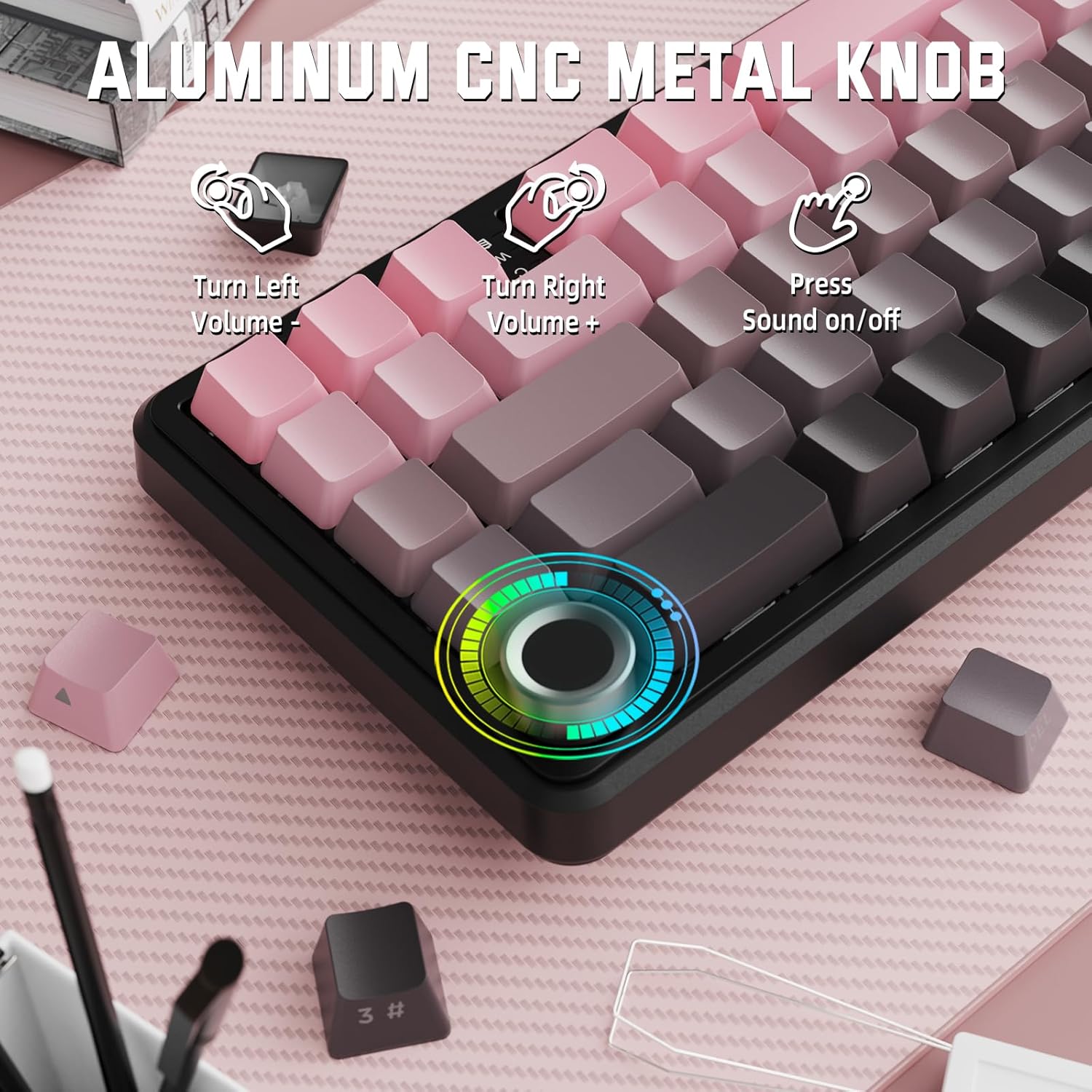
Image: Close-up of the volume knob with icons indicating its functions: Turn Left (Volume -), Turn Right (Volume +), Press (Sound on/off).
- Turn Left: Decrease volume.
- Turn Right: Increase volume.
- Press: Mute/Unmute audio.
4.2 Function Key Combinations (FN Key)
Due to the compact 60% layout, some functions are accessed via the FN key.
| Combination | Function |
|---|---|
| FN + Q/W/E | Switch between Bluetooth devices 1, 2, and 3 |
| FN + Backspace | Check battery capacity |
| FN + 1-0 (top row) | F1-F10 functions (e.g., FN+1 for F1) |
| FN + -/= | F11/F12 functions |
| FN + \| | Delete |
| FN + P | Print Screen |
| FN + [ { | Home |
| FN + ] } | End |
| FN + ; : | Page Up |
| FN + ' " | Page Down |
| FN + Arrow Keys | Navigation (e.g., FN+Up Arrow for Page Up) |
5. Customization
5.1 RGB Backlight Settings
The keyboard features dynamic RGB backlighting with multiple effects and colors.

Image: Visual representation of RGB backlight controls including turning on/off, changing lighting mode, speed, direction, brightness, and color, often in combination with the FN key.
- Turn on/off Lighting / Power Saving Mode: Specific key combination (refer to keyboard legends or software).
- Lighting Mode: Cycle through 18 lighting effects.
- Lighting Speed: Adjust the speed of dynamic lighting effects.
- Lighting Direction: Change the direction of certain lighting effects.
- Lighting Brightness: Adjust the intensity of the backlight.
- Lighting Color: Select from 9 preset backlight colors or customize via software.
5.2 Software Programming
For advanced customization of RGB modes, macros, and key remapping, dedicated software is available.
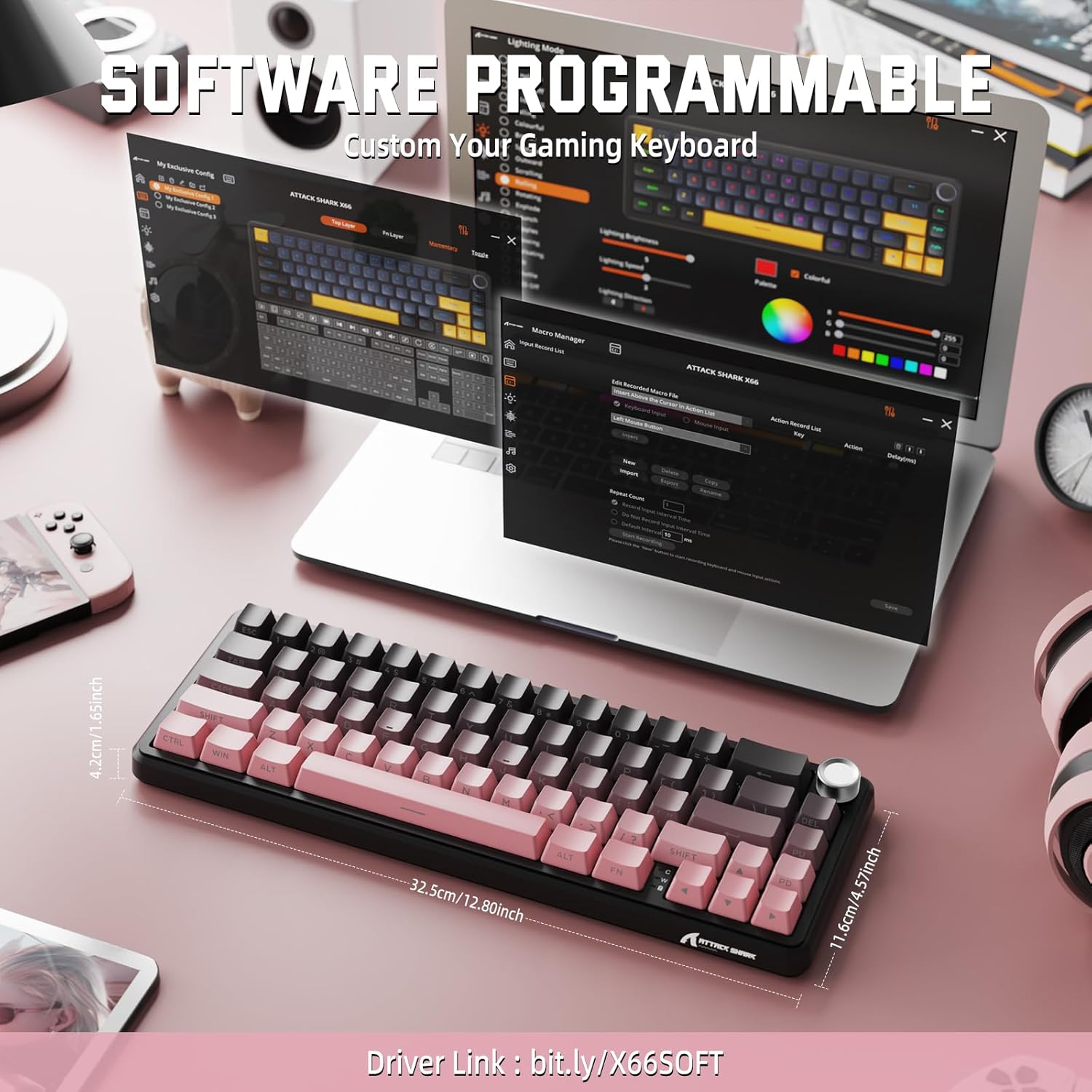
Image: Screenshot of the keyboard's software interface, showing options for custom key assignments, macro recording, and RGB lighting customization. A driver link is provided for download.
Download the official software from the manufacturer's website. The software allows you to:
- Customize RGB lighting effects and colors.
- Program macros for complex key sequences.
- Remap individual keys to different functions.
- Create and save multiple profiles for different applications or games.
6. Maintenance
6.1 Cleaning the Keyboard
- Disconnect the keyboard from all power sources before cleaning.
- Use a soft, lint-free cloth slightly dampened with water or a mild cleaning solution to wipe the keycaps and chassis.
- For dust and debris between keys, use compressed air.
- Avoid using harsh chemicals, abrasives, or solvents.
6.2 Hot Swappable Switch Replacement
The keyboard's hot-swappable design allows for easy switch replacement without soldering.

Image: Illustration showing how to remove and insert mechanical switches on the X66 keyboard, highlighting compatibility with 3-pin and 5-pin switches.
- Use the provided keycap puller to gently remove the desired keycap.
- Use the provided switch puller to carefully grip the top and bottom clips of the switch and pull it straight up.
- Align the pins of the new switch with the holes on the PCB. Ensure the pins are straight to avoid bending.
- Gently press the new switch into place until it clicks securely.
- Reattach the keycap.
6.3 Battery Management
The keyboard is equipped with a 3000mAh rechargeable battery.

Image: Visual guide on how to check the battery capacity using FN + Backspace, showing different battery level indicators (30%, 50%, 100%) with corresponding key light patterns.
- Charging: Connect the keyboard via the USB-C cable to a computer or a USB power adapter. The charging indicator will show the charging status.
- Checking Battery Level: Press FN + Backspace to display the current battery capacity via the key backlights.
- Battery Life: A full charge provides long-lasting usage, but actual duration varies based on RGB lighting usage and connection mode.
7. Troubleshooting
| Problem | Possible Cause | Solution |
|---|---|---|
| Keyboard not responding | Low battery, incorrect connection mode, driver issue. | Charge the keyboard. Ensure the mode switch is set correctly (2.4G, BT, or Wired). Reconnect the USB receiver/cable. Re-pair Bluetooth. Try a different USB port. |
| Bluetooth connection unstable | Interference, distance, low battery. | Ensure no strong interference sources nearby. Move closer to the device. Charge the keyboard. Re-pair the Bluetooth connection. |
| 2.4GHz wireless not connecting | Receiver not plugged in, incorrect mode, interference. | Ensure the 2.4GHz receiver is securely plugged in. Set the keyboard mode switch to '2.4G'. Try a different USB port for the receiver. |
| RGB lighting not working or incorrect | Lighting settings, software issue. | Check lighting control key combinations (FN + lighting keys). Ensure software is installed and updated. Reset lighting settings via software. |
| Keys not registering or double-typing | Faulty switch, debris under keycap. | Remove keycap and clean around the switch. If issue persists, replace the switch using the provided switch puller and spare switches. |
| Volume knob not functioning | Software conflict, physical obstruction. | Ensure no software is overriding media controls. Check for any physical debris around the knob. Restart the computer. |
8. Specifications
| Feature | Detail |
|---|---|
| Model Number | X66 |
| Layout | 66 Keys, 60% Compact QWERTY |
| Connectivity | Bluetooth (5.0), 2.4GHz Wireless, USB-C Wired |
| Switches | Hot Swappable (3-pin/5-pin compatible), Pre-lubed Strawberry Mechanical Switches |
| Keycaps | Side-printed Gradient PBT |
| Backlight | RGB (16+ Million Colors, 9 preset colors, 18 effects) |
| Battery Capacity | 3000mAh |
| Compatible Devices | Windows, Mac OS, Laptop, PC, Tablet |
| Material | Polybutylene Terephthalate, Polycarbonate |
| Item Weight | 2 pounds (approx. 0.91 kg) |
| Package Dimensions | 14.02 x 6.54 x 2.05 inches (approx. 35.6 x 16.6 x 5.2 cm) |
| Manufacturer | ATTACK SHARK |
9. Warranty and Support
For warranty information and technical support, please refer to the official ATTACK SHARK website or contact your retailer. Keep your purchase receipt for warranty claims.
Manufacturer: ATTACK SHARK
Seller: MAGIC-REFINER US
10. Product Video
Video: An official product video showcasing the features and design of the ATTACK SHARK X66 Gasket Wireless Mechanical Keyboard, including its compact size, RGB lighting, hot-swappable switches, and multi-mode connectivity. The video highlights the keyboard's aesthetic appeal and functional aspects.


