
1. Introduction
Thank you for choosing the KOORUI N07 27-inch 4K UHD Monitor. This monitor is designed to provide a superior visual experience with its 3840x2160 resolution, IPS panel, 60Hz refresh rate, HDR10 support, and Adaptive Sync technology. This manual provides essential information for setting up, operating, and maintaining your monitor to ensure optimal performance and longevity. Please read this manual thoroughly before using the product.
2. Safety Information
- Always place the monitor on a stable, flat surface.
- Do not block ventilation openings.
- Use only the power adapter provided by the manufacturer.
- Keep the monitor away from water and excessive moisture.
- Avoid exposing the monitor to direct sunlight or high temperatures.
- Disconnect the power cable during lightning storms or when unused for long periods.
3. Package Contents
Please check the package contents upon opening. If any items are missing or damaged, contact your retailer.
- KOORUI N07 27-inch 4K UHD Monitor
- Monitor Stand (Base and Neck)
- Power Adapter and Power Cable
- HDMI Cable
- DisplayPort Cable
- User Manual
4. Monitor Assembly and Setup
4.1 Attaching the Stand
- Carefully place the monitor face down on a soft, clean cloth to prevent scratches.
- Attach the stand neck to the back of the monitor, aligning the mounting points.
- Secure the stand neck with the provided screws.
- Attach the stand base to the stand neck and tighten the thumb screw.

Figure 4.1: Rear view of the monitor showing VESA mount and tilt adjustment.
4.2 Connecting Cables
The KOORUI N07 monitor offers versatile connectivity options. Ensure your computer is turned off before making any connections.
- Power Connection: Connect the power adapter to the monitor's DC input port, then plug the power cable into a power outlet.
- Video Connection: Connect one end of the HDMI or DisplayPort cable to the corresponding port on your computer's graphics card and the other end to an HDMI (HDMI1 or HDMI2) or DisplayPort (DP) input on the monitor.
- Audio Output: If desired, connect external speakers or headphones to the 3.5mm audio output port on the monitor.

Figure 4.2: Connectivity options for the KOORUI N07 monitor.
4.3 Powering On
After connecting all necessary cables, press the power button on the monitor to turn it on. The monitor will automatically detect the active input source.
5. Operating Instructions
5.1 On-Screen Display (OSD) Menu
The OSD menu allows you to adjust various monitor settings. Use the buttons located on the bottom right of the monitor to navigate and select options.
- Power Button: Turns the monitor on/off.
- Menu Button: Opens the OSD menu.
- Navigation Buttons: Used to move through menu options and adjust values.
- Exit Button: Exits the OSD menu.
5.2 Key OSD Settings
- Picture Settings: Adjust brightness, contrast, sharpness, and color temperature.
- Color Modes: Select from various preset modes like Standard, Movie, Game, and Eye Care.
- Input Source: Manually select between HDMI1, HDMI2, or DisplayPort inputs.
- Adaptive Sync: Enable or disable Adaptive Sync for smoother gameplay.
- HDR10: Activate HDR10 for enhanced dynamic range with compatible content.
6. Features Overview
6.1 4K UHD Resolution (3840x2160)
Experience incredible detail and clarity with a resolution four times higher than Full HD. This monitor provides 8.3 million pixels for a sharper and more colorful image.

Figure 6.1: 4K UHD resolution detail comparison.
6.2 IPS Panel Technology
The IPS panel offers a wide 178° viewing angle and vibrant color reproduction (90% DCI-P3, 99% sRGB), ensuring consistent image quality from almost any perspective. This is ideal for graphic designers, gamers, and movie enthusiasts.

Figure 6.2: IPS panel with 99% sRGB color accuracy.
6.3 HDR10 Support
Enjoy content with enhanced dynamic range. HDR10 provides brighter whites, deeper blacks, and more vivid colors, bringing your favorite movies and games to life with greater realism.

Figure 6.3: HDR10 technology for improved image quality.
6.4 Adaptive Sync Technology
Adaptive Sync eliminates screen tearing and stuttering, providing a smoother and more fluid visual experience, especially during fast-paced gaming or video playback.

Figure 6.4: Adaptive Sync in action, preventing screen tearing.
6.5 Eye Care Technology
The monitor features a Blue Light Filter and Flicker-Free technology to reduce eye strain during prolonged use. The Eye Care mode optimizes settings to minimize blue light emission, promoting visual comfort.
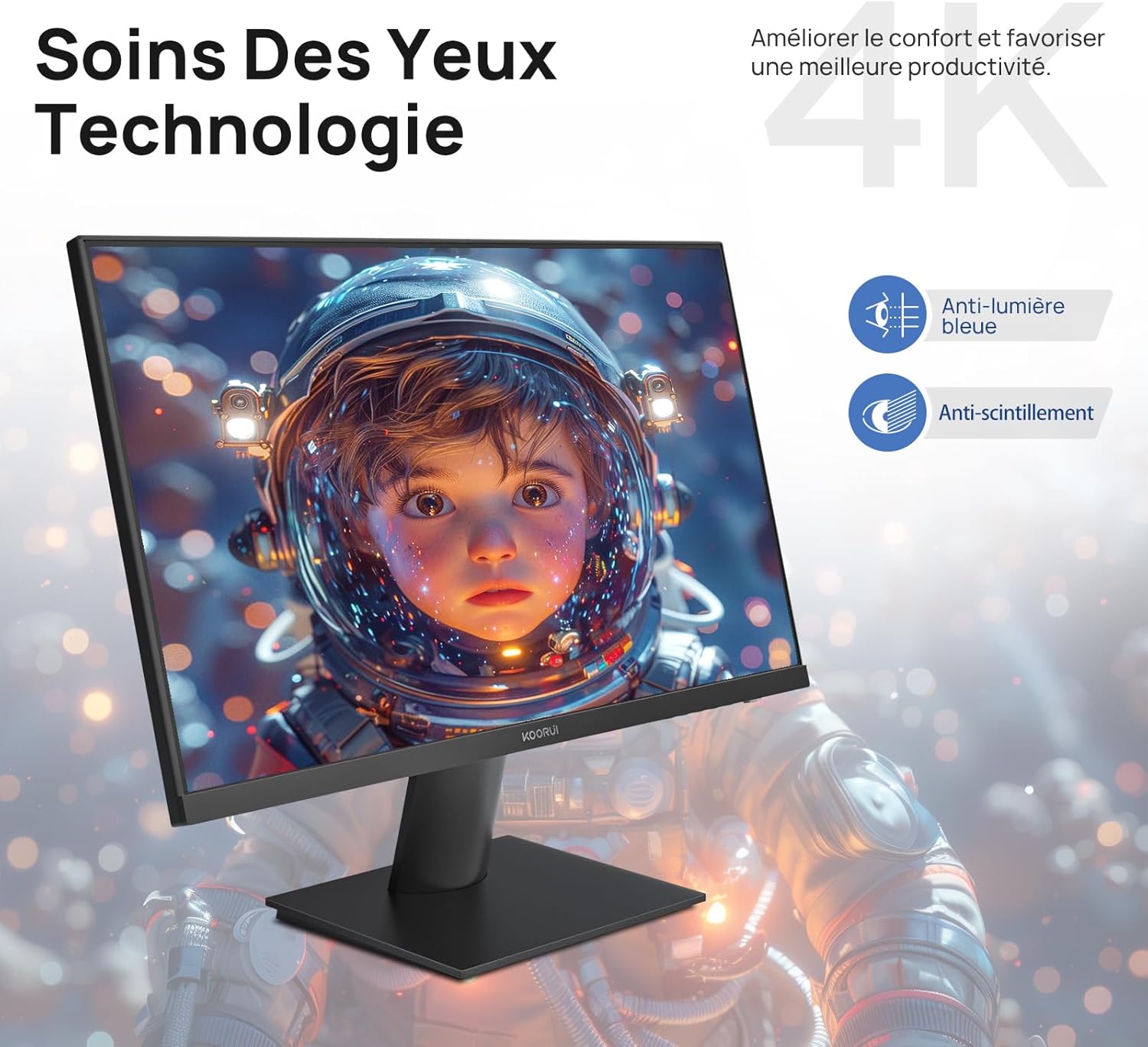
Figure 6.5: Eye Care technology for reduced eye strain.
6.6 Ergonomic Design
The monitor stand allows for tilt adjustment from -5° to 20°, enabling you to find the most comfortable viewing angle for your posture.
6.7 VESA Mount Compatibility
The KOORUI N07 supports 100x100mm VESA mounting, allowing you to easily attach it to a wall mount or an articulated monitor arm for a flexible and clutter-free workspace.

Figure 6.6: VESA mount compatibility for flexible setup.
7. Product Video Overview
Video 7.1: An overview of the KOORUI N07 27-inch 4K UHD monitor, highlighting its key features such as 4K resolution, DCI-P3 color gamut, HDR10 support, versatile usage for creation, viewing, and gaming, adjustable tilt, and VESA mounting capabilities.
8. Troubleshooting
If you encounter issues with your monitor, please refer to the following common problems and solutions:
| Problem | Possible Solution |
|---|---|
| No image on screen | Ensure power cable is securely connected. Check video cable connection (HDMI/DP) to both monitor and computer. Verify correct input source is selected in OSD. |
| Image is blurry or distorted | Check display resolution settings on your computer. Ensure it is set to 3840x2160. Adjust sharpness in the OSD menu. |
| Colors appear incorrect | Adjust color temperature and color settings in the OSD menu. Try resetting picture settings to factory defaults. |
| Screen flickering | Ensure the video cable is securely connected. Disable Adaptive Sync if enabled, or update your graphics card drivers. |
9. Specifications
| Feature | Detail |
|---|---|
| Brand | KOORUI |
| Model Number | N07 |
| Screen Size | 27 Inches |
| Resolution | 4K UHD (3840 x 2160 Pixels) |
| Panel Type | IPS |
| Refresh Rate | 60 Hz |
| Response Time | 4 milliseconds |
| Aspect Ratio | 16:9 |
| Contrast Ratio | 1000:1 |
| Brightness | 300 cd/m² |
| Viewing Angle | 178 Degrees |
| Connectivity | 2x HDMI 2.0, 1x DisplayPort 1.4, 1x Audio Out |
| VESA Compatibility | 100x100mm |
| Special Features | Blue Light Filter, Tilt Adjustment, Frameless, Flicker-Free, Adaptive Sync, HDR10 |
| Dimensions (D x W x H) | 20.5P x 61l x 45H centimeters |
| Weight | 3 Kilograms |
10. Maintenance
To ensure the longevity and optimal performance of your KOORUI N07 monitor, follow these maintenance guidelines:
- Cleaning the Screen: Gently wipe the screen with a soft, lint-free cloth. For stubborn marks, dampen the cloth slightly with water or a specialized screen cleaner. Never spray liquid directly onto the screen.
- Cleaning the Casing: Use a soft, dry cloth to clean the monitor casing. Avoid abrasive cleaners or solvents.
- Ventilation: Ensure the ventilation openings on the monitor are not blocked to prevent overheating.
- Power Off: Turn off the monitor when not in use for extended periods.
11. Warranty and Support
The KOORUI N07 monitor comes with a 2-year manufacturer's warranty. This warranty covers defects in materials and workmanship under normal use. For warranty claims or technical support, please contact KOORUI customer service or your retailer with your proof of purchase.
For additional support, troubleshooting guides, and driver downloads, please visit the official KOORUI website.


