
1. Product Overview
The Imou Cruiser SE 5MP Outdoor Smart Security Camera is designed to provide comprehensive surveillance for your home or property. It features high-resolution video, advanced night vision capabilities, flexible pan and tilt control, and smart detection features to enhance security. This manual provides instructions for installation, operation, and maintenance of your camera.
2. Key Features
- 5 Megapixel Resolution: Captures clear and detailed video at 2880 x 1620 pixels.
- Color Night Vision: Equipped with infrared and white lights for clear, full-color monitoring even in complete darkness, up to 30 meters (98 feet).
- 360-Degree Coverage: Supports 355° horizontal pan and 0-90° vertical tilt for complete area surveillance.
- Smart Human Detection: Advanced motion detection with human shape recognition, sending instant notifications within 0.3 seconds.
- Two-Way Audio: Built-in microphone and speaker allow for real-time communication.
- Advanced Connectivity: Supports Wi-Fi 6 and Bluetooth for fast and stable connections, along with a 100Mbps RJ-45 Ethernet port.
- Flexible Storage: Supports Micro SD card storage up to 512GB and cloud storage options.
- Active Deterrence: Features red and blue warning lights and a 110dB siren to deter intruders.
- Weather Resistance: IP66-rated design ensures protection against dust and water, operating in temperatures from -30°C to +50°C.
3. Package Contents
Verify that all items are present in the package:
- 1x Imou Cruiser SE Camera
- 1x Quick Start Guide
- 1x Power Adapter
- 1x Mounting Template
- 1x Waterproof Connector
- 1x Screw Package
4. Camera Components
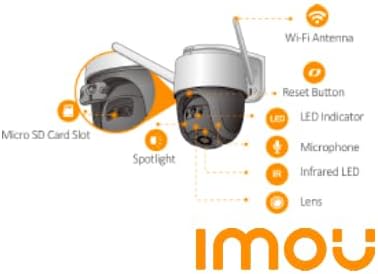
Figure 1: Imou Cruiser SE Camera Component Diagram. This diagram illustrates the various parts of the camera, such as the Wi-Fi antenna, reset button, LED indicator, microphone, infrared LED, lens, spotlight, and Micro SD card slot.

Figure 2: Front View of the Imou Cruiser SE Camera. This image displays the front of the camera, highlighting the lens, LED lights, and dual antennas.
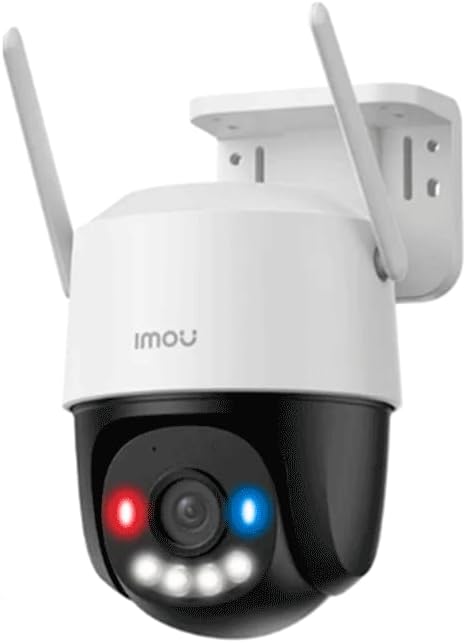
Figure 3: Imou Cruiser SE Camera with Active Deterrence Lights. This image shows the camera with its red and blue warning lights illuminated, indicating active deterrence.
5. Setup Guide
5.1 Initial Setup
- Download the Imou Life App: Search for "Imou Life" in your mobile app store (iOS or Android) and download the application.
- Create an Account: Open the Imou Life app and follow the on-screen instructions to register a new account or log in if you already have one.
- Power On the Camera: Connect the camera to a power source using the provided power adapter. Wait for the camera's LED indicator to flash green, indicating it is ready for setup.
- Add Device: In the Imou Life app, tap the "+" icon to add a new device. Scan the QR code located on the camera or its packaging.
- Network Configuration: Follow the app's instructions to connect the camera to your Wi-Fi network (2.4GHz or 5GHz) or via Ethernet cable. Ensure your Wi-Fi password is correct.
- Finalize Setup: Once connected, name your camera and set up any initial preferences. The camera is now ready for use.
5.2 Mounting the Camera
- Choose a Location: Select a suitable outdoor location that provides the desired viewing angle and is within range of your Wi-Fi network or Ethernet connection. Ensure the power cable can reach.
- Use Mounting Template: Place the mounting template on the desired surface and mark the screw holes.
- Drill Holes: Drill pilot holes at the marked positions. Insert wall anchors if mounting on masonry.
- Secure the Camera: Attach the camera base to the surface using the provided screws.
- Adjust Angle: Adjust the camera's pan and tilt to achieve the optimal viewing angle.
- Waterproof Connection: For Ethernet connections, use the provided waterproof connector to protect the RJ-45 port from moisture.
6. Operating Instructions
6.1 Live View and Playback
- Access Live View: Open the Imou Life app and select your camera from the device list to view the live feed.
- Pan and Tilt Control: Use the on-screen controls in the app to remotely adjust the camera's horizontal (pan) and vertical (tilt) angles.
- Playback Recorded Footage: Access the playback feature in the app to review recorded video stored on the Micro SD card or cloud storage.
6.2 Two-Way Audio
To use the two-way audio feature:
- In the live view interface, tap the microphone icon to speak through the camera's speaker.
- Tap the speaker icon to listen to audio from the camera's microphone.
6.3 Motion Detection and Alerts
- Enable/Disable Alerts: Navigate to the camera settings in the Imou Life app to enable or disable motion detection alerts.
- Customize Detection Zones: Set specific areas within the camera's view where you want motion detection to be active.
- Human Detection: Ensure human detection is enabled for more accurate alerts, reducing false alarms from pets or inanimate objects.
- Active Deterrence: Configure the camera to activate its red/blue warning lights and 110dB siren upon detecting suspicious activity.
7. Maintenance
- Cleaning: Regularly clean the camera lens with a soft, dry cloth to ensure clear image quality. Do not use harsh chemicals.
- Firmware Updates: Check for and install firmware updates through the Imou Life app to ensure optimal performance and access to new features.
- Power Cycle: If the camera experiences issues, try power cycling it by unplugging and replugging the power adapter.
- Micro SD Card: If using a Micro SD card, periodically check its status and ensure it has sufficient space. Format the card through the app if necessary.
8. Troubleshooting
- Camera Offline:
- Check power connection.
- Verify Wi-Fi signal strength. Move camera closer to router or use an extender.
- Restart the camera and your router.
- Ensure the camera's firmware is up to date.
- Poor Image Quality:
- Clean the camera lens.
- Check network bandwidth. A stable internet connection is crucial for high-resolution streaming.
- Ensure there are no obstructions in the camera's field of view.
- Motion Alerts Not Received:
- Verify motion detection is enabled in the app settings.
- Check notification settings on your mobile device.
- Adjust detection sensitivity and zones.
- Micro SD Card Not Recording:
- Ensure the Micro SD card is inserted correctly.
- Format the Micro SD card through the Imou Life app.
- Check if the card is damaged or full. Replace if necessary.
- Cannot Connect to Wi-Fi:
- Ensure you are connecting to a 2.4GHz or 5GHz Wi-Fi network (depending on camera support).
- Double-check the Wi-Fi password.
- Perform a factory reset on the camera (press and hold the reset button for 10 seconds) and try setup again.
9. Specifications
| Model | IPC-K7FN-5H0WE |
| Resolution | 5 Megapixel (2880 x 1620) |
| Lens | 3.6mm Fixed Lens |
| Field of View | Horizontal 76°, Vertical 41°, Diagonal 91° |
| Pan/Tilt Range | Pan: 0° to 355°, Tilt: 0° to 90° |
| Night Vision | Color Night Vision, up to 30m (98 ft) |
| Video Compression | H.265 / H.264 |
| Frame Rate | Up to 20 fps |
| Digital Zoom | 8x |
| Audio | Built-in Microphone & Speaker (Two-Way Audio) |
| Connectivity | Wi-Fi 6, Bluetooth, RJ-45 (100Mbps Ethernet) |
| Storage Options | Micro SD Card (up to 512GB), Cloud Storage |
| Active Deterrence | Red/Blue Warning Lights, 110dB Siren |
| Weather Resistance | IP66 |
| Operating Temperature | -30°C to +50°C (-22°F to 122°F) |
| Power Consumption | 6W |
| Dimensions | 126mm × 159mm × 196mm |
| Weight | 446.9g |
10. Warranty and Support
Imou products typically come with a limited warranty. Please refer to the warranty card included in your package or visit the official Imou website for detailed warranty terms and conditions specific to your region.
For technical support, troubleshooting assistance, or further inquiries, please visit the Imou official support page or contact their customer service through the Imou Life application. Keep your product model number (IPC-K7FN-5H0WE) and purchase information readily available when seeking support.


