
T100
T100 Car Stereo Android 14 User Manual
Model: T100 CAR ANDROID-14
1. Introduction
Welcome to the user manual for your new T100 Car Stereo Android 14 system. This advanced multimedia system is designed to provide a superior in-car entertainment and navigation experience. Featuring a 9-inch high-definition touchscreen, a powerful quad-core processor, and extensive connectivity options, it transforms your driving experience. Please read this manual thoroughly before installation and operation to ensure proper use and to maximize the features of your device.
2. Safety Information
Always prioritize safety. Improper installation or operation can lead to serious injury or damage.
- Do not attempt to operate the unit or view videos while driving. Distracted driving is dangerous and illegal.
- Ensure professional installation to avoid electrical shorts or damage to your vehicle's electrical system.
- Keep the unit away from water and excessive moisture.
- Do not disassemble or modify the unit. This will void the warranty and may cause damage.
- Use only specified power cables and accessories.
3. Package Contents
Please check the box for the following items:
- T100 Car Stereo Android 14 Unit (9-inch screen)
- 2 x USB Flash Drive Cables
- RC Cables (RCA audio/video cables)
- Camera Support Cable
- Main Power Plug
- GPS Antenna

Image: The retail packaging of the T100 Car Stereo, showing the unit and its key features.
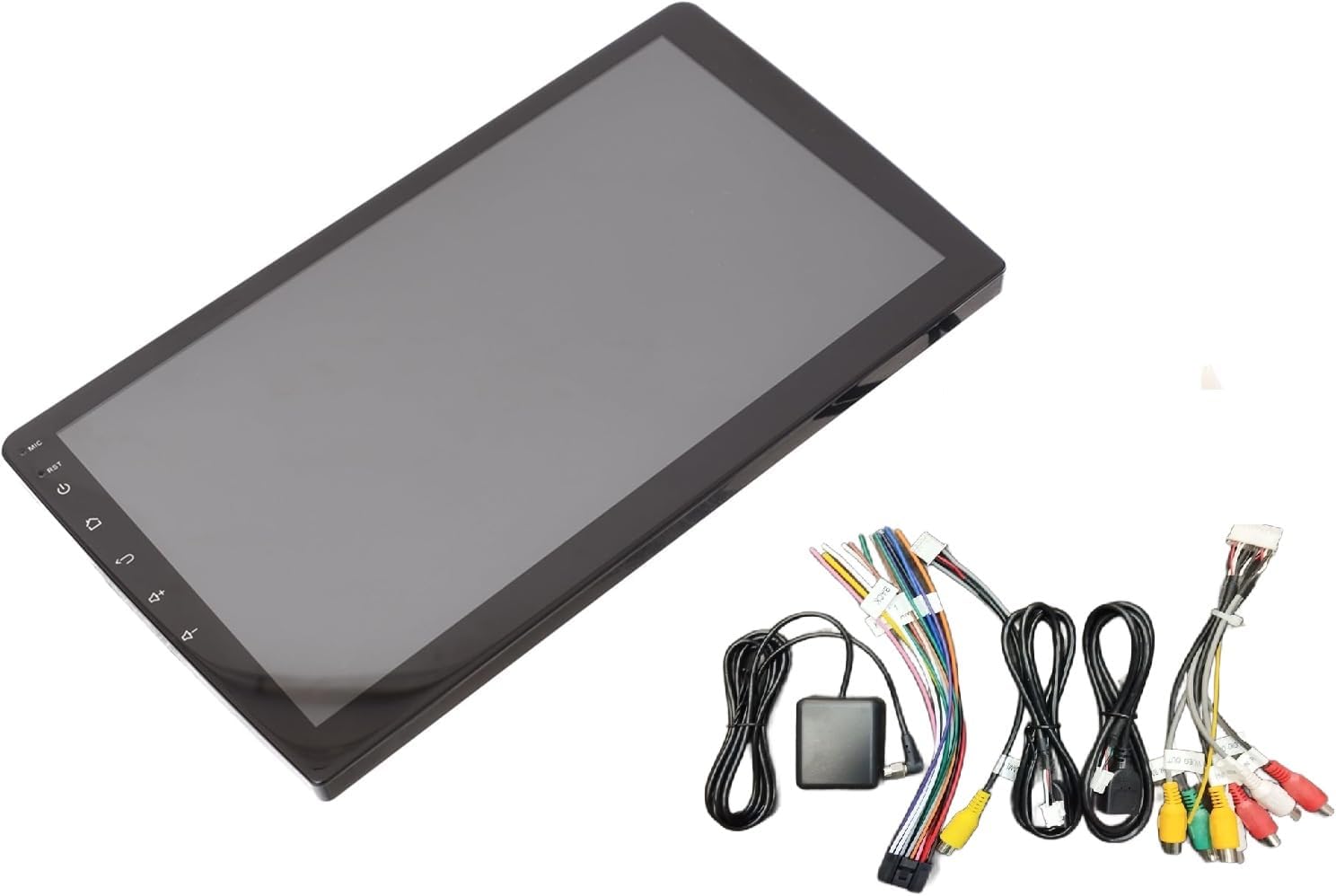
Image: The T100 Car Stereo unit displayed alongside its various connection cables and GPS antenna.
4. Setup and Installation
Installation of the T100 Car Stereo requires technical knowledge and should ideally be performed by a qualified professional. Incorrect wiring can damage the unit or your vehicle.
4.1 Pre-Installation Checklist
- Ensure your vehicle's battery is disconnected before starting installation.
- Verify compatibility with your vehicle's dashboard and wiring harness.
- Gather necessary tools (wire strippers, crimpers, screwdrivers, electrical tape).
4.2 Wiring Diagram (General)
Refer to the wiring diagram provided with your unit for specific connections. Common connections include:
- Power: ACC (ignition), B+ (constant 12V), GND (ground).
- Speakers: Connect to appropriate speaker outputs (Front L/R, Rear L/R).
- Antenna: Connect FM antenna.
- GPS Antenna: Connect the GPS antenna and mount it in a location with clear sky view.
- USB Ports: Connect the provided USB cables for external devices.
- Camera Input: Connect the rear view or 360-degree camera input.
- Steering Wheel Control: Connect SWC wires if your vehicle supports it.

Image: The back of the T100 Car Stereo, showing various input and output ports for power, speakers, USB, and other accessories.

Image: A collection of cables included with the T100 Car Stereo, such as USB cables, RCA cables, and the GPS antenna.
4.3 Mounting the Unit
Securely mount the T100 unit into your vehicle's dashboard using the appropriate mounting brackets. Ensure it is firmly in place to prevent vibration and damage.
5. Operating Instructions
The T100 Car Stereo runs on Android 14, offering a familiar and intuitive user interface.
5.1 Basic Operation
- Power On/Off: Press and hold the power button (usually on the left side of the screen) to turn the unit on or off. A short press typically mutes/unmutes or puts the screen to sleep.
- Volume Control: Use the on-screen volume controls or integrated steering wheel controls.
- Home Button: Returns to the main Android home screen.
- Back Button: Navigates back to the previous screen or menu.
- Reset Button: A small pinhole reset button (RST) is available for system reboots if needed. Use a thin object to press it.

Image: The front view of the T100 Car Stereo, highlighting its large 9-inch touchscreen and side control buttons.
5.2 Connectivity
- Bluetooth: Go to Settings > Bluetooth to pair with your smartphone for hands-free calling and audio streaming.
- Wi-Fi: Connect to a Wi-Fi hotspot (e.g., from your phone) via Settings > Wi-Fi to access online features like Google Maps, YouTube, and the Play Store.
- CarPlay / Android Auto: Connect your smartphone via USB for wired connection, or wirelessly if supported by your phone and the unit. Follow on-screen prompts for setup.
5.3 Multimedia Playback
- USB Playback: Insert a USB flash drive into one of the USB ports to play audio or video files.
- FM Radio: Access the FM Radio application to scan for and save radio stations.
- Online Streaming: Use pre-installed apps like YouTube or download others from the Play Store for online content.
5.4 Navigation
The unit comes with built-in GPS and supports various navigation applications. Connect to Wi-Fi to download maps or use online navigation services like Google Maps.
5.5 Camera Support
If a rear view or 360-degree camera is connected, the display will automatically switch to the camera view when reversing or when the camera app is opened.
5.6 OBD2 Dongle Support
Connect a compatible OBD2 dongle (sold separately) via Bluetooth to monitor vehicle diagnostics and performance data through dedicated apps.
6. Features Overview
- 9-inch HD Touchscreen: Provides clear visuals and responsive touch control.
- Android 14 OS: Access to a wide range of Android applications via the Google Play Store.
- Quad-Core Processor: Ensures smooth performance and fast app loading.
- 2GB RAM / 32GB ROM: Sufficient memory for multitasking and storing apps/media.
- High-Power Audio Output with Tosheba IC: Delivers clear and powerful sound quality.
- Steering Wheel Control Integration: Allows safe control of media and calls without taking hands off the wheel.
- Wired & Wireless CarPlay / Android Auto: Seamless smartphone integration for navigation, music, and communication.
- Built-in WiFi & Bluetooth: For internet connectivity, hands-free calls, and audio streaming.
- 360-degree Camera Support: Enhances parking and driving safety with comprehensive views.
- Dual USB Ports: For connecting USB devices and charging.
- FM Radio & GPS Navigation: Standard features for entertainment and guidance.
- Motherboard Protection Circuits: Ensures reliable and durable performance.
- Customizable Themes: 12 unique themes to personalize your user interface.
- Built-in Microphone: For clear hands-free calls and voice commands.
7. Maintenance
- Cleaning: Use a soft, dry cloth to clean the screen and unit. Do not use abrasive cleaners or solvents.
- Software Updates: Periodically check for system updates via Wi-Fi in the settings menu to ensure optimal performance and access to new features.
- Avoid Extreme Temperatures: Do not expose the unit to extreme heat or cold, as this can affect its performance and lifespan.
8. Troubleshooting
| Problem | Possible Cause | Solution |
|---|---|---|
| Unit does not power on. | No power connection; Blown fuse; Incorrect wiring. | Check power cables and fuse. Verify wiring connections. |
| No sound. | Volume too low; Mute activated; Speaker wires disconnected. | Increase volume. Check mute status. Verify speaker connections. |
| Bluetooth/Wi-Fi not connecting. | Device not in pairing mode; Incorrect password; Signal interference. | Ensure device is discoverable. Re-enter password. Move closer to hotspot. |
| Touchscreen unresponsive. | System freeze. | Press the RST (reset) button with a thin object. |
| GPS signal weak or lost. | GPS antenna obstructed or improperly placed. | Ensure GPS antenna has a clear view of the sky. Check antenna connection. |
If problems persist, please contact customer support or a qualified technician.
9. Specifications
- Manufacturer: SHS
- Model: T100 CAR ANDROID-14
- Operating System: Android 14
- Screen Size: 9 inches
- Screen Resolution: HD
- Processor: Quad-Core
- RAM: 2GB
- Internal Storage (ROM): 32GB
- Audio Output Mode: Stereo
- Connectivity: Bluetooth, Wi-Fi, USB
- Special Features: CarPlay, Android Auto, GPS Navigation, FM Radio, 360-degree Camera Support, OBD2 Dongle Support, Steering Wheel Control, Built-in Microphone, Motherboard Protection Circuits, Customizable Themes.
- Mounting Type: Dashboard Mount
- Item Weight: 1 Kilogram
- Shipping Dimensions: 29 x 19 x 10 cm
- Country of Origin: China
10. Warranty and Support
This product comes with a standard manufacturer's warranty against defects in materials and workmanship. The warranty period typically begins from the date of purchase. Please retain your proof of purchase for warranty claims.
For technical support, troubleshooting assistance, or warranty inquiries, please contact the seller or the manufacturer directly. Refer to your purchase documentation for specific contact information.
Extended warranty options may be available from third-party providers. Please check with your retailer for details.
Related documentsT100


Ask a question about this manual
Ask about setup, troubleshooting, compatibility, parts, safety, or missing instructions. Manuals+ will review the question and use this page’s manual context to help answer it.