
1. Product Overview
The Walfront HC-T020-Wi-Fi Thermostat is a smart, programmable device designed to provide precise temperature control for your home. Featuring a capacitive touch screen, Wi-Fi connectivity, and voice control capabilities, it offers convenience and efficiency in managing your heating or cooling system.
Key features include:
- 7-Day/24-Hour Programmable Function: Allows for customized temperature schedules to maintain comfort and energy efficiency.
- Voice Control Support: Compatible with voice assistants for hands-free operation.
- Mobile Wi-Fi Control: Remote management via the Tuya APP from any connected location.
- Capacitive Touch Screen: Sensitive and easy-to-operate interface with a circular aesthetic design.
- Durable Construction: Made from flame-retardant PC and ABS materials for long-lasting performance.

Image 1.1: Front view of the Walfront HC-T020-Wi-Fi Thermostat, showcasing its circular capacitive touch screen display with temperature, time, and day indicators.
2. Installation and Setup
2.1 Safety Precautions
- Always turn off power at the main circuit breaker before beginning installation to prevent electrical shock.
- Installation should be performed by a qualified electrician if you are unsure about wiring procedures.
- Ensure the thermostat is compatible with your heating/cooling system (95-240VAC, 50-60HZ).
2.2 Physical Installation
- Step 1: Power Off. Ensure the main power supply to your heating/cooling system is turned off.
- Step 2: Remove Mounting Plate. Rotate the LCD part of the thermostat to remove it from the mounting plate.
- Step 3: Wiring. Connect the electrical wires to the appropriate terminals on the mounting plate. Refer to the wiring diagram provided in the original product manual for specific connections (e.g., L, N, Load 1, Load 2). The current load capacity is 5A for plumbing/hot water heater/boiler systems and 16A for electric heating systems.
- Step 4: Fix Mounting Plate. Secure the mounting plate to the wall using the provided screws.
- Step 5: Attach Thermostat Body. Fasten the main body of the thermostat to the mounting plate by rotating it in the specified direction until it clicks securely into place.
- Step 6: Restore Power. Turn the main power supply back on.

Image 2.1: Visual guide illustrating the four-step installation process: removing the LCD, wiring, fixing the mounting plate, and reattaching the thermostat body.

Image 2.2: Detailed view of the thermostat's dimensions (87mm x 87mm x 43mm) and the back panel showing wiring terminals.
2.3 Wi-Fi and App Connection
To enable remote control and smart features, connect your thermostat to your home Wi-Fi network and the Tuya APP.
- Step 1: Download Tuya APP. Download and install the "Tuya Smart" application from your smartphone's app store (available for iOS and Android).
- Step 2: Register/Log In. Open the Tuya Smart APP and register for a new account or log in with an existing one.
- Step 3: Add Device. Follow the in-app instructions to add a new device. This typically involves putting the thermostat into pairing mode (refer to the thermostat's on-screen instructions or the original manual for specific button presses to enter pairing mode, often indicated by a flashing Wi-Fi icon).
- Step 4: Connect to Wi-Fi. Select your home Wi-Fi network and enter the password when prompted by the app. Ensure your phone is connected to a 2.4GHz Wi-Fi network, as 5GHz networks may not be supported.
- Step 5: Device Renaming. Once connected, you can rename your thermostat within the app for easier identification.
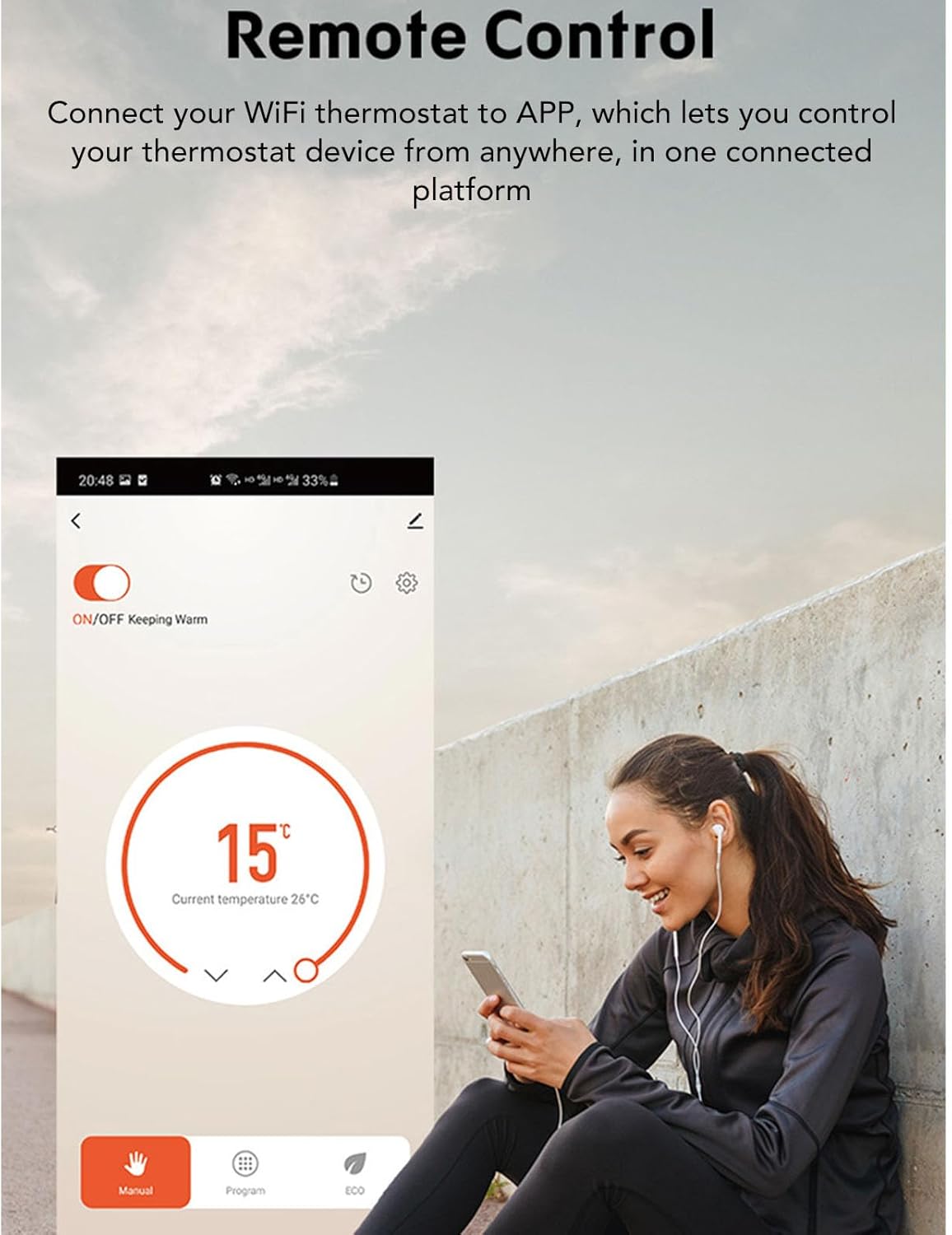
Image 2.3: A user interacting with the Tuya Smart app on a smartphone, demonstrating remote control capabilities for the thermostat.
3. Operation
3.1 Touch Screen Operation
The thermostat features a capacitive touch screen for direct control. The circular interface is designed for intuitive interaction.
- Temperature Adjustment: Use the up/down arrows on the screen to set your desired temperature.
- Mode Selection: Tap the mode icon (e.g., heat, cool, auto) to switch between operating modes.
- Power On/Off: Use the power icon to turn the thermostat on or off.
- Menu/Settings: Access advanced settings by tapping the menu icon (if available).

Image 3.1: A user demonstrating interaction with the thermostat's touch screen interface.
3.2 Programmable Schedule
The 7-day, 24-hour programmable function allows you to create custom heating/cooling schedules for different times of the day and week, optimizing comfort and energy usage.
- Access Schedule Settings: This is typically done through the thermostat's on-screen menu or via the Tuya Smart APP.
- Set Daily/Weekly Programs: Define specific temperature settings for different periods (e.g., wake, away, home, sleep) for each day of the week.
- Save and Activate: Save your programmed schedule and activate it to ensure the thermostat follows your desired routine.

Image 3.2: A family leaving their home, symbolizing how a programmable schedule can maintain comfort and save energy when occupants are away.
3.3 Voice Control
Integrate your Walfront thermostat with compatible voice assistant devices (e.g., Amazon Alexa, Google Assistant) for convenient voice-activated control.
- Link Account: In your voice assistant app (e.g., Alexa app, Google Home app), search for the "Tuya Smart" skill or service and link your Tuya account.
- Discover Devices: Once linked, ask your voice assistant to discover new devices. Your thermostat should appear.
- Voice Commands: You can now use voice commands such as:
- "Alexa/Hey Google, set [Thermostat Name] to 72 degrees."
- "Alexa/Hey Google, what is the temperature of [Thermostat Name]?"
- "Alexa/Hey Google, turn on/off [Thermostat Name]."
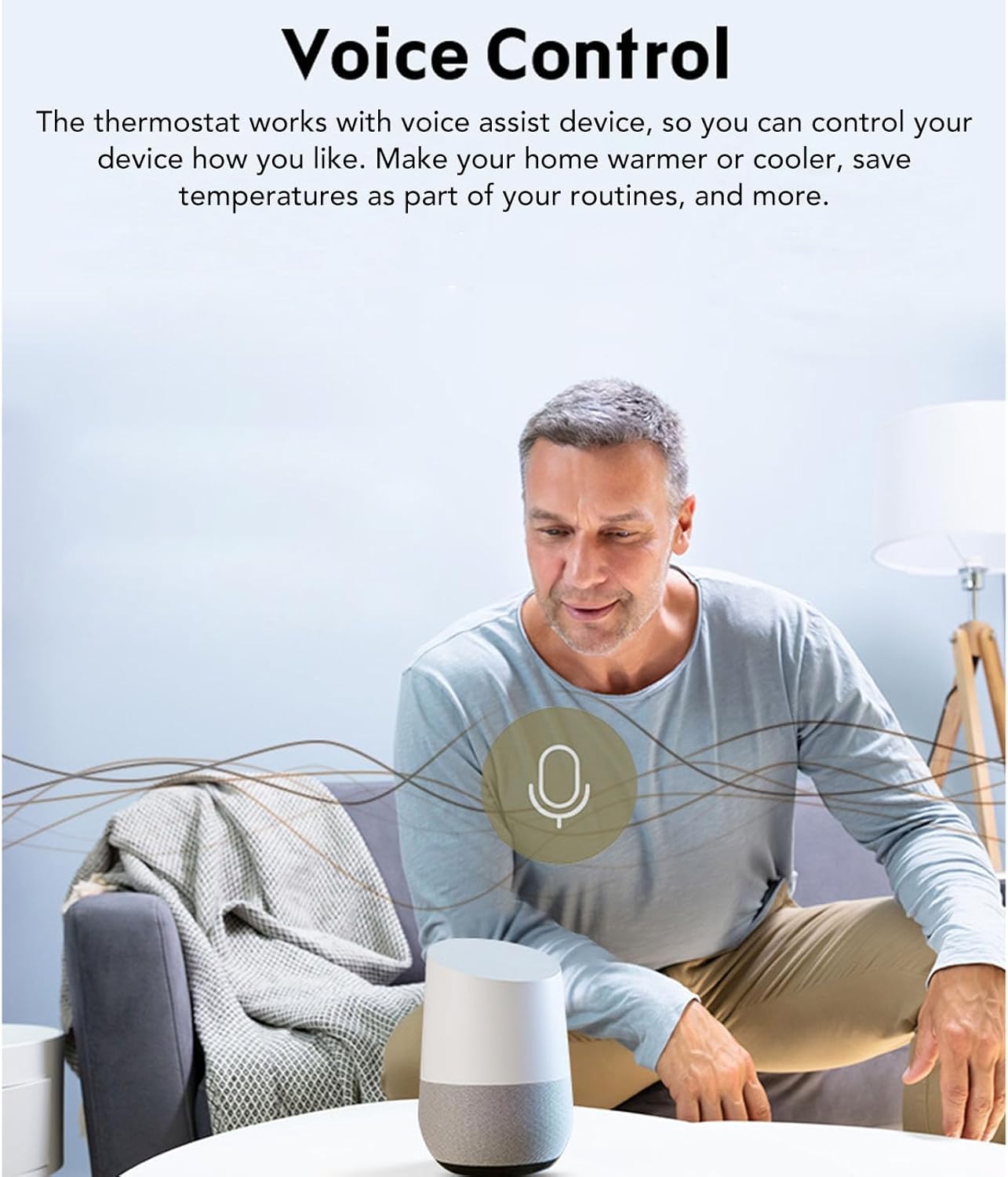
Image 3.3: A user interacting with a smart speaker to control his home's temperature, demonstrating the voice control feature of the thermostat.
4. Maintenance
The Walfront HC-T020-Wi-Fi Thermostat requires minimal maintenance to ensure optimal performance.
- Cleaning: Gently wipe the screen and exterior with a soft, dry, or slightly damp cloth. Avoid using abrasive cleaners, solvents, or chemical sprays, as these can damage the screen and internal components.
- Sensor Clearance: Ensure that the thermostat's temperature sensor (usually a small vent or opening) is not obstructed by dust or debris, which could affect temperature readings.
- Software Updates: Periodically check the Tuya Smart APP for any available firmware updates for your thermostat to ensure you have the latest features and security enhancements.
5. Troubleshooting
If you encounter issues with your Walfront HC-T020-Wi-Fi Thermostat, refer to the following common troubleshooting steps:
- Thermostat Not Powering On:
- Check the main circuit breaker to ensure power is supplied to the heating/cooling system and the thermostat.
- Verify that all wiring connections are secure and correct according to the installation instructions.
- No Wi-Fi Connection:
- Ensure your home Wi-Fi network is active and broadcasting a 2.4GHz signal.
- Restart your Wi-Fi router.
- Attempt to re-pair the thermostat with the Tuya Smart APP, ensuring the thermostat is in pairing mode.
- Check that the Wi-Fi password entered is correct.
- Incorrect Temperature Readings:
- Ensure the thermostat's sensor is not obstructed by furniture, curtains, or dust.
- Verify that the thermostat is not exposed to direct sunlight or drafts, which can affect readings.
- Check for any calibration settings within the thermostat's menu or the Tuya APP.
- Heating/Cooling System Not Responding:
- Confirm that the thermostat is set to the correct mode (Heat/Cool/Auto).
- Check the set temperature to ensure it is above (for heating) or below (for cooling) the current room temperature.
- Inspect the wiring connections to the heating/cooling system for any loose wires.
- If the issue persists, consult a qualified HVAC technician.
6. Specifications
| Feature | Specification |
|---|---|
| Model | HC-T020-Wi-Fi |
| Material | PC, ABS (Flame Retardant) |
| Power Supply | 95-240VAC, 50-60HZ |
| Current Load | 5A (Plumbing, Hot Water Heater, Boiler), 16A (Electric Heating) |
| Sensor | Negative Temperature Coefficient Thermistor (GB) |
| Accuracy | 0.5℃ or 1℉ |
| Set Temperature Range | 5-35℃ |
| Display Temperature Range | 5-99℃ |
| Ambient Temperature | 0-45℃ |
| Ambient Humidity | 5-95%RH (Non Condensing) |
| Storage Temperature | -5-45℃ |
| Power Consumption | <1.5W |
| Timing Error | <1% |
| Protective Level | IP20 |
| Screen | Capacitive Touch Screen |
| APP Compatibility | Tuya APP |
| Voice Control | Supported |
| Product Dimensions | 4.33 x 3.54 x 2.36 inches (approx. 110 x 90 x 60 mm) |
| Item Weight | 7 ounces (approx. 198 grams) |
7. Warranty Information
Specific warranty details for the Walfront HC-T020-Wi-Fi Thermostat are typically provided with the product packaging or can be obtained directly from the retailer or manufacturer at the time of purchase. Please retain your proof of purchase for warranty claims.
Generally, warranties cover defects in materials and workmanship under normal use. Damage resulting from improper installation, misuse, or unauthorized modifications is usually not covered.
8. Customer Support
For further assistance, technical support, or inquiries regarding your Walfront HC-T020-Wi-Fi Thermostat, please contact Walfront customer service or the retailer from whom you purchased the product.
You may find contact information on the Walfront official website or within your product packaging.
Walfront Store Link: Visit the Walfront Store on Amazon