
1. Introduction
The BTECH APRS-K1 Multi-Function Universal Audio Interface Cable is designed to provide versatile audio connectivity for a wide range of radio communication devices. This cable facilitates various applications including Automatic Packet Reporting System (APRS) data transmission, audio recording, and integration with external audio systems. Its robust design ensures clear signal transmission and protection against over-modulated signals.

Image 1.1: The BTECH APRS-K1 Multi-Function Universal Audio Interface Cable, showcasing its 3.5mm TRRS connector and Kenwood K1 type two-pin connector.
2. Product Overview
2.1 Key Features
- Universal Compatibility: Supports hundreds of radios utilizing the Kenwood K1 accessory standard, including BaoFeng, BTECH, Kenwood, Wouxun, and TYT. Also compatible with phones, tablets, or computers featuring 3.5mm audio in/out ports.
- Multifaceted Applications: Enables APRS data transmission, audio recording, line-out functionality, line-in functionality, Mic In Connector use, and pushing transmissions over speaker systems.
- Outstanding Audio Quality: Features a built-in custom circuit board designed for crystal-clear packet transmissions and robust protection from over-modulated signals.
- Durable Construction: Engineered for reliable performance in various environments.
2.2 What's in the Box
- 1x BTECH APRS-K1 Multi-Function Universal Audio Interface Cable

Image 2.1: The APRS-K1 cable serving as an interface for connecting a radio to various line-in devices such as smartphones, laptops, headphones, and speakers.
3. Setup
Setting up the BTECH APRS-K1 cable involves connecting it correctly to your radio and the desired audio device. Ensure all devices are powered off before making connections.
3.1 Connecting to a Radio
- Locate the K1 accessory port on your compatible radio. This is typically a two-pin connector.
- Carefully insert the two-pin connector of the APRS-K1 cable into the radio's accessory port. Ensure a secure fit.
3.2 Connecting to an Audio Device
- Identify the 3.5mm audio input/output jack on your smartphone, tablet, laptop, or other audio device.
- Insert the 3.5mm TRRS connector of the APRS-K1 cable into the audio device's jack.

Image 3.1: A Baofeng handheld radio connected to a laptop via the BTECH APRS-K1 cable for data or audio transfer.
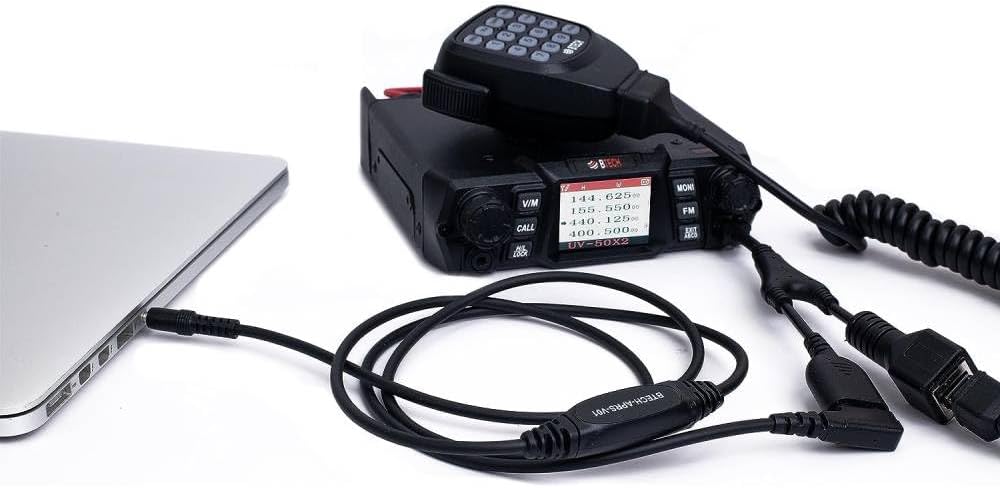
Image 3.2: A mobile radio setup, including an external microphone, connected to a laptop using the BTECH APRS-K1 cable.
4. Operating Instructions
The APRS-K1 cable enables various functionalities depending on the software and settings used on your connected audio device and radio.
4.1 APRS Data Transmission (APRSpro, APRSDroid)
To use the cable for APRS (Automatic Packet Reporting System) data transmission:
- Connect the APRS-K1 cable between your radio and a smartphone or tablet running an APRS application (e.g., APRSpro for iOS, APRSDroid for Android).
- Configure the audio settings within the APRS application to use the external audio interface. This typically involves selecting the correct input/output device and adjusting audio levels.
- Ensure your radio is set to the appropriate frequency and mode for APRS operation.
- Initiate packet transmission from the APRS application. The cable will convert the digital data into audio tones for transmission by the radio.
4.2 Audio Recording
To record audio from your radio:
- Connect the APRS-K1 cable between your radio and a recording device (e.g., smartphone, laptop with audio recording software).
- Ensure the recording software is configured to receive input from the external 3.5mm audio jack.
- Adjust the radio's volume and the recording device's input level for optimal audio capture.
4.3 Line-Out and Line-In Functionality
The cable supports both line-out (radio audio to external device) and line-in (external audio to radio for transmission) applications.
- Line-Out: Connect the cable to headphones or an external speaker system to monitor radio transmissions.
- Line-In (Mic In Connector): Use the cable to feed audio from an external source (e.g., a computer's audio output) into the radio for transmission. This requires proper audio level management to prevent over-modulation.
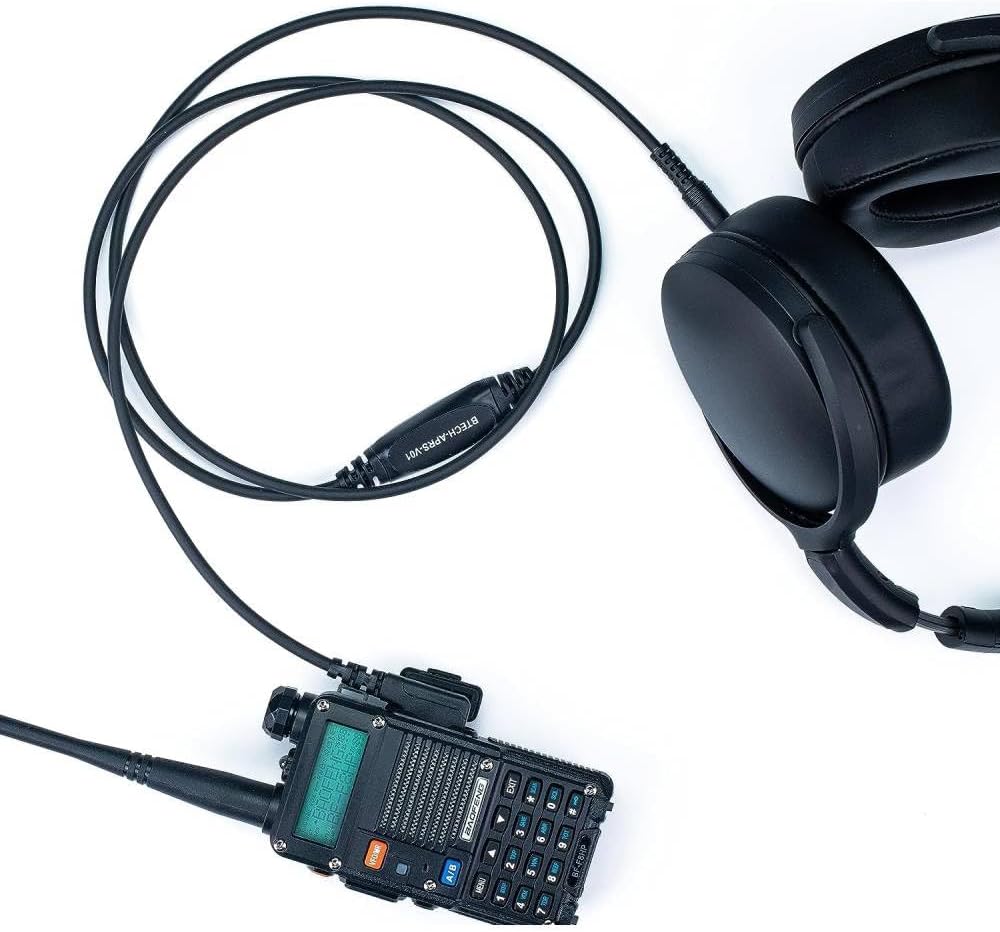
Image 4.1: A Baofeng handheld radio connected to headphones via the BTECH APRS-K1 cable for private audio monitoring.
5. Compatibility
The BTECH APRS-K1 cable is designed for broad compatibility:
- Radios: Compatible with radios that use the Kenwood K1 accessory standard. This includes many models from BaoFeng, BTECH, Kenwood, Wouxun, and TYT.
- Audio Devices: Compatible with any device featuring a standard 3.5mm audio input/output port, such as smartphones, tablets, laptops, and desktop computers.
6. Maintenance
To ensure the longevity and optimal performance of your BTECH APRS-K1 cable, follow these simple maintenance guidelines:
- Storage: Store the cable in a cool, dry place away from direct sunlight and extreme temperatures. Avoid tightly coiling the cable to prevent internal wire damage.
- Cleaning: Use a soft, dry cloth to clean the cable and connectors. Do not use harsh chemicals or abrasive materials.
- Handling: Always grasp the connector ends when plugging or unplugging the cable. Avoid pulling on the cable itself, as this can damage the internal wiring or the connectors.
- Water Resistance: The cable is water resistant, but it is not waterproof. Avoid submerging it in water or exposing it to heavy rain for extended periods.
7. Troubleshooting
If you encounter issues with your APRS-K1 cable, consider the following troubleshooting steps:
- No Audio/Data Transmission:
- Ensure both the radio and the audio device are powered on and functioning correctly.
- Verify that the cable is securely connected to both the radio's K1 port and the audio device's 3.5mm jack.
- Check the audio input/output settings on your smartphone, tablet, or computer. Ensure the external audio device is selected.
- Adjust the volume levels on both the radio and the connected audio device.
- For APRS, confirm the radio is on the correct frequency and the software settings are accurate.
- Distorted Audio/Data:
- Reduce the audio output level from the radio or the input level on the connected device to prevent over-modulation.
- Inspect the cable and connectors for any visible damage or corrosion.
- Ensure there is no electromagnetic interference from other electronic devices.
- Intermittent Connection:
- Gently wiggle the connectors at both ends to check for loose connections.
- Try using the cable with a different radio or audio device to isolate the problem.
8. Specifications
| Feature | Detail |
|---|---|
| Model Number | BTECH-APRS-V01 |
| Item Weight | 1.13 ounces |
| Product Dimensions | 53 x 2 x 0.25 inches |
| Brand | BTECH |
| Compatible Devices | Laptop (with 3.5mm audio jack), Music Player, Other devices with 3.5mm audio jack, Smartphone, Kenwood K1 standard radios |
| Included Components | Cable |
| Water Resistance Level | Water Resistant |
| UPC | 722589229756 |
9. Warranty and Support
BTECH is committed to providing quality products and support. As a USA-based company, BTECH offers local support for any issues that may arise with your product.
9.1 Resources
- Software Downloads: For drivers, firmware, and other software related to BTECH products, please visit: https://baofengtech.com/download
- YouTube Tutorials: For visual guides and instructional videos, subscribe to the official BTECH YouTube channel: https://www.youtube.com/c/Baofengtechradio

Image 9.1: BTECH's commitment to USA-based engineering and support.