
1. Introduction
This manual provides essential information for the safe and efficient use of your MESWAO 15.6 Inch Pro Android 14 Tablet. Please read this manual thoroughly before operating the device and retain it for future reference.
2. Safety Information
- Do not expose the tablet to extreme temperatures, direct sunlight, or high humidity.
- Avoid dropping or subjecting the tablet to severe impact.
- Use only the provided power adapter and Type-C cable for charging.
- Keep the tablet away from water and other liquids.
- Do not attempt to disassemble or repair the tablet yourself. Contact customer support for assistance.
- Ensure proper ventilation when using the tablet for extended periods.
3. Package Contents
Verify that all items are present in the package:
- 1 x MESWAO 15.6 inch Android Tablet
- 1 x Power Adapter
- 1 x Type C Cable
- 1 x User Manual
- 1 x Type-C to USB adapter
- 1 x Stuck pin
4. Device Overview
Familiarize yourself with the physical components of your MESWAO tablet.
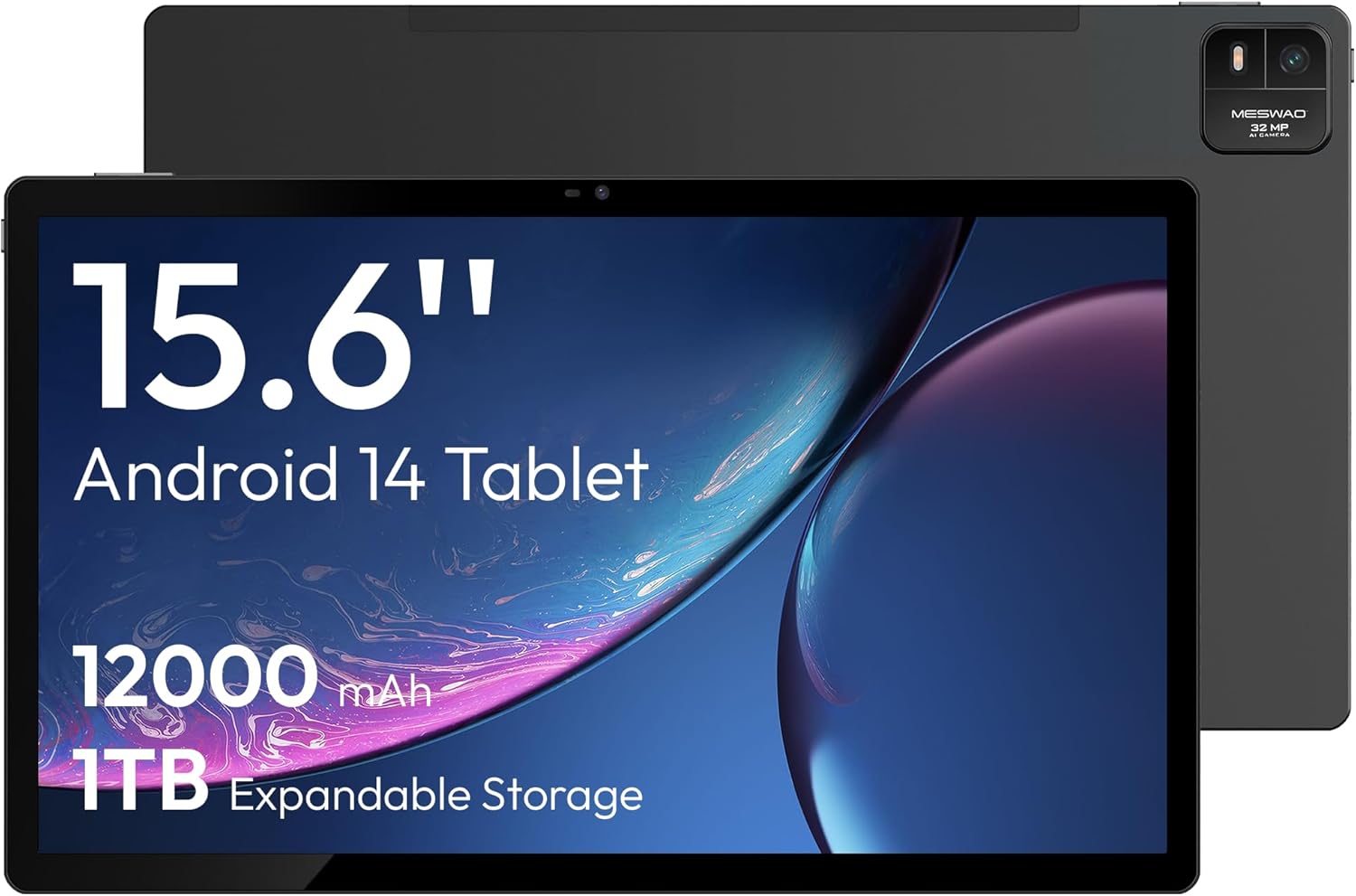
Figure 4.1: Front view of the MESWAO 15.6-inch Android 14 Tablet, highlighting the large display and key specifications such as 12000mAh battery and 1TB expandable storage.
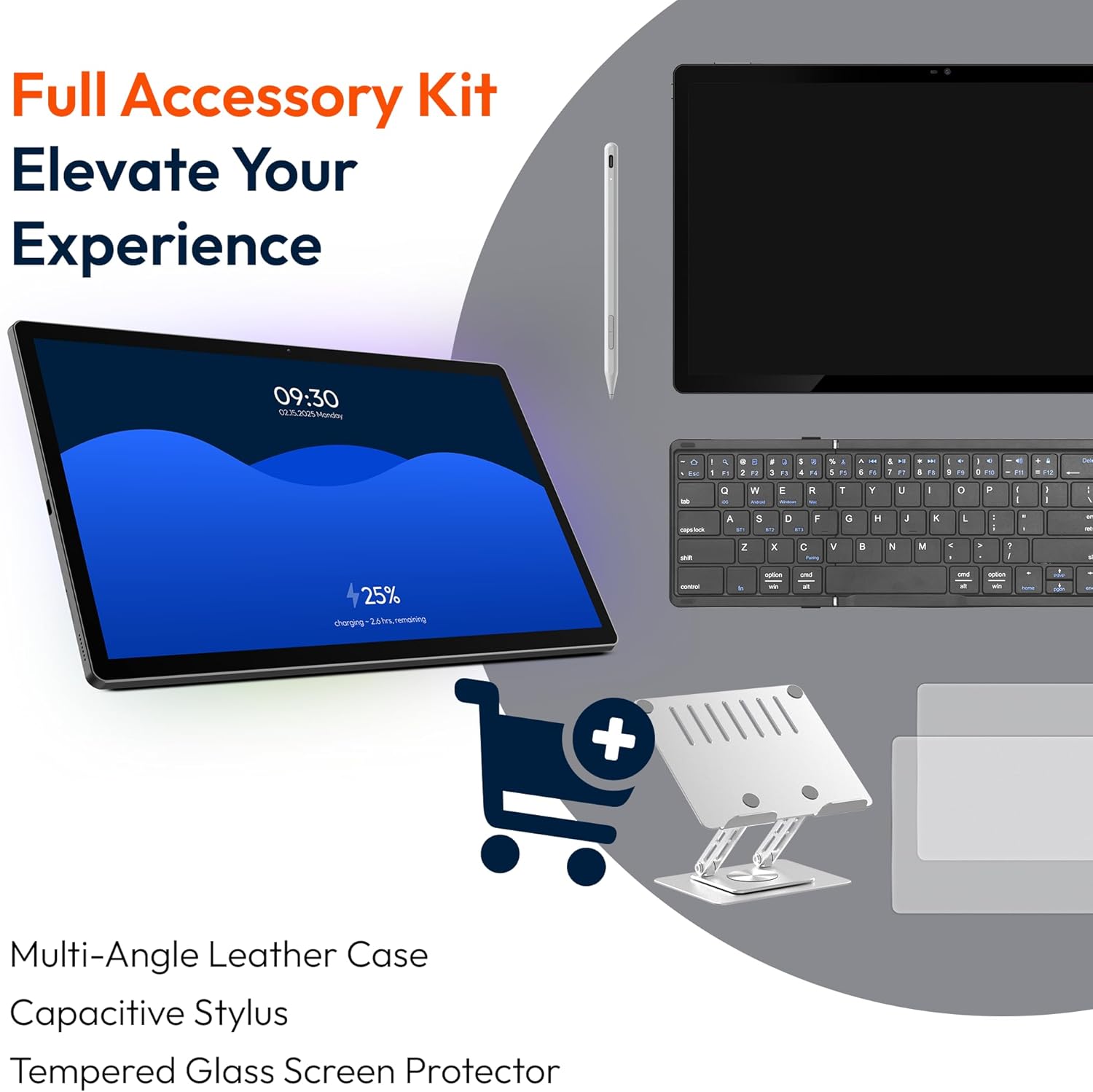
Figure 4.2: Side and rear view of the tablet, indicating the location of the quad speakers, Type-C port, TF card slot, power button, volume controls, and front/rear cameras.
Key Components:
- 15.6-inch FHD IPS Display: Large screen for immersive viewing.
- Front Camera: For video calls and selfies.
- Rear Camera (32MP): For capturing photos and videos.
- Power Button: To turn the tablet on/off or put it to sleep.
- Volume Buttons: To adjust audio levels.
- Type-C Port: For charging and data transfer.
- TF Card Slot: For expandable storage (MicroSD card).
- Quad Speakers: For audio output.
5. Setup
5.1 Initial Charging
Before first use, fully charge the tablet. Connect the provided Type-C cable to the tablet's Type-C port and the power adapter to a wall outlet. The tablet supports 30W fast charging.

Figure 5.1: The tablet connected to its charger, showing the charging indicator on the screen.
5.2 Power On/Off
- To Power On: Press and hold the Power button until the screen lights up.
- To Power Off: Press and hold the Power button, then select 'Power off' from the options on the screen.
- To Sleep/Wake: Briefly press the Power button.
5.3 Initial Configuration
Upon first power-on, follow the on-screen prompts to set up your Android 14 operating system. This includes selecting your language, connecting to Wi-Fi, and signing in with your Google account.
5.4 Wi-Fi Connection
- Go to Settings > Network & internet > Wi-Fi.
- Toggle Wi-Fi On.
- Select your desired network from the list.
- Enter the password if prompted and tap Connect. The tablet supports dual-band Wi-Fi (2.4GHz and 5GHz).
5.5 Inserting a MicroSD Card
To expand storage up to 1TB, insert a MicroSD card:
- Locate the TF card slot on the side of the tablet.
- Use the provided stuck pin to gently press into the small hole next to the slot to eject the tray.
- Place the MicroSD card into the tray with the gold contacts facing down.
- Carefully reinsert the tray into the tablet.

Figure 5.2: Illustration of the tablet's internal storage and the option for expandable storage via MicroSD card.
6. Operating the Tablet
6.1 Basic Navigation
The Android 14 operating system uses touch gestures for navigation:
- Tap: Select an item or open an app.
- Swipe: Scroll through screens or lists.
- Pinch: Zoom in or out on images and web pages.
- Long Press: Access contextual menus or move icons.
6.2 Display Features
The 15.6-inch FHD IPS display offers a resolution of 1920 x 1080 pixels, providing clear and vibrant visuals for various applications.
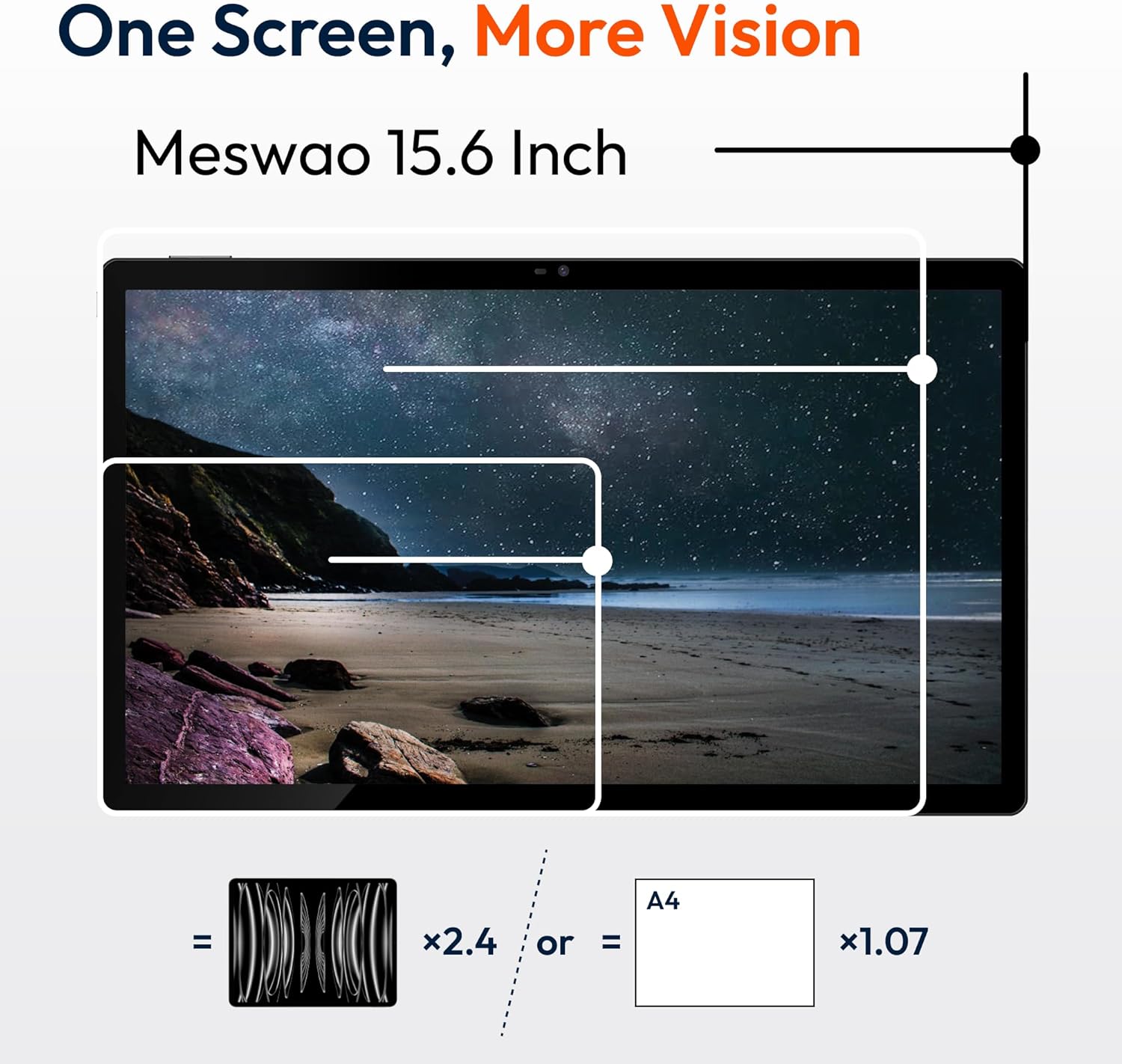
Figure 6.1: Comparison of the MESWAO 15.6-inch display size to an A4 sheet of paper and a smaller tablet, emphasizing its expansive viewing area.
6.3 Performance
Powered by the Helio G99 octa-core processor and 8GB RAM, the tablet delivers efficient performance for multitasking, gaming, and media consumption.
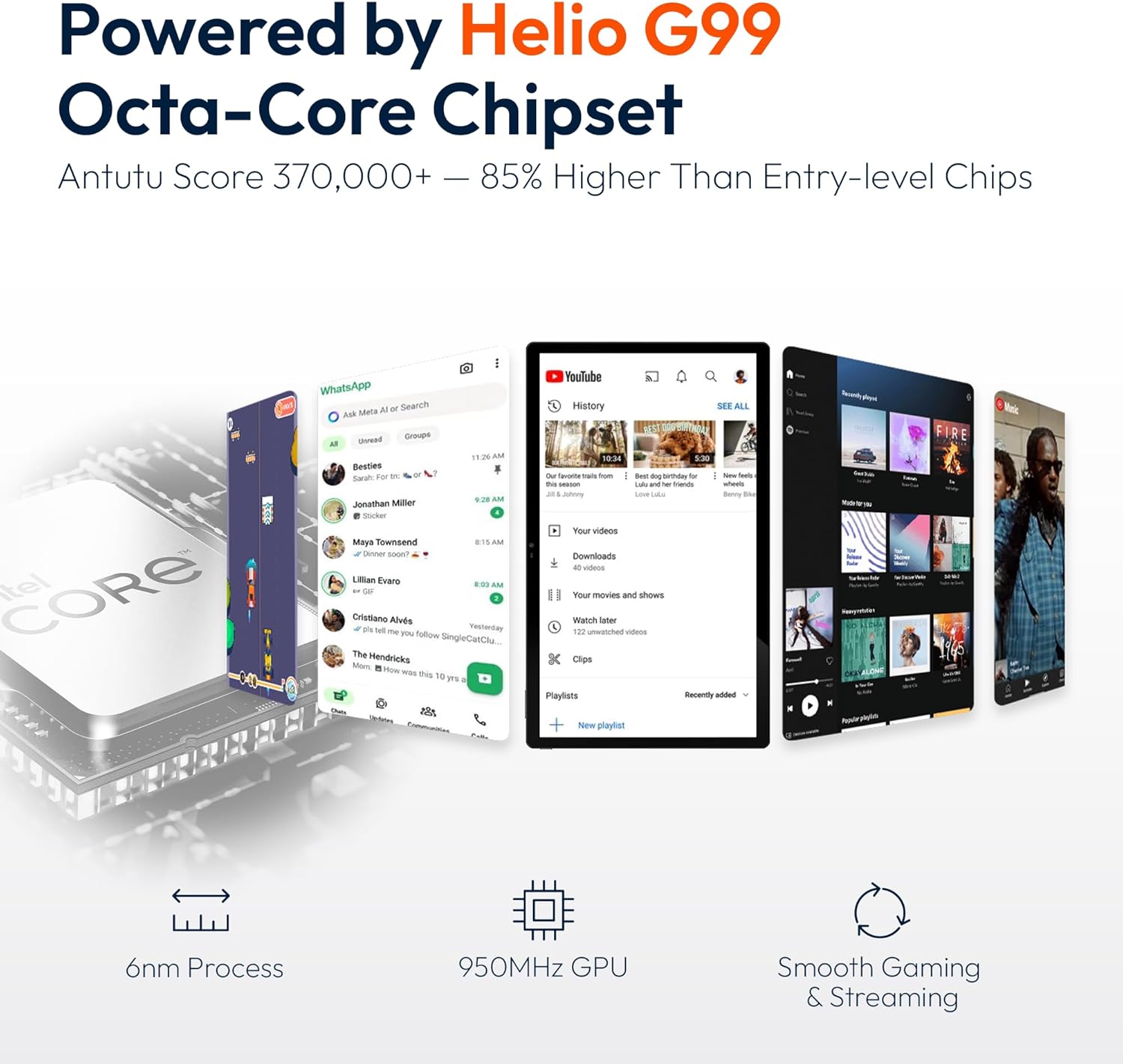
Figure 6.2: An illustration of the Helio G99 Octa-Core chipset, detailing its technical specifications and performance benefits.
6.4 Camera Usage
The tablet features a 32MP rear camera and a 5MP front camera. Open the Camera app to capture photos and videos.
6.5 Audio
The quad speakers provide clear audio. You can connect Bluetooth headphones or use the Type-C port for audio output with a suitable adapter.
6.6 Android 14 Features
The tablet runs on Android 14, offering features such as:
- Smooth Multitasking: Efficiently switch between applications.
- Parental Control: Manage content and usage for children.
- Enhanced Privacy & UI: Improved security and user interface experience.

Figure 6.3: The Android 14 operating system interface, showcasing various applications and system features.
7. Maintenance
7.1 Cleaning the Device
Use a soft, lint-free cloth to clean the screen and body of the tablet. Avoid using harsh chemicals or abrasive materials.
7.2 Software Updates
Regularly check for system updates to ensure optimal performance and security. Go to Settings > System > System update.
7.3 Battery Care
To prolong battery life:
- Avoid fully discharging the battery frequently.
- Do not expose the tablet to high temperatures.
- Unplug the charger once the battery is full.
8. Troubleshooting
8.1 Tablet Not Turning On
- Ensure the battery is charged. Connect the charger and wait a few minutes before attempting to power on.
- Press and hold the Power button for at least 10-15 seconds to force a restart.
8.2 Wi-Fi Connection Issues
- Restart your Wi-Fi router.
- Forget the network in tablet settings and reconnect.
- Ensure the tablet is within range of the Wi-Fi signal.
8.3 Slow Performance
- Close unnecessary background applications.
- Clear cache data for apps.
- Ensure sufficient free storage space.
8.4 Screen Unresponsive
- Restart the tablet.
- Ensure the screen is clean and free of debris.
9. Specifications
| Feature | Specification |
|---|---|
| Model Name | MES-B3 |
| Operating System | Android 14 |
| Display Size | 15.6 Inches |
| Screen Resolution | 1920 x 1080 pixels (FHD) |
| Processor | MediaTek Helio G99 Octa-Core |
| Graphics Coprocessor | Mali-G75 |
| RAM | 8GB |
| Internal Storage (ROM) | 256GB |
| Expandable Storage | Up to 1TB via MicroSD card |
| Rear Camera | 32MP |
| Front Camera | 5MP |
| Battery Capacity | 12000mAh |
| Charging | 30W Fast Charging |
| Wireless Connectivity | Dual-Band Wi-Fi (802.11a/b/ac/ad/ax), Bluetooth |
| Item Weight | 4.55 pounds |
| Product Dimensions | 14.49 x 8.66 x 0.39 inches |
10. Warranty and Support
10.1 Warranty Information
Your MESWAO tablet comes with a 12-month warranty covering manufacturing defects. Please retain your proof of purchase for warranty claims.
10.2 Customer Support
For technical assistance, troubleshooting, or warranty inquiries, please contact MESWAO customer support. Our support team is available to assist you.
- 24-Hour Customer Support: Assistance is available around the clock.
- Local After-sales Centers: Service centers are available in regions including the US, Germany, Japan, and more.
- Quick Response Flow: Issues reported receive a team response within 24 hours, aiming for prompt problem resolution or replacement.


