
1. Introduction
Thank you for choosing the MESWAO 15.6 inch Android 14 Tablet Pro. This tablet is designed to provide a superior visual and performance experience with its large Full HD display, powerful octa-core processor, and extended battery life. This manual will guide you through the setup, operation, maintenance, and troubleshooting of your new device, ensuring you get the most out of its advanced features.
2. What's in the Box
Please check the contents of your package. If any items are missing or damaged, contact customer support.
- 1 x MESWAO 15.6 inch Android Tablet
- 1 x Power Adapter
- 1 x Type-C Cable
- 1 x User Manual
- 1 x Type-C to USB adapter
- 1 x Stuck pin (SIM ejector tool)

Image: Visual representation of the MESWAO tablet and its included accessories.
3. Product Overview
3.1 Key Features
- 15.6-inch 1080P FHD IPS Display: Large screen with 1920x1080p resolution, 16:9 aspect ratio, 85% screen-to-body ratio, and 350 nits adjustable brightness for clear visuals.
- Android 14 OS: Latest Android version for faster app launches, intuitive user interface, split-screen multitasking, and GMS certification for Google Play access.
- MediaTek Helio G99 CPU: Octa-core processor (6nm, up to 2.2GHz) and ARM Mali-G57 GPU for smooth performance in multitasking, streaming, and gaming.
- 12,000mAh Mega Battery & 30W Fast Charging: Provides up to 15 hours of video playback and 12+ hours of daily use, with 90% charge in 3 hours.
- 6GB RAM + 128GB ROM (Expandable to 1TB): Ample storage for apps, photos, and videos, with expandable memory via microSD card (FAT32 format).
- Dual-band Wi-Fi & Bluetooth 5.0: High-speed 2.4G/5G Wi-Fi and efficient Bluetooth connectivity for peripherals.
- 5MP Front + 32MP Rear Cameras: Capture moments and conduct clear video calls.
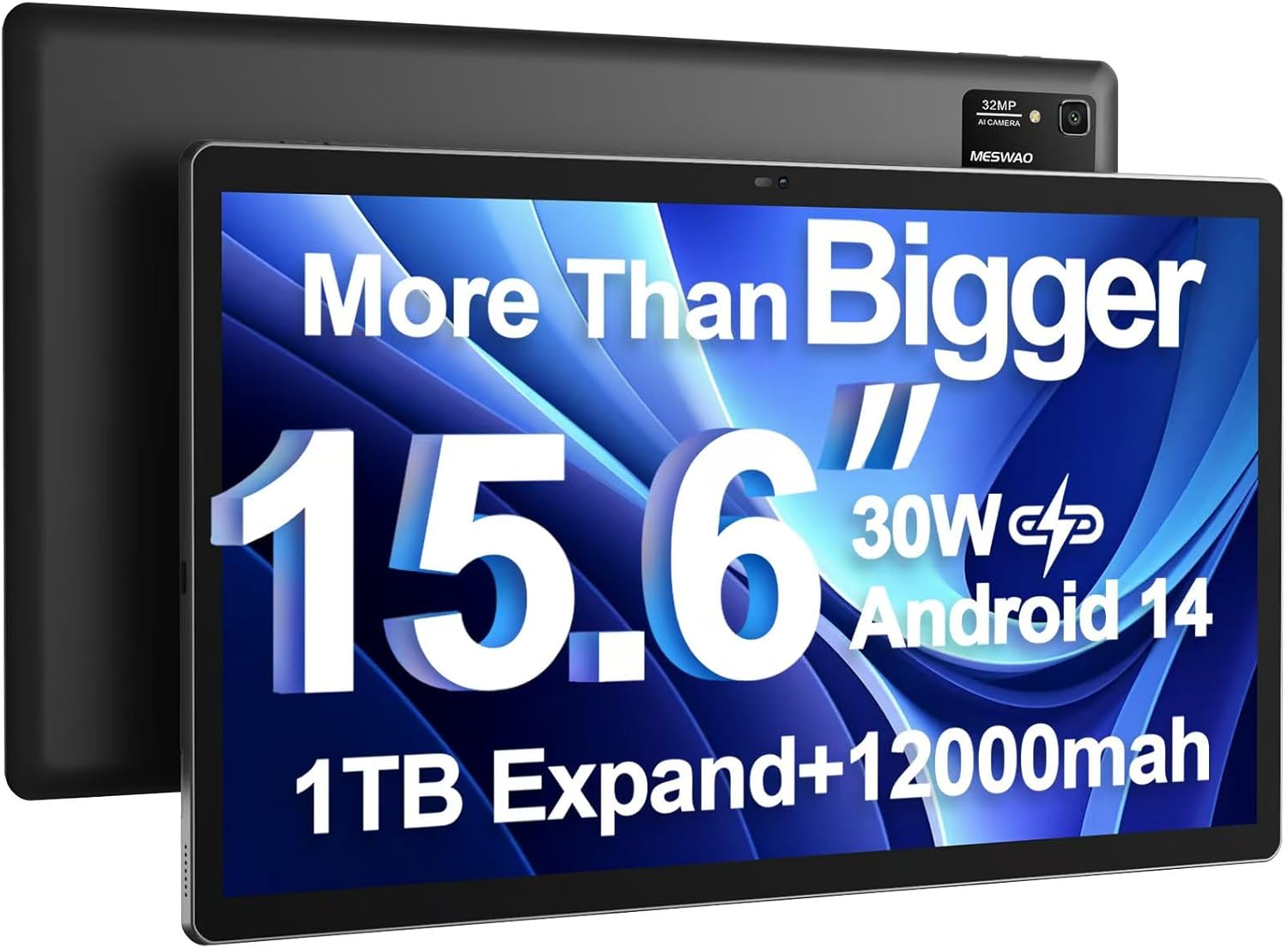
Image: The MESWAO 15.6 inch Android 14 Tablet Pro, showcasing its large display and rear camera module.

Image: Visual comparison highlighting the significantly larger screen area of the 15.6-inch tablet compared to a standard 10-inch tablet.

Image: Illustration of the tablet's 12,000mAh ultra-large capacity battery and 30W fast charging, indicating quick charge times and extended usage.
3.2 Tablet Components
Familiarize yourself with the physical components of your MESWAO tablet:
- Power Button: Located on the side, used to turn the tablet on/off or wake/sleep the screen.
- Volume Buttons: Adjust audio output levels.
- Front Camera: 5MP camera for video calls and selfies.
- Rear Camera: 32MP camera with flash for high-resolution photos and videos.
- Type-C Port: For charging and data transfer.
- TF Card Slot: For expanding storage with a microSD card.
- Stereo Speakers: Quad speakers for enhanced audio experience.
- 3.5mm Headset Jack: For wired audio connection (requires included Type-C to 3.5mm adapter).
4. Setup
4.1 Initial Power On
- Press and hold the Power Button until the MESWAO logo appears on the screen.
- Follow the on-screen prompts to select your language, region, and connect to a Wi-Fi network.
- Sign in with your Google account or create a new one to access Google Play Store and other services.
4.2 Charging the Tablet
Before first use, fully charge the tablet. Use the provided power adapter and Type-C cable.
- Connect the Type-C cable to the tablet's Type-C port.
- Plug the power adapter into a wall outlet.
- The charging indicator will appear on the screen. A full charge takes approximately 3 hours with the 30W fast charger.
4.3 Inserting a MicroSD Card
To expand storage, insert a microSD card (FAT32 format, up to 1TB, sold separately).
- Locate the TF card slot on the side of the tablet.
- Use the provided stuck pin to gently press into the small hole next to the slot to eject the tray.
- Place the microSD card into the tray with the gold contacts facing down.
- Carefully reinsert the tray into the slot until it clicks into place.
5. Operating Instructions
5.1 Basic Navigation
- Home Screen: Swipe left or right to navigate between home screens.
- App Drawer: Access all installed applications (if using a launcher with an app drawer, otherwise apps are on home screens).
- Notifications & Quick Settings: Swipe down from the top of the screen to access notifications and quick settings toggles (Wi-Fi, Bluetooth, Brightness, etc.).
- Recent Apps: Tap the square icon (or swipe up and hold from the bottom if using gesture navigation) to view and switch between recently used applications.
5.2 Multitasking with Split Screen
The Android 14 OS supports split-screen functionality for enhanced productivity.
- Open the first app you want to use.
- Go to the Recent Apps view.
- Tap the app icon at the top of the first app's card and select 'Split screen'.
- Choose the second app from your recent apps or app drawer to open it in the other half of the screen.
- Adjust the size of each app by dragging the divider in the middle.

Image: Overview of key features of the Android 14 operating system on the tablet, including multitasking capabilities.
5.3 Connectivity
- Wi-Fi: Go to Settings > Network & internet > Wi-Fi to connect to available networks. Supports 2.4Ghz and 5Ghz bands.
- Bluetooth: Go to Settings > Connected devices > Connection preferences > Bluetooth to pair with Bluetooth headphones, keyboards, or other devices.
- Screen Casting: The tablet supports wireless screen casting to compatible displays. Access this feature from Quick Settings or Settings > Connected devices > Connection preferences > Cast.

Image: Depiction of the tablet's stable dual-band Wi-Fi and Bluetooth 5.0 capabilities, enabling seamless wireless connections.
6. Maintenance
6.1 Battery Care
- Avoid extreme temperatures (hot or cold) as they can degrade battery life.
- Do not let the battery completely drain frequently. Charge it before it reaches 0%.
- Use only the provided charger or a certified 30W PD fast charger.
6.2 Cleaning
- Use a soft, lint-free cloth to clean the screen and body.
- For stubborn smudges, slightly dampen the cloth with water or a screen cleaner. Avoid harsh chemicals.
- Do not spray liquids directly onto the tablet.
6.3 Software Updates
Regularly check for and install system updates to ensure optimal performance and security.
- Connect your tablet to a stable Wi-Fi network.
- Go to Settings > System > System update.
- Follow the on-screen instructions to download and install any available updates.
7. Troubleshooting
If you encounter issues with your tablet, refer to the following common solutions:
| Problem | Possible Cause | Solution |
|---|---|---|
| Tablet won't turn on | Low battery; System crash | Charge the tablet for at least 30 minutes. Press and hold the Power button for 10-15 seconds to force restart. |
| Slow performance/Lag | Too many apps running; Low storage; Outdated software | Close background apps. Clear cache. Free up storage. Check for system updates. |
| Wi-Fi connection issues | Incorrect password; Router issue; Tablet Wi-Fi off | Ensure Wi-Fi is on. Re-enter password. Restart router. Forget and reconnect to network. |
| Battery drains quickly | High screen brightness; Background apps; Heavy usage | Reduce screen brightness. Close unused apps. Limit background data. Check battery usage in settings. |
| Touchscreen unresponsive/Phantom touches | Temporary software glitch; Defective unit | Restart the tablet. If the issue persists, contact MESWAO customer support for assistance. |
If the problem persists after trying these solutions, please contact MESWAO customer support for further assistance.
8. Specifications
| Feature | Detail |
|---|---|
| Model Name | MES-B3 Pro |
| Operating System | Android 14 |
| Screen Size | 15.6 Inches |
| Screen Resolution | 1920 x 1080 pixels (Full HD IPS) |
| Processor | MediaTek Helio G99 Octa-core (up to 2.2GHz) |
| Graphics Coprocessor | ARM Mali-G57 |
| RAM | 6 GB |
| Internal Storage (ROM) | 128 GB |
| Expandable Storage | Up to 1TB via MicroSD card (FAT32 format) |
| Battery Capacity | 12,000mAh |
| Battery Life (Average) | 13 Hours (up to 15 hours video playback) |
| Charging | 30W PD Fast Charging |
| Wireless Connectivity | 802.11a/b/ac/ax (2.4G/5G Dual-band Wi-Fi), Bluetooth 5.0 |
| Front Camera | 5MP |
| Rear Camera | 32MP |
| Item Weight | 4.42 pounds (approx. 2 kg) |
| Product Dimensions | 14.49 x 8.66 x 0.39 inches (36.8 x 22 x 1 cm) |
9. Warranty and Support
MESWAO products come with a standard manufacturer's warranty. Please refer to the warranty card included in your package for specific terms and conditions. For technical support, troubleshooting assistance, or warranty claims, please contact MESWAO customer service through the contact information provided on the official MESWAO website or your purchase platform.
Contact Information: Please visit the official MESWAO website or refer to the support card included in your product packaging for the most up-to-date contact details.
