
Introduction
This manual provides detailed instructions for setting up, operating, and maintaining your Weyot Smartwatch for Seniors. This device is designed to enhance the safety and connectivity of elderly users through features such as GPS positioning, fall detection, two-way communication, and health monitoring.
1. Setup Guide
1.1 Charging the Smartwatch
Before first use, fully charge the smartwatch. Connect the charging cable to the watch's charging port and a compatible USB power adapter. A full charge typically takes approximately 2-3 hours.

Image: The smartwatch connected to a charger, illustrating its low power consumption and extended battery life.
1.2 SIM Card Installation
The smartwatch requires a 4G Nano SIM card for full functionality, including calls and GPS tracking. Ensure the SIM card is active and has sufficient credit/data. Carefully open the SIM card slot cover, insert the Nano SIM card with the chip facing up, and close the cover securely.
Note: Incorrect SIM card insertion may damage the device or prevent network connectivity.
1.3 App Installation and Pairing
- Download the companion application (e.g., "SeTracker" or similar, refer to the packaging for the exact app name) from your smartphone's app store (iOS or Android).
- Register an account and log in.
- On the smartwatch, locate the unique registration code (usually found in the watch's settings under "Device Info" or by scanning a QR code on the watch).
- In the app, select "Add Device" and enter the registration code or scan the QR code to pair the smartwatch with your account.
- Follow the on-screen prompts to complete the pairing process.
1.4 Setting Up SOS Numbers
Through the companion app, you can set up to three SOS emergency contact numbers. In case of an emergency, pressing and holding the SOS button on the watch will automatically dial these pre-defined numbers in sequence until one is answered.
1.5 Configuring Electronic Fence (Geo-fence)
The electronic fence feature allows you to define safe zones for the user. If the smartwatch user enters or exits these pre-set areas, the app will send real-time notifications to the linked family members' smartphones.
- Open the companion app and navigate to the "Geo-fence" or "Electronic Fence" section.
- Select "Add Zone" and use the map to draw a safe area.
- Set the radius for the safe zone.
- Save the settings. You can set multiple safe zones.

Image: A smartphone screen showing a map with a highlighted location, demonstrating the smartwatch's multi-mode positioning capabilities (GPS+Beidou+LBS+WIFI+TDOA).
2. Operating Instructions
2.1 Making and Receiving Calls
- Making Calls: From the watch's contact list (pre-set via the app), select a contact and tap to dial.
- Receiving Calls: When an incoming call is received, the watch will vibrate and ring. Tap the green answer icon to accept or the red hang-up icon to decline.
- Video Calls: The smartwatch supports real-time HD video calls. Initiate video calls through the watch interface or the companion app.
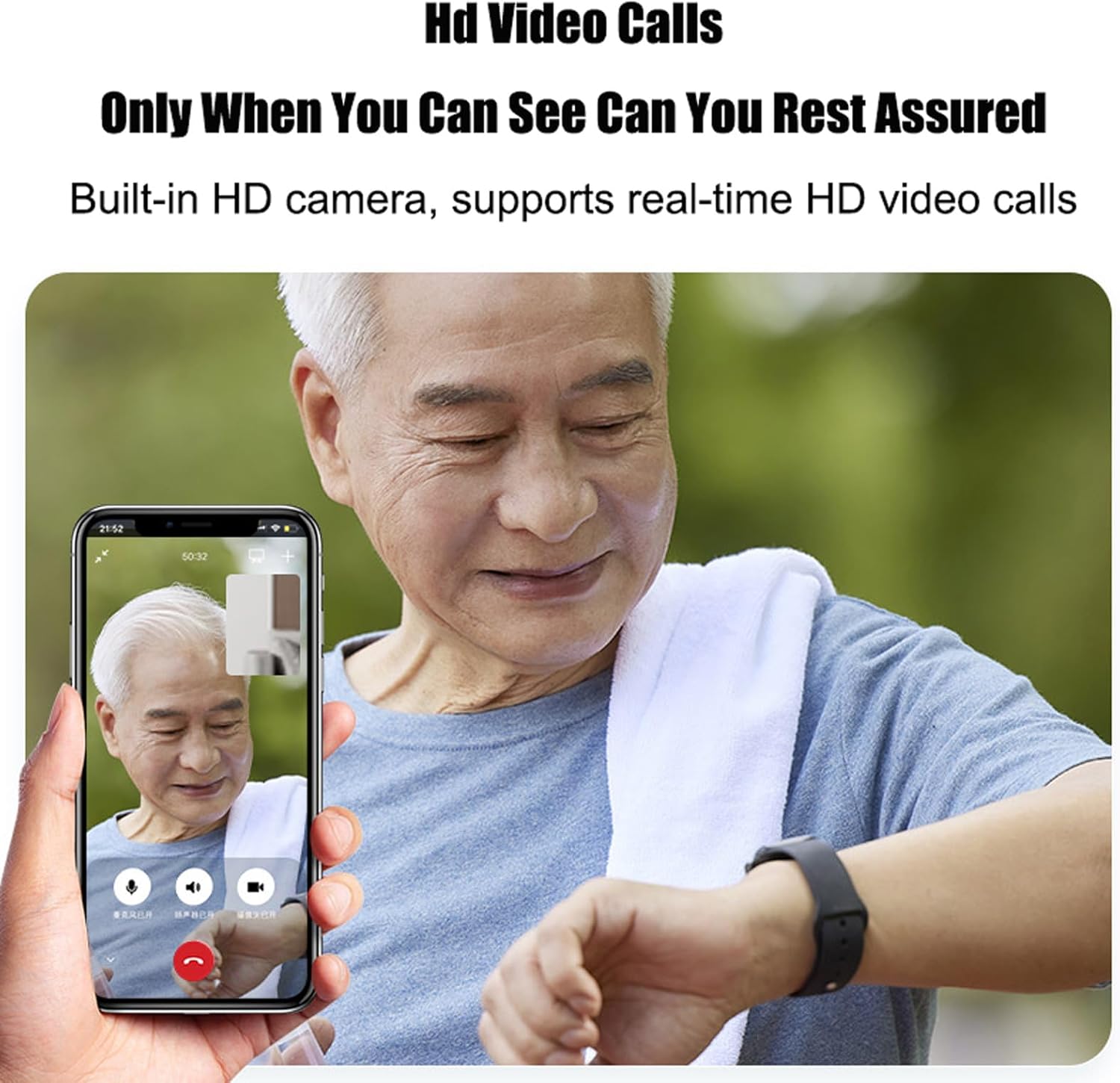
Image: An elderly man interacting with his smartwatch, with a smartphone showing a clear video call, highlighting the HD video call feature.
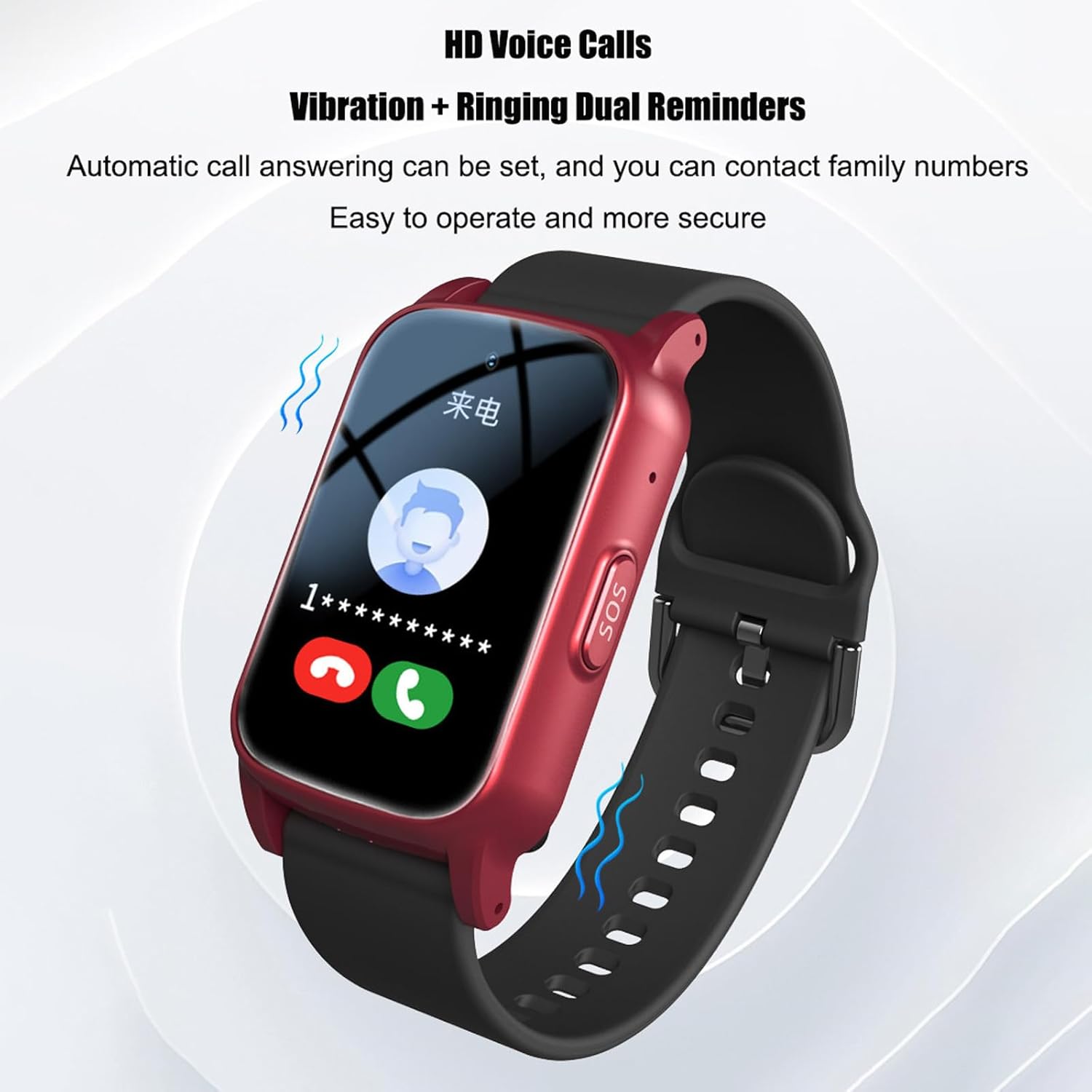
Image: The smartwatch screen showing an incoming call, with visual cues for vibration and ringing, illustrating the HD voice call feature.
2.2 GPS Tracking
The smartwatch utilizes multiple positioning technologies (GPS + Beidou + LBS + WIFI + TDOA) for accurate location tracking. You can view the real-time location of the smartwatch user through the companion app on your smartphone.
- Open the app and select the "Location" or "Track" function to see the current position on a map.
- The app also allows you to view historical routes.
2.3 Fall Detection and SOS Function
The smartwatch is equipped with an intelligent fall detection alarm. If an accidental fall is detected, the watch will automatically send an alert. Additionally, the user can manually activate the SOS function:
- Automatic Fall Detection: Upon detecting a fall, the watch will attempt to call the pre-set SOS numbers. Family members will also receive an alert via the app.
- Manual SOS: Press and hold the dedicated SOS button on the side of the watch for several seconds to initiate an emergency call sequence to the pre-set contacts.
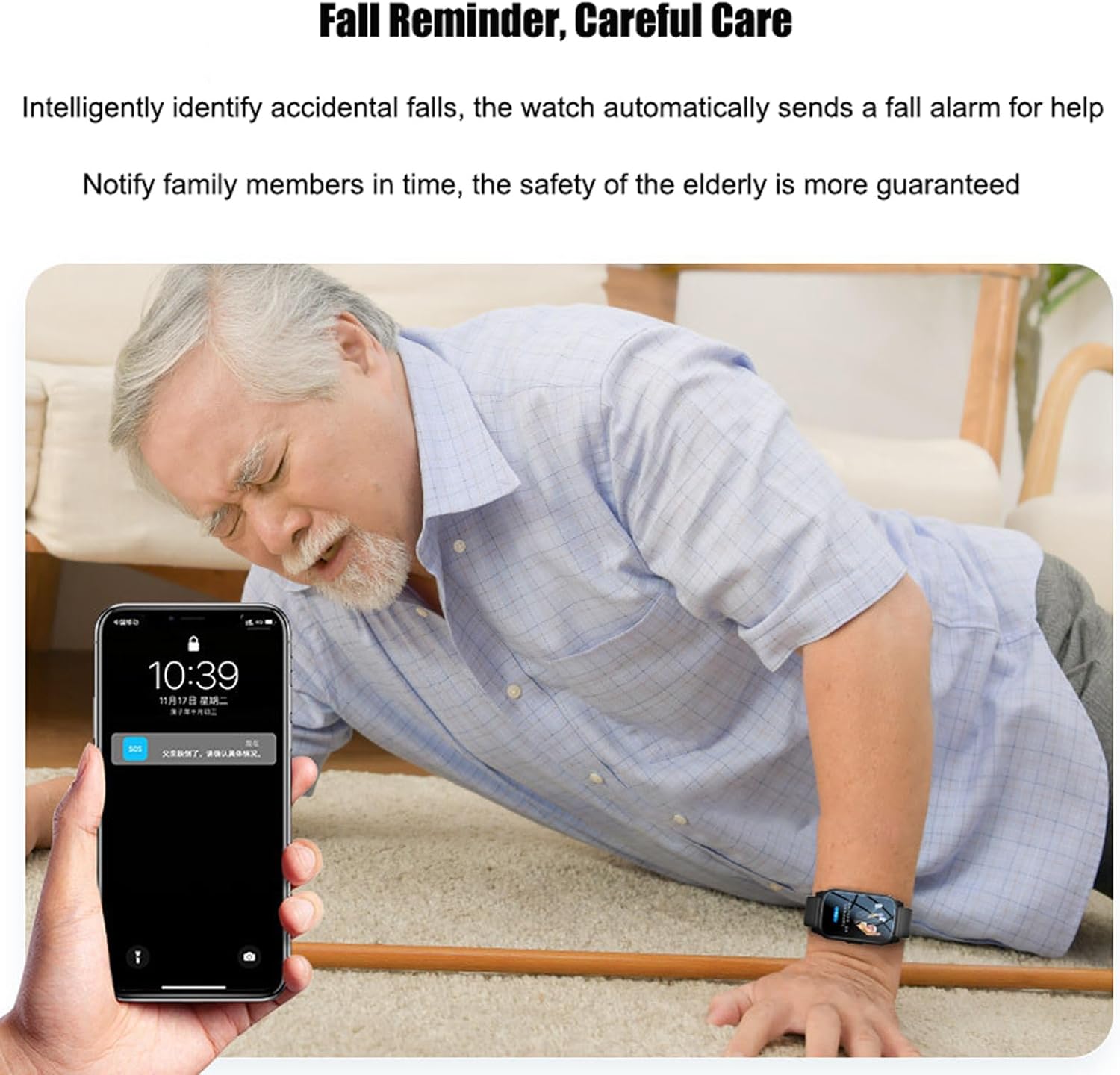
Image: An elderly man on the ground, with a smartphone showing a fall alert, illustrating the smartwatch's fall detection and emergency notification system.
2.4 Health Monitoring
The smartwatch can monitor various health metrics using the internationally accepted PWTT algorithm. These include heart rate, blood pressure, blood oxygen, and body temperature. You can view real-time data directly on the watch and remotely check historical data through the companion app.
- To view current health data on the watch, navigate to the respective health monitoring sections (e.g., Heart Rate, Blood Pressure).
- For remote monitoring and historical trends, open the health section in the companion app.

Image: An elderly man wearing the smartwatch, with text overlay highlighting its health monitoring capabilities for heart rate, blood pressure, blood oxygen, and body temperature.
2.5 Medication Reminders
Set up medication reminders through the companion app. The smartwatch will vibrate and display a reminder at the scheduled times to help users remember to take their medication.
3. Maintenance and Care
3.1 Cleaning
Regularly clean the smartwatch and strap with a soft, damp cloth. Avoid using harsh chemicals or abrasive materials, as these can damage the device's finish and functionality.
3.2 Water Resistance (IP67)
The smartwatch has an IP67 water resistance rating, meaning it is protected against dust and can withstand immersion in water up to 1 meter for up to 30 minutes. It is suitable for daily activities like hand washing or washing dishes.
Important: Swimming and hot bathing are strictly prohibited as hot water and steam can compromise the waterproof seals.

Image: A person washing hands while wearing the smartwatch, demonstrating its IP67 water resistance for everyday activities.
3.3 Battery Care
- Avoid fully discharging the battery frequently.
- Do not expose the watch to extreme temperatures.
- Use only the provided charging cable or a certified replacement.
4. Troubleshooting
4.1 Device Not Turning On
- Ensure the battery is charged. Connect to the charger for at least 30 minutes.
- Press and hold the power button for 10-15 seconds.
4.2 No Network Signal / SIM Card Issues
- Check if the SIM card is correctly inserted and activated.
- Ensure the SIM card has sufficient credit/data.
- Verify that the SIM card is a Nano SIM and supports 4G networks.
- Restart the smartwatch.
- If the watch frequently disconnects or asks for a PIN, ensure the SIM card's PIN lock is disabled before inserting it into the watch (this can usually be done using a smartphone).
4.3 Inaccurate GPS Location
- Ensure the smartwatch is outdoors or in an area with clear sky visibility for optimal GPS signal.
- Check if the SIM card has an active data plan.
- Verify that the companion app has location permissions enabled on your smartphone.
4.4 Fall Detection Not Working or False Alarms
- Ensure the watch is worn securely on the wrist.
- Check the sensitivity settings for fall detection in the companion app (if available).
- Ensure the SOS numbers are correctly configured.
5. Specifications
| Brand | Weyot |
| Model Number | 7066241936181 |
| Color | Red (variant shown in images may vary) |
| Connectivity Technology | Cellular (4G), Wi-Fi |
| Positioning Methods | GPS + Beidou + LBS + WIFI + TDOA |
| GPS Positioning Accuracy | 5-15 meters (open sky outdoors) |
| Battery Capacity | 600 mAh |
| Usage Time | Approximately 5 days (depending on usage) |
| Water Resistance | IP67 (Dustproof, short-time immersion up to 1m) |
| Strap Material | Silicone |
| Machine Size | 32 x 14.5 x 56.5 mm (including strap length 258mm) |
| Net Weight | 42g |
| Working Temperature | -20°C to +45°C |
| Working Humidity | 5% - 95% RH |
| Special Features | Fall Detection, Electronic Fence, Voice Call, Video Call, Health Monitoring (Heart Rate, Blood Pressure, Blood Oxygen, Body Temperature), Medication Reminders |
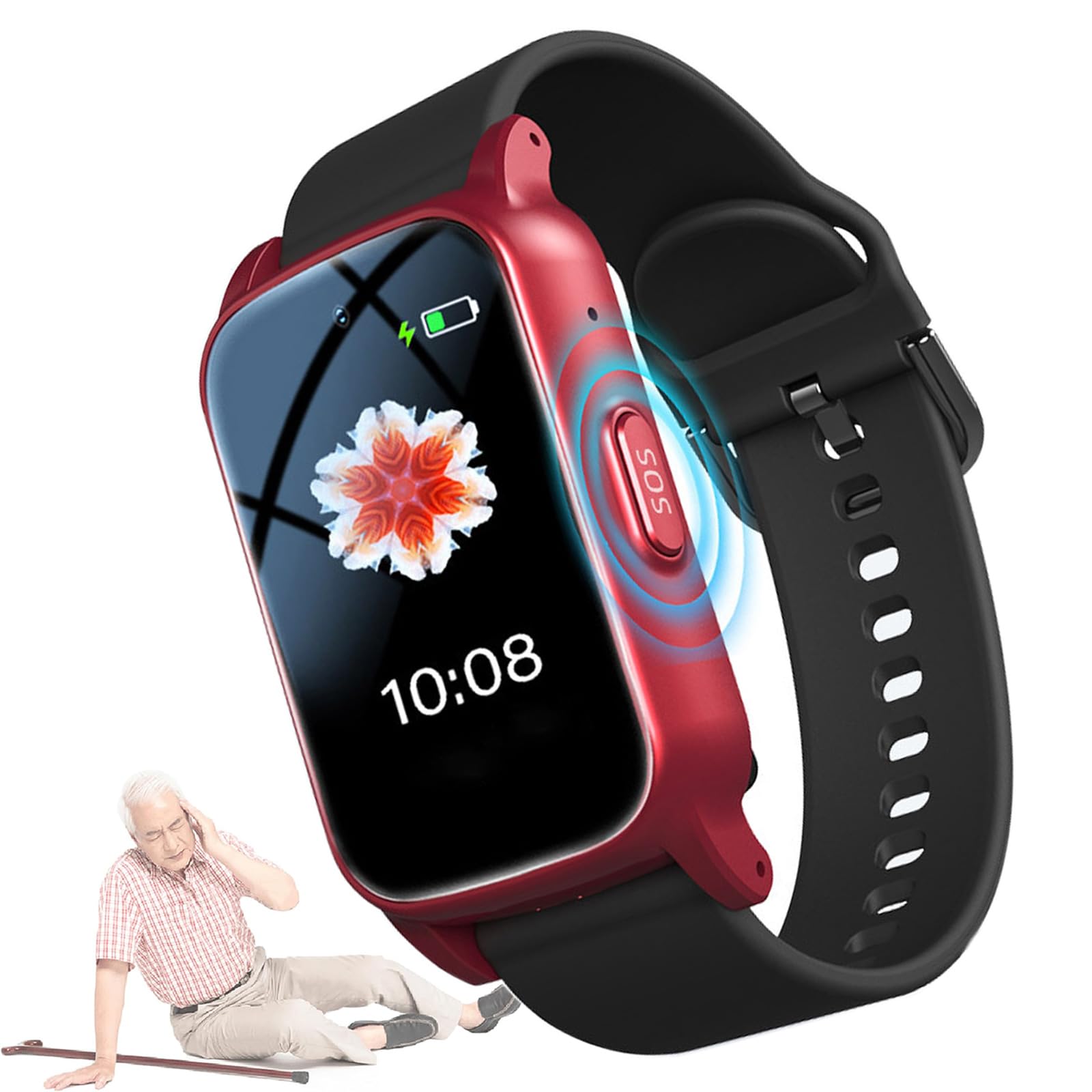
Image: A visual representation of the smartwatch's dimensions and a summary table of its key technical specifications.
6. Warranty and Support
For warranty information and technical support, please refer to the documentation included with your purchase or contact the manufacturer directly. Keep your purchase receipt as proof of purchase.
Manufacturer: Weyot