
1. Introduction
The UPERFECT 21.5-inch 120Hz Portable Monitor is designed to enhance productivity and entertainment on the go. This monitor offers a large, vibrant display with a high refresh rate, making it suitable for various applications from professional work to gaming. Its lightweight and slim design ensures portability, while versatile connectivity options allow for seamless integration with a wide range of devices.

Figure 1.1: UPERFECT 21.5" 120Hz Portable Monitor
2. Package Contents
Verify that all items listed below are included in your package:
- UPERFECT 21.5" 120Hz Portable Monitor
- USB-C to USB-C Cable (x2)
- HDMI Cable
- USB-C Power Adapter (30W)
- User Manual

Figure 2.1: Monitor Ports and Included Cables
3. Specifications
| Feature | Detail |
|---|---|
| Panel Type | IPS |
| Screen Size | 21.5 Inches |
| Resolution | 1920 x 1080 Pixels (FHD 1080p) |
| Aspect Ratio | 16:9 |
| Refresh Rate | 120 Hz |
| Color Gamut | 100% sRGB |
| Image Brightness | 350 Candela |
| Interfaces | HDMI Port, USB-C Port (x2), 3.5 mm Audio Jack |
| Built-in Speakers | 8Ω 1W (x2) |
| VESA Compatibility | 75x75 mm (M4x5mm screws) |
| Product Dimensions (L x W x H) | 0.5 x 19.5 x 11.4 inches |
| Item Weight | 7.58 pounds |

Figure 3.1: Display Color Quality
4. Setup
4.1 Physical Setup
The monitor features an integrated kickstand for easy desktop use and VESA compatibility for mounting.
- Using the Kickstand: Extend the integrated kickstand from the back of the monitor. Adjust the angle (12-60 degrees) to your preferred viewing position.
- VESA Mounting: For VESA mounting, use M4x5mm screws with a 75x75mm VESA mount (not included). Ensure the mount can support the monitor's weight (7.58 pounds).

Figure 4.1: Monitor with Integrated Kickstand
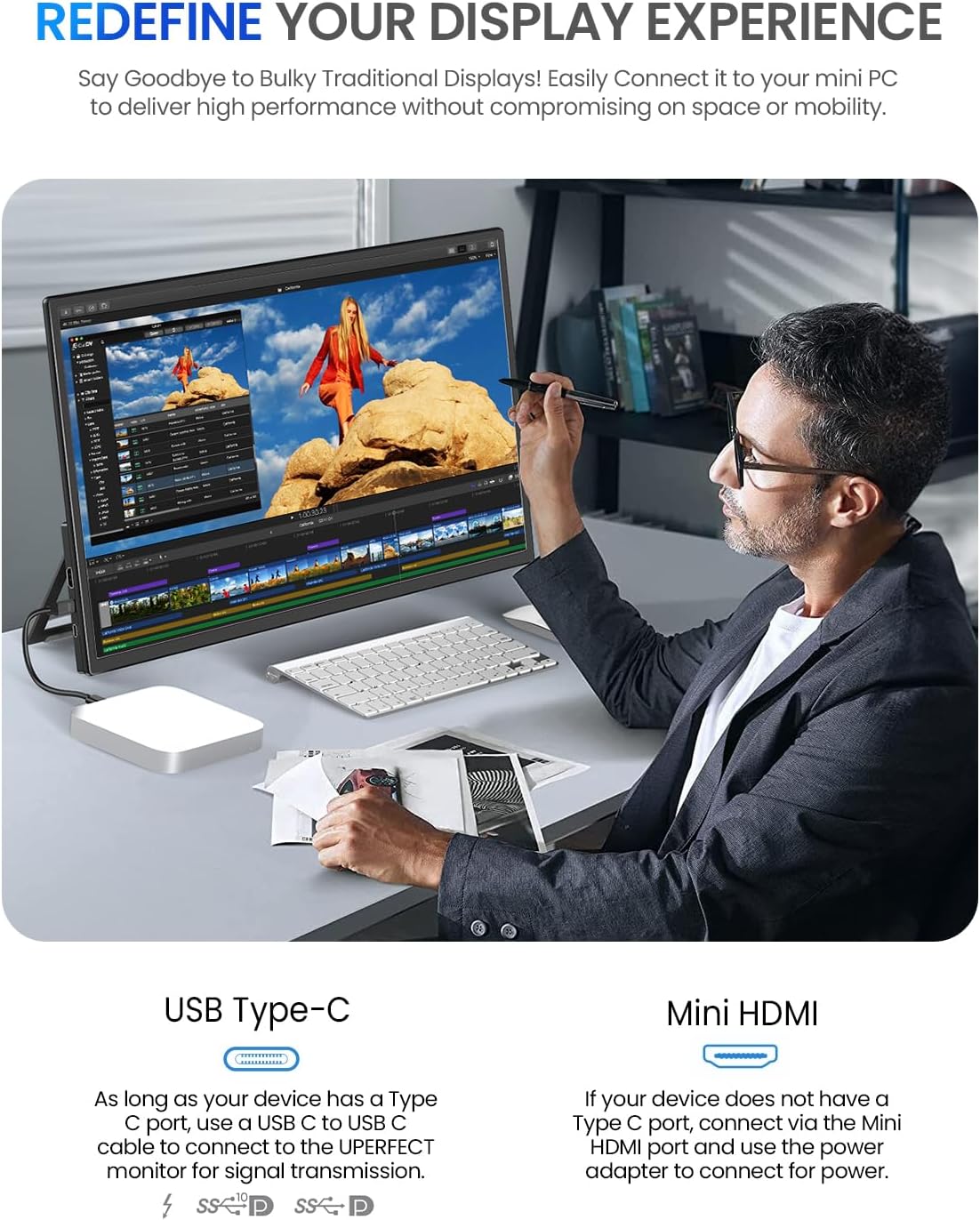
Figure 4.2: VESA Mounting Compatibility
4.2 Connecting to Devices
The monitor supports various connection methods:
- USB-C Connection (Display & Power): If your device has a full-featured USB-C port (supporting DisplayPort Alternate Mode and Power Delivery), connect one of the included USB-C cables from your device to either USB-C port on the monitor. This single cable can provide both video signal and power.
- HDMI Connection (Display Only): Connect the included HDMI cable from your device's HDMI output to the monitor's HDMI input. For power, you will need to connect the USB-C power adapter to one of the monitor's USB-C ports.
- Audio Output: Use the 3.5mm audio jack to connect external headphones or speakers for private listening or enhanced audio.
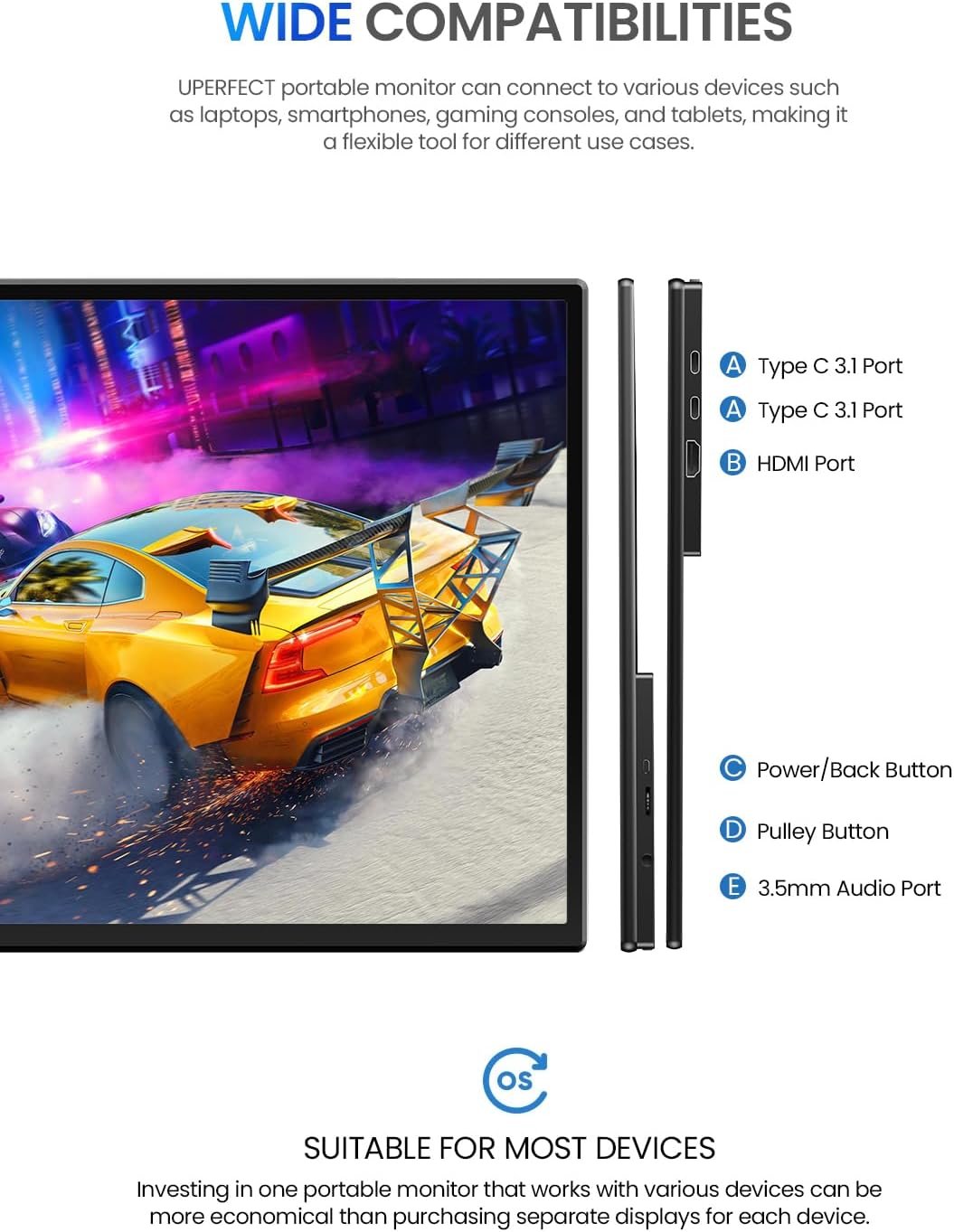
Figure 4.3: Wide Device Compatibility
4.3 Powering the Monitor
The monitor can be powered via USB-C. For optimal brightness and performance, especially when using HDMI, it is recommended to use the included 30W USB-C power adapter connected to one of the monitor's USB-C ports.
5. Operating the Monitor
5.1 Controls
The monitor features intuitive controls located on the side:
- Power Button / Input Selector: Press to turn the monitor on/off. Short press to open the input selection menu.
- Pulley Button (Menu Navigation): Use this button to navigate through the OSD (On-Screen Display) menu. Press to select an option, and roll up/down to adjust values or move between options.
5.2 Adjusting Settings (OSD Menu)
To access and adjust monitor settings:
- Press the Power Button to open the input selection menu.
- Press the Pulley Button to enter the main OSD menu.
- Use the Pulley Button to navigate through categories such as:
- Brightness/Contrast: Adjust display luminance and contrast levels.
- Color Settings: Fine-tune color temperature, hue, and saturation.
- HDR Mode: Enable or disable High Dynamic Range for compatible content.
- Volume: Adjust the output volume of the built-in speakers or connected headphones.
- Input Source: Manually select between USB-C1, USB-C2, or HDMI inputs.
- Other Settings: Access language, reset, and other system options.
- Press the Pulley Button to confirm selections.
- Press the Power Button to exit the OSD menu.

Figure 5.1: SDR vs HDR Visual Comparison

Figure 5.2: Low Blue Light Feature
6. Maintenance
To ensure the longevity and optimal performance of your UPERFECT Portable Monitor, follow these maintenance guidelines:
- Cleaning the Screen: Gently wipe the screen with a soft, lint-free cloth. For stubborn smudges, slightly dampen the cloth with water or a screen-cleaning solution. Avoid using harsh chemicals or abrasive materials.
- Cleaning the Casing: Use a soft, dry cloth to clean the monitor's casing.
- Storage: When not in use, store the monitor in a cool, dry place, away from direct sunlight and extreme temperatures. Use a protective sleeve or case if transporting.
- Avoid Liquids: Do not expose the monitor to excessive moisture or liquids.
- Handle with Care: Avoid dropping or subjecting the monitor to strong impacts.
7. Troubleshooting
If you encounter issues with your monitor, refer to the following common problems and solutions:
| Problem | Possible Solution |
|---|---|
| No display / "No Signal" message |
|
| Monitor not powering on |
|
| Flickering or unstable display |
|
| No audio from speakers/headphone jack |
|
8. Support
For further assistance, technical support, or warranty inquiries, please contact UPERFECT customer service. UPERFECT is committed to providing lifetime support and 24/7 assistance for its products.
Please refer to the official UPERFECT website or the contact information provided in your product packaging for the most up-to-date support channels.
Online Resources: Visit the UPERFECT Store on Amazon for product information and updates.

