
1. Introduction
Welcome to the user manual for your TP-Link AXE5400 Tri-Band Mesh Wi-Fi 6E Range Extender, model RE815XE. This device is designed to expand your existing Wi-Fi network coverage, providing a stable and high-speed wireless connection throughout your home or office. The RE815XE utilizes Tri-Band Wi-Fi 6E technology to deliver enhanced performance and reduce network congestion.
2. Product Overview
The TP-Link RE815XE is equipped with four external antennas and 6x high-power FEMs to ensure maximum Wi-Fi performance and extended coverage. It supports Beamforming technology, which detects device locations and concentrates Wi-Fi signals for stronger, more reliable connections.

Figure 1: Front view of the TP-Link RE815XE Range Extender, showing the power, 2.4G, 5G, and 6G LED indicators.
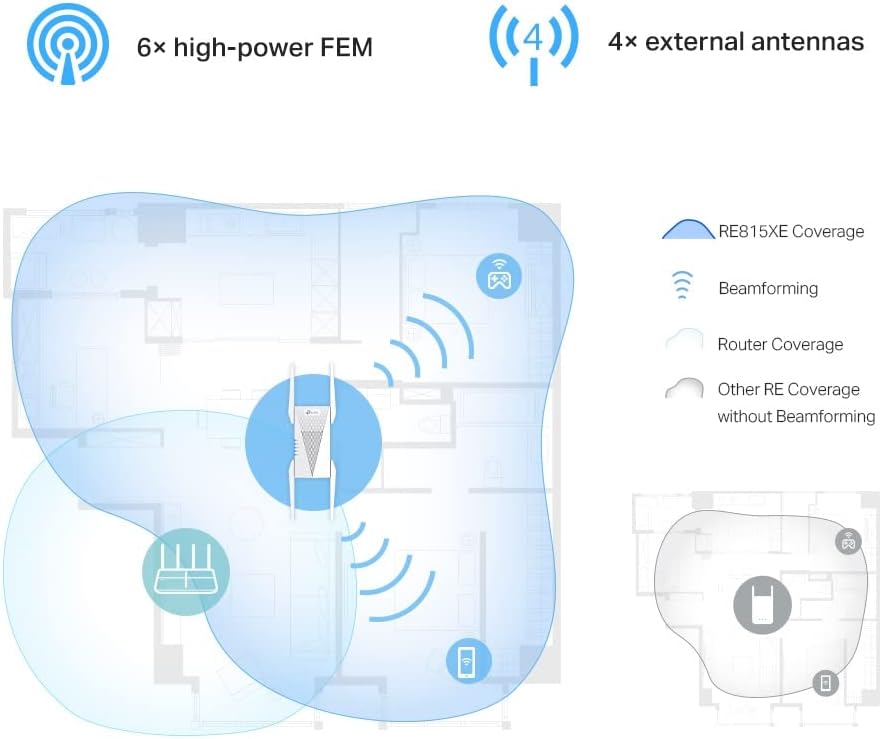
Figure 2: Illustration of the RE815XE's extended coverage and Beamforming technology.
3. Key Features
- AXE5400 Tri-Band Wi-Fi: Boosts overall speeds up to an incredible 5400 Mbps across 2.4 GHz, 5 GHz, and 6 GHz bands.
- 6 GHz Band: Provides a dedicated, clearer band to prevent Wi-Fi interference and congestion, ideal for Wi-Fi 6E compatible devices.
- 160 MHz Channel Bandwidth: Expands bandwidth to double the network speed of traditional 80 MHz channels, enhancing data throughput.
- Seamless Roaming: Part of the OneMesh™ system, allowing your devices to automatically switch to the router or extender that provides the fastest connection as you move around your home.
- Improved Capacity, Less Lag: Supports more connected devices simultaneously, ensuring smooth streaming and gaming experiences.
- Simple Installation: Easy setup via the TP-Link Tether App or a web browser.

Figure 3: Overview of the RE815XE's Wi-Fi capabilities, including speed distribution across bands and key technologies.
4. Package Contents
Upon opening the package, verify that you have received the following items:
- TP-Link AXE5400 Tri-Band Mesh Wi-Fi 6E Range Extender (RE815XE)
- Quick Installation Guide
- Ethernet Cable (optional, may vary by region)
5. Setup and Installation
5.1. Placement Guidelines
For optimal performance, place the range extender between your main router and the area where you need improved Wi-Fi coverage. Avoid placing it near large metal objects, concrete walls, or other sources of interference such as microwave ovens or cordless phones.

Figure 4: Recommended placement for the range extender to maximize coverage.
5.2. Powering On
- Plug the RE815XE into an electrical outlet near your main router.
- Wait for the Power LED to turn solid blue, indicating the device is ready.
5.3. Configuration via TP-Link Tether App (Recommended)
- Download the TP-Link Tether App from the App Store or Google Play Store.
- Connect your smartphone or tablet to the RE815XE's default Wi-Fi network (e.g., "TP-Link_Extender").
- Open the Tether App and follow the on-screen instructions to set up your range extender. This typically involves selecting your main Wi-Fi network and entering its password.
- Once configured, the Signal LED on the extender should turn solid blue, indicating a successful connection to your router.
5.4. Configuration via Web Browser
- Plug the RE815XE into an electrical outlet.
- Connect your computer to the RE815XE's default Wi-Fi network (e.g., "TP-Link_Extender") or via an Ethernet cable.
- Open a web browser and type tplinkrepeater.net or 192.168.0.254 into the address bar.
- Create a login password when prompted.
- Follow the on-screen instructions to select your main Wi-Fi network and enter its password.
- Once configured, the Signal LED on the extender should turn solid blue.
6. Operating Instructions
6.1. OneMesh™ Functionality
The RE815XE supports TP-Link OneMesh™, which creates a unified Wi-Fi network with a single Wi-Fi name (SSID) when paired with a compatible TP-Link OneMesh™ router. This allows your devices to automatically switch to the router or extender that provides the fastest connection as you move around your home.
6.2. LED Indicators
| LED | Status | Indication |
|---|---|---|
| Power | Solid Blue | Extender is powered on and functioning normally. |
| Off | Extender is powered off. | |
| 2.4G / 5G / 6G | Solid Blue | Connected to the router's 2.4 GHz / 5 GHz / 6 GHz network. |
| Off | Not connected to the respective band. | |
| Signal | Solid Blue | Good connection to the router. |
| Solid Red | Poor connection to the router. Relocate the extender closer to the router. | |
| Off | No connection to the router. |
7. Maintenance
- Firmware Updates: Regularly check for and install firmware updates via the Tether App or the web management interface to ensure optimal performance and security.
- Cleaning: Keep the device clean and free from dust. Use a soft, dry cloth for cleaning. Do not use liquid cleaners or aerosols.
- Ventilation: Ensure the extender is placed in a well-ventilated area to prevent overheating. Do not block the ventilation openings.
- Rebooting: If you experience intermittent connectivity or performance issues, try rebooting the extender by unplugging it from the power outlet for 10 seconds and then plugging it back in.
8. Troubleshooting
8.1. Extender is not connecting to the router.
- Ensure your main router is powered on and broadcasting a Wi-Fi signal.
- Verify that you have entered the correct Wi-Fi password for your main network during setup.
- Relocate the extender closer to your main router. The Signal LED should turn solid blue for a good connection.
- Try restarting both your router and the extender.
8.2. Wi-Fi signal is weak or drops frequently.
- Adjust the position of the extender. It should be within the range of your main router but also close enough to the areas needing coverage.
- Check for sources of interference (e.g., microwaves, cordless phones, thick walls).
- Ensure the extender's antennas are properly oriented.
- Update the firmware of both your router and the extender to the latest version.
8.3. Cannot access the web management page.
- Ensure your device is connected to the extender's Wi-Fi network or via an Ethernet cable.
- Verify that you are using the correct address: tplinkrepeater.net or 192.168.0.254.
- Clear your browser's cache and cookies, or try a different web browser.
- Temporarily disable any VPN or firewall software on your computer.
9. Specifications
| Feature | Detail |
|---|---|
| Model | RE815XE |
| Wireless Standard | IEEE 802.11ax/ac/n/a (5 GHz/6 GHz), IEEE 802.11ax/n/g/b (2.4 GHz) |
| Data Transfer Rate | Up to 5400 Mbps (2402 Mbps on 6 GHz, 2402 Mbps on 5 GHz, 574 Mbps on 2.4 GHz) |
| Antennas | 4 External Antennas |
| Dimensions | 8.27 x 5.47 x 4.8 inches (Package Dimensions) |
| Item Weight | 1.17 pounds |
| Color | White |
| Compatible Devices | Wi-Fi enabled devices (routers, smartphones, tablets, laptops, computers, smart TVs, gaming consoles, printers, security cameras) |
10. Warranty and Support
For warranty information and technical support, please refer to the official TP-Link website or contact TP-Link customer service directly. The specific warranty period may vary by region and retailer. Keep your purchase receipt for warranty claims.
TP-Link Support Website: https://www.tp-link.com/support/


