1. Introduction
The UGREEN 9-in-1 USB-C Docking Station is designed to expand the connectivity of your USB-C compatible devices, such as handheld gaming consoles, laptops, tablets, and smartphones. It features multiple ports for video output, data transfer, network connectivity, and power delivery, all integrated into a compact and foldable design.
This docking station includes a unique adjustable and foldable stand, which helps maintain optimal airflow for your device, preventing overheating during extended use. Its robust aluminum construction ensures durability and portability.
2. Product Features and Components
The UGREEN 9-in-1 Docking Station offers a comprehensive set of ports and features:
- Adjustable Foldable Stand: Designed to provide stable support and improve heat dissipation for your device.
- DisplayPort Output: Supports resolutions up to 4K (3840x2160) at 120Hz, backward compatible with 4K@30Hz, 2K@60Hz, and 1080P@120Hz. Also supports high refresh rates like 2K@144Hz, 2K@120Hz, 1080P@240Hz, and 1080P@144Hz.
- Gigabit Ethernet Port: Provides stable and fast wired network connectivity (up to 1000Mbps).
- USB 3.2 Gen 2 Ports (1x USB-A, 1x USB-C): Offers high-speed data transfer up to 10Gbps.
- USB 2.0 Ports (2x USB-A): Suitable for connecting peripherals like keyboards, mice, and game controllers.
- Power Delivery (PD) 100W USB-C Port: Supports fast charging for your connected device. Note: Actual charging speed depends on the device and power adapter.
- TF/SD Card Slots: For convenient access to memory cards.

Figure 1: Overview of the UGREEN 9-in-1 Docking Station with labeled ports.

Figure 2: The adjustable and foldable stand design for optimal viewing and heat dissipation.
3. Setup Instructions
- Unfold the Stand: Gently unfold the two panels of the docking station to create the stand. Ensure it is stable on a flat surface.
- Connect Power: Connect a USB-C power adapter (not included) to the PD 100W USB-C input port on the back of the docking station.
- Connect to Device: Use the included USB-C cable to connect your handheld gaming console (e.g., Steam Deck, ROG Ally) or other compatible USB-C device to the dedicated USB-C host port on the docking station. The angled end of the cable is designed for convenient connection to handheld devices.
- Connect Display (Optional): For external display, connect a DisplayPort cable from the docking station's DisplayPort output to your monitor or TV. Note: HDMI output requires a separate DP-to-HDMI adapter (not included).
- Connect Peripherals (Optional): Plug in your USB peripherals (keyboard, mouse, external hard drives, game controllers) into the available USB-A and USB-C data ports.
- Connect Ethernet (Optional): For wired internet, connect an Ethernet cable to the Gigabit Ethernet port.
- Insert Memory Cards (Optional): Insert SD or TF cards into their respective slots for data access.

Figure 3: Connecting various USB accessories to the docking station.
4. Operating Instructions
4.1 Power Delivery
The docking station supports up to 100W Power Delivery. When connected to a compatible power adapter, it will charge your device while in use. The actual charging speed will vary depending on your device's power requirements (e.g., Steam Deck max 45W, ROG Ally max 65W).

Figure 4: Fast charging a handheld device via the PD 100W port.
4.2 Display Output
Connect your device to an external monitor via the DisplayPort for an enhanced visual experience. The dock supports high resolutions and refresh rates, ideal for gaming. Ensure your monitor and DisplayPort cable support the desired resolution and refresh rate.
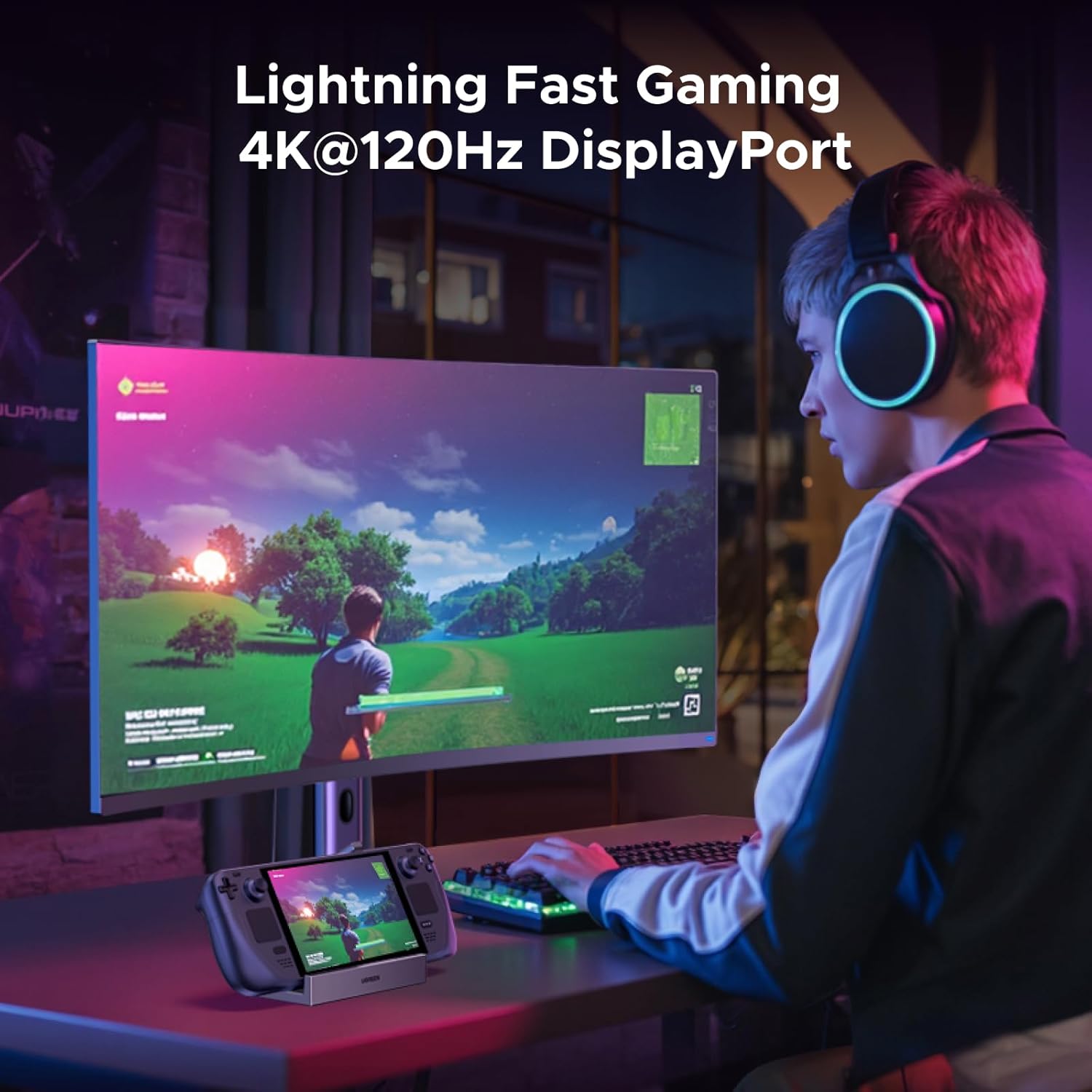
Figure 5: Gaming on an external monitor using the DisplayPort output.
4.3 Data Transfer
Utilize the 10Gbps USB 3.2 ports (USB-A and USB-C) for rapid file transfers, such as downloading games or moving large media files. The USB 2.0 ports are suitable for lower-bandwidth devices like input peripherals.
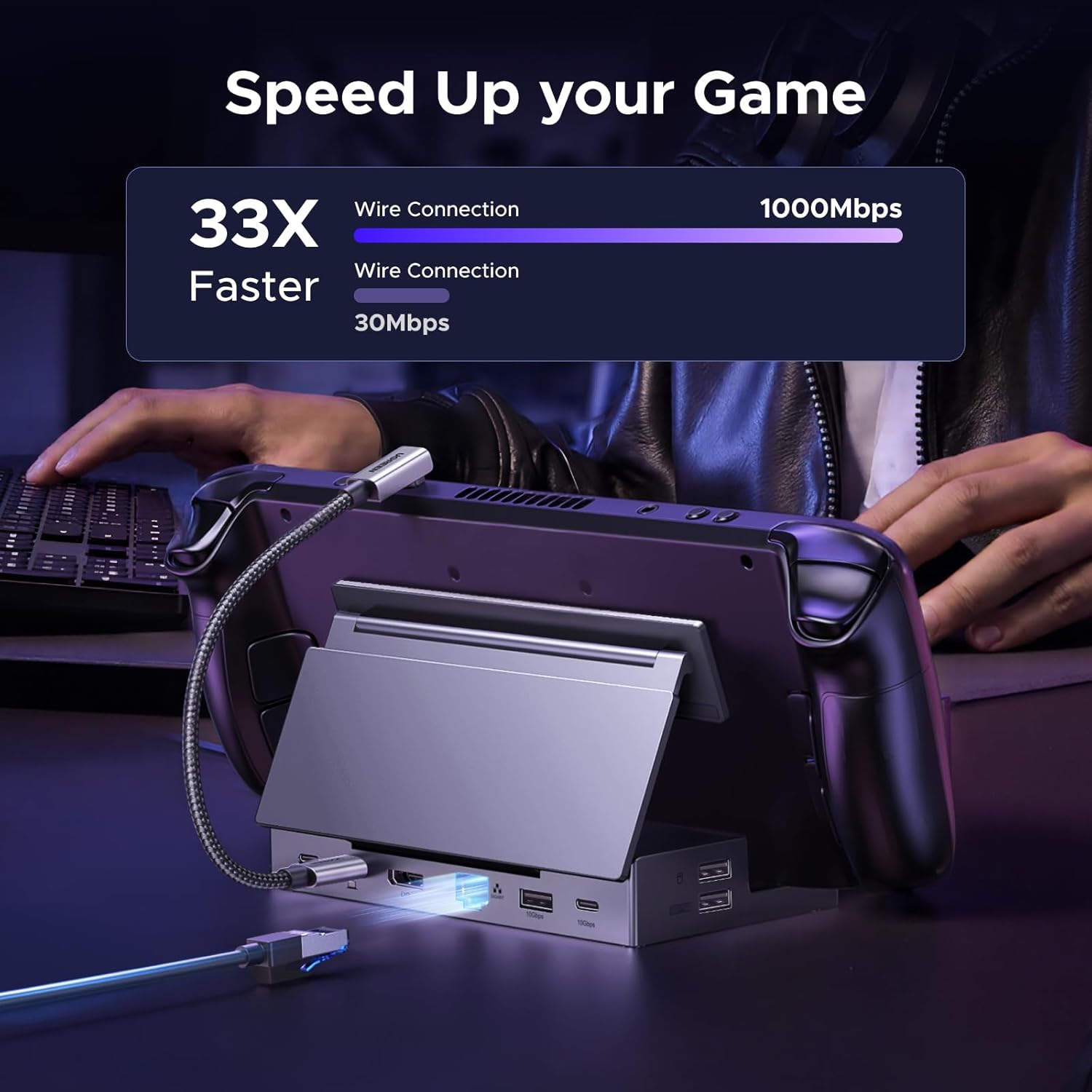
Figure 6: Demonstrating fast data transfer and network speeds.
4.4 Network Connectivity
The Gigabit Ethernet port provides a stable and high-speed internet connection, which is often more reliable than Wi-Fi, especially for online gaming or large downloads.
4.5 Memory Card Access
The integrated TF/SD card slots allow for easy access to data stored on memory cards, useful for expanding storage or transferring files.
5. Compatibility
This docking station is widely compatible with various USB-C devices, including:
- Steam Deck
- ROG Ally
- ROG Xbox Ally
- LEGION Go
- MSI Claw A1M
- iPad Pro/Air
- Surface Pro 8 & Go 3
NOTE: Not compatible with Nintendo Switch 2.
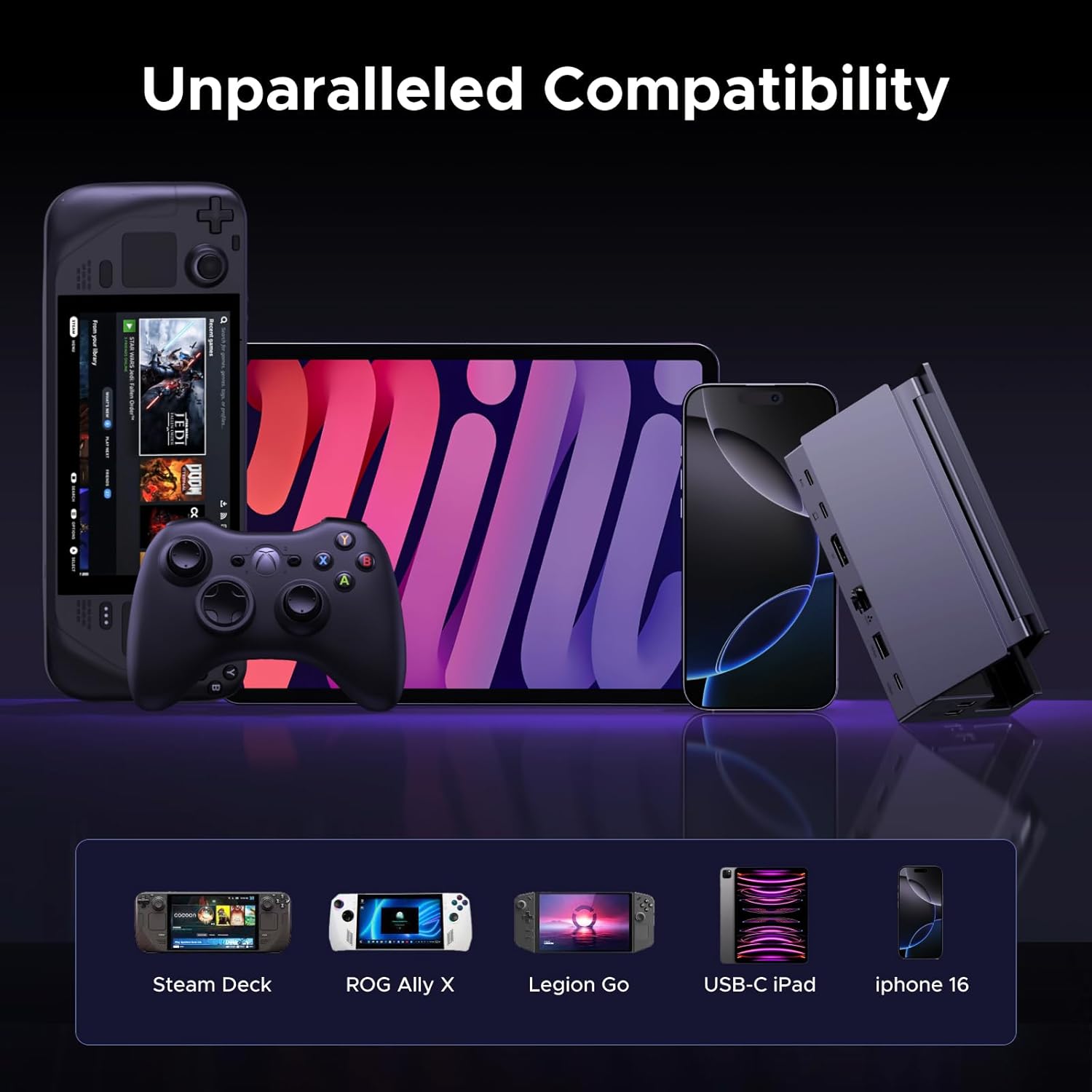
Figure 7: The docking station's broad compatibility with different USB-C devices.
6. Maintenance
To ensure the longevity and optimal performance of your UGREEN docking station, follow these maintenance guidelines:
- Keep the device clean by wiping it with a soft, dry cloth. Avoid using harsh chemicals or abrasive materials.
- Store the docking station in a cool, dry place away from direct sunlight and extreme temperatures.
- Avoid dropping the device or subjecting it to strong impacts.
- Ensure all cables are connected securely but do not force them into ports.
7. Troubleshooting
If you encounter issues with your docking station, consider the following:
- No Display Output:
- Ensure the USB-C host cable is securely connected to both the docking station and your device.
- Verify that the DisplayPort cable is properly connected to both the dock and the monitor.
- Check your device's display settings to ensure the external monitor is detected and configured correctly.
- Confirm that your monitor is set to the correct input source (DisplayPort).
- Charging Issues:
- Ensure a compatible USB-C power adapter (100W recommended) is connected to the PD input port.
- Verify the power cable is functioning correctly.
- USB Peripherals Not Working:
- Try connecting the peripheral to a different USB port on the dock.
- Ensure the peripheral is properly connected and powered, if required.
- Some high-power USB devices may require the docking station to be connected to external power.
- No Internet Connection (Ethernet):
- Check the Ethernet cable connection to both the dock and your router/modem.
- Verify your network settings on your connected device.
8. Specifications
| Feature | Specification |
|---|---|
| Model Number | 55733 |
| Product Dimensions | 5.79 x 2.76 x 1.14 inches (14.7 x 7.0 x 2.9 cm) |
| Item Weight | 9.3 ounces (264.7 Grams) |
| Number of Ports | 9 |
| Hardware Interface | DisplayPort, Ethernet, MicroSD, USB, USB Type C |
| DisplayPort Output | Up to 4K@120Hz (3840x2160@120Hz) |
| Ethernet | Gigabit (1000Mbps) |
| USB Data Ports | 2x USB 3.2 Gen 2 (1x USB-A, 1x USB-C, 10Gbps), 2x USB 2.0 (USB-A, 480Mbps) |
| Power Delivery | Up to 100W (USB-C PD input) |
| Card Reader | TF/SD (104MB/s) |
| Color | Black |
9. Official Product Video
Video 1: An overview of the UGREEN 9-in-1 Steam Deck Dock, demonstrating its features, connectivity options, and foldable design. This video highlights the product's build quality, port functionality, and compatibility with various handheld gaming devices.
10. Warranty and Support
UGREEN products come with a standard manufacturer's warranty. For specific warranty details, product support, or technical assistance, please refer to the official UGREEN website or contact UGREEN customer service directly. Keep your purchase receipt for warranty claims.


