
Introduction
Thank you for choosing the Omikamo Foldable Wireless Keyboard. This manual provides comprehensive instructions to help you set up, operate, and maintain your new keyboard. Please read this manual carefully before use to ensure optimal performance and longevity of your device.
Product Features
- Enhanced Key Layout: Features an inverted L-shaped Enter key, left and right Shift keys, and left and right Alt/Cmd keys for improved typing comfort and efficiency.
- Standard JIS Layout: Familiar Japanese Industrial Standard (JIS) layout supports both Kana and Romaji input methods. Includes dedicated conversion keys.
- Integrated Touchpad and Numpad: Equipped with a large touchpad for precise navigation and a dedicated numpad for efficient data entry.
- Multi-Device Connectivity: Supports simultaneous connection to up to 4 devices (3 via Bluetooth 5.2 and 1 via 2.4GHz USB wireless), allowing seamless switching.
- Wide OS Compatibility: Compatible with iOS, Windows, and Mac operating systems.
- Compact and Lightweight Design: Foldable design for easy portability, weighing approximately 274g with a folded size of 15 x 10 x 2 cm.
- Long Battery Life: Type-C rechargeable with a power-saving design, offering up to 90 hours of continuous use and 100 days of standby time on a single charge.
- Quality Assurance: Technical conformity certified with a 1-year quality warranty.

Image: The keyboard in its compact, folded state, highlighting its portability and lightweight design (274g).
Setup Guide
Package Contents
- Foldable Keyboard x 1
- 2.4GHz USB Receiver x 1
- Type-C Charging Cable x 1
- Instruction Manual (Japanese) x 1

Image: The foldable keyboard shown with its included accessories: USB receiver and Type-C charging cable.
Charging the Keyboard
Before first use, fully charge the keyboard. Connect the provided Type-C charging cable to the keyboard's charging port and the other end to a USB power source (e.g., computer, wall adapter). The charging indicator light will show charging status and turn off when fully charged. A full charge takes approximately 2 hours.
Power On/Off
To power on the keyboard, unfold it. To power off, fold the keyboard. The keyboard automatically powers on when unfolded and powers off when folded.
Connecting via Bluetooth
- Unfold the keyboard to power it on.
- Press and hold the Fn key and one of the Bluetooth channel keys (Fn+A, Fn+S, or Fn+D) for 3-5 seconds until the corresponding indicator light flashes, indicating pairing mode.
- On your device (smartphone, tablet, computer), enable Bluetooth and search for available devices.
- Select "Omikamo Keyboard" from the list of devices to connect. The indicator light will stop flashing once connected.
Connecting via 2.4GHz USB
- Unfold the keyboard to power it on.
- Insert the 2.4GHz USB receiver into an available USB port on your computer.
- Press and hold the Fn+F key for 3-5 seconds until the indicator light flashes, indicating pairing mode. The keyboard will automatically connect to the receiver. The indicator light will stop flashing once connected.

Image: The keyboard demonstrating connectivity to up to four devices (3 Bluetooth, 1 USB wireless).
Switching Between Devices
To switch between connected devices, simply press the corresponding channel key: Fn+A, Fn+S, Fn+D for Bluetooth devices, or Fn+F for the 2.4GHz USB connected device.
OS Mode Switching
The keyboard supports multiple operating systems. To switch the keyboard's operating mode to match your device's OS, press the following key combinations:
- Fn + Q for iOS
- Fn + W for Windows
- Fn + E for Mac

Image: The keyboard displaying its compatibility with iOS, Windows, and Mac devices.
Operating Your Keyboard
Key Layout Overview
The keyboard features a standard JIS Japanese layout, designed for comfortable and familiar typing. It includes an inverted L-shaped Enter key, Shift keys on both sides, and Alt/Cmd keys on both sides. Dedicated keys for Japanese input conversion (変換, 無変換) are also present.
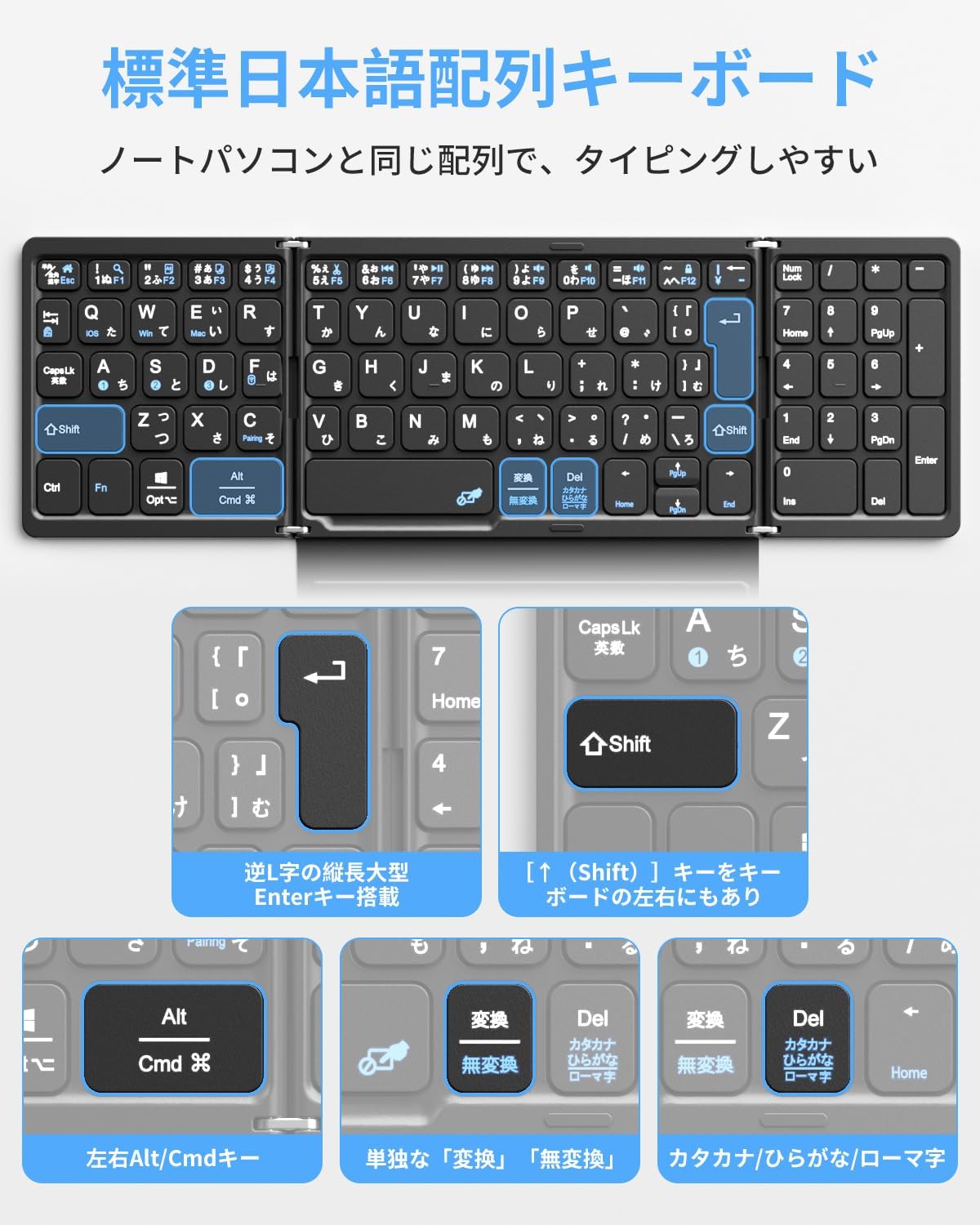
Image: A close-up of the keyboard's JIS layout, showing the inverted L-shaped Enter key, left/right Shift and Alt/Cmd keys, and Japanese conversion keys.
Using the Touchpad
The integrated large touchpad allows for precise cursor control. It supports multi-touch gestures depending on your operating system. To lock or unlock the touchpad, press Fn + Spacebar.

Image: A hand interacting with the large touchpad, illustrating its use alongside the integrated numpad.
Function Keys and Shortcuts
The top row of keys serves as a dedicated function key row, providing 13 types of shortcuts for enhanced productivity. These include media controls, volume adjustments, and other system functions. Press the Fn key in combination with the desired function key to activate its secondary function.

Image: The keyboard with its top row of 13 shortcut keys illuminated, demonstrating their functionality.
Maintenance
Cleaning
To clean your keyboard, gently wipe the surface with a soft, damp cloth. Avoid using harsh chemicals or abrasive materials, which may damage the finish. Ensure the keyboard is powered off before cleaning.
Battery Care
To prolong battery life, avoid exposing the keyboard to extreme temperatures. If the keyboard will not be used for an extended period, charge it to about 50% before storing. Recharge the keyboard when the battery indicator shows low power.

Image: The keyboard being charged via its Type-C port, with details on charging time (approx. 2 hours), usage time (up to 90 hours), and battery capacity (140mAh).
Troubleshooting
- Keyboard not connecting: Ensure the keyboard is charged and powered on. Check that Bluetooth is enabled on your device or the USB receiver is properly inserted. Re-attempt the pairing process.
- Keys not responding: Verify the keyboard is connected to the correct device and the OS mode is set appropriately (Fn+Q/W/E). If the battery is low, recharge the keyboard.
- Touchpad not working: Ensure the touchpad is not locked (Fn+Spacebar). Check OS compatibility for specific gestures.
- Intermittent connection: Move the keyboard closer to your device. Avoid sources of interference such as other wireless devices or large metal objects.
Product Specifications
| Feature | Specification |
|---|---|
| Brand | Omikamo |
| Model Name | BZ-B055-JP-B |
| Connectivity | Bluetooth 5.2, 2.4GHz USB Wireless |
| Key Layout | JIS Standard Japanese Layout |
| Special Features | Foldable, Large Touchpad, Numpad, Multi-Device Switching (up to 4), Dedicated Function Keys |
| Compatible Devices | iOS, Windows, Mac |
| Battery Capacity | 140 mAh |
| Charging Time | Approx. 2 hours (Type-C) |
| Continuous Usage Time | Up to 90 hours |
| Standby Time | Up to 100 days |
| Folded Dimensions | 15 x 10 x 2 cm |
| Weight | 274 g |
| Origin | China |
Warranty and Support
Warranty Information
This Omikamo keyboard comes with a 1-year quality warranty from the date of purchase. The warranty covers manufacturing defects and malfunctions under normal use. Please retain your proof of purchase for warranty claims.
Customer Support
For any questions, technical assistance, or warranty inquiries, please contact Omikamo customer support:
- LINE: @123blepn
- Email: omikamo_no3@163.com