
1. Introduction
The NEOHIPO DC10 DAC is a compact, high-performance digital-to-analog audio converter designed to enhance your audio experience. It converts digital audio signals from various sources (USB, Optical, Coaxial) into high-fidelity analog audio, suitable for connecting to home powered speakers or amplifiers. Featuring advanced chips and a robust aluminum alloy shell, the DC10 provides a plug-and-play solution for superior sound quality.

Figure 1: The NEOHIPO DC10 DAC integrated into a home audio system, positioned between an amplifier and two wooden speakers.
2. What's in the Box
Upon opening your NEOHIPO DC10 DAC package, you should find the following items:
- NEOHIPO DC10 DAC Unit x1
- PC-USB-C Cable x1
- User Manual x1

Figure 2: The NEOHIPO DC10 DAC, USB-C cable, and Quick Start Guide as included in the product packaging.
3. Product Features
- High-Performance Chipset: Equipped with Texas Instruments NE5532 and ES9028Q2M chips, achieving ultra-low distortion (<0.0008%) and a high Signal-to-Noise Ratio (SNR) of 116dB. Supports replacement of operational amplifiers for sound customization.
- Lossless High-Fidelity Audio Decoding: Supports audio streams up to DSD256 and PCM768kHz/32bit, ensuring a high-quality sound experience. Features DSD and PCM indicator lights to display the current audio format.
- Multi-Function Connectivity: Seamlessly switch between USB, Optical (OPT), and Coaxial (COA) inputs. Compatible with streaming devices, TVs, PCs, and amplifiers. Features a durable metal toggle switch for input selection.
- Durable Aluminum Alloy Shell: Mini-sized digital audio converter constructed from all-aluminum alloy. Includes an output protection circuit system to safeguard connected audio equipment.
- Plug-and-Play Operation: Simple setup with no special driver installation required for most operating systems.
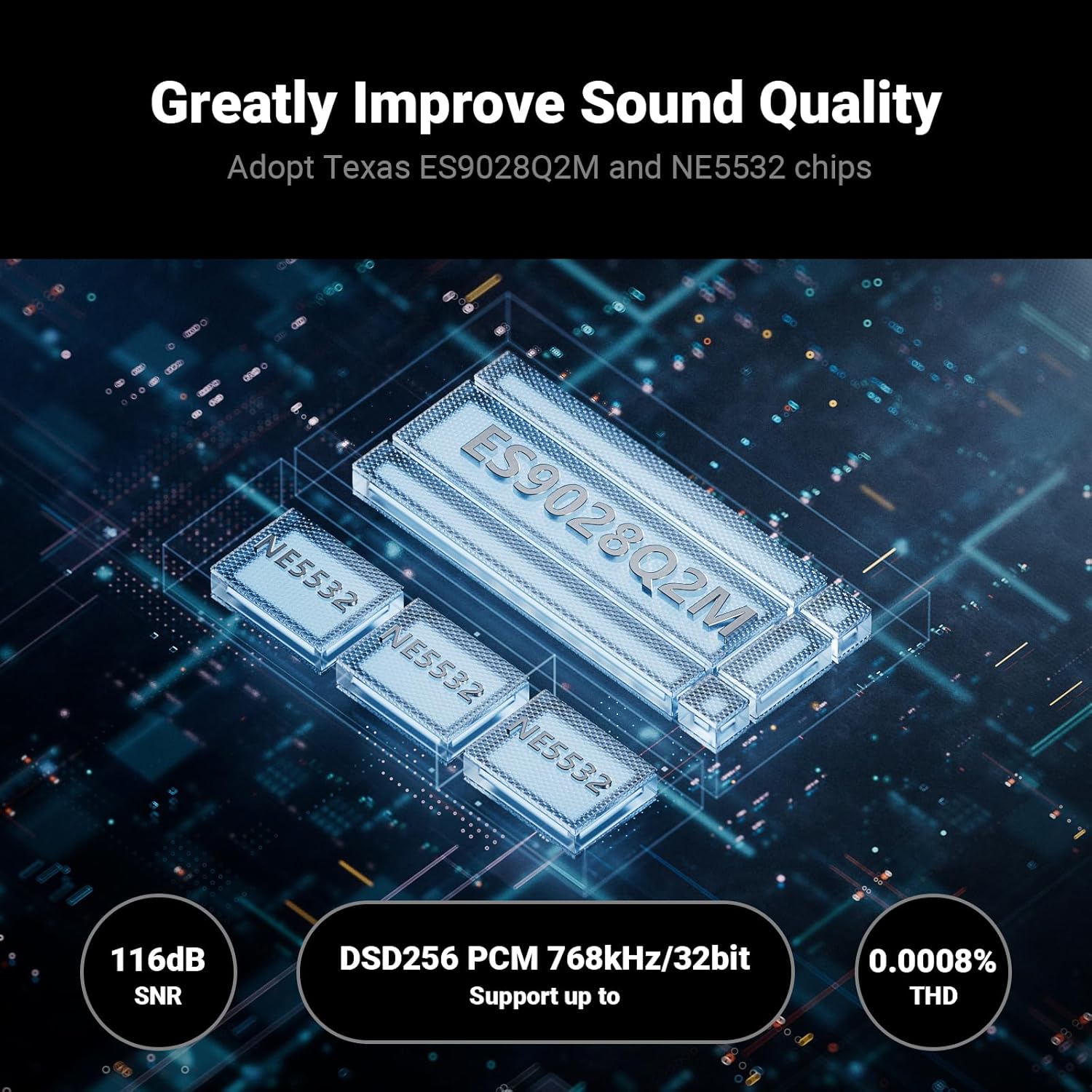
Figure 3: Internal chip architecture of the DC10 DAC, featuring ES9028Q2M and NE5532 chips for superior audio processing.
4. Setup
The NEOHIPO DC10 DAC is designed for straightforward plug-and-play installation. Follow these steps to connect your device:
- Connect Power/USB Input: Connect the provided PC-USB-C cable to the USB/POWER port on the back of the DC10 DAC. Connect the other end to a USB port on your computer or a compatible USB power adapter (5V DC).
- Connect Audio Input: Choose one of the following digital audio inputs based on your source device:
- USB: For connecting to a computer (PC, laptop).
- Optical (OPT): For connecting to devices with an optical audio output (e.g., TV, game console, CD player). Use a standard optical audio cable.
- Coaxial (COA): For connecting to devices with a coaxial audio output (e.g., DVD player, some TVs). Use a standard coaxial audio cable.
- Connect Analog Output: Connect RCA cables from the AUDIO OUT (RCA L/R) ports on the back of the DC10 DAC to the analog audio input (RCA L/R) of your powered speakers or amplifier.
- Power On: Use the toggle switch on the front panel to turn the DC10 DAC ON.
- Select Input: Use the input toggle switch on the front panel to select the corresponding input (USB, OPT, or COA) you are using.

Figure 4: Front and rear panel connections of the NEOHIPO DC10 DAC.

Figure 5: Connection diagram showing the versatility of the DC10 DAC with various audio sources and outputs.
5. Operating Instructions
Once the NEOHIPO DC10 DAC is connected, operating it is simple:
- Power On/Off: Use the left toggle switch on the front panel to turn the unit ON or OFF.
- Input Selection: Use the right toggle switch on the front panel to select your desired audio input source: USB, OPT (Optical), or COA (Coaxial).
- Audio Format Indicators: The DSD and PCM indicator lights on the front panel will illuminate to show the format of the audio track currently being played. This helps confirm that your high-resolution audio is being processed correctly.
Ensure your source device is playing audio and its digital output is correctly configured to send signals to the DC10 DAC.
6. Maintenance
To ensure the longevity and optimal performance of your NEOHIPO DC10 DAC, follow these maintenance guidelines:
- Cleaning: Use a soft, dry cloth to clean the exterior of the device. Avoid using liquid cleaners, solvents, or abrasive materials, as these can damage the finish or internal components.
- Environment: Place the DAC in a well-ventilated area, away from direct sunlight, heat sources, and excessive moisture.
- Handling: Handle the device with care. Avoid dropping it or subjecting it to strong impacts.
- Disassembly: Do not attempt to open or disassemble the unit. This can void your warranty and may lead to electric shock or damage to the device.
7. Troubleshooting
If you encounter issues with your NEOHIPO DC10 DAC, please refer to the following common troubleshooting steps:
- No Sound Output:
- Ensure the DC10 DAC is powered ON and the power indicator is lit.
- Verify all audio cables (USB, Optical, Coaxial, RCA) are securely connected to both the DAC and your source/output devices.
- Confirm that the correct input (USB, OPT, COA) is selected on the DC10 DAC using the front panel toggle switch.
- Check the volume level on your amplifier or powered speakers.
- Ensure your source device (PC, TV, etc.) is playing audio and its digital audio output is enabled and correctly configured.
- Static or Distorted Sound:
- Try using different audio cables to rule out faulty cabling.
- Test with a different audio source device to determine if the issue is with the source.
- If using a mobile device with USB input, consider using the Optical or Coaxial input for the audio signal, as some mobile devices may introduce static via USB audio.
- Ensure the power supply to the DAC is stable and free from interference.
- DSD Files Not Playing (Optical/Coaxial):
- The NEOHIPO DC10 DAC primarily supports DSD playback via the USB input. DSD playback over Optical (Toslink) and Coaxial inputs may not be supported by the device. Please use the USB input for DSD audio files.
- Device Not Recognized by PC (USB):
- Ensure the USB cable is firmly connected.
- Try a different USB port on your computer.
- Restart your computer.
- Verify that the USB input is selected on the DAC.
8. Specifications
| Model Number | DC10 |
| Brand | NEOHIPO |
| Product Dimensions | 17L x 14.5W x 0.1H cm; 340 g |
| Material | Aluminum |
| Input Interfaces | USB, Optical (OPT), Coaxial (COA) |
| Output Interface | RCA (L/R) |
| Number of Channels | 2 |
| Chipset | NE5532, ES9028Q2M |
| DSD Support | Up to DSD256 |
| PCM Support | Up to 768kHz/32bit |
| Distortion (THD) | <0.0008% |
| Signal-to-Noise Ratio (SNR) | 116dB |
| Dynamic Range | 116dB |
| Frequency Response | 20Hz-20kHz (±0.01dB) |
9. Warranty Information
The NEOHIPO DC10 DAC comes with a 1-year warranty from the date of purchase. This warranty covers manufacturing defects and malfunctions under normal use. It does not cover damage caused by misuse, accidents, unauthorized modifications, or improper installation.
Please retain your proof of purchase for warranty claims.
10. Support
For technical assistance, troubleshooting beyond this manual, or warranty inquiries, please contact NEOHIPO customer support through the retailer where you purchased the product or visit the official NEOHIPO website for contact information.