
1. Introduction
Thank you for choosing the HXVIEW BU-WP-8002 Wireless Security Camera System. This system provides comprehensive home surveillance with its 7-inch touchscreen monitor and two 4MP WiFi solar-powered outdoor cameras. Designed for ease of use and reliable performance, it features PIR human detection, 2-way audio, and color night vision to ensure your property is monitored effectively, day and night.
2. What's in the Box
Upon opening your HXVIEW BU-WP-8002 package, you will find the following components:
- 1 x 7-inch Touchscreen Monitor (with pre-installed 64GB SD card)
- 2 x 4MP WiFi Solar Powered Outdoor Cameras
- 2 x Solar Panels
- 2 x Camera Mounting Brackets
- 2 x Solar Panel Mounting Brackets
- 1 x Power Adapter for Monitor
- 1 x USB Charging Cable
- Mounting Screws and Wall Plugs
- User Manual (this document)
Video: Unboxing the HXVIEW BU-WP-8002 System. This video demonstrates the contents of the package, including the monitor, cameras, solar panels, and accessories, as they are removed from the box.
3. Product Features
- 7" Portable Touchscreen Monitor: Equipped with a 7-inch touchscreen for convenient operation and supports adding up to 4 cameras. Includes a pre-installed 64GB SD card for secure, encrypted data storage, offering up to 120 days of loop footage.
- 100% Wireless & Solar-Powered: Ensures 365 days of self-sustaining operation with just 3 hours of direct sunlight daily. Features efficient solar panels and built-in rechargeable batteries, eliminating the need for cumbersome wiring and external power.
- Wide Coverage & Two-Way Audio: Cameras feature a 120° wide-angle lens for extensive area coverage. Enhanced antennas provide a stable connection up to 100 feet between the camera and monitor. Two-way audio allows communication via the EseeCloud APP.
- Smart PIR Human Detection: Utilizes a sensitive PIR sensor and advanced AI algorithms to intelligently detect heat and human motion, minimizing false alarms from environmental factors. Triggers recording upon detection for quick event review.
- 4MP HD & Color Night Vision: Delivers clearer and smoother video quality than 1080P with 4MP HD resolution. Built-in floodlight enables clear color night vision up to 65 feet, even in complete darkness.
- IP66 Waterproof: Designed for outdoor use, the cameras are IP66 waterproof, ensuring reliable operation in various weather conditions, from -4°F to 122°F (-20°C to 50°C).

Image: Overview of the HXVIEW 4MP Solar Wireless Security Camera System highlighting 64GB local storage, flexible solar panel, and 7-inch touchscreen monitor.

Image: A close-up of the wireless security camera connected to its solar panel, emphasizing its non-stop solar-powered feature for continuous operation.

Image: The outdoor camera with its solar panel, illustrating its IP66 waterproof rating and ability to withstand temperatures from -20°C to 50°C.
4. Setup Guide
4.1 Initial Power-On and Pairing
- Connect the power adapter to the 7-inch touchscreen monitor.
- Turn on the monitor and camera power switches.
- The cameras and monitor are pre-paired at the factory. The camera video should automatically display on the monitor without additional settings.
Video: Quick Start Guide for the HXVIEW BU-WP-8002 Wireless Security System. This video demonstrates the initial power-on and automatic pairing process between the cameras and the monitor.
4.2 Connecting to Home Wi-Fi (Optional for Remote Access)
To enable remote access via the EseeCloud APP, connect your monitor to your home 2.4GHz Wi-Fi network (5GHz is not supported).
- On the monitor, tap the screen to access the main menu.
- Click the Wi-Fi icon in the upper right corner.
- Select your home Wi-Fi network (2.4GHz) and enter the password.
- Once connected, click the QR code icon in the upper right corner to display the device Cloud ID.
- Open the EseeCloud APP on your smartphone, click the "Add" button, select "Scan to add", and scan the Cloud ID from the monitor screen to complete the addition.
Video: Instructions on how to remotely access the BU-WP-8002 system via mobile phone. This video guides you through connecting the monitor to Wi-Fi and pairing it with the EseeCloud app.
4.3 Camera Installation
Install the cameras in desired outdoor locations, ensuring the solar panels receive adequate direct sunlight (at least 3 hours daily) for continuous charging.
- Choose a mounting location that provides optimal viewing angle and sunlight exposure for the solar panel.
- Use the provided mounting brackets and screws to securely attach the camera and solar panel.
- Connect the solar panel cable to the camera.
- Ensure the camera's power switch is ON.

Image: A wireless solar security camera and its solar panel mounted on an outdoor wall, illustrating a typical installation setup.
5. Operating Instructions
5.1 Monitor Navigation
- Touchscreen Interface: Navigate through menus and settings by tapping the icons on the 7-inch touchscreen.
- Live View: The monitor displays live feeds from connected cameras. You can switch between single-camera view and multi-camera view.
- Menu Options: Access Video Playback, System Setup, Record Setup, Match Code, Alarm Setup, and System Manage from the main menu.
5.2 Two-Way Audio
The system supports two-way audio, allowing you to listen and speak through the cameras via the monitor or the EseeCloud APP.
- From the live view, tap the microphone icon to speak through the camera.
- Tap the speaker icon to enable audio listening from the camera.

Image: A wireless security camera mounted outdoors, demonstrating its two-way audio capability with speech bubbles indicating communication.
5.3 Motion Detection & Alerts
The cameras are equipped with PIR human detection to trigger recordings and alerts when motion is detected.
- Alarm Setup: Configure alarm volume, motion detection full screen, email alerts, and channel-specific settings in the Alarm Setup menu.
- Instant Alerts: When an intruder is detected at night, the camera activates a spotlight and 120dB siren, sending push notifications to your EseeCloud APP.
- Customizable Sensitivity: Adjust motion detection sensitivity to reduce false alarms.
- Selectable Working Time: Customize motion detection alarm time schedules via the EseeCloud App to optimize power consumption.
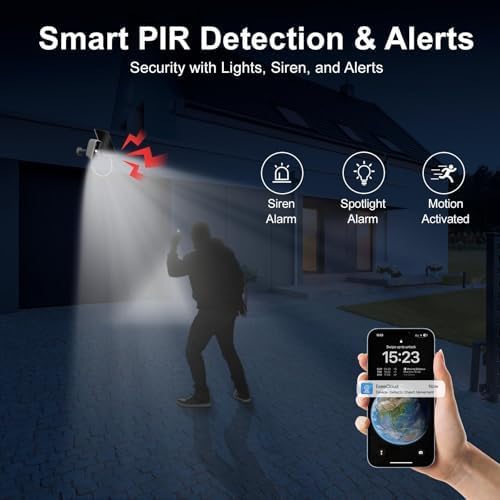
Image: An outdoor scene at night showing a person triggering the smart PIR detection, activating a siren, spotlight, and sending app alerts.
5.4 Recording & Playback
The monitor's 64GB SD card stores recordings. You can review footage directly on the monitor or through the EseeCloud APP.
- Video Playback: Access recorded videos from the main menu.
- 24/7 Continuous Recording: Available when the camera is connected to a power adapter (not included) and battery level is above 80%. Otherwise, it operates in Solar Power Supply Mode (only alarm-triggered recording).
5.5 Remote Access via EseeCloud APP
After connecting the monitor to Wi-Fi and pairing with the EseeCloud APP, you can access live feeds, manage settings, and view recordings from anywhere.
- Multi-View Remote Access: Monitor up to 4 cameras simultaneously through the APP.
- Works with Alexa: Integrate with Alexa for voice control to view camera live video.
6. Maintenance
- Solar Panel Cleaning: Regularly wipe the solar panels with a soft, damp cloth to remove dust and debris, ensuring maximum charging efficiency.
- Battery Health: While solar-powered, ensure cameras are placed in areas receiving sufficient sunlight to maintain battery charge. If continuous 24/7 recording is desired, connect cameras to a power adapter.
- Firmware Updates: Check the EseeCloud APP or HXVIEW website for any available firmware updates to ensure optimal performance and security.
7. Troubleshooting
- No Video Display on Monitor:
- Ensure both the monitor and cameras are powered on.
- Verify cameras are within range of the monitor (up to 100 feet).
- If cameras were reset, re-match them using the "Match Code" function on the monitor.
- No Remote Access via APP:
- Confirm the monitor is successfully connected to a 2.4GHz Wi-Fi network.
- Ensure the Cloud ID was correctly scanned and added to the EseeCloud APP.
- Check your internet connection.
- Frequent False Alarms:
- Adjust the PIR motion detection sensitivity settings in the Alarm Setup menu or EseeCloud APP.
- Ensure cameras are not pointed directly at busy roads or areas with constant movement (e.g., tree branches swaying in strong wind).
- Poor Night Vision:
- Ensure the camera's floodlight is enabled for color night vision.
- Check for any obstructions blocking the camera's view or the floodlight.
- Battery Not Charging:
- Verify the solar panel is connected securely to the camera.
- Ensure the solar panel receives at least 3 hours of direct sunlight daily.
- Clean the solar panel surface regularly.
8. Specifications
| Model Name | BU-WP-8002 |
| Brand | HXVIEW |
| Connectivity Technology | Wireless (Wi-Fi 2.4GHz) |
| Video Capture Resolution | 4MP HD (2560x1440) |
| Monitor Size | 7-inch Touchscreen |
| Storage | 64GB SD Card (pre-installed) |
| Power Source | Solar Powered (with built-in rechargeable battery) / Corded Electric (for monitor) |
| Special Features | PIR Human Detection, 2-Way Audio, Color Night Vision, IP66 Waterproof |
| Indoor/Outdoor Usage | Outdoor |
| Operating Temperature | -4°F to 122°F (-20°C to 50°C) |
9. Warranty & Support
9.1 Warranty Information
The HXVIEW BU-WP-8002 Wireless Security Camera System comes with a 2-year warranty from the date of purchase. This warranty covers manufacturing defects and ensures the product meets its specified performance standards. Please refer to the warranty card included in your package for detailed terms and conditions.
9.2 Customer Support
For technical assistance, troubleshooting, or any inquiries regarding your HXVIEW product, please contact our customer support team:
- Online Support: Visit the official HXVIEW website for FAQs, video tutorials, and online support resources.
- Email Support: Refer to your warranty card or product packaging for the dedicated support email address.
Please have your product model number (BU-WP-8002) and purchase details ready when contacting support.


