
1. Introduction
This manual provides detailed instructions for the NBCP Wireless Controller, Model 735lantou. It covers setup, operation, maintenance, and troubleshooting to ensure optimal performance and user experience. This controller is compatible with Nintendo Switch, Switch Lite, Switch OLED, PC, iOS, Android, and Steam Deck.
2. Product Overview
Familiarize yourself with the controller's layout and functions.
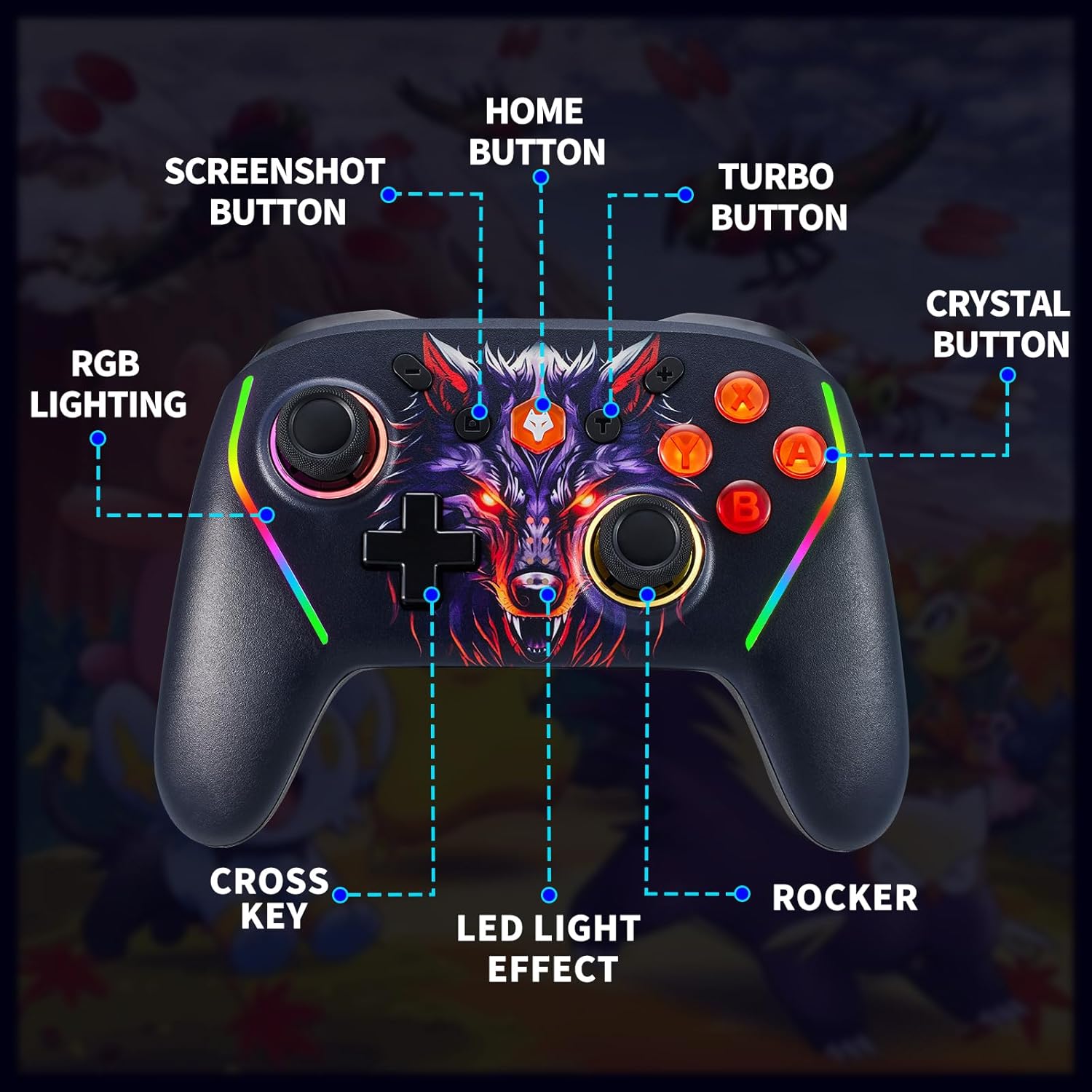
Figure 2.1: Controller Button Layout. This image displays the front view of the NBCP Wireless Controller, highlighting key components such as the Home button, Screenshot button, Turbo button, Crystal buttons (A, B, X, Y), Cross Key (D-pad), Rockers (analog sticks), and RGB lighting strips.
- Home Button: Powers on/off the controller and returns to the system home screen.
- Screenshot Button: Captures screenshots during gameplay.
- Turbo Button: Activates and adjusts the Turbo firing function.
- Crystal Buttons (A, B, X, Y): Standard action buttons.
- Cross Key (D-pad): Directional input.
- Rocker (Analog Sticks): Provides precise 360-degree movement.
- RGB Lighting: Customizable LED light effects on the controller handles.
- ML/MR Buttons: Programmable back buttons for custom macro functions.

Figure 2.2: Rear Programmable Buttons. This image shows the underside of the controller, indicating the positions of the ML (Macro Left) and MR (Macro Right) programmable back buttons.
3. Setup and Pairing
Follow these steps to connect your NBCP Wireless Controller to various devices.
3.1. Pairing with Nintendo Switch
- From the HOME Menu, select "Controllers" > "Change Grip/Order".
- On the controller, press and hold the Home button and Y button simultaneously for 3-5 seconds until the LED indicators start flashing rapidly.
- The controller will pair automatically. Once connected, the corresponding player LED(s) on the controller will light up solid.
- To wake the Switch from sleep mode, press the Home button on the controller.
3.2. Pairing with PC (Windows)
The controller supports both wired and wireless connections to a PC.
- Wired Connection: Connect the controller to your PC using a USB-C cable. The PC should automatically detect and install the necessary drivers.
- Bluetooth Connection:
- Ensure your PC has Bluetooth enabled.
- On the controller, press and hold the Home button and X button simultaneously for 3-5 seconds until the LED indicators start flashing rapidly.
- On your PC, go to Bluetooth settings and search for new devices. Select "Pro Controller" or similar from the list.
- Once connected, the LED indicators will light up solid.
3.3. Pairing with iOS/Android Devices
- Ensure Bluetooth is enabled on your mobile device.
- On the controller, press and hold the Home button and A button simultaneously for 3-5 seconds until the LED indicators start flashing rapidly.
- On your device, go to Bluetooth settings and search for new devices. Select "Xbox Wireless Controller" or similar from the list.
- Once connected, the LED indicators will light up solid.
3.4. Pairing with Steam Deck
Follow the PC Bluetooth connection steps (Section 3.2) for Steam Deck pairing.
4. Operating Instructions
4.1. Wake Function
When connected to a Nintendo Switch, press the Home button to wake the console from sleep mode.
4.2. Turbo Function
The controller features a 3-stage Turbo firing function to reduce repetitive button presses.
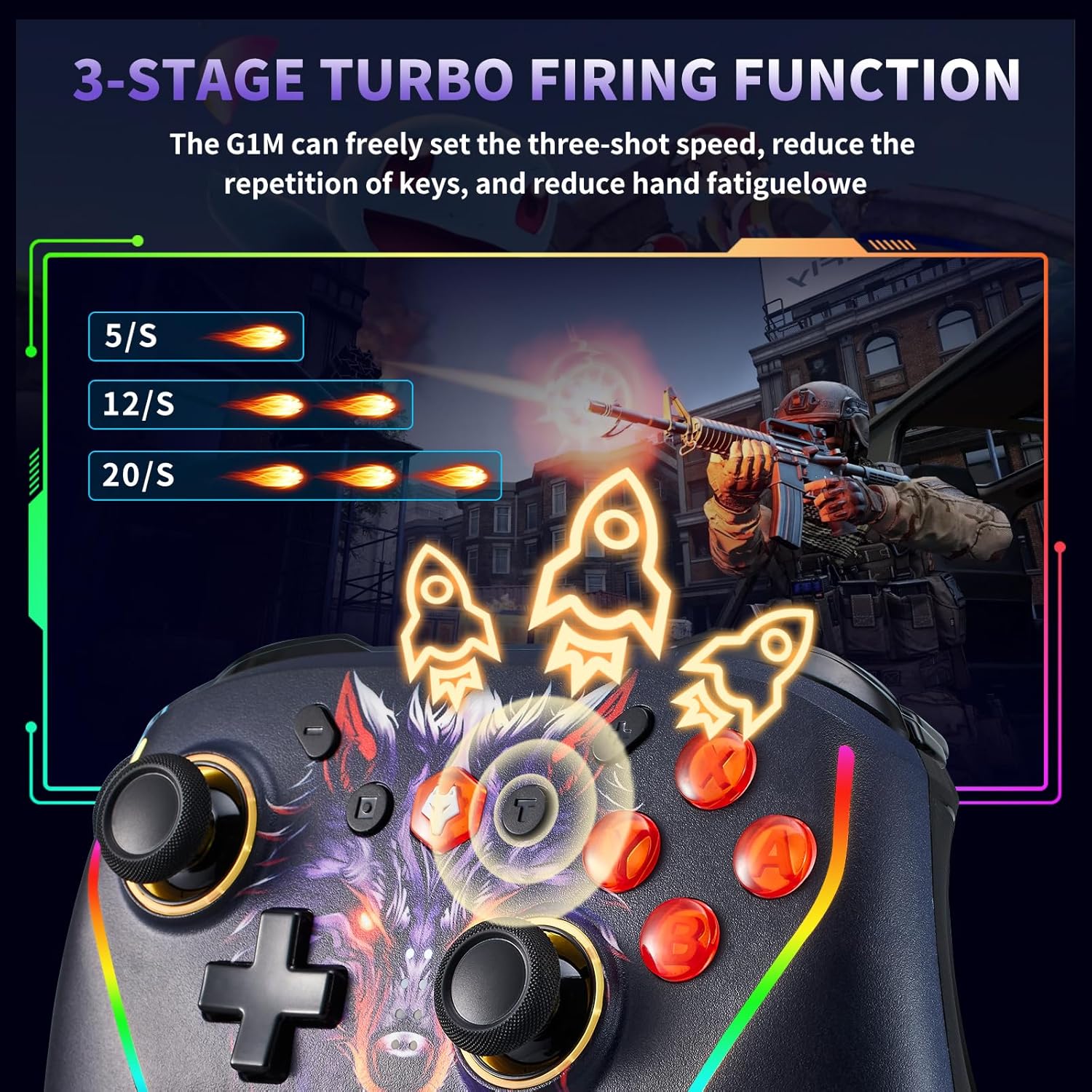
Figure 4.1: Turbo Function Speeds. This image illustrates the three available Turbo speeds: 5 shots/second, 12 shots/second, and 20 shots/second.
- Activate Turbo: Press and hold the desired action button (A/B/X/Y/L/R/ZL/ZR) and then press the Turbo button once. The button will now continuously fire when held down.
- Adjust Turbo Speed: With Turbo active, hold the Turbo button and move the Right Analog Stick Up to increase speed (5/s -> 12/s -> 20/s) or Down to decrease speed.
- Deactivate Turbo: Press and hold the Turbo-enabled action button and then press the Turbo button again. Alternatively, press the Turbo button twice quickly to clear all Turbo settings.
4.3. Programmable Back Buttons (ML/MR)
The ML and MR buttons on the back of the controller can be programmed to perform single button presses or complex macro sequences.

Figure 4.2: Macro Programming Interface. This image highlights the "Program editing" area on the back of the controller, indicating the ML and MR buttons and the range of buttons that can be mapped (A, B, X, Y, R, L, ZL, ZR, D-pad directions).
- Enter Programming Mode: Press and hold the Program button (located on the back, usually a small button near the ML/MR) for 3 seconds until the indicator light flashes.
- Record Macro: Press the ML or MR button you wish to program. The indicator light will flash slower. Now, input the sequence of buttons you want to record (e.g., A, B, X).
- Save Macro: Press the Program button again to save the macro. The indicator light will turn off.
- Clear Macro: To clear a specific macro, enter programming mode, press the ML or MR button you want to clear, and then press the Program button again without inputting any sequence.
- Mouse Touch Function: The back buttons may also offer a "mouse touch" functionality for certain applications or system navigation, allowing for precise cursor control. Refer to specific game or system settings for compatibility.
4.4. Vibration Adjustment
The controller features 4-stage HD vibration for enhanced immersion.

Figure 4.3: Vibration Intensity Levels. This image depicts the four vibration intensity levels: 0% (off), 30%, 70%, and 100%.
To adjust vibration intensity, hold the Turbo button and move the Left Analog Stick Up/Down to cycle through the vibration levels (0%, 30%, 70%, 100%).
4.5. 6-Axis Gyroscope
The built-in 6-axis gyroscope allows for precise motion control in compatible games, recognizing multi-directional changes for accurate aiming and immersive gameplay.

Figure 4.4: Gyroscope in Action. This image illustrates how the 6-axis gyroscope enables direction recognition, visual transformation, and visual field cognition in games through controller movement.
4.6. RGB Lighting
The controller features customizable RGB lighting effects. Specific instructions for changing colors or patterns are typically found in the controller's dedicated software (if available) or through button combinations. Consult the manufacturer's website for detailed RGB customization options.
5. Battery Information and Charging
The controller is equipped with a 1020mAh built-in rechargeable battery.

Figure 5.1: Battery Specifications. This image shows the 1020mAh built-in battery, indicating a full charge time of 5-6 hours and continuous use of 16-20 hours.
- Charging: Connect the controller to a USB power source (e.g., console, PC, USB wall adapter) using the provided USB-C cable. The charging indicator light will typically flash while charging and turn solid when fully charged.
- Charging Time: Approximately 5-6 hours for a full charge.
- Battery Life: Up to 16-20 hours of continuous use on a full charge, depending on vibration and lighting usage.
- Low Battery Indicator: The LED indicators will flash slowly to indicate low battery.
6. Maintenance
- Keep the controller clean by wiping it with a soft, dry cloth.
- Avoid exposing the controller to extreme temperatures, humidity, or direct sunlight.
- Do not disassemble the controller, as this may void the warranty and cause damage.
- Store the controller in a safe place when not in use to prevent physical damage.
7. Troubleshooting
| Problem | Solution |
|---|---|
| Controller does not power on. | Ensure the battery is charged. Connect the controller to a power source using the USB-C cable. |
| Controller fails to pair. |
|
| Input lag or disconnection. |
|
| Buttons or analog sticks are unresponsive. |
|
8. Specifications
- Model: 735lantou
- Brand: NBCP
- Connectivity: Wireless (Bluetooth)
- Compatibility: Nintendo Switch (Switch, Lite, OLED), PC (Windows), iOS, Android, Steam Deck
- Battery: 1020mAh Built-in Rechargeable Lithium Battery
- Charging Time: Approximately 5-6 hours
- Operating Time: 16-20 hours (continuous use)
- Special Features: Wake Function, Programmable Back Buttons (ML/MR), 3-Stage Turbo Function, 4-Stage HD Vibration, 6-Axis Gyroscope, RGB Lighting
- Dimensions: 7.5 x 5.3 x 2.7 inches (Package Dimensions)
- Weight: 1.32 pounds (Item Weight)
9. Warranty and Support
For warranty information, technical support, or further assistance, please refer to the official NBCP website or contact their customer service directly. Keep your purchase receipt as proof of purchase for warranty claims.
Manufacturer Website: Visit the NBCP Store on Amazon