
Introduction
This manual provides detailed instructions for the setup, operation, and maintenance of your ORIA Wooden Digital Alarm Clock. Please read this manual thoroughly before using the product to ensure proper function and longevity.

Image: The ORIA Wooden Digital Alarm Clock, showcasing its LED display and wooden finish.
Package Contents
Please check the package for the following items:
- 1 x ORIA Wooden Digital Alarm Clock
- 1 x 1.5m Type-C Charging Cable
- 1 x User Manual
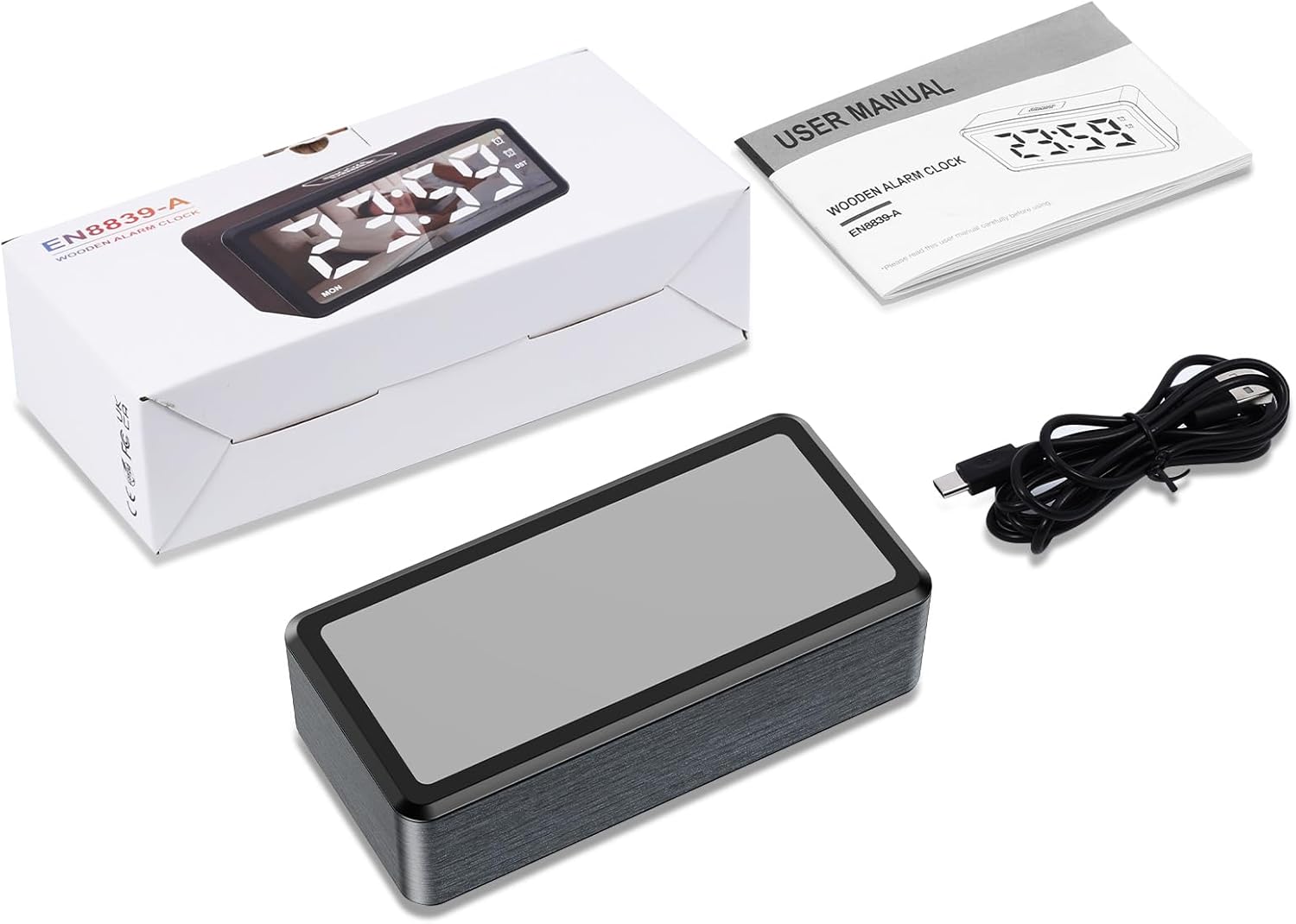
Image: Contents of the product package, including the alarm clock, Type-C cable, and user manual.
Product Overview
The ORIA Wooden Digital Alarm Clock features a large LED mirror display and intuitive controls. Key features include dual alarms, adjustable brightness and volume, and Daylight Saving Time (DST) functionality.

Image: Visual representation of the clock highlighting features such as 12/24H display, DST, week display, snooze, dual alarm, adjustable volume, adjustable brightness, and USB output port.
Setup
Powering On
The alarm clock must be plugged in for operation. Connect the provided 1.5m Type-C cable to the clock and a suitable USB power adapter (not included). The LED display will light up once powered.
Battery Backup Function
The clock requires 2 AAA batteries (not included) for its memory function. These batteries retain your time and alarm settings during a power outage but will not power the LED display. The display will remain off when operating solely on battery power.

Image: Illustration showing the Type-C power connection and the AAA battery compartment for memory backup.
Operating Instructions
Time Setting
- In time display mode, press and hold the SET button for 2 seconds to enter time-setting mode. The HOUR digits will flash.
- Press the + or - buttons to adjust the hour. Hold the button to advance rapidly.
- Short press the SET button to confirm the hour and move to minute setting. The MINUTE digits will flash.
- Press the + or - buttons to adjust the minute.
- Short press the SET button to confirm the minute and move to week setting. The WEEK digits will flash.
- Press the + or - buttons to adjust the day of the week.
- Press the SET button again to save all settings and exit time-setting mode.
12/24 Hour Format
In time display mode, short press the SET button to toggle between 12-hour and 24-hour time formats. The AM/PM indicator will light up or turn off accordingly in 12-hour mode.

Image: Comparison of the clock display in 12-hour format (with AM/PM indicator) and 24-hour format.
Alarm and Snooze Setting
The clock features two independent alarms (AL1 and AL2).
- To Activate/Deactivate Alarm: In time display mode, short press the AL1 button to switch Alarm 1 ON/OFF. The corresponding alarm icon will light up or turn off. Repeat for AL2 button for Alarm 2.
- To Set Alarm: Press and hold the AL1 button for 2 seconds to enter Alarm 1 setting mode. The HOUR digits will flash.
- Use + or - to adjust the hour, then short press AL1 to confirm and move to minute setting.
- Use + or - to adjust the minute, then short press AL1 to confirm and move to alarm mode setting.
- Alarm Modes: Use + or - to select an alarm mode:
- 1-7: Alarm sounds Monday to Sunday (Default for ALARM 1).
- 1-5: Alarm sounds Monday to Friday (Default for ALARM 2).
- 6-7: Alarm sounds Saturday and Sunday.
- Short press AL1 to confirm the alarm mode and move to snooze time setting.
- Snooze Time: The default snooze time is 5 minutes. Use + or - to set the snooze duration from 5 to 60 minutes.
- Press AL1 again to save all settings and exit alarm setting mode.
- Repeat the process for Alarm 2 using the AL2 button.

Image: Display showing the two independent alarms and the three selectable alarm modes (Monday-Friday, Monday-Sunday, Saturday-Sunday).
Brightness Adjustment
The LED screen brightness can be adjusted to 5 levels: 100%, 80%, 50%, 20%, and 5%. To adjust, press the SNOOZE/DIMMER button repeatedly in time display mode to cycle through the brightness levels.

Image: Visual representation of the clock display at different brightness levels, from 100% to 5%.
Volume Adjustment
The alarm volume can be adjusted to 5 levels: 95 dB, 85 dB, 75 dB (default), 65 dB, and 55 dB. To adjust, press the VOL button repeatedly to cycle through the volume levels.
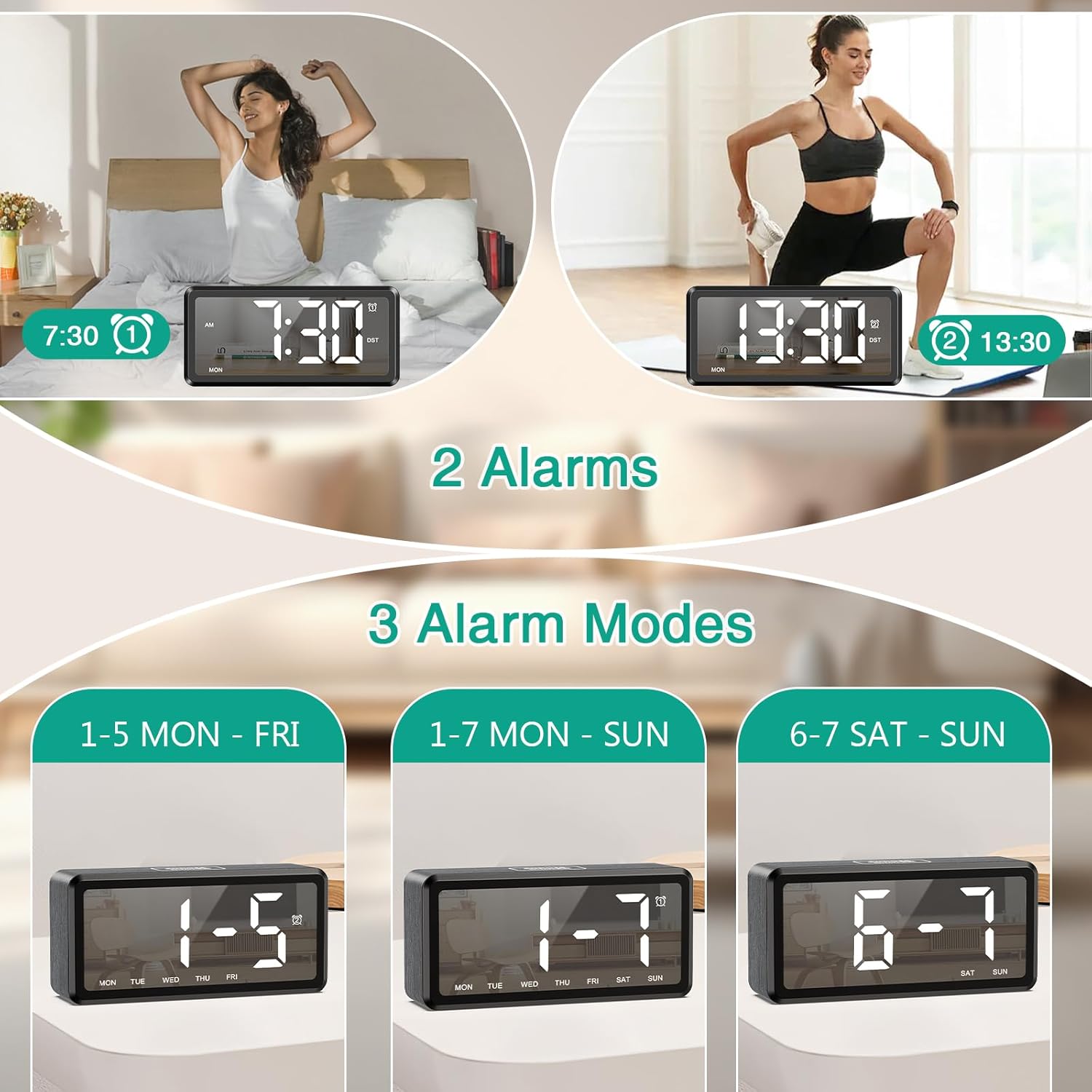
Image: Graphic illustrating the five adjustable alarm volume levels from 55dB to 95dB, along with snooze duration.
Daylight Saving Time (DST)
To activate or deactivate Daylight Saving Time, short press the DST button. The DST indicator will light up or turn off, and the time will adjust by one hour accordingly.
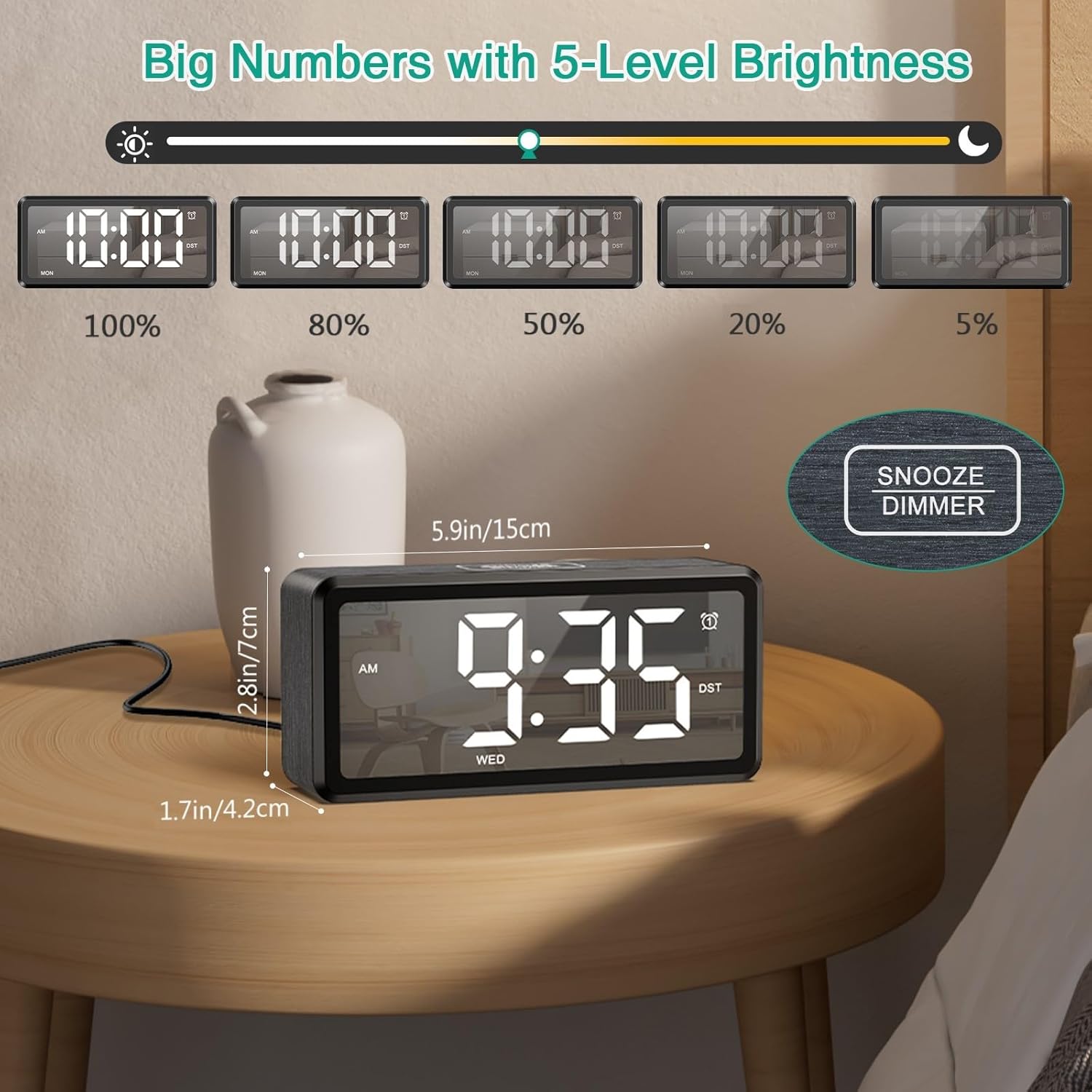
Image: The clock display showing time before and after activating DST with a single button press.
Maintenance
To ensure the longevity and optimal performance of your ORIA Wooden Digital Alarm Clock, follow these simple maintenance guidelines:
- Cleaning: Wipe the clock's surface with a soft, dry cloth. Avoid using abrasive cleaners, solvents, or chemical sprays, as these can damage the finish and display.
- Placement: Place the clock on a stable, flat surface away from direct sunlight, excessive heat, moisture, and strong magnetic fields.
- Power: Always use the provided Type-C cable and a compatible USB power adapter. Disconnect power during electrical storms or when not in use for extended periods.
- Batteries: If using AAA batteries for backup, replace them annually or when the memory function appears unreliable. Ensure correct polarity when inserting batteries.
Troubleshooting
| Problem | Possible Cause | Solution |
|---|---|---|
| Display is blank. | Not plugged in; power outage; batteries only. | Ensure the Type-C cable is securely connected to a power source. If using only AAA batteries, the display will not light up; they are for memory backup only. |
| Alarm does not sound. | Alarm is deactivated; volume is too low; incorrect alarm time/mode. | Check if the alarm icon (AL1/AL2) is lit. Adjust the volume level. Verify the alarm time and selected alarm mode (1-7, 1-5, or 6-7). |
| Time is incorrect after power outage. | No AAA batteries installed; dead AAA batteries. | Install 2 new AAA batteries for memory backup. If batteries are installed, replace them. |
| Buttons are unresponsive. | Temporary software glitch. | Unplug the clock from power, remove any backup batteries, wait 30 seconds, then reconnect power and batteries. |
Specifications
| Feature | Detail |
|---|---|
| Brand | ORIA |
| Model Number | OUS-HY-WA173 |
| Display Type | LED |
| Power Source | Corded Electric (USB Type-C) |
| Battery Backup | 2 x AAA batteries (for memory only, not included) |
| Product Dimensions | 2.73"W x 5.85"H |
| Frame Material | Wood |
| Special Features | Dual Alarms, Snooze, Adjustable Brightness (5 levels), Adjustable Volume (5 levels), DST, 12/24H Format |
| Indoor/Outdoor Usage | Indoor |
Warranty and Support
ORIA is committed to providing high-quality products and customer satisfaction. Your ORIA Wooden Digital Alarm Clock comes with the following:
- 1-Year Warranty: Covers manufacturing defects and malfunctions under normal use.
- 90-Day Free Replacements: For any issues within the first 90 days of purchase.
- 30-Day Free Returns: Hassle-free returns within 30 days of purchase.
- 24/7 Customer Support: Assistance available around the clock for any queries or issues.
- Lifetime Technical Support: Ongoing technical assistance for the lifespan of your product.
For support, please visit the official ORIA website or contact our customer service team using the contact information provided on your purchase receipt or the ORIA brand store on Amazon.

Image: Graphic summarizing ORIA's customer support offerings, including warranty, replacements, returns, and technical support.
