
1. Introduction
This manual provides detailed instructions for the installation, operation, and maintenance of your SIXTOP Android Car Stereo. Please read this manual thoroughly before using the product to ensure proper functionality and safety.
The SIXTOP Android Car Stereo is a 10.1-inch touchscreen unit designed for Jeep Compass models from 2017 to 2020. It integrates various features including Apple CarPlay, Android Auto, Mirror Link, GPS Navigation, Bluetooth 4.2, Steering Wheel Control, FM/RDS Radio, WiFi connectivity, EQ DSP, Split Screen functionality, and Rear View Camera support.
2. Package Contents
Verify that all items listed below are included in your package:
- SIXTOP Android Car Stereo with Frame (10.1-inch)
- Rear View Camera
- Microphone (MIC)
- Power Cable
- Canbus Box
- Radio Antenna
- GPS Antenna
- USB Cables (2)
- RCA Cable
- Rear Camera Input Cable
- Installation Tool
- User Manual

Figure 2.1: Overview of all components included in the SIXTOP Android Car Stereo package.
3. Installation Guide
Professional installation is recommended. Ensure the vehicle's power is disconnected before beginning installation.
- Remove Original Car Screen:
- Carefully remove the silver face frame around the original car screen using an appropriate tool.
- Unscrew the four screws holding the original car screen in place.
- Gently pull out the original car screen and unplug all connectors from its rear.
Video 3.1: Central Control Wiring Demonstration. This video illustrates the process of removing the original car screen and connecting the new unit's wiring.
- Transfer Air Outlets:
- Remove the air outlets from the original car screen frame.
- Install these air outlets into the new SIXTOP Android Car Stereo frame.
- Connect Wires:
- Connect the GPS antenna to the designated port on the new head unit.
- Connect the radio antenna.
- Connect the video input line (for rear camera).
- Connect the USB transmission lines (two available).
- Connect the RCA audio line.
- Connect the data communication plug.
- Connect the Canbus Box.
- Connect the speaker.
- Connect the screen power plug.
- Connect the original car radio plug.
- Connect the reversing rearview plug.
- Finally, connect the original car power plug.
Video 3.2: What will you get in your box? This video shows the unboxing and initial connection steps for the various cables.
- Install New Screen:
- Once all connections are secure, carefully install the new SIXTOP Android Car Stereo into the dashboard opening.
- Ensure it is properly seated and secured.
4. Operating Instructions
4.1. CarPlay & Android Auto
The unit supports both wireless Apple CarPlay and Android Auto. These features allow synchronization of phone functions like navigation, music, calls, and messages to the car stereo.
- Ensure your phone's WiFi is enabled.
- Connect your phone via Bluetooth to the car stereo (device name: Car BT).
- Open the "ZLINK5" application on the car stereo. It should automatically connect.
- Alternatively, use a USB cable to connect your phone and then open the "ZLINK5" app.

Figure 4.1: Display of Apple CarPlay and Android Auto interfaces.
Video 4.2: Wireless CarPlay Connection demonstration.
Video 4.3: Main functions including CarPlay, Android Auto, and Mirror Link.
4.2. Mirror Link & Split Screen
Mirror Link allows you to display your phone's screen on the car stereo. This is useful for viewing videos or other content from your phone.
- Open the "ZLINK5" application and switch to the "Mirror Link" connection.
- For split screen, tap the rectangle icon at the top of the screen, then select a browse page and drag it to either the left or right side of the screen. Both screens can be operated independently.

Figure 4.2: Mirror Link in action, showing a phone screen mirrored on the car stereo.

Figure 4.3: Demonstration of the split screen feature, showing two applications running simultaneously.
4.3. WiFi & GPS Navigation
Connect to a WiFi network to download applications, stream online music, and watch videos. The built-in GPS navigation allows for offline map downloads from the Play Store, and online maps function perfectly when connected to WiFi.

Figure 4.4: Display of WiFi connectivity and GPS navigation interface.
4.4. FM/RDS Radio & Bluetooth
The unit supports FM/RDS radio (87.5-108 MHz) for listening to news, music, weather, and traffic information. Bluetooth connectivity enables hands-free calls, phonebook synchronization, and mobile music playback.

Figure 4.5: User interface for FM/RDS Radio and Bluetooth functions.
Video 4.6: Radio function operation demonstration.
4.5. Steering Wheel Control & Backup Camera
The stereo supports the original car's steering wheel buttons for convenient audio control. It also supports a waterproof night vision backup camera for clearer reversing images. Ensure the camera resolution is set to AHD 720/25fps in Factory Settings (Password: 000000).
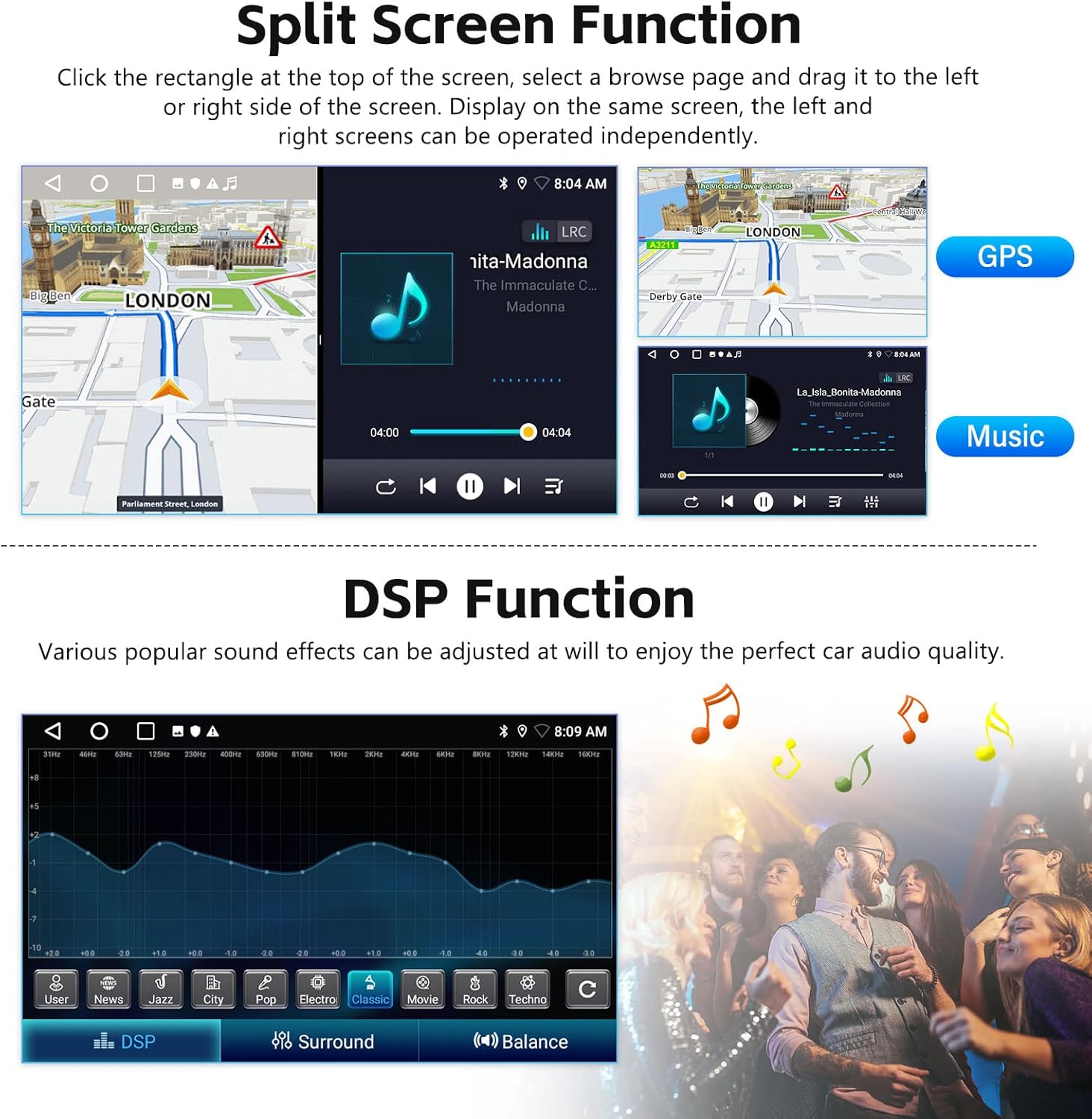
Figure 4.6: Illustration of steering wheel control integration and the reversing display with a backup camera.

Figure 4.7: Wiring diagram for connecting the backup camera.
Video 4.8: How to connect a rear view camera.
4.6. DSP Sound Effect Adjustment
The Digital Sound Processor (DSP) allows for various sound effect adjustments to optimize your car audio experience.

Figure 4.9: DSP interface for adjusting audio settings and sound balance.
4.7. Desktop Themes
The stereo offers 26 different desktop themes to customize the visual experience. Long-press on the homepage's blank space to change the theme.

Figure 4.10: Examples of the 26 available desktop themes.
5. Specifications
| Feature | Detail |
|---|---|
| Memory | 2GB (RAM) + 64GB (ROM) |
| Screen Resolution | 1024*600 |
| Power Output | 4*45W |
| Work Temperature | -20°C to 75°C |
| Radio Band | FM/RDS |
| Reversing Input | AHD/CVBS |
| Audio Format | APE/FLAC/WAV/MP3/WMA etc. |
| Video Format | MKV/RMVB/AVI/MP4/MDV etc. |
| Factory Setting Keyword | 000000 |
| Languages Supported | Chinese/English/French/Italian/Korean/Japanese/Arabic/Spanish/Portuguese/Russian/Turkish/Vietnamese/Hebrew/Polish/German |
| Picture Format | PNG/JPEG/JPG/GIF/WBMP/BNP etc. |
| Screen Size | 10.1 Inches |
| Operating System | Android |
Figure 5.1: Detailed specifications for the Android Radio and AHD Camera.
6. Troubleshooting
If you encounter any issues, please refer to the following common solutions:
- No Power: Check all power connections. Ensure the car's ignition is on. Verify fuses.
- No Sound: Check speaker connections. Ensure volume is not muted or set too low. Verify audio settings in DSP.
- Bluetooth Connection Issues: Ensure Bluetooth is enabled on both the stereo and your phone. Forget and re-pair the device. Check device visibility settings.
- CarPlay/Android Auto Not Connecting: Ensure "ZLINK5" app is open. Try both wireless (Bluetooth + WiFi) and wired (USB) connections. Check phone settings for CarPlay/Android Auto permissions.
- Rear Camera Display Issues: Verify camera connections. Check camera resolution settings in Factory Settings (Password: 000000) and ensure it's set to AHD 720/25fps.
- GPS Signal Loss: Ensure the GPS antenna is properly installed and has a clear view of the sky.
- Touchscreen Unresponsive: Try restarting the unit. If the issue persists, contact customer support.
7. Warranty and Support
Your SIXTOP Android Car Stereo comes with a 1-Year Warranty. For any technical assistance, product inquiries, or warranty claims, please contact SIXTOP customer support.
- Online Support Email: SIXTOP123@163.com
- Service Commitment: 24 Hours/7 Days Quick Response, 1-Year Replacement, Lifetime Technical Support.

Figure 7.1: SIXTOP customer support contact details.


