
1. Introduction
This manual provides detailed instructions for the installation, operation, and maintenance of your SIXTOP Android Car Stereo. Please read this manual thoroughly before using the product to ensure proper functionality and to maximize your user experience. Keep this manual for future reference.
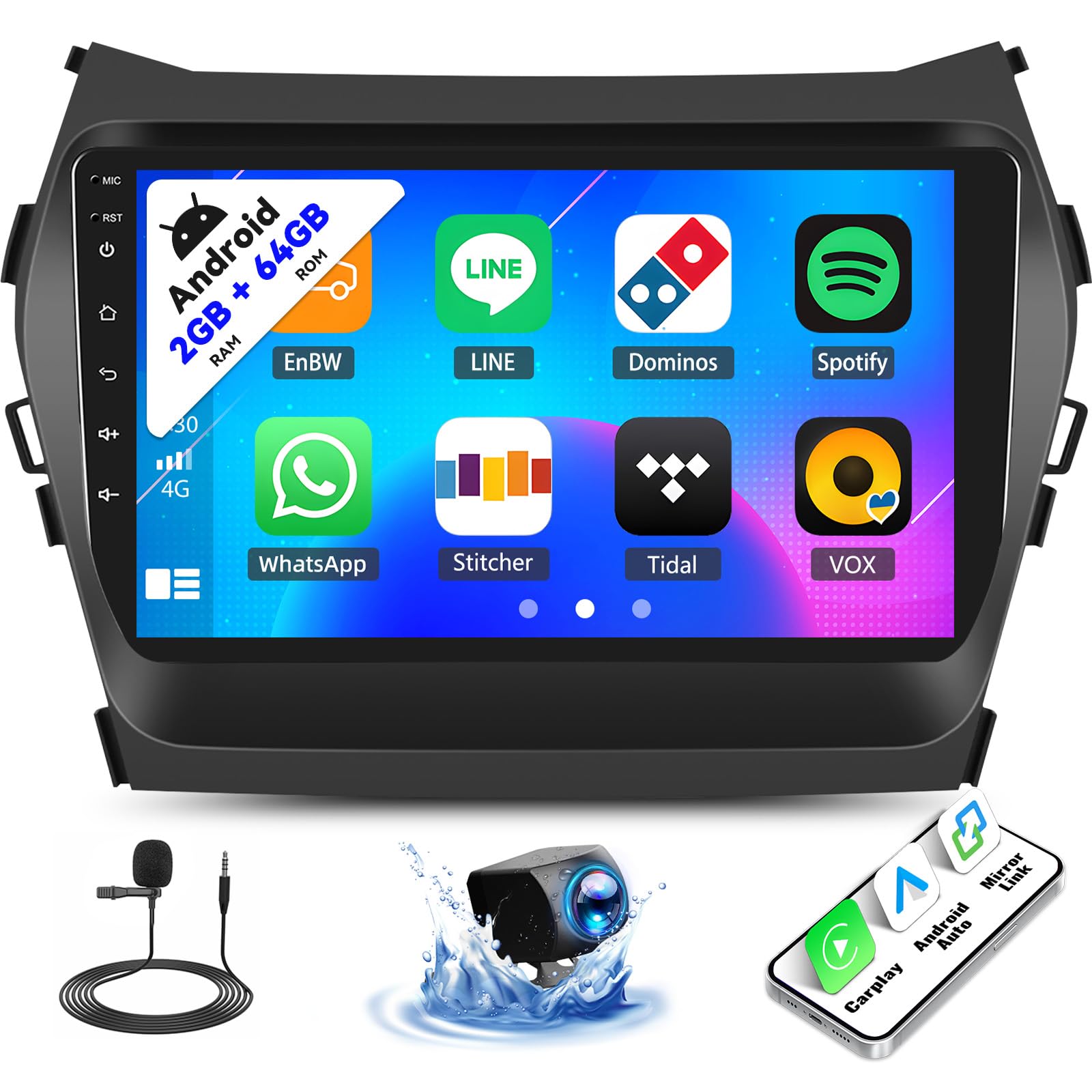
Image 1.1: Overview of the SIXTOP Android Car Stereo and included accessories.
2. Package Contents
Verify that all items listed below are included in your package:

Image 2.1: Detailed view of package contents and unit dimensions.
- Car Stereo with Frame
- Rear View Camera
- External Microphone
- Power Cable
- USB Cables
- GPS Antenna
- RCA Cables
- User Manual
- Installation Tools/Parts
3. Specifications
Key technical specifications of the SIXTOP Android Car Stereo:
| Feature | Specification |
|---|---|
| Memory | 2GB RAM + 64GB ROM |
| Screen Resolution | 1024*600 |
| Power Output | 4*45W |
| Operating Temperature | -20°C to 75°C |
| Radio Band | FM/RDS (87.5-108 MHz) |
| Reversing Input | AHD/CVBS |
| Audio Formats | APE/FLAC/WAV/MP3/WMA, etc. |
| Video Formats | MKV/RMVB/AVI/MP4/MDV, etc. |
| Supported Languages | Chinese/English/French/Italian/Korean/Japanese/Arabic/Spanish/Portuguese/Russian/Turkish/Vietnamese/Hebrew/Polish/German |
| Picture Formats | PNG/JPEG/JPG/GIF/WBMP/BMP, etc. |
| AHD Camera Effective Pixels | 1280 x 720 Pixels |
| AHD Camera TV System | NTSC / PAL Option |
4. Installation Guide
Professional installation is recommended for this car stereo system. Incorrect installation can lead to damage to the unit or your vehicle. Ensure the vehicle's power is disconnected before beginning installation.
4.1 Vehicle Compatibility
This product is designed for Hyundai Santa Fe IX45 models from 2013-2018. Please verify your car's central control panel matches the compatible design (Option A) before installation.

Image 4.1: Ensure your vehicle's dashboard matches Option A for compatibility.
4.2 Wiring Diagram
Refer to the following diagram for connecting the camera and other components. Ensure all connections are secure and correctly matched.

Image 4.2: General wiring diagram for camera and power connections.
Important: The reverse control wire on the power cord (marked as "Reverse" or "Back") should be connected to the positive pole of your car's reversing light. The black wire should be connected to GND (ground).
5. Operating Instructions
5.1 Initial Power On & Basic Navigation
After installation, turn on your vehicle's ignition. The stereo should power on automatically. The touchscreen interface allows for intuitive control. Use the side buttons for quick access to common functions like power, home, volume, and navigation.
5.2 WiFi Connection
To access online features and download applications, connect the stereo to a WiFi network.
- Go to Settings on the main menu.
- Select Network & Internet or WiFi.
- Turn on WiFi and select your desired network.
- Enter the password if prompted.

Image 5.1: WiFi connection enables access to online apps and services.
5.3 Bluetooth Pairing
Pair your smartphone via Bluetooth for hands-free calls and music streaming.
- Enable Bluetooth on your smartphone.
- On the car stereo, go to Settings and select Bluetooth.
- Search for available devices and select your phone.
- Confirm the pairing code on both devices.
5.4 Carplay & Android Auto
Synchronize your smartphone's apps, navigation, and music to the stereo.

Image 5.2: Apple Carplay and Android Auto interfaces.
- Ensure your phone's WiFi is on.
- Connect your phone via Bluetooth.
- Open the ZLINK5 application on the stereo to automatically connect.
- Alternatively, use a USB cable to connect your phone and then open the ZLINK5 app.
5.5 Mirror Link
Project your mobile phone screen onto the car stereo display.

Image 5.3: Mirror Link functionality via USB or WiFi.
- Open the ZLINK5 application.
- Switch to the Mirror Link connection option.
- Follow on-screen prompts to connect your phone.
5.6 FM/RDS Radio
Access radio stations and receive RDS information.
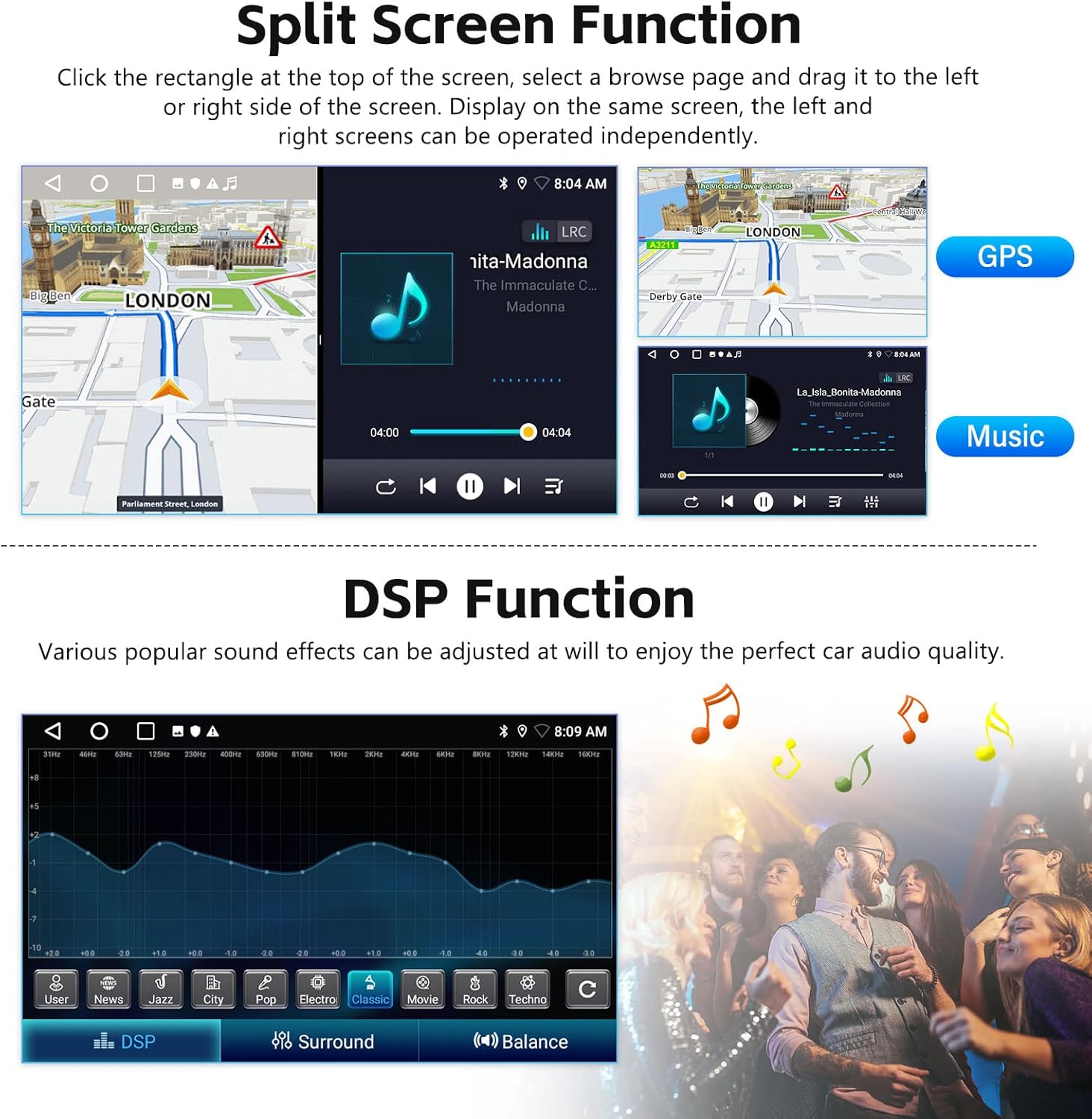
Image 5.4: FM/RDS Radio interface.
- Select the Radio application from the main menu.
- Use the scan function to find available stations or manually tune to a frequency.
- Save your favorite stations as presets.
5.7 GPS Navigation
Utilize built-in GPS for navigation.
- Open the Navigation app.
- You can download offline maps from the Play Store for use without an internet connection.
- With WiFi connected, online maps can also be used.
5.8 Split Screen Function
Operate two applications simultaneously on the screen.

Image 5.5: Split Screen functionality displaying navigation and music simultaneously.
- Click the rectangle icon at the top of the screen.
- Select an application and drag it to the left or right side of the screen.
- Choose another application for the remaining side.
5.9 DSP Function (EQ)
Adjust audio settings for optimal sound quality.
- Access the DSP or EQ settings from the main menu or audio settings.
- Customize various sound effects and equalizer presets.
5.10 Desktop Themes
Personalize your stereo's interface with different desktop themes.

Image 5.6: Examples of 26 available desktop themes.
- Long-press on a blank space on the homepage.
- Select from the available 26 desktop themes to change the visual experience.
5.11 Steering Wheel Control Function
Integrate your vehicle's steering wheel buttons for convenient control.

Image 5.7: Steering Wheel Control learning interface.
- Go to Settings and find the Steering Wheel Control or Steering Learn option.
- Follow the on-screen instructions to map your steering wheel buttons to the stereo's functions.
5.12 Reversing Display (Backup Camera)
The included waterproof night vision camera provides a clear reversing image.

Image 5.8: Reversing display with backup camera view.
- The display will automatically switch to the camera view when the vehicle is in reverse gear.
- To ensure optimal clarity, check the camera resolution in Factory Settings. Set it to AHD 720/25fps. The factory setting password is 000000.
6. Maintenance
To ensure the longevity and optimal performance of your car stereo, follow these maintenance guidelines:
- Cleaning: Use a soft, dry cloth to clean the screen and exterior. Avoid abrasive cleaners or solvents.
- Temperature: Avoid exposing the unit to extreme temperatures for extended periods.
- Software Updates: Periodically check for software updates to ensure the system runs efficiently and has the latest features.
7. Troubleshooting
If you encounter issues with your SIXTOP Android Car Stereo, refer to the following common problems and solutions:
| Problem | Possible Solution |
|---|---|
| Unit does not power on | Check power cable connections and vehicle's fuse box. Ensure proper installation. |
| No sound | Verify speaker connections. Check volume levels and mute settings. Ensure audio output mode is correct. |
| Steering wheel controls not working | Ensure the steering wheel control wires are correctly connected. Re-perform the 'Steering Learn' process in settings. If issues persist, consult a professional installer. |
| GPS signal lost or inaccurate | Ensure the GPS antenna is properly installed and has a clear view of the sky. Check GPS settings. |
| Bluetooth connection issues | Ensure Bluetooth is enabled on both devices. Delete previous pairings and re-pair. Restart both devices. |
| Touchscreen unresponsive | Restart the unit. If the problem persists, contact customer support. |
8. Warranty and Support
SIXTOP is committed to providing quality products and customer satisfaction.
- Warranty: This product includes a 1-year replacement warranty from the date of purchase.
- Technical Support: Lifetime technical support is available for all SIXTOP products.
- Contact Support: For any questions, technical assistance, or warranty claims, please contact us via email at SIXTOP123@163.com. Our support team aims for a 24-hour/7-day quick response.


