
1. Introduction
The MiLi MiTag Bluetooth Tracker is a Google Certified location tracker designed to help you easily find your belongings. It integrates with the Google Find My Device (Find Hub) app on Android phones (Android 9 or higher). Attach it to keys, bags, luggage, or any item you want to keep track of.

Image: Four black MiLi MiTag Bluetooth trackers, showcasing the compact, circular design with a small hole for attachment.
2. Setup Guide
2.1 Initial Requirements
- Ensure your Android phone is running Android 9 or higher.
- Download the latest version of the Google Find My Device app from the Google Play Store.
- Enable Bluetooth and Location services on your Android phone.
2.2 Fast Pair Setup
The MiTag supports Fast Pair for quick setup:
- Press the power button on your MiTag once to turn it on.
- Place the MiTag near your Android phone. A pop-up notification will appear on your phone.
- Tap 'Connect' on the pop-up.
- Follow the on-screen instructions and tap 'Agree and continue' to complete the pairing process.
Video: Official MiLi NA video demonstrating how to set up the MiTag with an Android device using the Google Find My Device app.

Image: A graphic illustrating that MiLi MiTag is an official Google Authorized Listing, compatible with various Android phone brands like Samsung, Google, Oppo, Vivo, and Xiaomi. Note: Apple and Huawei devices are not supported.
2.3 Manual Setup (if Fast Pair pop-up doesn't appear)
- Open your phone's 'Settings' app.
- Navigate to 'Google' settings.
- Tap on 'All services' (or similar, depending on your Android version).
- Select 'Connected devices & sharing' and then 'Devices'.
- Ensure 'Scan for nearby devices' is enabled. Your MiTag should appear under 'Available devices nearby'.
- Tap on 'MiTag' and follow the on-screen prompts to complete the setup.
3. Operating the MiTag
Once paired, you can manage your MiTag through the Google Find My Device app.
3.1 Finding Nearby Items
Within Bluetooth range (up to 150m/500ft), you can use the app to locate your MiTag. The app provides visual hints as you approach the device, with a ripple pattern indicating distance.

Image: A diagram illustrating the precise proximity finding feature, showing how the MiTag emits sound and the app displays a ripple pattern to indicate distance (up to 1m when very close, up to 80m when farther away).
3.2 Playing Sound
To quickly locate an item within range, activate the sound feature. The MiTag will ring loudly to help you pinpoint its exact location.

Image: A hand holding a MiLi MiTag, with a phone screen showing the Google Find My Device app indicating 'Playing sound...' to help locate the item.
3.3 Remote Location Updates
Even if your MiTag is out of Bluetooth range, its location will be updated as long as it's within the Google Find My network (surrounded by other Android devices). This allows for global tracking of your items.
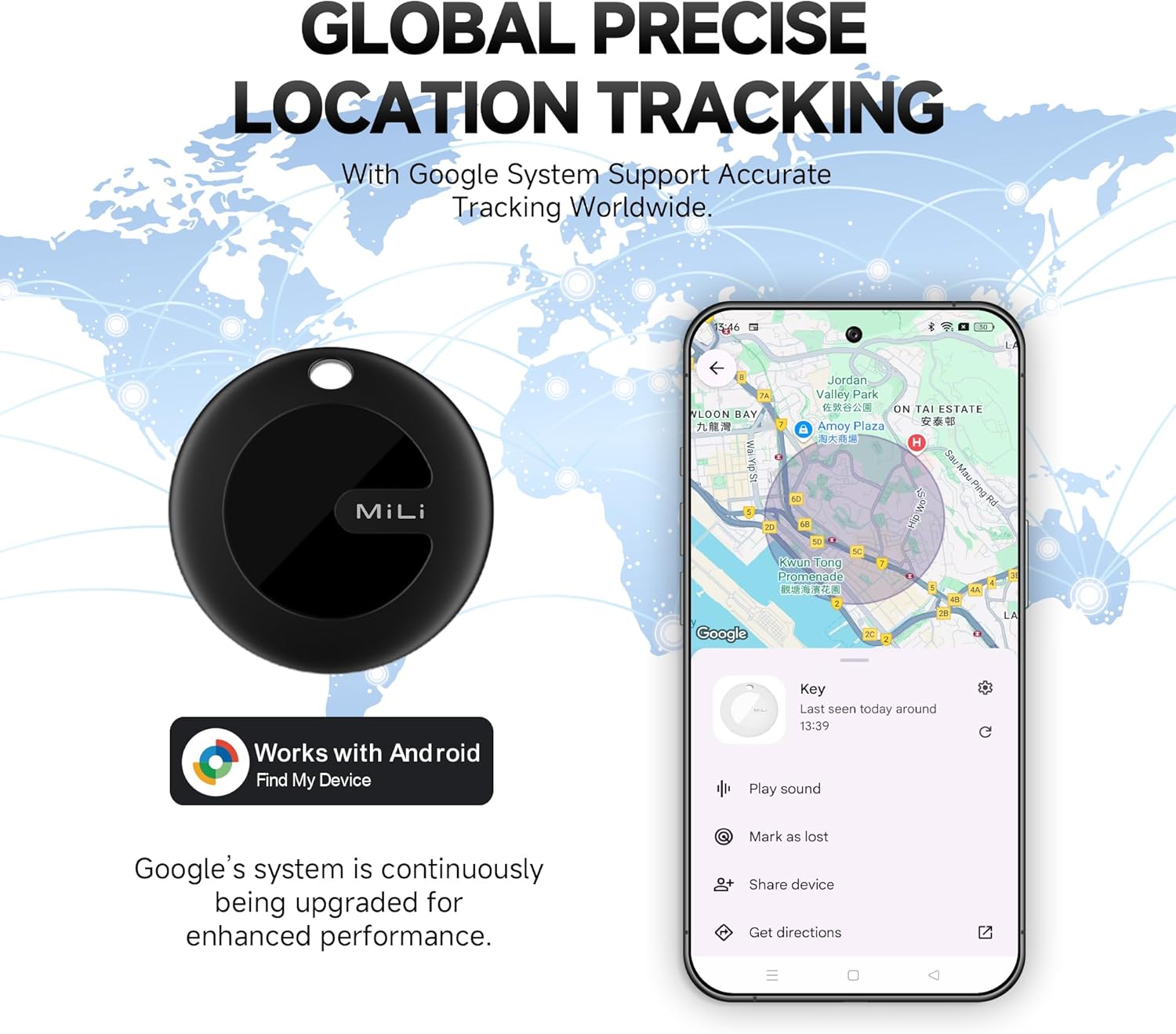
Image: A MiLi MiTag placed on a map, with a phone screen displaying the Google Find My Device app showing the tracker's global location. The image emphasizes that Google's system continuously upgrades for enhanced performance.
Video: Official MiLi NA video titled "MiTag Android - Don't Search. Just Find.", showcasing the ease of locating items with the MiTag and Google Find My Device app.
3.4 Sharing Device
You can share the location of your MiTag with trusted individuals, allowing multiple phones to track the same MiTag.

Image: Two hands holding smartphones, both displaying the Google Find My Device app tracking the same MiLi MiTag, demonstrating the device sharing feature.
4. Maintenance
4.1 Battery Replacement
The MiTag uses a replaceable CR2032 battery. The battery typically lasts for 6-8 months depending on usage. To replace, gently twist the back cover of the MiTag, remove the old battery, and insert a new CR2032 battery with the positive side facing up. Close the cover securely.
4.2 Waterproof Rating
The MiTag has an IP67 waterproof rating, meaning it is protected from dust and can withstand immersion in water up to 1 meter (3 feet) for up to 30 minutes. It is resistant to splashes and rain, making it suitable for various environments.
Video: Official MiLi NA video titled "Keep Everything Safe with Google Certified MiTag Android", demonstrating the MiTag's durability and waterproof capabilities.
5. Troubleshooting
5.1 Device Not Connecting or Updating Location
- Ensure Bluetooth and Location services are enabled on your phone.
- Verify that the Google Find My Device app is updated to the latest version.
- Try restarting your phone and the MiTag (turn off and on).
- Ensure the MiTag is within Bluetooth range of your phone or other Android devices in the Find My network.
5.2 Sound is Too Quiet
- Ensure there are no obstructions covering the MiTag's speaker.
- Check the battery level in the Google Find My Device app. A low battery might affect sound volume.
5.3 Accidental Power Off
The MiTag can be accidentally turned off if the button is pressed for 5 seconds. Be mindful of where the MiTag is placed, especially in tight spaces like pockets or bags, to prevent unintended power-offs.
6. Specifications
| Feature | Detail |
|---|---|
| Product Dimensions | 1.46 x 1.46 x 0.35 inches (37mm x 37mm x 9mm) |
| Item Weight | 0.882 ounces |
| Model Number | HD-P16-AD4 |
| Batteries | 1 CR2032 battery required (included) |
| Connectivity | Bluetooth |
| Waterproof Rating | IP67 |
| Material | Polycarbonate (PC), Acrylonitrile Butadiene Styrene (ABS) |
| Country of Origin | China |
7. Warranty and Support
MiLi offers a risk-free policy. Refunds or replacements are available even if you have passed the standard return window. For any difficulties or troubleshooting assistance, please contact the MiLi Support Team directly.


