
NIMO Nimo N153
NIMO 15.6" FHD IPS Business Gaming Laptop User Manual
Model: Nimo N153
Introduction
This manual provides essential information for the setup, operation, and maintenance of your NIMO 15.6" FHD IPS Business Gaming Laptop. Designed for both productivity and light gaming, this laptop features an AMD Ryzen 5 6600H processor, 32GB DDR5 RAM, and a 1TB PCIe SSD, ensuring fast performance and ample storage. Please read this manual thoroughly to ensure proper use and longevity of your device.
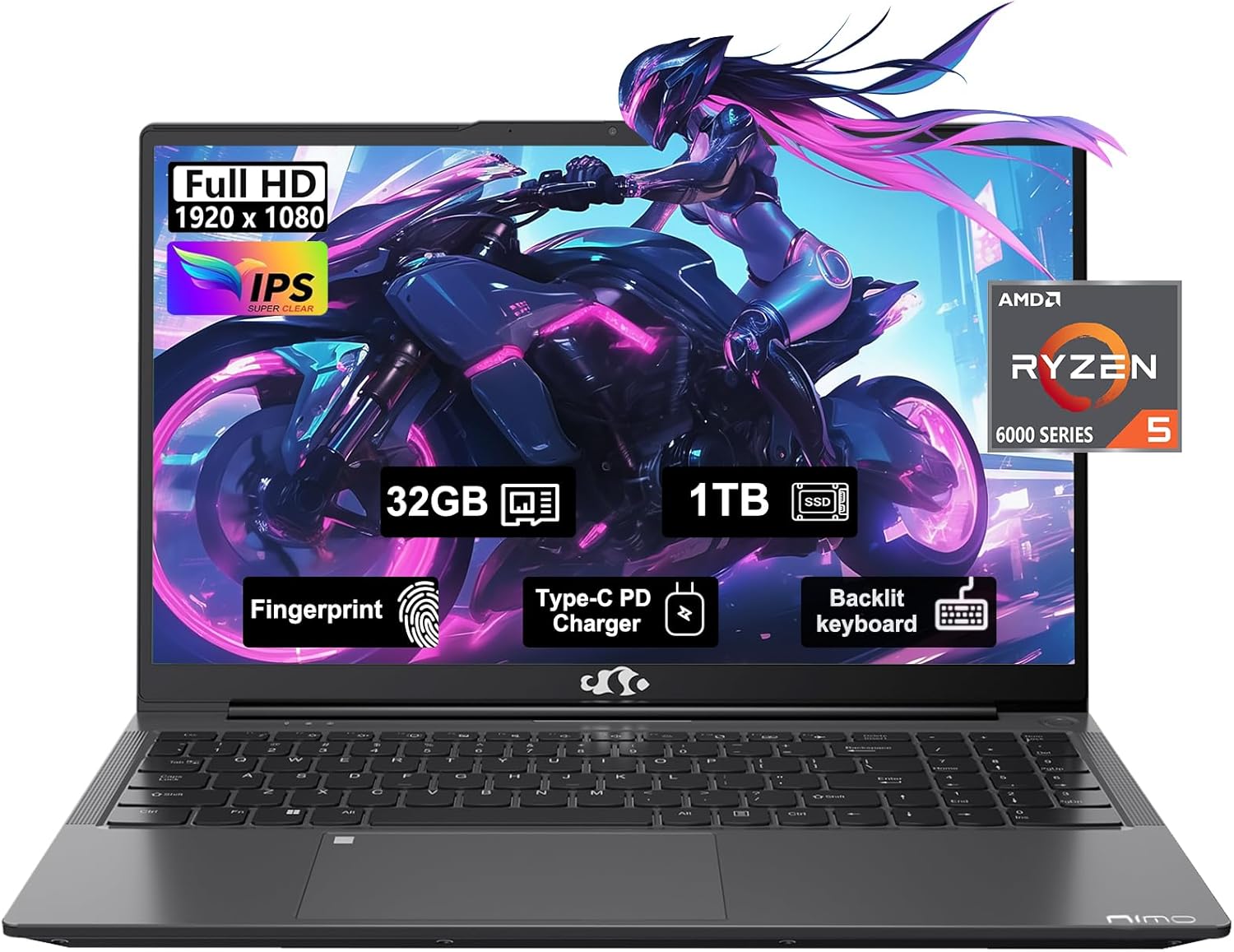
Figure 1: NIMO 15.6" FHD IPS Business Gaming Laptop overview.
Setup
1. Unboxing and Initial Inspection
Carefully remove all components from the packaging. The box should contain:
- 1 x Nimo N153 Laptop
- 1 x Type-C 100W PD Fast Charger
- 1 x User Manual
Inspect the laptop and accessories for any signs of damage. If any components are missing or damaged, contact customer support immediately.
2. Initial Power On and Charging
Before first use, it is recommended to fully charge the laptop.
- Connect the Type-C 100W PD Fast Charger to the laptop's Type-C port (Multifunction) and to a power outlet.
- The charge LED indicator will illuminate. Allow the laptop to charge until the LED indicates a full charge.
- Press the power button to turn on the laptop.

Figure 2: Connecting the Type-C 100W PD Fast Charger.
3. Operating System Setup (Windows 11)
Follow the on-screen prompts to complete the initial setup of Windows 11. This typically includes:
- Selecting your region and keyboard layout.
- Connecting to a Wi-Fi network.
- Signing in with or creating a Microsoft account.
- Setting up a PIN or password.
- Configuring privacy settings.
Operating Your Laptop
1. Keyboard and Touchpad
The NIMO laptop features a full-size backlit keyboard and a large touchpad for comfortable and efficient input.
- Backlit Keyboard: Use the function keys (Fn + F-key combination, typically F3 or F4) to adjust keyboard backlight brightness.
- Touchpad: Supports multi-touch gestures for navigation. Refer to Windows settings for customization.
- Fingerprint Reader: Located on the touchpad, allows for secure login via Windows Hello.

Figure 3: Laptop keyboard layout with backlit keys and integrated fingerprint reader.
2. Ports and Connectivity
Your NIMO laptop is equipped with various ports for versatile connectivity:
- USB 2.0 Ports: 1 port for connecting peripherals.
- USB 3.0 Ports: 2 ports for high-speed data transfer.
- Type-C Ports (Multifunction): 2 ports supporting power delivery (PD) and data.
- HDMI Port: For connecting to external displays.
- Headphone Jack: For audio output.
- Micro SD Card Slot: For expanding storage or transferring data from memory cards.
- Kensington Lock Slot: For physical security.
- Wireless Connectivity: Supports Wi-Fi 802.11a/b/g/n/ac and Bluetooth 5.2.

Figure 4: Overview of laptop ports for various connections.
3. Display
The laptop features a 15.6" FHD IPS (1920x1080) Anti-Glare Display with an 85% screen-to-body ratio. This display is designed to provide clear visuals and reduce eye strain during extended use.

Figure 5: The 15.6-inch Full HD IPS display.
4. Performance
Powered by an AMD Ryzen 5 6600H processor (6 Cores, 12 Threads, up to 4.5 GHz) and 32GB DDR5 RAM, the laptop delivers robust performance for business tasks, content creation, and light gaming. The integrated AMD Radeon 660M GPU handles graphics processing efficiently.

Figure 6: AMD Ryzen 5 6600H processor, central to the laptop's performance.
The 1TB PCIe SSD provides fast boot times and rapid data access, enhancing overall system responsiveness.
Maintenance
1. Cleaning Your Laptop
- Use a soft, lint-free cloth slightly dampened with water or a screen cleaner to clean the display.
- For the keyboard and chassis, use a soft cloth. Avoid harsh chemicals or abrasive materials.
- Use compressed air to clear dust from vents and ports periodically.
2. Software Updates
Regularly check for and install Windows updates and driver updates to ensure optimal performance and security.
- Go to Settings > Windows Update to check for OS updates.
- Visit the NIMO support website for the latest driver updates.
3. Storage Management
To maintain performance, regularly manage your 1TB SSD storage:
- Delete unnecessary files and applications.
- Utilize cloud storage for large files.
- Periodically run Disk Cleanup (built-in Windows tool).
4. Battery Care
To maximize battery lifespan:
- Avoid extreme temperatures.
- Do not leave the laptop plugged in at 100% charge for extended periods if not in use.
- Calibrate the battery occasionally by fully discharging and recharging it.
5. Memory and Storage Upgrades
The NIMO laptop supports dual-channel memory upgrades (up to 2 x 16GB DDR5 RAM) and features an upgradable PCIe SSD. Consult a qualified technician for hardware upgrades to avoid voiding your warranty.
Troubleshooting
This section addresses common issues you might encounter.
Laptop Does Not Power On
- Ensure the charger is securely connected to both the laptop and a working power outlet.
- Verify the power outlet is functional by plugging in another device.
- Try holding the power button for 15-20 seconds to perform a hard reset.
- If the battery is completely drained, allow it to charge for at least 30 minutes before attempting to power on.
Screen Remains Blank
- Check if the laptop is powered on (listen for fan noise or look for indicator lights).
- Connect an external monitor via the HDMI port to check if the display output works.
- Restart the laptop.
Slow Performance
- Close unnecessary applications running in the background.
- Check for and install any pending Windows updates.
- Ensure there is sufficient free space on your SSD.
- Run a virus scan.
Wi-Fi Connectivity Issues
- Ensure Wi-Fi is enabled in Windows settings.
- Restart your router and modem.
- Update your wireless network adapter drivers.
- Forget the network and reconnect.
For issues not covered here, please refer to the Warranty and Support section for contact information.
Specifications
| Feature | Detail |
|---|---|
| Brand | NIMO |
| Model Name | Nimo N153G |
| Screen Size | 15.6 Inches |
| Screen Resolution | 1920 x 1080 pixels (FHD IPS Anti-Glare) |
| Processor | AMD Ryzen 5 6600H (6 Cores, 12 Threads, up to 4.5 GHz) |
| RAM | 32GB DDR5 (Dual-channel, upgradable to 2x16GB) |
| Hard Drive | 1TB PCIe SSD |
| Graphics Coprocessor | AMD Integrated graphics (Radeon 660M GPU) |
| Operating System | Windows 11 |
| Wireless Type | 802.11a/b/g/n/ac (Wi-Fi 5), Bluetooth 5.2 |
| Ports | 1x USB 2.0, 2x USB 3.0, 2x Type-C (Multifunction), 1x HDMI, 1x Headphone Jack, 1x Micro SD Slot |
| Special Features | Fingerprint Reader, HD Audio, Backlit Keyboard, Numeric Keypad |
| Power Source | Battery Powered, Type-C 100W PD Fast Charger |
| Average Battery Life | 5 Hours |
| Item Weight | 6 pounds |
| Product Dimensions | 14.07 x 8.98 x 0.76 inches |
| Color | Space Gray |
Warranty and Support
Manufacturer's Warranty
Your NIMO laptop is covered by a comprehensive 2-Year Manufacturer's Warranty offered by Nimo Direct Inc. This warranty covers defects in materials and workmanship under normal use.
Additionally, Nimo Direct Inc. offers 90-Day Hassle-Free Returns. If you encounter any concerns or issues with your product within this period, please contact customer support for assistance with resolution or replacement.
Contact Support
For technical assistance, warranty claims, or return inquiries, please contact NIMO customer support. Refer to the contact information provided on the official NIMO website or the documentation included with your product.
Please have your product model number (Nimo N153) and purchase details ready when contacting support.
Related documentsNimo N153


Ask a question about this manual
Ask about setup, troubleshooting, compatibility, parts, safety, or missing instructions. Manuals+ will review the question and use this page’s manual context to help answer it.