
ROATEE AC0501
ROATEE Scientific Calculator AC0501 Instruction Manual
Model: AC0501
Introduction
Thank you for choosing the ROATEE Scientific Calculator AC0501. This manual provides essential information for the proper setup, operation, maintenance, and troubleshooting of your calculator. Please read it thoroughly to ensure optimal performance and longevity of your device.
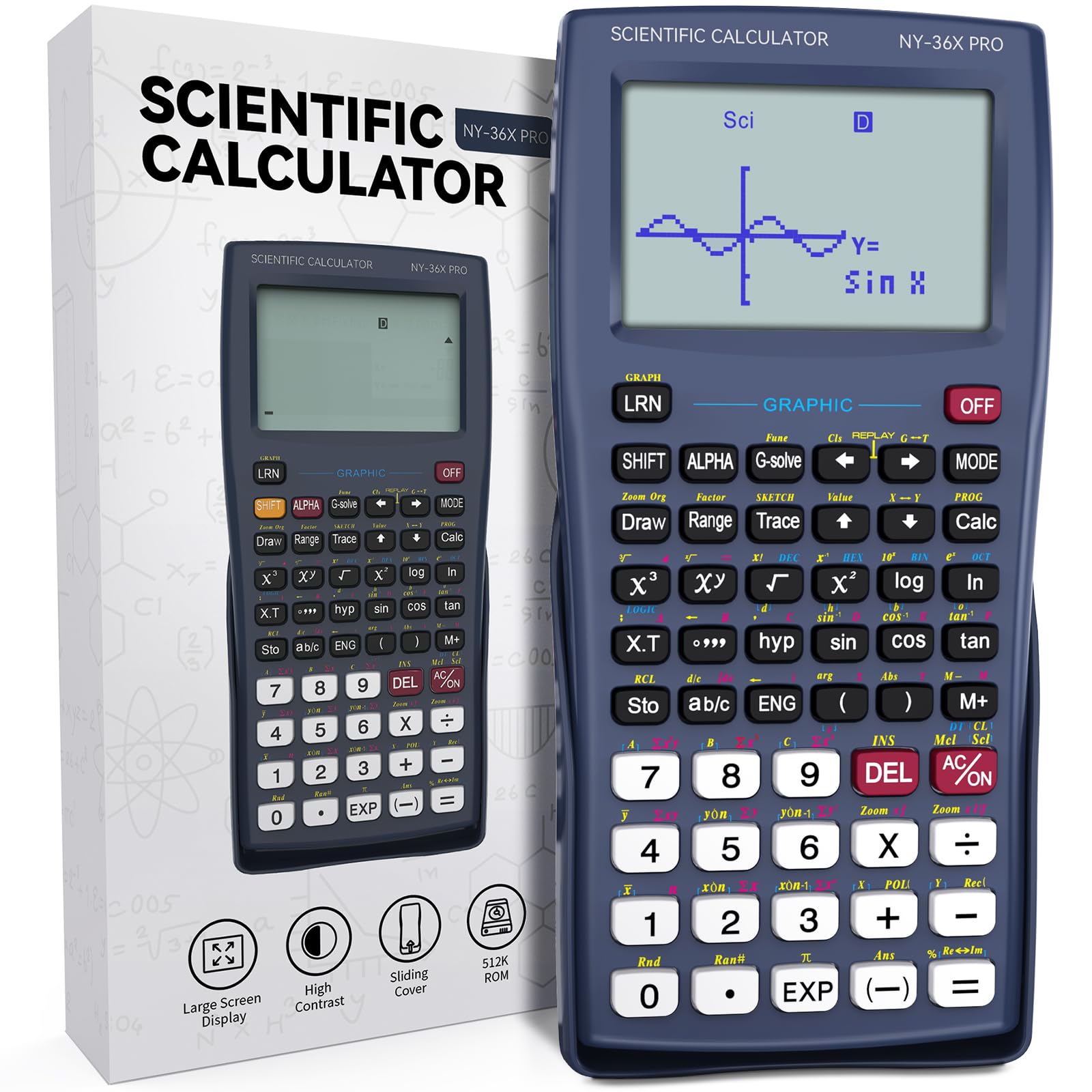
Image: The ROATEE Scientific Calculator AC0501, a versatile tool for various academic and professional calculations.
Setup
Battery Installation
The ROATEE AC0501 calculator requires one CR5 battery for operation. The battery compartment is typically located on the back of the device. To install or replace the battery:
- Gently slide open the battery compartment cover on the back of the calculator.
- Insert one CR5 battery, ensuring the correct polarity (+/-) as indicated inside the compartment.
- Close the battery compartment cover securely.
Note: Some units may have two battery slots, but only one CR5 battery is required for full functionality. If the calculator does not power on, ensure the battery is correctly installed and charged.
Initial Power On
Press the ON button to power on the calculator. The display should illuminate. If the display remains blank, check the battery installation.
Operating Instructions
The ROATEE AC0501 offers a wide range of functions for various mathematical and scientific tasks. Familiarize yourself with the key layout and function modes.
Calculation Modes and Display Settings

Image: The calculator display illustrating different angular measurement modes, calculation modes, and display modes.
The calculator supports multiple modes to suit different calculation needs:
- Angular Measurement Modes: Select between Degrees, Radians, or Grades for trigonometric calculations.
- Calculation Modes:
- COMP: General computation mode.
- COMPLEX: For complex number calculations.
- SD: Standard Deviation for statistical analysis.
- REG: Regression analysis.
- BASE-N: Base-N calculations (binary, octal, decimal, hexadecimal).
- Display Modes: Adjust how results are shown.
- Normal: Standard display.
- Fixed Decimals: Specify a fixed number of decimal places.
- Significant Digits: Control the number of significant figures.
Functions Overview

Image: The calculator screen showing an overview of graphing and special functions available.
1. Graphing Functions
- Overdrawing Built-in Function Graphs
- Specifying Range Parameters
- Generation of Function Graphs
- Generation of Parametric Graphs
- Graph Overdraw
- Zoom Function
- Trace Function
- Draw Operations
- Graph Scroll
- Graph Change
- Graph Solving
2. Special Functions
- Answer Function
- Omitting the Multiplication Sign
- Continuous Calculation Function
- Replay Function
- Error Position Display Function
- Multistatement Function

Image: The calculator screen showing an overview of advanced scientific functions.
3. Scientific Functions
- Trigonometric Functions & Inverse Trigonometric Functions
- Logarithmic & Exponential Functions
- Performing Hyperbolic & Inverse Hyperbolic Functions
- Coordinate Transformation
- Other Functions (y, x², x!, 3N, Ran#)
- Fractions, Degree, Minute, Second Calculation
- Binary, Octal, Decimal, Hexadecimal Calculations & Conversions
- Negative Expressions
- Logical Operations
- Standard Deviation
- Regression Calculation
- Numerical Integration
- Formula Memory Function
- Complex Number Calculation
- Previous Calculation Recall
Integrated Writing Tablet

Image: The ROATEE Scientific Calculator AC0501 featuring its integrated writing tablet, ideal for jotting down notes or calculations.
The AC0501 includes an integrated writing tablet for convenient note-taking or sketching during calculations. Use the provided stylus to write on the tablet. To clear the tablet, press the dedicated clear button.
Maintenance
Cleaning
To clean your calculator, use a soft, dry cloth. For stubborn dirt, slightly dampen the cloth with water and wipe gently. Avoid using harsh chemicals, abrasive cleaners, or solvents, as these can damage the calculator's surface and display.
Storage
Store the calculator in a cool, dry place away from direct sunlight and extreme temperatures. If storing for an extended period, it is advisable to remove the battery to prevent leakage.

Image: The ROATEE Scientific Calculator AC0501, highlighting its compact dimensions and protective design for durability.
The calculator is designed with all-round protection, making it dustproof and shockproof. However, proper care and storage will extend its lifespan.
Troubleshooting
| Problem | Possible Cause | Solution |
|---|---|---|
| Calculator does not power on. | Battery is dead or incorrectly installed. | Check battery installation and replace with a new CR5 battery if necessary. Ensure correct polarity. |
| Display is blank or dim. | Low battery or contrast setting is too low. | Replace the battery. Adjust display contrast if available in settings. |
| Incorrect calculation results. | Incorrect mode selected (e.g., wrong angular unit), input error, or previous calculation data interfering. | Verify the selected mode (Degrees, Radians, Grades). Clear all memory and reset the calculator if needed. Double-check input values. |
| Writing tablet not responding. | Stylus not making proper contact or tablet needs reset. | Ensure you are using the provided stylus. Press the clear button on the tablet to reset it. |
Specifications

Image: Close-up of the ROATEE Scientific Calculator AC0501's large 3-inch LCD screen, designed for clear multi-line display.
- Brand: ROATEE
- Model Name: AC0501
- Calculator Type: Graphing Scientific
- Screen Size: 6.2 Centimeters (approximately 3 inches)
- Display Type: LCD
- Power Source: Battery Powered (1 CR5 battery included)
- Material: Plastic
- Product Dimensions: 17.3L x 8.4W Centimeters
- Color: AC0501 (referring to the model's standard color)
Warranty and Support
For warranty information, please refer to the documentation provided with your purchase or contact the retailer. For technical support or inquiries, please reach out to the ROATEE customer service or the seller from whom you purchased the product.
Related documentsAC0501


Ask a question about this manual
Ask about setup, troubleshooting, compatibility, parts, safety, or missing instructions. Manuals+ will review the question and use this page’s manual context to help answer it.