
Introduction
This manual provides detailed instructions for the setup, operation, maintenance, and troubleshooting of your MageGee V550 Wireless Gaming Keyboard and Mouse Combo. Please read this manual thoroughly before using the product to ensure optimal performance and longevity.
Setup
2.4GHz Wireless Connection
The MageGee V550 keyboard and mouse utilize a 2.4GHz wireless connection for stable and reliable performance. No drivers are required for installation; it is a plug-and-play device.

Image: The MageGee V550 keyboard and mouse connected via a single USB receiver, highlighting the 2.4G wireless technology and 33ft connection distance.
- Locate the USB Receiver: The shared USB receiver for both the keyboard and mouse is conveniently stored in a slot on the bottom of the mouse.
- Connect to Computer: Plug the USB receiver into an available USB port on your computer.
- Power On Devices: Turn on the power switches for both the keyboard and the mouse. These switches are located on the bottom of each device.
- Verify Connection: The devices should connect automatically. If they do not function properly, ensure both power switches are in the 'ON' position.
Charging the Device
Both the keyboard and mouse are rechargeable via the included USB Type-C cable, eliminating the need for frequent battery replacements.
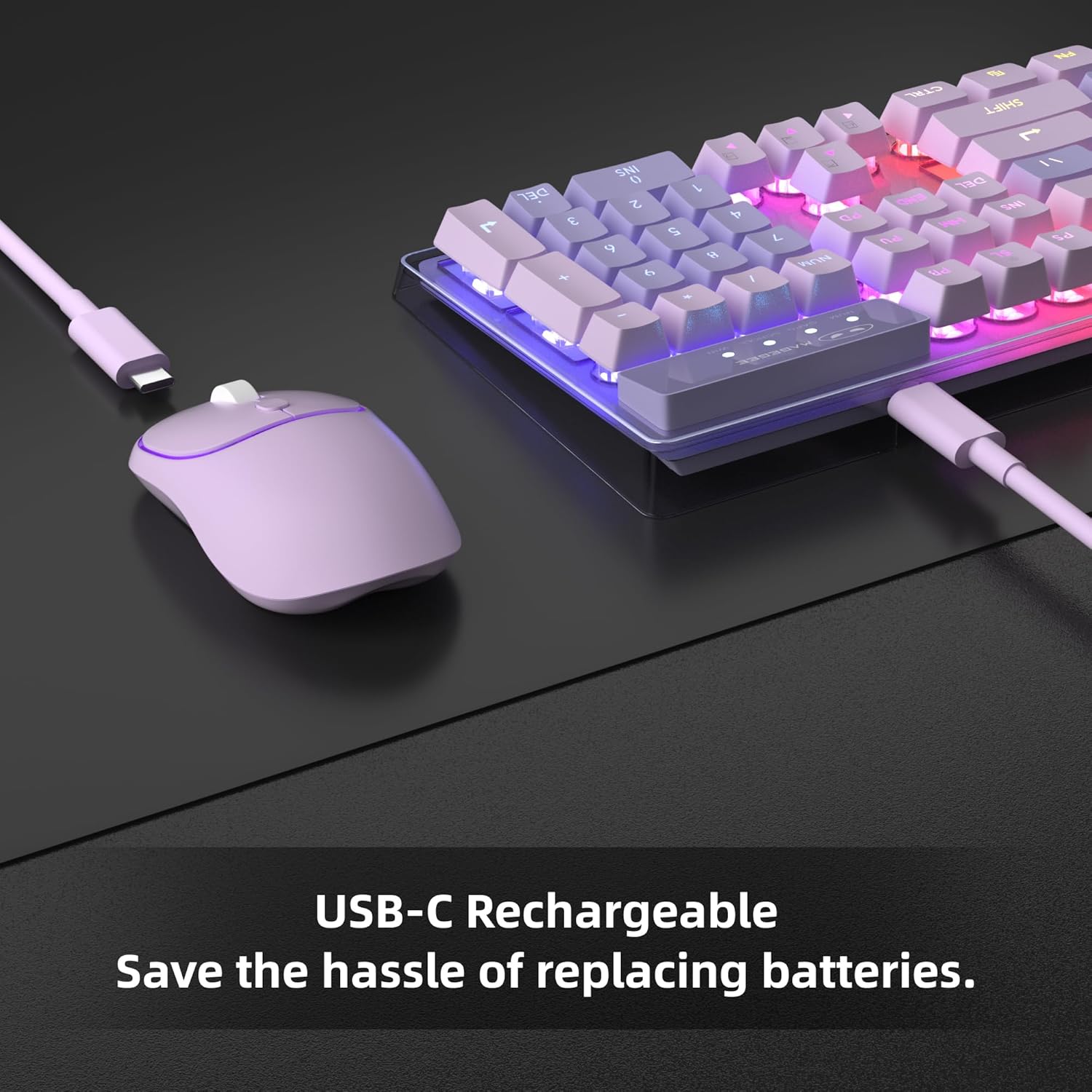
Image: The MageGee V550 keyboard and mouse being charged via USB-C cables, emphasizing the rechargeable feature.
- Connect Cable: For charging, connect the included USB Type-C cable to the charging port on the keyboard first.
- Plug into Power Source: Then, plug the other end of the USB cable into a computer USB port or a compatible USB wall adapter.
- Ensure Full Insertion: Make sure the USB cable is fully inserted into the charging port.
- Power Saving: The devices feature an auto-sleep mode to conserve power. They can be woken up by clicking any key.
Operating Instructions
Dynamic RGB Backlight
The V550 keyboard and mouse feature dynamic RGB backlighting for an enhanced user experience.

Image: The MageGee V550 keyboard displaying various RGB backlight modes, with a list of features including 5 light modes, 8 colors, adjustable speed/brightness, and on/off function.
- Keyboard Lighting: The keyboard offers 5 light modes, 7 solid color backlights, and 1 rainbow backlight.
- Adjustments: You can adjust 3 brightness levels and 4 light speeds.
- Visibility: The shine-through keys ensure visibility in low-light environments.
- Mouse Lighting: The wireless mouse includes a vibrant RGB light strip.
- Toggle: The backlight can be turned off at any time.
Keyboard Features
The V550 keyboard is designed for comfort and functionality.
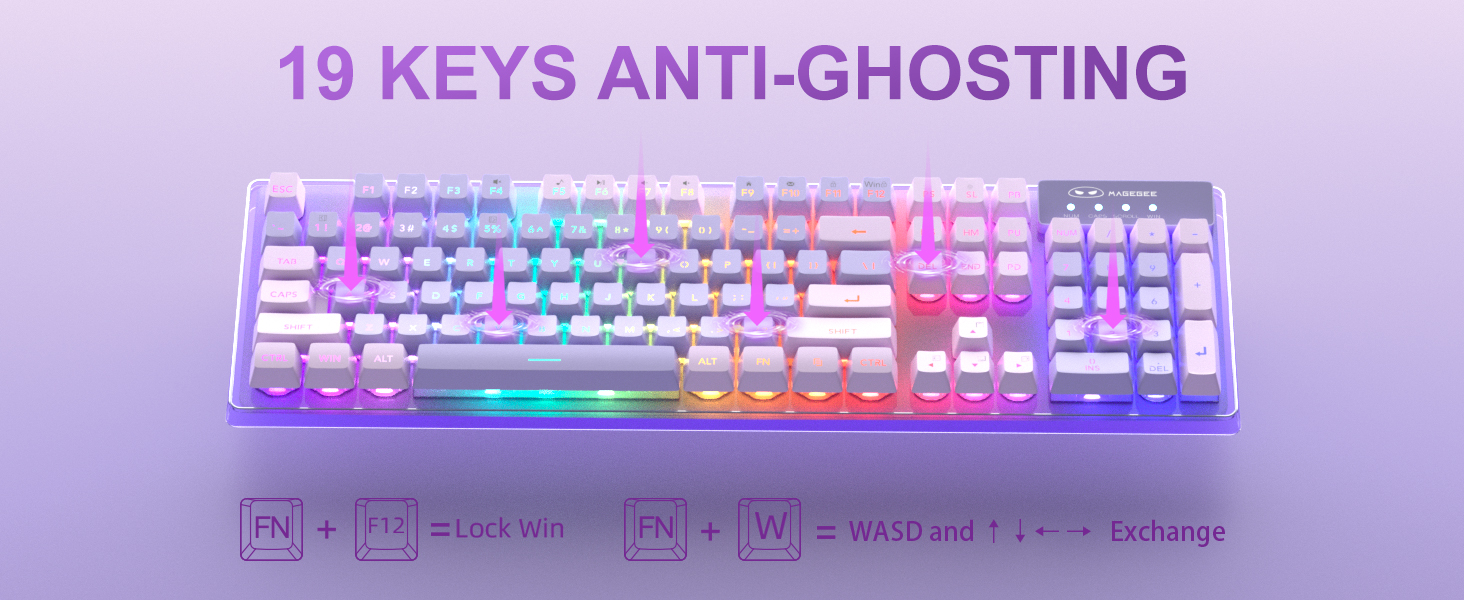
Image: The MageGee V550 keyboard highlighting the 19-key anti-ghosting feature, showing key combinations for Lock Win (FN+F12) and WASD/Arrow key exchange (FN+W).
- Full-Size Layout: A standard 104-key layout includes a number pad and 12 multimedia shortcuts.
- Keycaps: Features floating double-shot keycaps for durability and a comfortable typing feel.
- Stability: Non-slip pads on the bottom enhance typing stability.
- Anti-Ghosting: Supports 19-key anti-ghosting for accurate input during gaming.
Mouse Features
The V550 mouse is designed for precise control and quiet operation.

Image: Detailed view of the MageGee V550 mouse, showing its 4 buttons (scroll wheel, right, left, tracking speed), ergonomic design, and silent clicking feature.
- Buttons: Features 4 buttons including a scroll wheel, left button, right button, and tracking speed button.
- Tracking Speed: Adjustable tracking speed levels (1000-1200-1600 DPI).
- Ergonomics: Designed for a comfortable grip during extended use.
- Quiet Operation: Features silent clicking for a less disruptive experience.
Maintenance
Cleaning
Regular cleaning helps maintain the performance and appearance of your keyboard and mouse.
- General Cleaning: Use a soft, dry cloth to wipe down the surfaces of the keyboard and mouse.
- Keycaps: For deeper cleaning, gently remove keycaps (if applicable and designed for removal) and use compressed air to clear debris from underneath. Wipe keycaps with a slightly damp cloth and mild soap solution, then dry thoroughly before reattaching.
- Mouse Sensor: Use a cotton swab lightly dampened with rubbing alcohol to clean the optical sensor on the bottom of the mouse.
- Avoid Liquids: Do not immerse the devices in water or use excessive liquid cleaners.
Troubleshooting
Connection Issues
- No Connection: Ensure the USB receiver is securely plugged into a working USB port on your computer.
- Power Switches: Verify that the power switches on both the keyboard and mouse (located on the bottom) are turned ON.
- Battery Level: Check if the keyboard and mouse have sufficient battery charge. Recharge if necessary.
- Interference: Move the devices closer to the USB receiver or away from other wireless devices that might cause interference.
Charging Issues
- Not Charging: Ensure the USB Type-C cable is fully inserted into both the device's charging port and the power source (computer USB port or wall adapter).
- Power Source: Confirm that the computer or wall adapter providing power is turned on and functioning correctly.
- Cable Integrity: Try using a different USB Type-C cable to rule out a faulty cable.
Specifications
Detailed technical specifications for the MageGee V550 Wireless Gaming Keyboard and Mouse Combo.

Image: Technical drawing showing the dimensions of the MageGee V550 keyboard (17.13 x 5.4 x 1.34 inches) and mouse (4.45 x 2.56 x 1.42 inches).
| Feature | Detail |
|---|---|
| Brand | MageGee |
| Model Number | V550 |
| Connectivity Technology | 2.4G Wireless |
| Keyboard Layout | Full-size 104-key |
| Keyboard Backlight | Dynamic RGB (5 modes, 7 solid colors, 1 rainbow, 3 brightness, 4 speeds) |
| Mouse Tracking Speed | 1000-1200-1600 DPI |
| Special Features | Backlit, Ergonomic, Rechargeable, Transparent Base, 19-Key Anti-Ghosting |
| Compatible Devices | Laptop, Personal Computer |
| Keyboard Dimensions | 17.13 x 5.4 x 1.34 inches |
| Mouse Dimensions | 4.45 x 2.56 x 1.42 inches |
| Item Weight | 2.16 pounds (combined) |
Warranty and Support
For warranty information, technical support, or service inquiries, please refer to the contact information provided with your product packaging or visit the official MageGee website. Keep your purchase receipt as proof of purchase.

