
Martin Jerry RP-S01
Martin Jerry Smart Switch RP-S01 User Manual
Model: RP-S01
1. Introduction
Thank you for choosing the Martin Jerry 1-Channel WiFi Smart Light Switch with Energy Monitor (Model RP-S01). This smart switch is designed to integrate seamlessly into your smart home ecosystem, offering convenient control of your lighting and providing valuable energy consumption data. Compatible with popular voice assistants like Alexa and Google Home, and controllable via the SmartLife or Tuya Smart app, this device enhances your home automation experience. Please read this manual thoroughly before installation and operation to ensure proper use and safety.
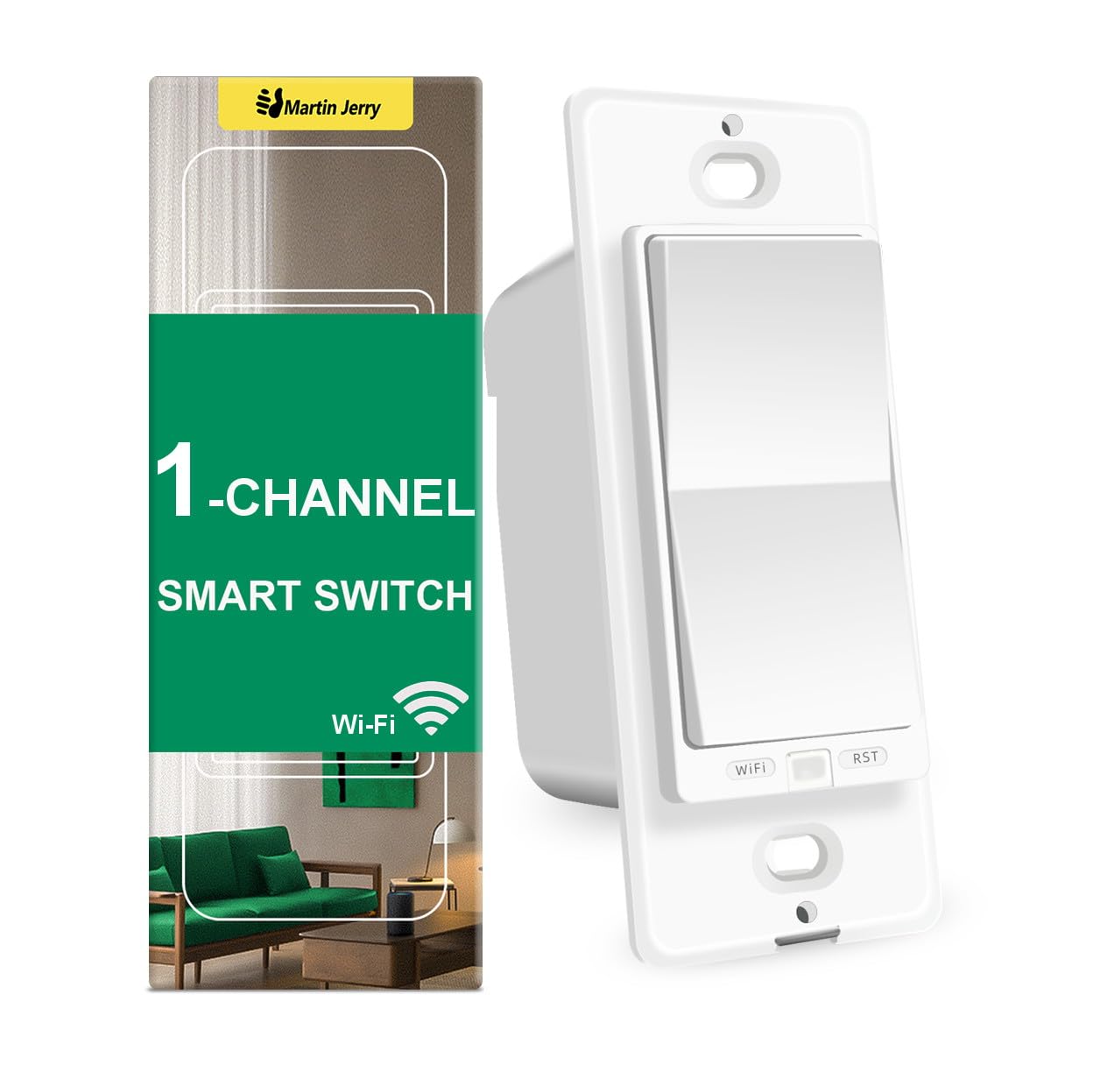
Image: The Martin Jerry Smart Switch RP-S01 alongside its product packaging, illustrating the device's design and branding.
2. Product Features
- Consistency Design: Part of the RP series, featuring a rocker paddle appearance for consistent aesthetics across various Martin Jerry smart home devices.
- Smart Home Integration: Operates on 2.4G WiFi (5G not supported) and is compatible with the free SmartLife and Tuya Smart applications.
- Voice Control: Seamlessly integrates with Amazon Alexa and Google Home for convenient voice-activated control.
- Energy Monitor: Provides power consumption monitoring, with data summarized daily and monthly, allowing for better energy management.
- Single Pole Operation: Designed for single pole installations (not a 3-way smart switch).
- Neutral Wire Required: Requires a neutral wire for installation.
- Electrical Specifications: Supports 100-240V, 15A (Max), 50/60Hz.
- Standard Fit: Designed to fit standard switch plates (1-Gang, 2-Gang, etc.).
- ON/OFF Functionality: Functions as an ON/OFF relay smart switch for lights (not a smart dimmer switch).
3. Package Contents
Upon opening the package, please verify that all components are present and undamaged. The standard package includes:
- Martin Jerry Smart Switch RP-S01
- Mounting Screws
- Washers
- Wire Nuts (typically 4 provided for line, load, neutral, ground connections)
4. Safety Information
WARNING: RISK OF ELECTRIC SHOCK. Improper installation can be dangerous or illegal. Always consult a qualified electrician if you are unsure about any part of the installation process.
- Turn Off Power: Before beginning any electrical work, always turn off power at the circuit breaker or fuse box. Verify that power is off using a voltage tester.
- Neutral Wire Required: This smart switch requires a neutral wire for operation. If your switch box does not have a neutral wire, this device is not compatible.
- Indoor Use Only: This device is intended for indoor use in dry locations only.
- Operating Voltage: Ensure your electrical system operates within the specified voltage range of 100-240V AC.
- Load Capacity: Do not exceed the maximum current rating of 15 Amps.
- Not a Dimmer: This is an ON/OFF switch and is not designed for dimming functions. Do not connect to dimmable light fixtures if you intend to dim them.
5. Setup and Installation
Installation of the Martin Jerry Smart Switch RP-S01 requires basic electrical knowledge. If you are uncomfortable with electrical wiring, please seek professional assistance.
5.1 Pre-Installation Checklist
- Confirm you have a neutral wire in your switch box. (Typically white wire, not connected to the existing switch).
- Ensure your home WiFi network is 2.4GHz. This switch does not support 5GHz WiFi.
- Download the "SmartLife" or "Tuya Smart" app from your mobile device's app store.

Image: Visual representation of basic installation requirements: a neutral wire is necessary, 2.4G WiFi is supported (not 5G), 100-240VAC compatibility, and single pole operation.
5.2 Wiring Instructions
- Turn Off Power: Locate the circuit breaker controlling the switch you are replacing and turn it OFF. Verify power is off at the switch location using a voltage tester.
- Remove Old Switch: Carefully remove the existing wall plate and unscrew the old switch from the wall box. Disconnect the wires from the old switch, noting which wire was connected to which terminal (Line, Load, Neutral, Ground).
- Identify Wires:
- Line (Live) Wire: Usually black, carries power from the circuit breaker.
- Load Wire: Usually black, carries power to the light fixture.
- Neutral Wire: Usually white, completes the circuit. (Required for this switch).
- Ground Wire: Usually green or bare copper, for safety.
- Connect New Switch: Use the provided wire nuts to connect the Martin Jerry Smart Switch RP-S01 wires to your home's wiring:
- Connect the Line wire from the wall box to the Line wire of the smart switch.
- Connect the Load wire from the wall box to the Load wire of the smart switch.
- Connect the Neutral wire from the wall box to the Neutral wire of the smart switch.
- Connect the Ground wire from the wall box to the Ground wire of the smart switch.
- Mount Switch: Carefully fold the wires and push the smart switch into the wall box. Secure it with the provided screws.
- Install Wall Plate: Attach your standard wall plate (not included) over the switch.
- Restore Power: Turn the power back ON at the circuit breaker.

Image: A simplified diagram illustrating the connection of Line, Load, Neutral, and Ground wires to the smart switch using wire nuts.
5.3 App Pairing
- Ensure the smart switch is powered on. The WiFi indicator light on the switch should be blinking.
- If the WiFi indicator is not blinking rapidly, press and hold the WiFi button on the switch for a few seconds until it starts blinking rapidly. This puts the switch into pairing mode.
- Open the "SmartLife" or "Tuya Smart" app on your mobile device.
- Tap the "+" icon (usually in the top right corner) to add a device.
- Select "Electrical" or "Switch (Wi-Fi)" from the device list.
- Follow the on-screen instructions in the app to connect the switch to your 2.4GHz WiFi network. You will need to enter your WiFi password.
- Once connected, the WiFi indicator light on the switch will stop blinking and remain solid. You can now rename your switch in the app for easy identification.
6. Operating the Smart Switch
6.1 Manual Control
The smart switch can be operated manually by pressing the rocker paddle. Pressing the top or bottom of the paddle will toggle the connected light fixture ON or OFF.

Image: A person demonstrating manual operation of the smart switch by pressing the paddle.
6.2 Remote Control via App
Once paired with the SmartLife or Tuya Smart app, you can control your light from anywhere with an internet connection.
- Open the SmartLife/Tuya Smart app.
- Select the smart switch from your device list.
- Tap the ON/OFF button within the app to toggle the light.
- You can also set schedules, timers, and create smart scenes within the app.

Image: A smartphone screen showing the Smart Life app, demonstrating remote control capabilities of the smart switch from a distance.
6.3 Voice Control
Integrate your smart switch with Amazon Alexa or Google Home for hands-free control.
- Ensure your smart switch is successfully paired with the SmartLife/Tuya Smart app.
- Open the Alexa or Google Home app.
- Enable the "SmartLife" or "Tuya Smart" skill/service.
- Discover devices. Your smart switch should appear.
- You can now use voice commands such as:
- "Alexa, turn on [Switch Name]"
- "Hey Google, turn off [Switch Name]"

Image: A family in a living room, demonstrating the use of voice commands with an Amazon Echo device to control the smart switch.
7. Energy Monitoring
The Martin Jerry Smart Switch RP-S01 includes an energy monitoring feature, allowing you to track the power consumption of the connected device.
- Access the energy monitoring data through the SmartLife or Tuya Smart app.
- The app displays real-time current (mA), power (W), and voltage (V).
- Total energy consumption (KWh) is recorded and can be viewed daily and monthly.
- This feature helps you understand and manage your energy usage more effectively.

Image: A smartphone displaying the energy monitoring interface within the app, showing current, power, voltage, and total kilowatt-hour consumption data for the smart switch.
8. Troubleshooting
If you encounter issues with your Martin Jerry Smart Switch, please refer to the following common solutions:
| Problem | Possible Cause / Solution |
|---|---|
| Switch does not power on after installation. |
|
| Cannot connect to WiFi / WiFi indicator not blinking rapidly. |
|
| Voice control (Alexa/Google Home) not working. |
|
| Switch disconnects from WiFi frequently. |
|
9. Specifications
| Attribute | Detail |
|---|---|
| Model Number | RP-S01 |
| Brand | Martin Jerry |
| Product Dimensions | 4.1 x 1.7 x 2.3 inches |
| Item Weight | 4.16 ounces |
| Operation Mode | ON-OFF |
| Current Rating | 15 Amps (Max) |
| Operating Voltage | 100-240 Volts (AC) |
| Frequency | 50/60 Hz |
| Contact Type | Normally Closed |
| Connector Type | Wire |
| Terminal | Wires |
| Circuit Type | 1-way (Single Pole) |
| Actuator Type | Push Button (Rocker Paddle) |
| Wireless Connectivity | 2.4GHz WiFi (IEEE 802.11 b/g/n) |
| App Compatibility | SmartLife, Tuya Smart |
| Voice Assistant Compatibility | Amazon Alexa, Google Home |
10. Warranty and Support
Martin Jerry is committed to providing high-quality products and excellent customer service.
- Quality Warranty: All Martin Jerry products come with a 1-year quality warranty from the date of purchase. This warranty covers defects in materials and workmanship under normal use.
- Technical Support: Martin Jerry provides professional technical support for our users throughout the product lifetime. If you have any questions, need assistance with installation, or encounter any issues, please do not hesitate to contact our service team.
- Contact Information: Please refer to the contact details provided on the product packaging or the official Martin Jerry website for technical support.
Related documentsRP-S01


Ask a question about this manual
Ask about setup, troubleshooting, compatibility, parts, safety, or missing instructions. Manuals+ will review the question and use this page’s manual context to help answer it.