
SIXTOP 6+128G
SIXTOP Android 13 Car Stereo User Manual
Model: 6+128G for Mercedes-Benz Smart Fortwo 451 (2005-2010)
1. Introduction
This manual provides detailed instructions for the installation, operation, and maintenance of your SIXTOP Android 13 Car Stereo. This unit is designed to integrate seamlessly into Mercedes-Benz Smart Fortwo 451 models from 2005 to 2010, offering advanced features such as Wireless CarPlay, Android Auto, GPS navigation, Bluetooth 5.0, WiFi connectivity, and a 9-inch touchscreen display.
Please read this manual thoroughly before installation and use to ensure proper functionality and to maximize your experience with the device. Keep this manual for future reference.

Image 1.1: SIXTOP Android 13 Car Stereo with included accessories.
2. Setup and Installation
2.1 Package Contents
Before beginning installation, verify that all components are present in the package:
- SIXTOP Android 13 Car Stereo Unit (9-inch display)
- AHD Rear Camera
- Power Cable
- Radio Antenna
- Installation Tool
- Microphone
- GPS Antenna
- Accessories & Antenna Adapter
- 6PIN USB Cable
- 4PIN USB Cable
- Camera Input Cable
- RCA Cable
- User Manual (this document)

Image 2.1: Dimensions of the car stereo and a visual representation of all included package contents.
2.2 Wiring and Connections
Refer to the wiring diagram provided with the power cable. Ensure all connections are secure. For Mercedes-Benz Smart Fortwo 451 models, it may be necessary to adjust the power wiring. Specifically, the yellow wire might need to be connected to the position typically occupied by the red wire to ensure proper power supply and functionality.
Connect the GPS antenna, radio antenna, and rear camera input cable as indicated in the wiring diagram. The USB cables can be routed to a convenient location for connecting external devices.
2.3 Mounting the Unit
Use the provided installation tool to carefully remove the original car stereo. Mount the SIXTOP unit into the dashboard opening, ensuring a secure fit. The unit is designed to integrate with the original dashboard aesthetics of the Smart Fortwo 451.
3. Operating Instructions
3.1 Wireless CarPlay & Android Auto
The unit supports both wireless and wired connections for Apple CarPlay and Android Auto. Connect your smartphone to access phone features such as contacts, email, notifications, map navigation, music, and videos. Voice control is available for hands-free operation.
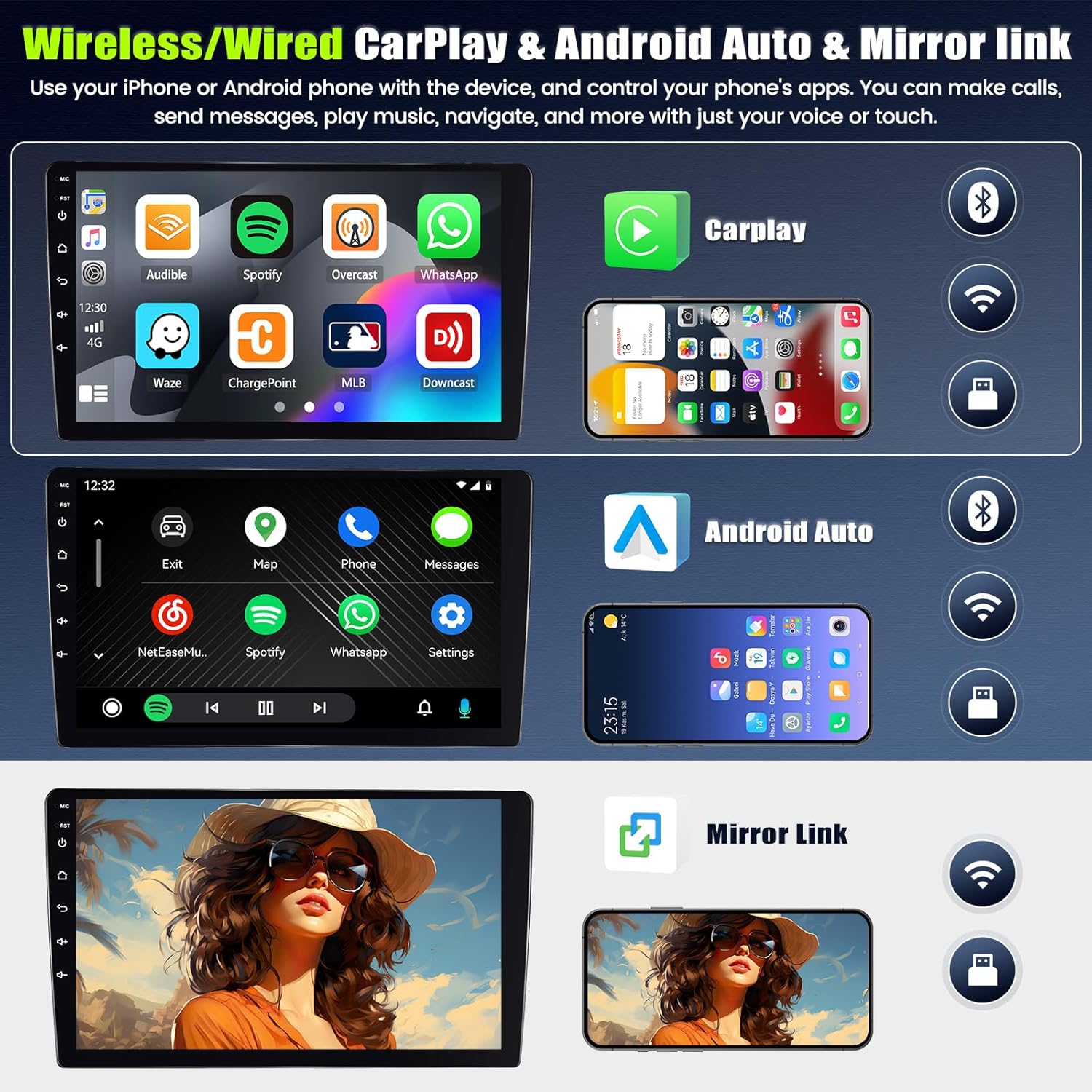
Image 3.1: Wireless/Wired CarPlay, Android Auto, and Mirror Link interface examples.
3.2 WiFi Function
Connect the car stereo to a WiFi network to access online services, stream content, and download applications. Navigate to the settings menu to configure your WiFi connection.
3.3 GPS Navigation
Utilize the integrated GPS module for accurate navigation. Pre-installed maps or online navigation apps can be used. Ensure the GPS antenna is properly installed for optimal signal reception.
3.4 Bluetooth 5.0
Pair your mobile phone via Bluetooth 5.0 for hands-free calling, contact synchronization, and audio streaming (BT Music). Access the Bluetooth menu to manage paired devices.
3.5 Steering Wheel Control (SWC)
The unit supports integration with your vehicle's original steering wheel buttons. This allows for convenient control of audio functions such as switching songs, answering calls, and adjusting volume without taking your hands off the wheel. Configuration may be required in the system settings.

Image 3.2: Overview of WiFi, GPS Navigation, Bluetooth 5.0, and Steering Wheel Control features.
3.6 Rear View Camera
When the vehicle is shifted into reverse gear, the system automatically displays the feed from the waterproof night vision rear camera. This provides a clear, wide-angle view to assist with parking and maneuvering.

Image 3.3: Rear View Camera display and Steering Wheel Control functionality.
3.7 Three Split Screen Function
The device supports running two applications simultaneously on a split screen. You can customize the size and position of each app window and switch between apps with a simple gesture.

Image 3.4: Examples of the Three Split Screen Function.
3.8 DSP 32EQ Function
The Digital Sound Processor (DSP) with 32-band equalizer allows for precise adjustment of sound effects, balance, and sound type. This feature enables customization of the audio output to achieve optimal sound quality within your vehicle.

Image 3.5: DSP 32EQ Function interface for audio customization.
3.9 Intelligent Voice Assistant & 8-Core Processor
The built-in intelligent voice assistant allows for hands-free control of various device functions using natural language commands. You can ask questions, get directions, check weather, play music, and more. The 8-core processor ensures smooth and responsive performance for all operations.

Image 3.6: Intelligent Voice Assistant and 8-Core Processor features.
4. Maintenance
To ensure the longevity and optimal performance of your car stereo, follow these maintenance guidelines:
- Cleaning: Use a soft, dry cloth to clean the screen and exterior of the unit. Avoid abrasive cleaners or solvents that could damage the surface.
- Temperature: Avoid exposing the unit to extreme temperatures, both hot and cold, for extended periods.
- Moisture: Keep the unit dry. Do not expose it to water or excessive humidity.
- Software Updates: Periodically check for available software updates to ensure the system runs efficiently and has the latest features and security patches.
5. Troubleshooting
If you encounter issues with your SIXTOP Android 13 Car Stereo, refer to the following common problems and solutions:
- Unit does not power on:
- Check all power cable connections, especially the yellow and red wires. Ensure they are correctly connected and receiving power.
- Verify the vehicle's fuse box for any blown fuses related to the stereo system.
- Slow startup or function execution:
- Ensure the system is not overloaded with too many background applications. Close unnecessary apps.
- Perform a system restart.
- Frequent phone disconnections (Bluetooth/CarPlay/Android Auto):
- Ensure your phone's Bluetooth and WiFi are enabled and functioning correctly.
- Delete the device pairing from both the car stereo and your phone, then re-pair.
- Check for any software updates for both the car stereo and your phone.
- Poor radio reception:
- Ensure the radio antenna is securely connected.
- Consider installing an external radio signal amplifier if reception remains poor, especially in areas with weak signals.
- No sound:
- Check speaker connections.
- Verify volume settings on the unit and ensure mute is not activated.
If problems persist after attempting these solutions, please contact SIXTOP customer support for further assistance.

Image 5.1: How to contact support via Amazon.
6. Specifications
| Brand | SIXTOP |
| Model | 6+128G |
| Operating System | Android 13 |
| Processor | 8-Core |
| Memory (RAM) | 6GB |
| Storage (ROM) | 128GB |
| Display Size | 9-inch Touchscreen |
| Connectivity | Bluetooth 5.0, WiFi, GPS, USB (6PIN, 4PIN) |
| Audio Output Mode | Surround |
| Speaker Channel Configuration | 2.1 |
| Output Wattage | 180 Watts |
| Supported Media Formats | AVI, WAV, WMA, MKV, RMVB, MP4, MDV |
| Connector Type | RCA, USB Type A, 3.5 mm Jack |
| Dimensions (Package) | 27 x 14 x 4 cm; 1.3 kg |
| Country of Origin | China |
7. Warranty and Support
SIXTOP is committed to providing quality products and customer satisfaction. Your purchase includes the following support and warranty:
- 2 Years Repair or Replacement: The product is covered by a 2-year warranty for repair or replacement due to manufacturing defects.
- 30 Day Replacement: If you experience issues within 30 days of purchase, a direct replacement may be provided.
- 18 Hours Online Response: Customer support is available to respond to inquiries within 18 hours.
- Lifetime Technical Support: Enjoy ongoing technical assistance for the lifespan of your product.
For support, you can contact SIXTOP directly via the seller page on Amazon or by email at sixtop123@163.com.

Image 7.1: SIXTOP customer service and product quality information.
Related documents6+128G


Ask a question about this manual
Ask about setup, troubleshooting, compatibility, parts, safety, or missing instructions. Manuals+ will review the question and use this page’s manual context to help answer it.