
1. Introduction
This manual provides detailed instructions for the safe and effective use of your AXNEN C22 2-Axis AI Tracking Phone Gimbal Stabilizer. Please read this manual thoroughly before operation and retain it for future reference. The AXNEN C22 is a versatile 4-in-1 device functioning as a universal stabilizer, extensible selfie stick, desktop tripod, and features 360-degree AI tracking.
2. Package Contents
Verify that all items listed below are included in your package. If any items are missing or damaged, please contact customer support.
- C22 Gimbal Stabilizer x 1
- USB-C Charging Cable x 1
- User Manual x 1

Image: Contents of the AXNEN C22 package, including the gimbal, USB cable, and user manual.
3. Product Overview
The AXNEN C22 combines multiple functionalities into a single device, offering stability and flexibility for mobile photography and videography.
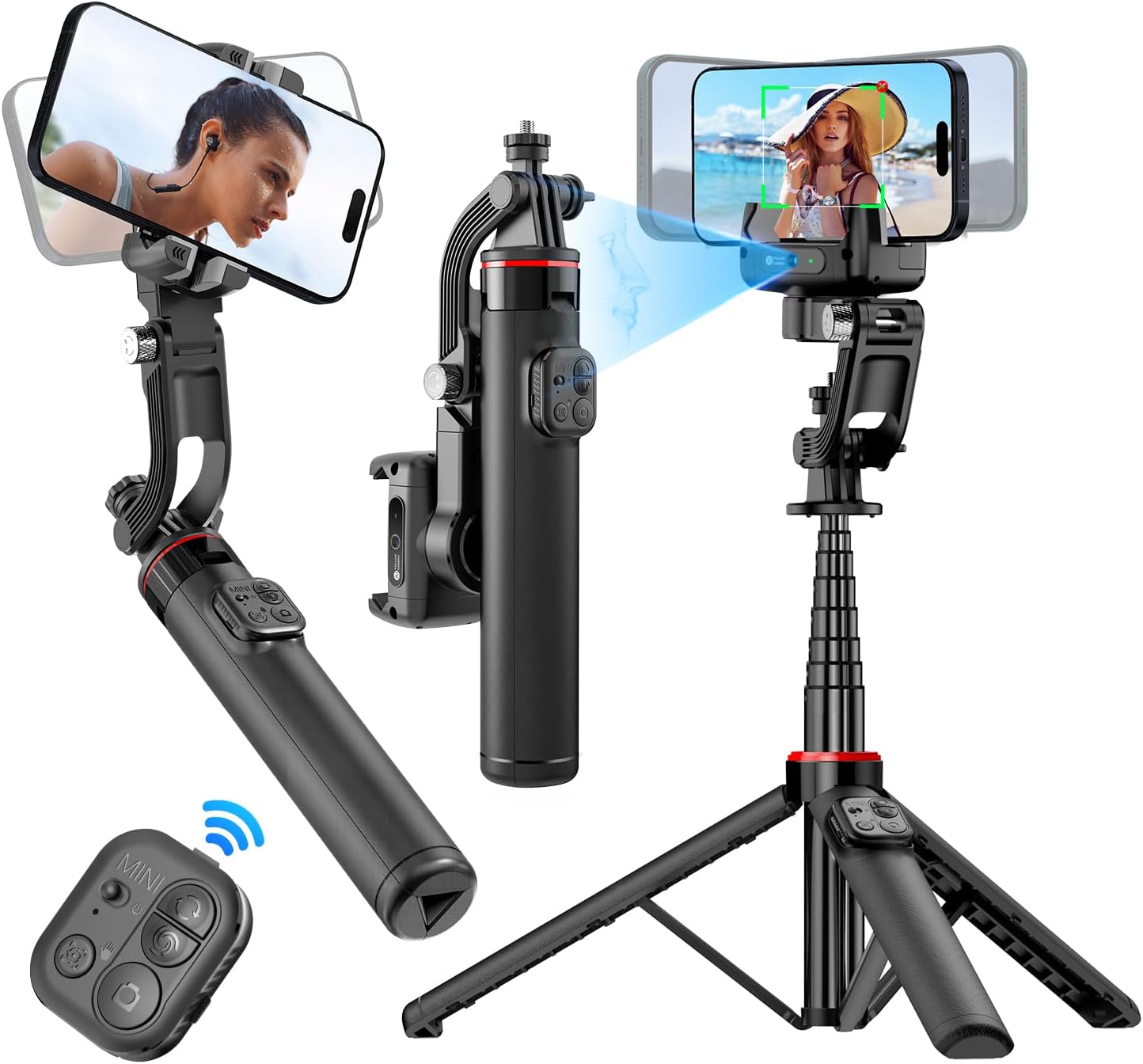
Image: The AXNEN C22 Gimbal Stabilizer shown in its different modes: handheld, extended selfie stick, and tripod setup, highlighting its versatility.
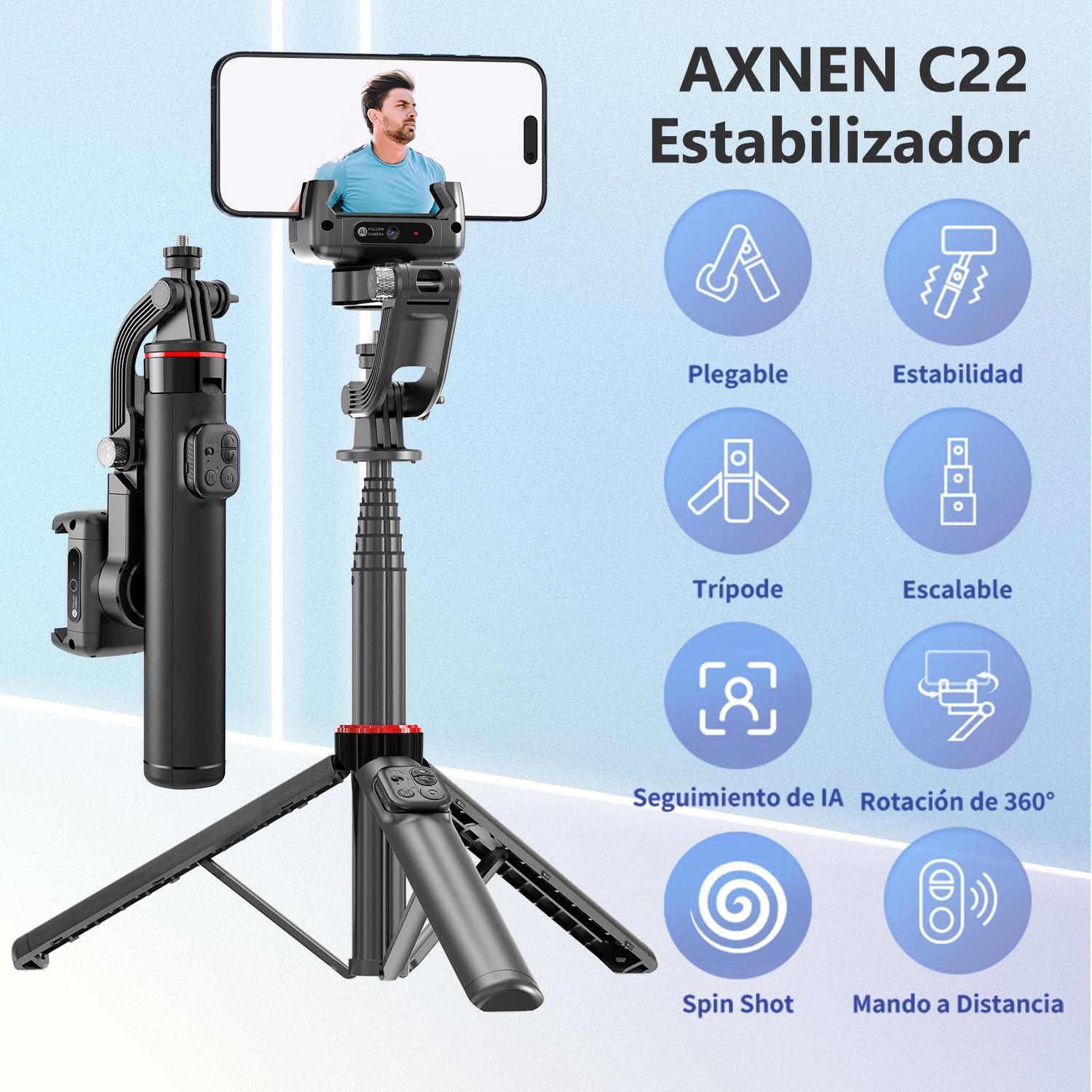
Image: Visual representation of the AXNEN C22's key features, including its foldable design, stability, tripod functionality, extendable pole, AI tracking, 360-degree rotation, spin shot capability, and remote control.
4. Setup
4.1 Unfolding the Gimbal
- Gently unfold the gimbal arm until it locks into position.
- Extend the telescopic pole to your desired length if using as a selfie stick.
- For tripod use, spread the base legs firmly on a flat surface.
4.2 Phone Installation
- Ensure the gimbal head is unlocked before installing your phone to avoid motor damage.
- Carefully place your smartphone into the phone clamp, ensuring it is centered and secure.
- The gimbal will automatically balance the phone.
4.3 Charging
Connect the provided USB-C cable to the charging port on the gimbal and to a suitable USB power source. The indicator light will show charging status. A full charge takes approximately 80 minutes.

Image: The AXNEN C22 gimbal connected via a USB-C cable for ultra-fast charging, highlighting its quick 80-minute full charge time.
4.4 Bluetooth Pairing
- Power on the gimbal.
- Activate Bluetooth on your smartphone.
- Search for available devices and select "AXNEN C22" to pair.
- The remote control will automatically connect once the gimbal is paired.

Image: The AXNEN C22 remote control in use, demonstrating its 10-meter (33-foot) range for hands-free operation.
4.5 App Installation
For enhanced features, download the "Gimbal Show" application. Scan the QR code in the manual or visit the official website to download the app for iOS or Android devices.
Download the Gimbal Show App: https://www.tokqi.co/app.php/tokqi

Image: Screenshot of the Gimbal Show app interface, illustrating features like facial filters, dynamic zoom, time-lapse, and intelligent tracking.
5. Operating Instructions
5.1 Power On/Off
Press and hold the power button on the gimbal handle for 3 seconds to power on or off.
5.2 Remote Control Functions
The detachable remote control allows for convenient operation from a distance.
- Power Switch: Turns the remote on/off.
- Switch Button: Toggles between different modes or functions.
- Mode Button: Selects specific gimbal modes.
- Photo Button: Triggers photo capture or video recording.
- Lock Button: Locks the gimbal's position.

Image: Detailed view of the AXNEN C22 remote control, with each button clearly labeled for its function, emphasizing ease of use.
5.3 Gimbal Modes
The AXNEN C22 offers multiple configurations to suit various shooting needs.
- Gimbal Stabilizer Mode: Provides smooth, stable footage by counteracting unwanted movements.
- Selfie Stick Mode: Extend the pole for wider shots or group selfies.
- Tripod Mode: Deploy the legs for stable static shots or time-lapses.
- Live Streaming Mode: Ideal for stable, hands-free video broadcasts.

Image: Four distinct usage scenarios for the AXNEN C22, illustrating its functionality as a gimbal stabilizer, selfie stick, live streaming stand, and floor tripod.
To switch between Gimbal Mode and Selfie Stick Mode, use the quick switch mechanism. It is recommended to use the gimbal lock when the battery is low to conserve power.

Image: Diagram showing the quick switch mechanism on the AXNEN C22 to toggle between selfie stick mode (locked) and gimbal mode (unlocked).
5.4 AI Tracking
The built-in AI camera allows for intelligent facial and object tracking. Use gestures to control tracking.
- "OK" Gesture: Initiates tracking.
- "Palm" Gesture: Stops tracking.
The gimbal can track subjects whether stationary on a desktop or moving during manual operation.

Image: The AXNEN C22's smart AI camera feature, demonstrating gesture controls for initiating and stopping tracking, with a focus on facial recognition.

Image: Examples of the AXNEN C22's AI tracking in action, including desktop tracking for static subjects and manual tracking for moving subjects, ensuring the face remains centered.
5.5 360° Rotation
The gimbal supports 360-degree rotation for panoramic shots and dynamic video effects.
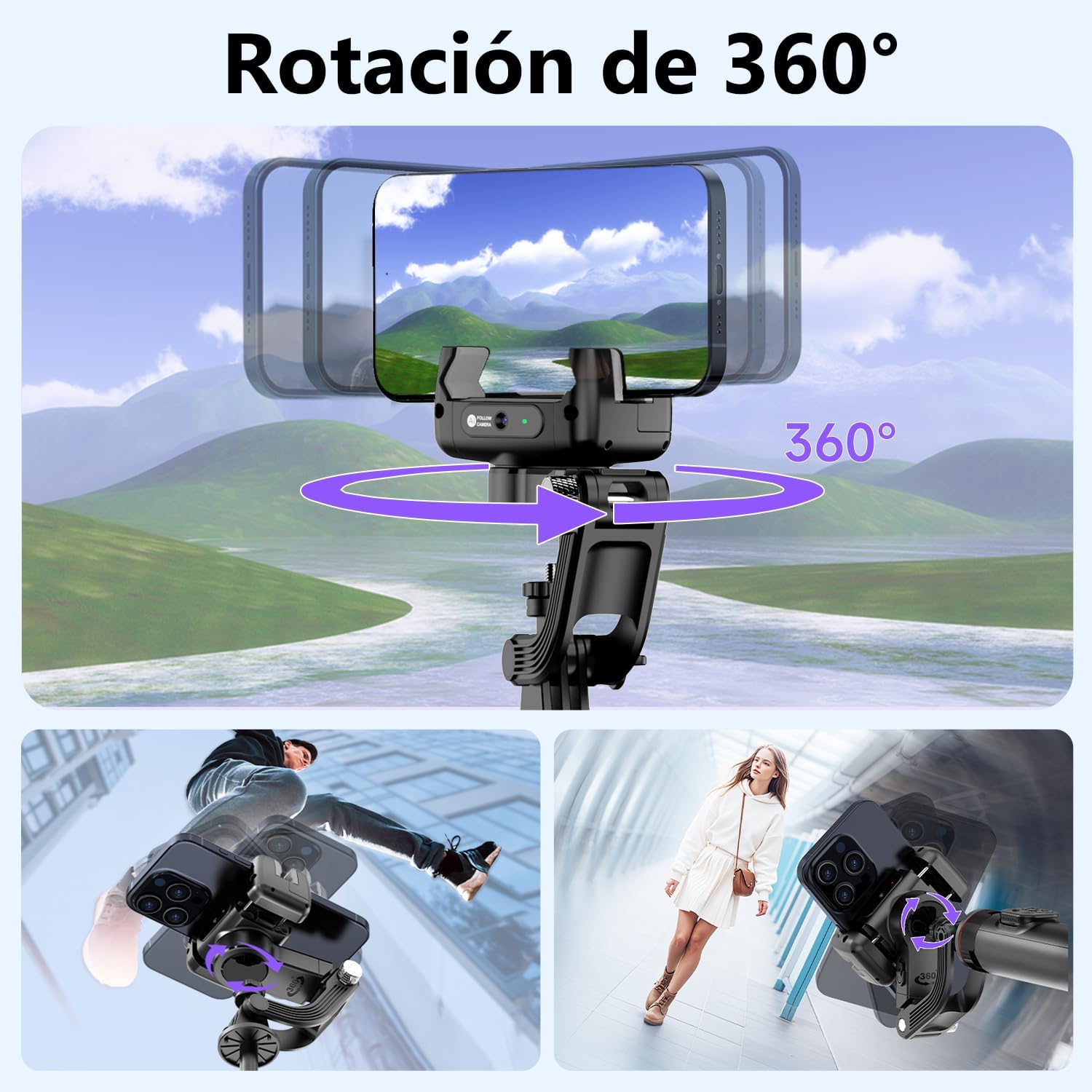
Image: The AXNEN C22 demonstrating its 360-degree rotation capability, allowing for versatile shooting angles and creative video effects.
5.6 App Features
The "Gimbal Show" app unlocks advanced shooting modes and features:
- Facial Filter: Apply real-time filters to enhance your appearance.
- Dynamic Zoom: Achieve cinematic zoom effects like the Hitchcock zoom.
- Time-Lapse: Capture stunning time-lapse videos.
- Smart Tracking: Enhanced AI tracking capabilities.

Image: Screenshots from the Gimbal Show app, showcasing features such as facial filters, dynamic zoom, time-lapse recording, and intelligent tracking.
5.7 Usage Scenarios
The AXNEN C22 is designed for various daily applications:
- 360° Rotating Shot: For dynamic and immersive videos.
- Sports Shot: Capture smooth action footage.
- Low Angle Shot: Get unique perspectives.
- Daily Vlog: Perfect for everyday content creation.

Image: Four examples illustrating how the AXNEN C22 can be used in daily life for various shooting styles, including 360-degree rotation, sports, low-angle, and vlogging.
6. Maintenance
- Cleaning: Use a soft, dry cloth to clean the gimbal. Avoid using harsh chemicals or abrasive materials.
- Storage: Store the gimbal in a cool, dry place away from direct sunlight and extreme temperatures. Ensure it is folded and locked when not in use.
- Battery Care: To prolong battery life, avoid fully discharging the battery frequently. Charge the device regularly, even if not in use for extended periods.
7. Troubleshooting
| Issue | Possible Cause | Solution |
|---|---|---|
| Gimbal not stabilizing / Unstable footage | Phone not properly balanced; Gimbal head locked; Low battery. | Ensure phone is centered and clamp is secure. Unlock the gimbal head. Charge the gimbal fully. |
| Bluetooth disconnects frequently | Interference; Out of range; Low battery on remote or gimbal. | Ensure no strong interference sources nearby. Stay within 10m range. Charge both gimbal and remote. Re-pair Bluetooth. |
| AI Tracking not working | Poor lighting; Incorrect gesture; App not running or updated. | Ensure adequate lighting. Use clear "OK" or "Palm" gestures. Open the Gimbal Show app and ensure it's up to date. |
| Short battery life | Frequent heavy use; Old battery; Cold environment. | Ensure full charge before use. Avoid extreme temperatures. Consider carrying a portable power bank for extended sessions. |
| Gimbal motor feels weak or unresponsive | Low battery; Overloaded with heavy phone; Gimbal head locked. | Charge the gimbal. Ensure your phone's weight is within the supported range. Unlock the gimbal head. |
8. Specifications
- Model Number: C22
- Brand: AXNEN
- Dimensions (Package): 26.5 x 10.2 x 5.2 cm
- Weight: 360 Grams
- Compatible Devices: Mobile phones, iPhone, Android
- Battery Type: 1 AA (Type of battery needed - Note: This likely refers to the remote control, the gimbal itself has a built-in rechargeable battery.)
- Color: Black
9. Warranty and Support
For warranty information and customer support, please refer to the documentation included with your purchase or contact the retailer. Keep your proof of purchase for any warranty claims.