1. Product Overview
The NEWFAST AX1800 WiFi 6 Range Extender is designed to expand your existing wireless network coverage, eliminate Wi-Fi dead zones, and provide reliable, high-speed internet access throughout your home or office. Utilizing WiFi 6 (802.11ax) technology, it supports dual-band operation (2.4GHz and 5.8GHz) for optimal performance across various devices.

Image 1.1: Front view of the NEWFAST AX1800 WiFi 6 Range Extender, showcasing its compact design and four external antennas.
Key Features:
- AX1800 Dual Band WiFi 6: Supports speeds up to 1800 Mbps (574 Mbps on 2.4GHz and 1201 Mbps on 5.8GHz).
- Gigabit Ethernet Port: Provides a high-speed wired connection for devices like smart TVs, gaming consoles, or PCs.
- Multiple Operating Modes: Functions as a Repeater, Access Point (AP), or Router.
- 4 High-Gain Antennas: Enhances signal penetration and coverage.
- WPA3 Security: Offers advanced network security protection.
- LCD Display Screen: Provides clear working status and simplifies setup.
- WPS One-Click Setup: For quick and easy connection to your existing router.
2. Package Contents
Please verify that all items are present in your package:
- 1 x NEWFAST AX1800 Dual Band WiFi Extender (NF-RE553)
- 1 x User Manual (this document)
- 1 x RJ-45 Ethernet Cable
3. Setup Guide
This section outlines the steps to set up your NEWFAST AX1800 WiFi 6 Range Extender.
3.1. Initial Placement
For the initial setup, it is recommended to plug the extender into a power outlet near your main router. Once configured, you can relocate it to an optimal position.
3.2. Powering On
Plug the extender into a standard electrical outlet. Wait for the device to power on and initialize. The LCD screen will display the current status.
3.3. Connection Methods
There are two primary methods to connect the extender to your existing Wi-Fi network: WPS (Wi-Fi Protected Setup) or Web Browser Setup.
3.3.1. WPS One-Click Setup (Recommended for quick setup)
- Plug the extender into a power outlet near your router.
- Wait for the extender to boot up.
- Press the WPS button on your main router.
- Within two minutes, press the WPS button on the NEWFAST AX1800 extender. The WPS indicator on the extender will flash during the connection process.
- Once the WPS indicator on the extender becomes solid, the connection is successful.
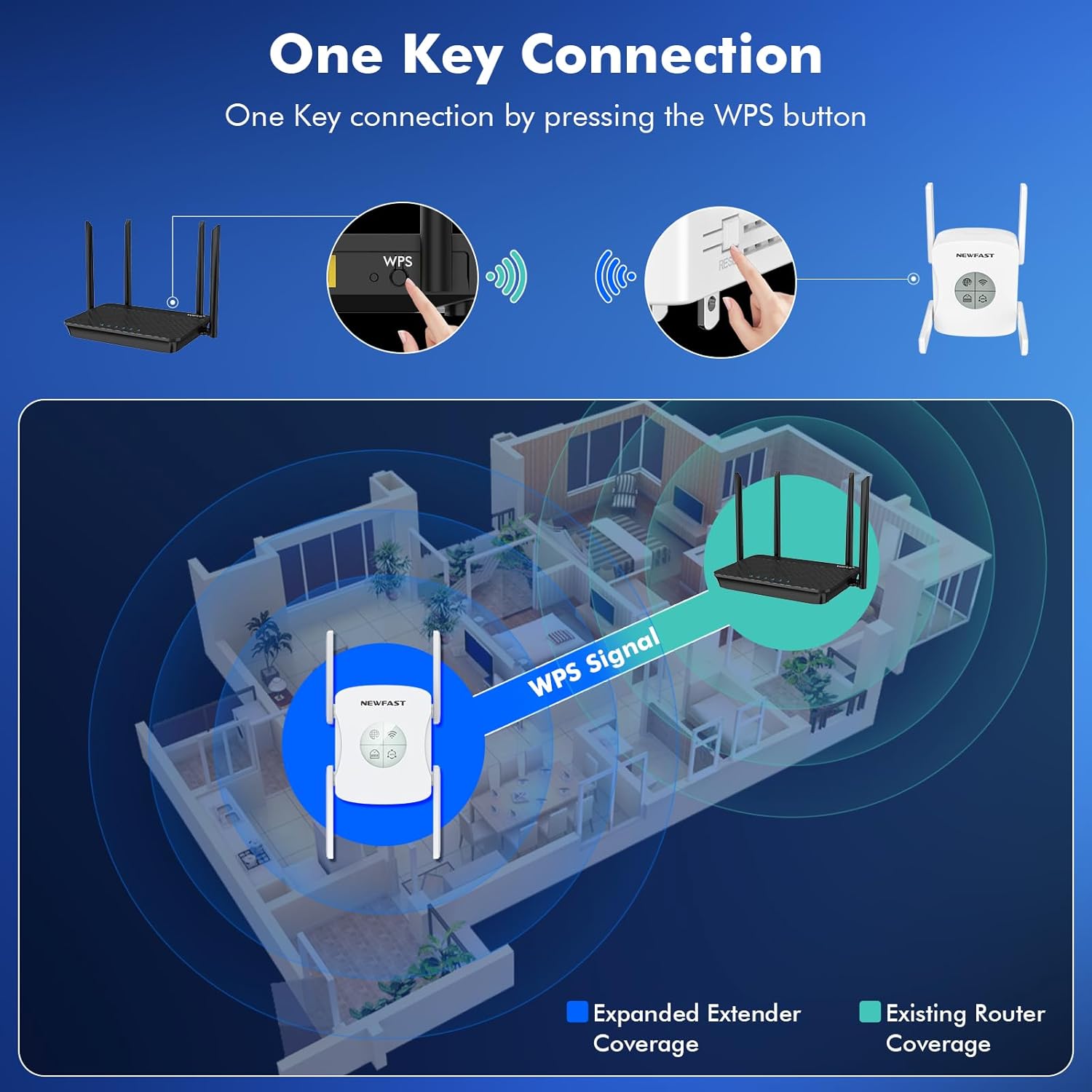
Image 3.1: Illustration of the WPS one-key connection process between a router and the NEWFAST AX1800 extender.
3.3.2. Web Browser Setup
- Plug the extender into a power outlet.
- Connect your computer or mobile device to the extender's default Wi-Fi network (e.g., "NEWFAST_EXT"). No password is required initially.
- Open a web browser and enter the default IP address or domain name (usually found on a label on the device or in the quick start guide, e.g., http://192.168.1.254 or http://re.newfast.com).
- Follow the on-screen instructions to create an administrator password and select your desired operating mode (Repeater, AP, or Router).
- If selecting Repeater mode, choose your existing Wi-Fi network from the list and enter its password.
- Complete the setup. The extender will restart, and its network name will change (e.g., your_network_name_EXT).
3.4. Optimal Placement
After successful setup, unplug the extender and move it to a location between your router and the Wi-Fi dead zone. The smart signal indicator on the LCD screen will help you find the best spot for maximum coverage and signal strength. Aim for a location where the signal indicator shows a strong connection to your main router.

Image 3.2: An illustration demonstrating how the WiFi extender can be strategically placed to ensure wireless signal coverage throughout an entire home, including areas like the balcony, bathroom, kitchen, and living room.
4. Operating Modes
The NEWFAST AX1800 WiFi 6 Range Extender supports multiple operating modes to suit various networking needs.

Image 4.1: Visual representation of the three primary operating modes: Repeater, Router, and AP (Access Point) mode.
4.1. Repeater Mode (Default)
In Repeater mode, the extender wirelessly connects to your existing router and amplifies its signal, extending coverage to areas with weak or no Wi-Fi. This mode is ideal for eliminating dead zones.
4.2. Access Point (AP) Mode
In AP mode, the extender connects to your router via an Ethernet cable and transforms your wired network connection into a wireless access point. This is useful for adding Wi-Fi capability to a wired-only network or creating a new Wi-Fi network in a specific area.
4.3. Router Mode
In Router mode, the extender acts as a primary router, connecting directly to your modem via an Ethernet cable to create a new private wireless network. This mode is suitable if you do not have an existing router.
4.4. Using the Gigabit Ethernet Port
The integrated Gigabit Ethernet port (WAN/LAN) allows you to connect a wired device (like a desktop computer, smart TV, or gaming console) to the extender, providing a stable and high-speed internet connection. This port can also be used for AP or Router mode connections.

Image 4.2: A detailed view of the WAN/LAN Gigabit Ethernet port, demonstrating its use for wired connections.
5. Specifications
Detailed technical specifications for the NEWFAST AX1800 WiFi 6 Range Extender (NF-RE553).
| Feature | Description |
|---|---|
| Model | NF-RE553 |
| Wireless Standard | IEEE 802.11ax/ac/n/a (5.8GHz), IEEE 802.11n/g/b (2.4GHz) |
| Data Transfer Rate | Up to 1800 Mbps (1201 Mbps on 5.8GHz, 574 Mbps on 2.4GHz) |
| Frequency Band | Dual-Band (2.4GHz & 5.8GHz) |
| Antennas | 4 x High-Gain External Antennas |
| Ethernet Port | 1 x Gigabit WAN/LAN Port |
| Security Protocols | WPA3, WPA2-PSK, WPA-PSK |
| Operating Modes | Repeater, Access Point (AP), Router |
| Special Features | LCD Display Screen, WPS Button, MU-MIMO |
| Dimensions (L x W x H) | 3.46 x 1.56 x 3.62 inches |
| Weight | 15.4 ounces |

Image 5.1: Detailed view highlighting the LCD Intelligent Screen Display, Wired Gigabit port, and the four high-gain antennas of the extender.
6. Troubleshooting
This section provides solutions to common issues you might encounter with your NEWFAST AX1800 WiFi 6 Range Extender.
6.1. No Internet Access After Setup
- Check Router Connection: Ensure your main router has an active internet connection.
- Extender Placement: Relocate the extender closer to your main router to ensure it receives a strong signal. The signal indicator on the LCD should show a good connection.
- Re-configure: Try re-running the setup process (WPS or Web Browser) to ensure the extender is correctly connected to your main Wi-Fi network.
- IP Address Conflict: If using AP or Router mode, ensure there are no IP address conflicts with other devices on your network.
6.2. Weak Signal from Extender
- Optimal Placement: Ensure the extender is placed in an optimal location, roughly halfway between your router and the desired coverage area. Avoid placing it near large metal objects, concrete walls, or other electronic devices that may cause interference.
- Antenna Adjustment: Adjust the four external antennas for better signal reception and transmission.
- Interference: Minimize interference from other devices operating on similar frequencies (e.g., microwaves, cordless phones).
6.3. Cannot Access Web Management Page
- Correct IP/Domain: Ensure you are using the correct IP address or domain name (e.g., http://192.168.1.254 or http://re.newfast.com).
- Connected to Extender: Verify that your device is connected to the extender's Wi-Fi network, not your main router's network.
- Clear Browser Cache: Clear your web browser's cache and cookies, or try a different browser.
- Restart: Restart both the extender and your computer/device.
6.4. Forgot Administrator Password
If you forget the administrator password for the web management page, you will need to perform a factory reset on the extender. Refer to Section 7.1 for instructions on how to reset the device.
7. Maintenance
Proper maintenance ensures the longevity and optimal performance of your NEWFAST AX1800 WiFi 6 Range Extender.
7.1. Factory Reset
A factory reset will restore the extender to its default settings, erasing all custom configurations. This can be useful for troubleshooting persistent issues or if you forget your administrator password.
- With the extender powered on, locate the Reset button (usually a small pinhole) on the device.
- Use a paperclip or a thin object to press and hold the Reset button for approximately 5-10 seconds until the LED indicators flash or the device restarts.
- Release the button. The extender will reboot with factory default settings. You will need to reconfigure it as per the setup guide.
7.2. Firmware Updates
Periodically check the NEWFAST official website for firmware updates. Firmware updates can improve performance, add new features, and enhance security. Follow the instructions provided with the firmware update carefully.
7.3. Cleaning
Ensure the device is unplugged before cleaning. Use a soft, dry cloth to wipe the exterior of the extender. Do not use liquid cleaners or abrasive materials.
8. Warranty and Support
8.1. Warranty Information
The NEWFAST AX1800 WiFi 6 Range Extender comes with a standard manufacturer's warranty. Please refer to the warranty card included in your package or visit the official NEWFAST website for detailed warranty terms and conditions. Keep your purchase receipt as proof of purchase for warranty claims.
8.2. Technical Support
For technical assistance, troubleshooting, or product inquiries, please contact NEWFAST customer support through the following channels:
- Official Website: Visit the NEWFAST official website for FAQs, support resources, and contact information.
- Email Support: Refer to your product packaging or the official website for the customer support email address.
When contacting support, please have your product model (NF-RE553) and a detailed description of your issue ready.


