
1. Introduction and Overview
The MageGee LIGHT100 is a versatile wireless mechanical keyboard designed for enhanced typing and gaming experiences. It features a compact 96% layout, a gasket structure for improved acoustics, hot-swappable switches for customization, and dynamic RGB backlighting. This manual provides detailed instructions for setup, operation, maintenance, and troubleshooting.
Key Features:
- Tri-Mode Connectivity: Seamlessly switch between Bluetooth 5.0, 2.4GHz wireless, and USB-C wired modes.
- Gasket Structure: Features a gasket-mounted design with five layers of sound-absorbing foam for a creamy, thocky typing sound and improved comfort.
- Hot-Swappable Switches: Equipped with quiet linear Blue Whale switches, compatible with both 3-pin and 5-pin switches for easy customization without soldering.
- Dynamic RGB Backlighting: Offers 16.8 million colors and multiple lighting effects to personalize your setup.
- Long-Lasting Battery & Durable Keycaps: Includes a 4000mAh battery and durable PBT keycaps.

2. Setup
2.1 Unboxing and Package Contents
Upon opening your MageGee LIGHT100 keyboard package, you should find the following items:
- MageGee LIGHT100 Wireless Mechanical Keyboard
- USB-C to USB-A Cable
- Keycap Puller
- Switch Puller
- Extra Switches (Blue Whale linear switches)
- User Manual (this document)

2.2 Connecting Your Keyboard
The MageGee LIGHT100 supports three connection modes: USB-C Wired, 2.4GHz Wireless, and Bluetooth 5.0.
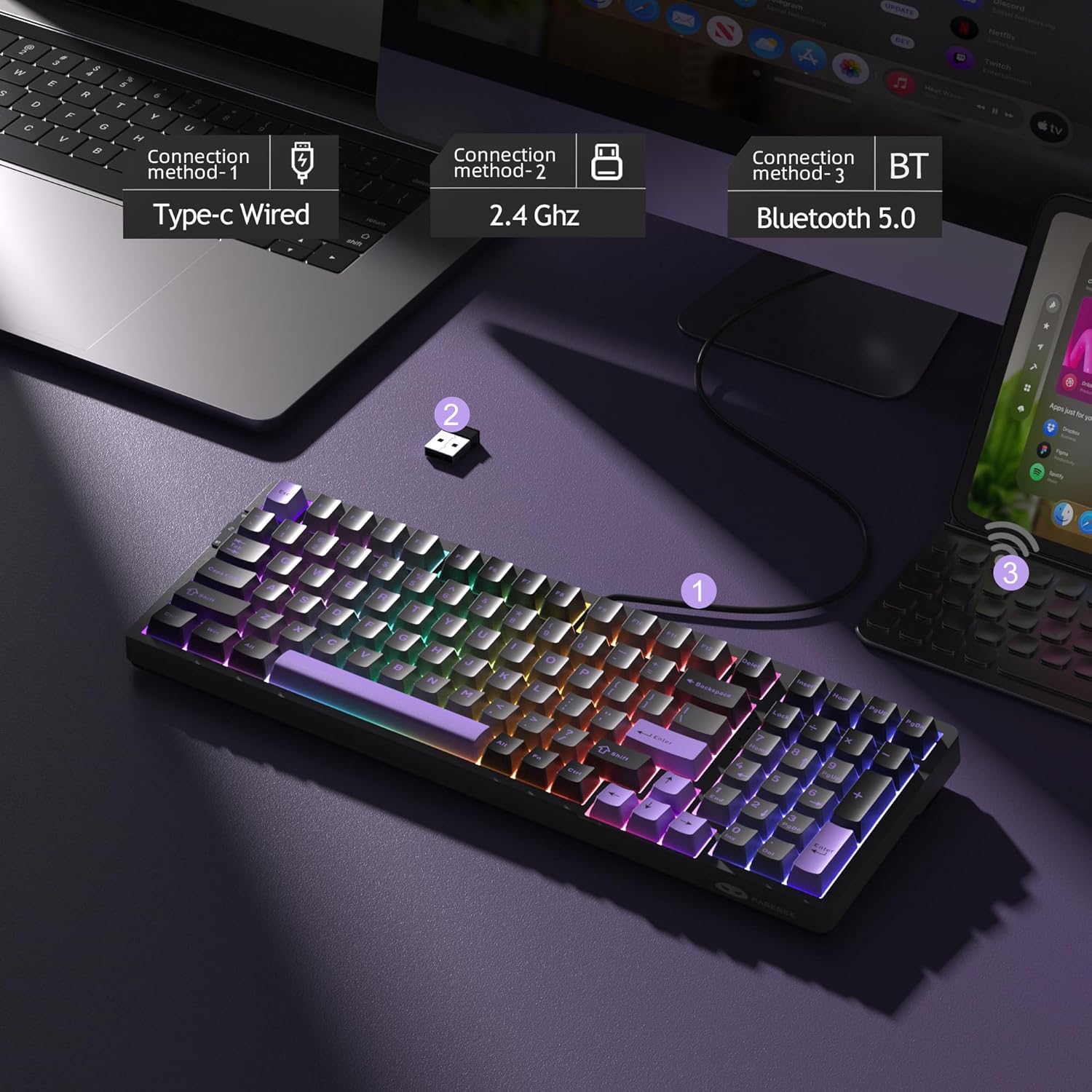
2.2.1 USB-C Wired Mode
- Locate the USB-C port on the keyboard (typically on the top edge).
- Connect the provided USB-C cable to the keyboard and the other end to your computer's USB port.
- The keyboard will automatically switch to wired mode and begin charging.
2.2.2 2.4GHz Wireless Mode
- Locate the 2.4GHz USB dongle, usually stored in a slot on the keyboard.
- Plug the USB dongle into an available USB port on your computer.
- On the keyboard, slide the mode switch (located on the side) to the '2.4G' position.
- The keyboard should connect automatically. If not, press
Fn + 4to activate 2.4G wireless mode.
2.2.3 Bluetooth 5.0 Mode
- On the keyboard, slide the mode switch to the 'BT' position.
- Press
Fn + 1,Fn + 2, orFn + 3to select a Bluetooth channel. The corresponding key will flash, indicating pairing mode. - On your device (PC, laptop, tablet, smartphone), go to Bluetooth settings and search for new devices.
- Select 'MageGee LIGHT100' from the list to pair.
- You can pair up to three devices and switch between them using
Fn + 1/2/3.
3. Operating Instructions
3.1 RGB Backlight Control
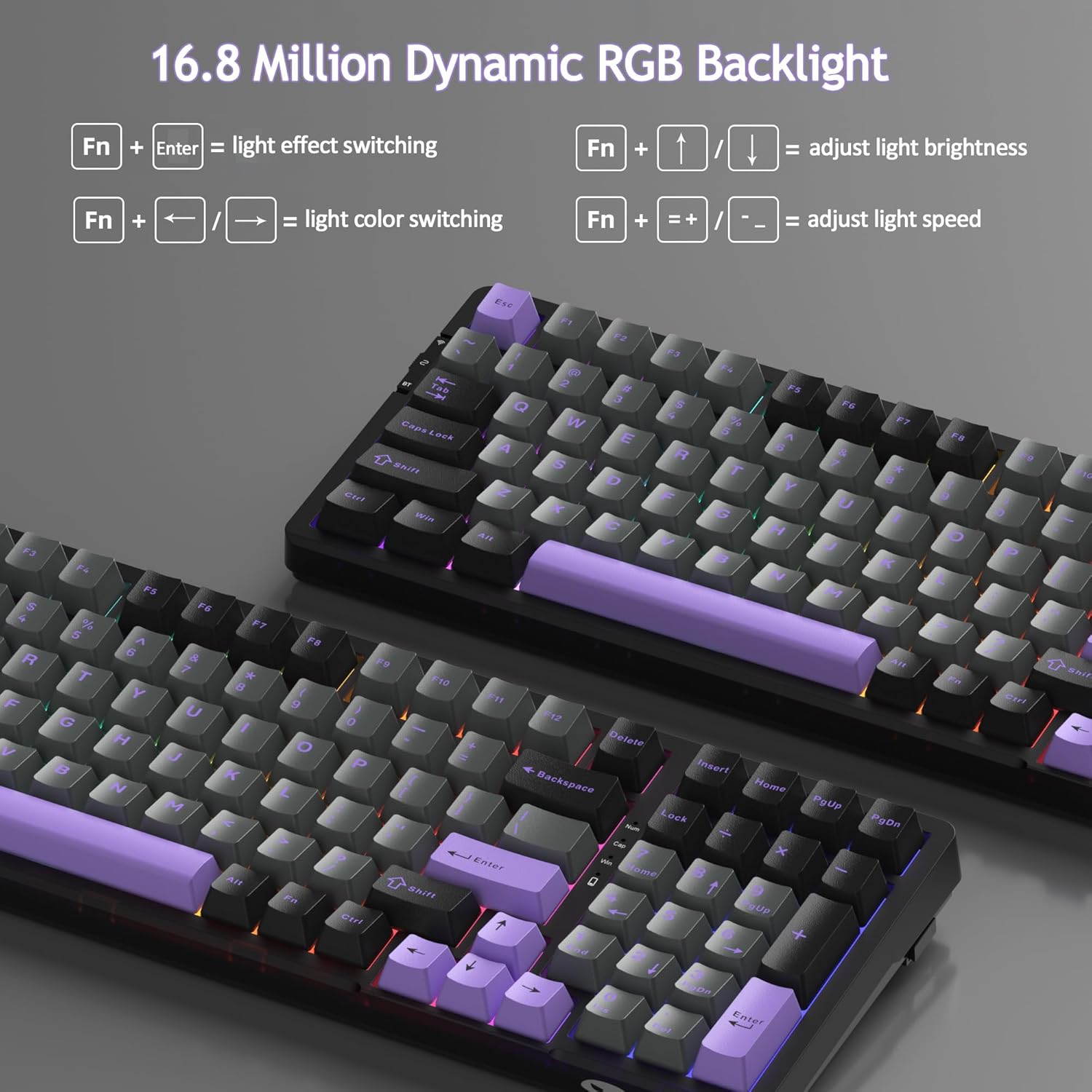
The MageGee LIGHT100 features 16.8 million colors and various dynamic RGB backlight modes. Use the following key combinations to control the lighting:
- Change Light Effect: Press
Fn + Enter(approximately 20 modes available). - Adjust Backlight Colors: Press
Fn + ←orFn + →. - Control Backlight Brightness: Press
Fn + ↑(increase) orFn + ↓(decrease). - Adjust Backlight Speed: Press
Fn + =+(increase speed) orFn + _-(decrease speed).
3.2 System Compatibility
The keyboard supports both Windows and Mac operating systems. It automatically adapts to the connected system. Specific function keys may vary slightly in behavior between operating systems.
3.3 Key Functions
The LIGHT100 features a 96% compact layout with 99 keys, retaining essential function keys and a numeric keypad for both gaming and productivity. All 99 keys support 100% anti-ghosting for accurate input.
4. Maintenance
4.1 Keycap Replacement
The keyboard comes with durable PBT keycaps. To replace keycaps:
- Use the provided keycap puller to gently remove the desired keycap.
- Align the new keycap with the switch stem and press down firmly until it clicks into place.
4.2 Switch Replacement
The MageGee LIGHT100 features hot-swappable switches, allowing you to change switches without soldering. It supports both 3-pin and 5-pin switches.
- First, remove the keycap using the keycap puller.
- Use the provided switch puller to carefully grip the switch from its top and bottom clips.
- Gently pull the switch upwards to remove it from the PCB.
- Align the pins of the new switch with the holes on the PCB. Ensure the pins are straight to avoid bending.
- Press the new switch down firmly until it is seated correctly.
- Replace the keycap.

4.3 Cleaning
To maintain your keyboard's performance and appearance:
- Disconnect the keyboard from your device.
- Use a soft brush or compressed air to remove dust and debris from between the keycaps.
- For stubborn dirt, lightly dampen a microfiber cloth with water or a mild cleaning solution and wipe the keycaps and frame. Avoid excessive moisture.
5. Troubleshooting
5.1 Connectivity Issues
- Wireless Disconnection: Ensure the keyboard is within range of your device. Check battery level. Re-pair Bluetooth or re-insert the 2.4GHz dongle.
- Bluetooth Pairing Failure: Make sure the keyboard is in Bluetooth pairing mode (
Fn + 1/2/3flashing). Forget the device on your computer/phone and try pairing again. - 2.4GHz Not Responding: Ensure the dongle is securely plugged in and the keyboard is set to 2.4G mode (
Fn + 4). Try a different USB port.
5.2 Battery and Charging
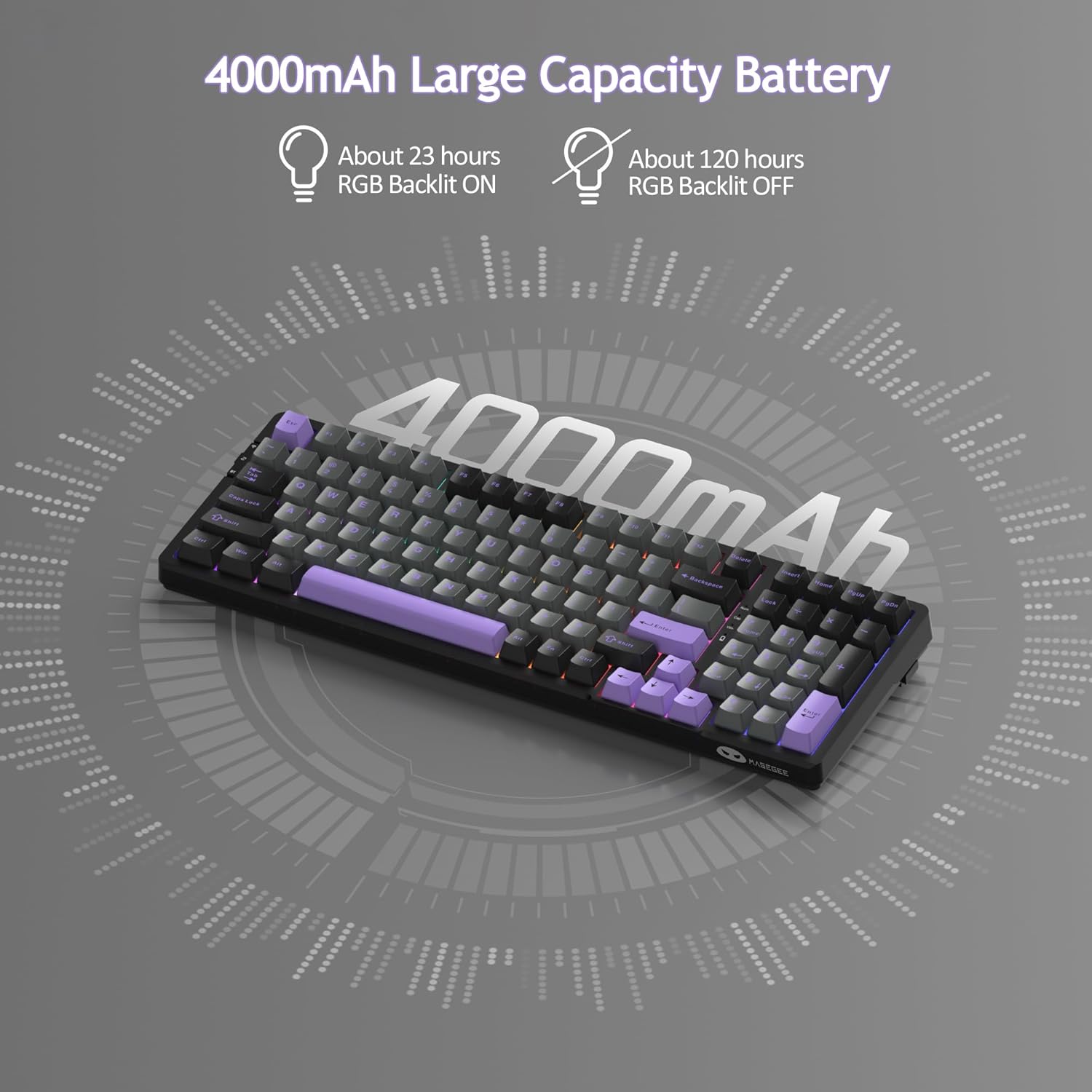
The keyboard is equipped with a 4000mAh battery.
- Charging: Connect the keyboard via the USB-C cable to a power source (computer or wall adapter). The charging indicator light will show charging status.
- Low Battery: If the keyboard is unresponsive or lights dim, recharge the battery.
- Battery Life: Approximately 23 hours with RGB backlit ON, and about 120 hours with RGB backlit OFF. Sleep standby time is around 150 hours.
5.3 RGB Backlight Issues
- Lights Not Working: Ensure the keyboard is powered on and not in sleep mode. Check brightness settings (
Fn + ↑). - Incorrect Colors/Effects: Cycle through light effects using
Fn + Enteror adjust colors withFn + ←/→.
6. Specifications
| Feature | Detail |
|---|---|
| Brand | MageGee |
| Model Name | LIGHT100 |
| Connectivity Technology | USB-C, 2.4GHz Wireless, Bluetooth 5.0 |
| Compatible Devices | PC, Laptop, Tablet, Smartphone |
| Keyboard Description | Ergonomic, 96% Layout (99 keys) |
| Special Features | Gasket Hot Swappable, Tri-Mode Connectivity, Long Battery Life, RGB Backlight |
| Color | Purple Black/Blue Whale Switch |
| Material | PBT Plastic, Foam |
| Number of Keys | 99 |
| Power Source | Battery Powered (4000mAh) |
| Switch Type | Linear (Blue Whale) |
| Keyboard Layout | QWERTY |
| Water Resistance Level | Not Water Resistant |
7. Warranty and Support
MageGee products are designed for reliability and performance. For any issues or questions regarding your MageGee LIGHT100 keyboard, please refer to the following:
- Warranty: Please retain your proof of purchase for warranty claims. Specific warranty terms and duration may vary by region and retailer.
- Customer Support: For technical assistance or product inquiries, please visit the official MageGee website or contact their customer service team through the retailer where you purchased the product.