
1. Introduction
Thank you for choosing the TopMade MF60 Magnetic Wallet. This user manual provides essential information for the safe and efficient operation of your device. Please read it thoroughly before use and keep it for future reference.
2. Product Features
- Full Find My Support: Works with Apple Find My; Built-in wallet tracker, no AirTag needed. Set up real-time location, play sound alerts, receive Left Behind notifications, and set Lost Mode. Bluetooth range 50m, Alarm 100dB.
- Strongest Magnetic Force: Features 20 powerful built-in magnets, providing up to 4,000g magnetic force. 5X stronger than official magnetic wallets for secure attachment to your iPhone.
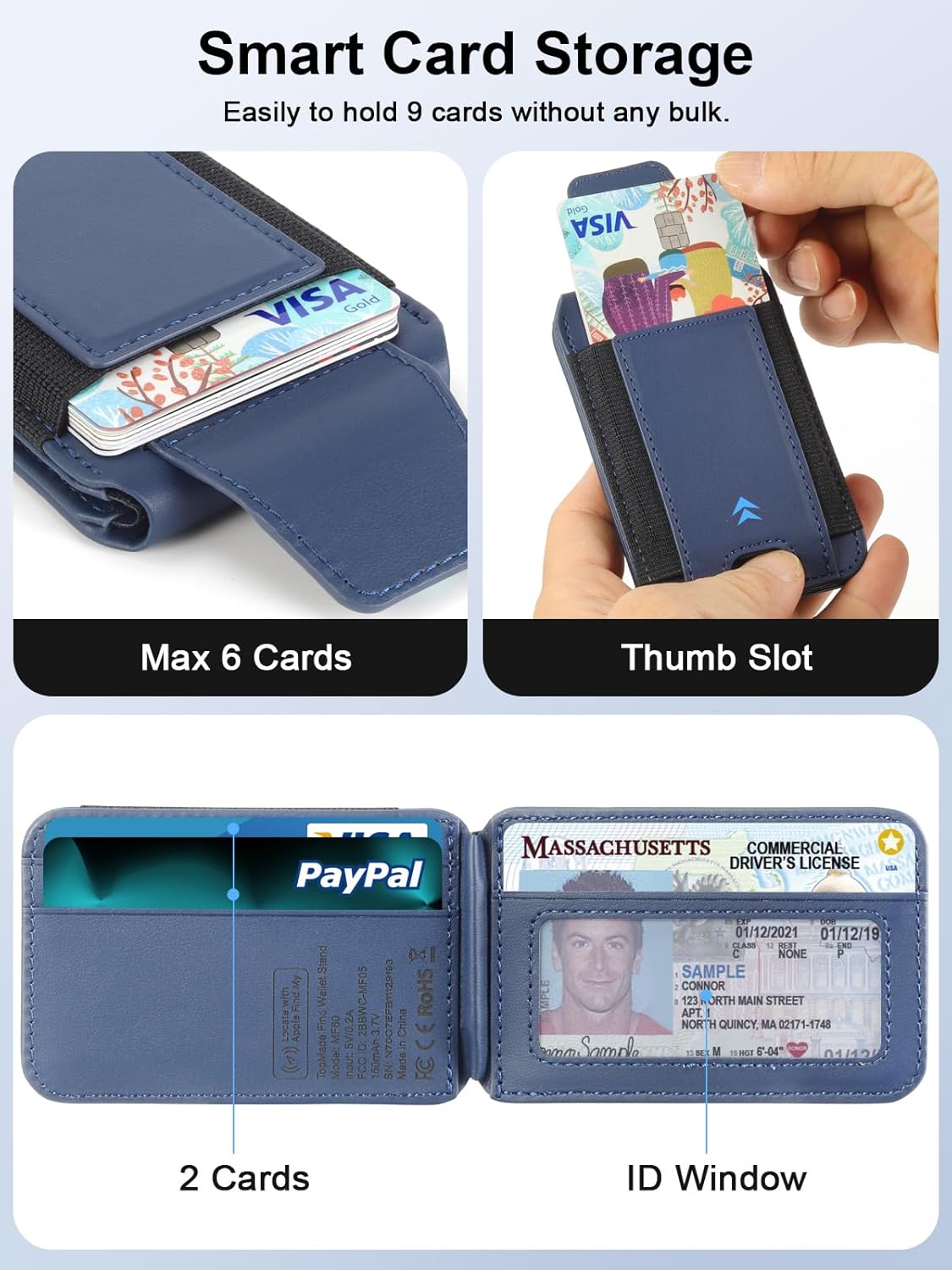
- Max 9 Cards Storage: Four individual card slots can hold 1-9 cards. Includes a thumb slot for quick and easy card access.
- Adjustable Phone Wallet Stand: Built-in adjustable hinge supports portrait and landscape modes with 15-170 degrees multi-angle adjustment.
- RFID Blocking: Special lining protects credit cards from unauthorized RFID and NFC scanning, and provides degauss protection.
- Design for Magsafe: Compatible with iPhone 17 Pro Max/17 Pro/17 Air/17, 16 Pro Max/16 Pro/16 Plus/16, 15 Pro Max/15 Pro/15 Plus/15, 14 Pro Max/14 Pro/14 Plus/14, 13 Pro Max/13 Pro/13, 12 Pro Max/12 Pro/12, official magnetic cases and other magnetic cases. Not compatible with Android phones.
- Long-lasting Battery: Rechargeable lithium-ion battery lasts up to 6 months on a single charge. Supports wireless charging.
3. What's in the Box
- TopMade MF60 Magnetic Wallet Stand
4. Setup Guide
- Ensure iOS Version: Your iPhone must be running iOS 14.5 or later.
- Turn on Bluetooth: Enable Bluetooth on your iPhone.
- Enable Two-Factor Authentication: Go to your Apple ID settings and ensure Two-Factor Authentication is enabled.
- Enable Location Services: Go to Privacy & Security settings and enable Location Services.
- Power On Wallet: Short press the power button on the wallet once to turn it on.
- Pair with Find My App: Open the Find My app on your iPhone. Go to the 'Items' tab, tap 'Add Item', then select 'Other Supported Item'. The app will search for and connect to your wallet.

Setup Video Guide
Video 1: Detailed instructions on how to pair your TopMade MF60 Magnetic Wallet with your iPhone's Find My app.
5. Operating Instructions
5.1 Attaching to Your iPhone
Align the TopMade MF60 Magnetic Wallet with the MagSafe area on the back of your iPhone (iPhone 12 series or later) or a MagSafe-compatible case. The strong built-in magnets will securely attach the wallet to your device.

5.2 Card Storage and Access
The wallet features four individual card slots designed to hold up to 9 cards. Utilize the thumb slot for quick and easy access to your most frequently used cards. The magnetic flap ensures cards are held tightly and do not slide off.

5.3 Adjustable Stand Functionality
The built-in adjustable hinge allows the wallet to function as a versatile phone stand. Adjust it between 15-170 degrees to support your iPhone in both portrait and landscape modes for optimal viewing.

5.4 Apple Find My Integration
Leverage the Apple Find My network to locate your wallet. Once paired, you can:
- Real-time Location: View your wallet's location on a map.
- Play Sound: Activate a 100dB alarm to help locate your wallet when nearby (Bluetooth range up to 50m).
- Left Behind Notifications: Receive alerts on your iPhone if you leave your wallet behind.
- Lost Mode: Mark your wallet as lost and leave contact information for anyone who finds it.


5.5 RFID Blocking
The TopMade MF60 Magnetic Wallet incorporates RFID blocking technology to protect your credit cards and other sensitive information from unauthorized scanning and degaussing.

5.6 Charging the Wallet
The wallet is equipped with a rechargeable lithium-ion battery that provides up to 6 months of use on a single charge. It supports wireless charging. Place the wallet on a compatible wireless charging pad to recharge.
6. Maintenance
- Cleaning: Wipe the wallet with a soft, damp cloth. Avoid harsh chemicals or abrasive materials.
- Storage: Store in a cool, dry place away from direct sunlight and extreme temperatures.
- Battery Care: For optimal battery life, avoid fully discharging the battery frequently. Recharge when the battery level is low.
7. Troubleshooting
7.1 Pairing Issues with Find My
If you encounter difficulties pairing your wallet with the Apple Find My app, please ensure the following:
- Your iPhone is running iOS 14.5 or later.
- Bluetooth is enabled on your iPhone.
- Two-Factor Authentication is enabled for your Apple ID.
- Location Services are enabled on your iPhone.
- The wallet is powered on (short press the power button once).
- The wallet is as close to your iPhone as possible during the pairing process.
7.2 Performing a Factory Reset
If pairing issues persist, a factory reset may be necessary:
- Short press the power button on the wallet four (4) times.
- Immediately after the fourth short press, long press the power button for three (3) seconds.
- The wallet will reset. Attempt the pairing process again as described in the Setup Guide.
7.3 Unpairing Wallet from iPhone
To unpair your wallet from your iPhone:
- Ensure the wallet is within Bluetooth range of your iPhone.
- Open the Find My app on your iPhone.
- Navigate to the 'Items' tab.
- Tap on your TopMade MF60 Magnetic Wallet.
- Scroll down and tap 'Remove Item'. Confirm the removal.
7.4 Wallet Not Responding
If the wallet is unresponsive, ensure it is charged. Connect it to a wireless charger and check the charging status light.
8. Specifications
| Product Dimensions | 1 x 1 x 1 inches |
| Item Weight | 4.2 ounces (0.12 Kilograms) |
| Model Number | MF60 |
| Batteries | 1 Lithium Ion battery (included) |
| Material | Leather |
| Color | Dark Blue |
| Special Features | Adjustable Phone Stand, Hand Free, Max 9 Cards Storage, Pocket Friendly, Portable |
9. Warranty and Support
For warranty information and customer support, please refer to the product packaging or contact TopMade customer service directly. Keep your purchase receipt for warranty claims.