1. Introduction
This manual provides comprehensive instructions for the setup, operation, and maintenance of your Bxmgr BN59-01455A Solar Voice Remote Control. This remote is designed to enhance your television viewing experience with its voice control capabilities and dual charging options.

Image 1.1: Front and back view of the BN59-01455A remote control, showcasing its minimalist design and solar panel.
Please read this manual thoroughly before using the remote control to ensure proper functionality and to maximize its lifespan.
2. Compatibility
The BN59-01455A Solar Voice Remote Control is compatible with a wide range of Samsung Smart TVs, including:
- Samsung Neo QLED 8K Smart TVs (2024 models): QN43Q60DAFXZA, QN50Q60DAFXZA, QN55Q70DAFXZA, QN55Q80DAFXZA, QN55Q60DAFXZA, QN65Q70DAFXZA, QN75Q60DAFXZA, QN85Q60DBFXZA.
- Other compatible Samsung Neo QLED, Crystal UHD, OLED S95C, LS03D, and Frame Smart TV models.
For a comprehensive list of compatible models, refer to your TV's documentation or consult the product's online listing. If you are unsure about compatibility, please contact customer support.
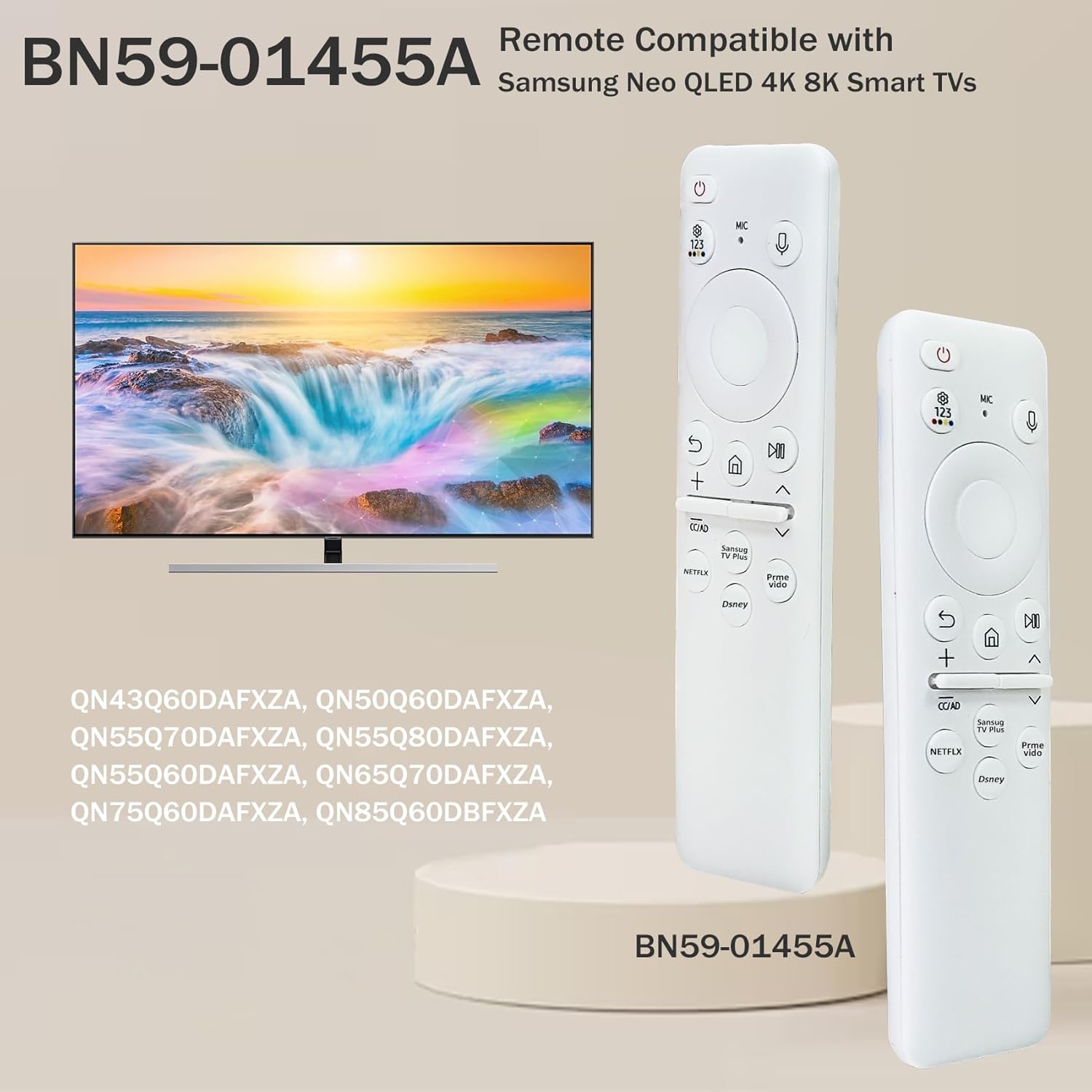
Image 2.1: The remote control displayed with a Samsung TV, illustrating its compatibility with various models.
3. Setup and Pairing
Follow these steps to set up and pair your remote control with your Samsung Smart TV:
- Initial Charge: Before first use, ensure the remote has sufficient power. You can charge it via solar exposure or USB Type-C (see Section 5 for details).
- Automatic Pairing: In most cases, the remote control will pair automatically with your Samsung Smart TV when first used.
- Manual Pairing: If automatic pairing does not occur, point the remote control towards your TV. Press and hold the Back button (
 ) and the Play/Pause button () simultaneously for 3 seconds or more.
 - Confirmation: A message indicating "Pairing has begun" or similar will appear on your TV screen once the pairing process starts. The indicator light above the power button will illuminate during this process.
- Completion: Once paired, you can begin using your remote control.
Image 3.1: Visual guide for manual pairing, highlighting the Back and Play/Pause buttons.
4. Operating Instructions
4.1 Voice Function
After successful pairing, the remote's voice search function allows for hands-free control:
- Press and hold the Microphone icon button (
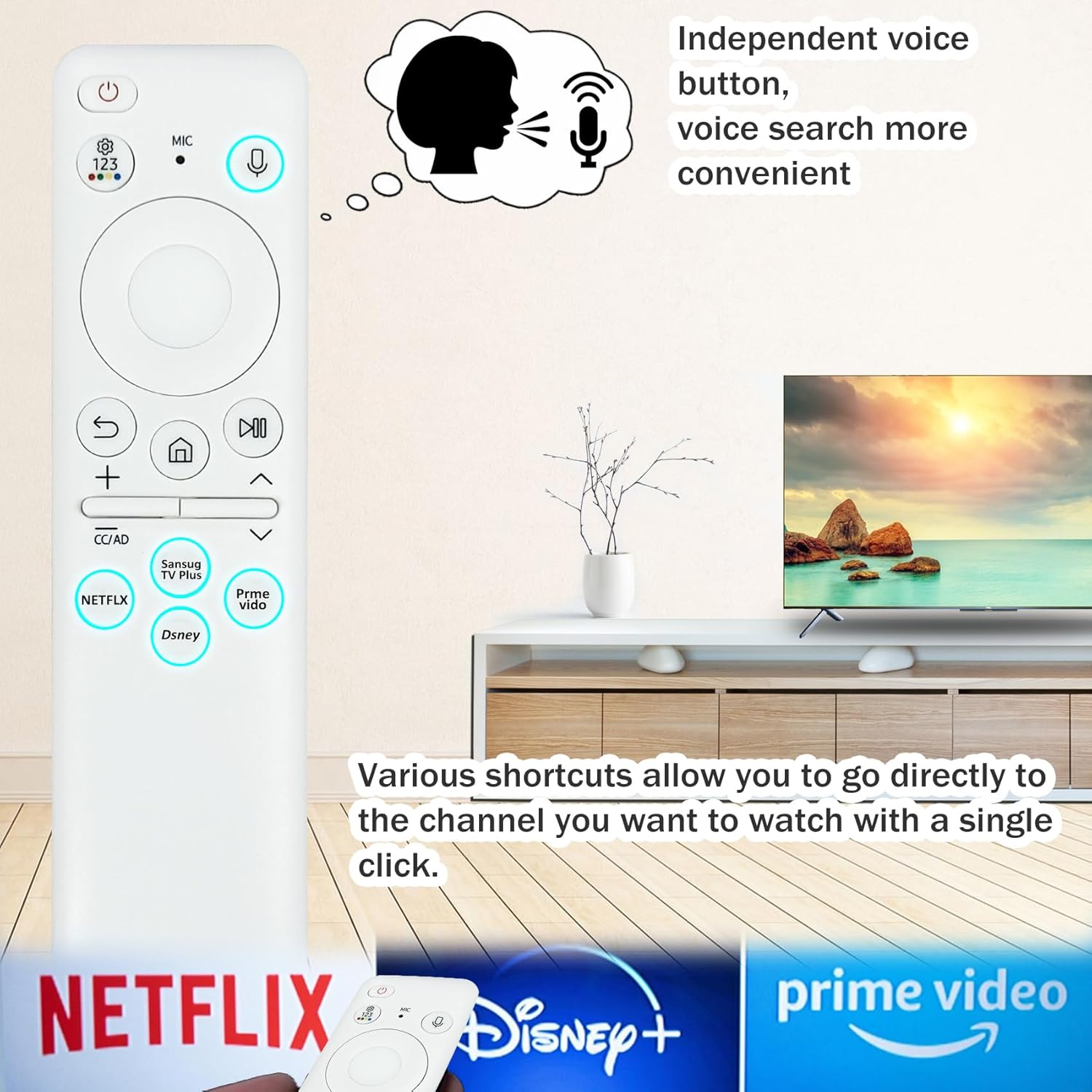 ) on the remote control.
 - Speak your command clearly into the remote. You can search for content, change channels, adjust volume, and more.
4.2 Shortcut Buttons
The remote features dedicated shortcut buttons for popular streaming services, providing one-touch access:
- Press the Netflix button to launch Netflix.
- Press the Disney+ button to launch Disney+.
- Press the Prime Video button to launch Prime Video.
- Press the Samsung TV Plus button to launch Samsung TV Plus.
Image 4.1: The remote control showing the independent voice button and various shortcut buttons for direct access to streaming platforms.
5. Charging Instructions
Your remote control offers two convenient charging methods:
5.1 Solar Charging
- The remote features a solar charging panel on its back.
- To charge, simply place the remote control in a location exposed to sunlight or indoor light.
- Regular exposure to light helps maintain the battery charge and prolongs the remote's operational time.
5.2 USB Type-C Charging
- For faster charging or when light exposure is limited, you can use a USB Type-C cable (not included).
- Connect the USB Type-C cable to the port on the remote control and to a compatible USB power source.
- During USB charging, an LED light on the front of the remote will illuminate. This light will turn off once the battery is fully charged.
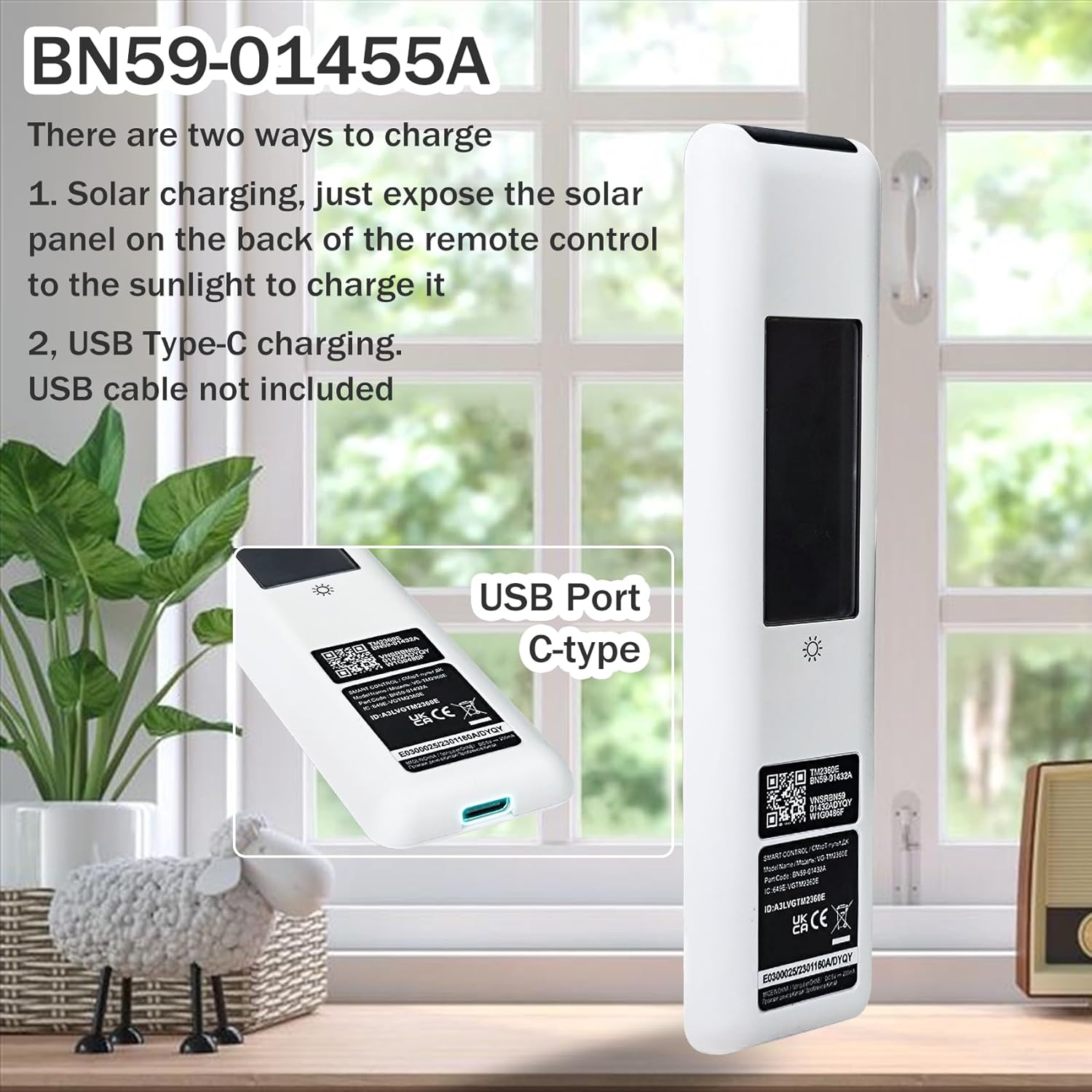
Image 5.1: The remote control illustrating both solar charging via the back panel and USB Type-C charging port.
6. Maintenance
To ensure the longevity and optimal performance of your remote control, follow these maintenance guidelines:
- Cleaning: Use a soft, dry cloth to clean the remote control. Avoid using abrasive cleaners or solvents, as these can damage the surface.
- Storage: When not in use, store the remote in a cool, dry place away from direct sunlight and extreme temperatures.
- Charging: Regularly expose the remote to light to utilize its solar charging capability, even if you primarily use USB-C charging. This helps maintain battery health.
- Protection: Avoid dropping the remote or exposing it to liquids.
7. Troubleshooting
If you encounter issues with your remote control, refer to the following troubleshooting tips:
- Remote Not Responding:
- Ensure the remote is charged. Try solar charging or connect a USB Type-C cable.
- Re-attempt the pairing process as described in Section 3.
- Ensure there are no obstructions between the remote and the TV.
- Voice Function Not Working:
- Confirm the remote is successfully paired with the TV.
- Ensure you are pressing and holding the microphone button while speaking.
- Check your TV's settings to ensure voice control is enabled.
- Charging Indicator Not Lighting Up (USB-C):
- Verify the USB Type-C cable is securely connected to both the remote and the power source.
- Try a different USB Type-C cable or power adapter.
- The LED light turns off when fully charged; if the remote is already full, the light will not illuminate.
If these steps do not resolve the issue, please contact customer support for further assistance.
8. Specifications
| Feature | Detail |
|---|---|
| Model Number | BN59-01455A |
| Brand | Bxmgr |
| Connectivity | Bluetooth |
| Special Feature | Voice Control, Solar Charging |
| Charging Methods | Solar, USB Type-C |
| Compatible Devices | Samsung Smart Televisions |
| Item Weight | 1.76 ounces |
| Package Dimensions | 5.71 x 1.89 x 0.91 inches |
| Batteries | 1 9V battery required (included) |
9. Warranty and Support
Bxmgr provides up to 5 years of after-sales service for the BN59-01455A Solar Voice Remote Control. If you have any questions, concerns, or require assistance, please contact us through your order details.
Our support team is committed to providing a solution within 12 hours to ensure your satisfaction with your purchase and after-sales experience.


